registry_error bsod fix windows 11: stop after 2 repairs
REGISTRY_ERROR is bug check 0x00000051, and it indicates that a severe registry error has occurred. In many cases, this means something has gone wrong with the registry, possibly because the registry encountered an I/O error while trying to read one of its files. This guide shows the main checks, the repair steps worth trying, and when storage problems are more likely than Windows corruption.
This guide is part of our Windows BSOD stop codes: full list and fixes series.
Why am I getting a registry_error BSOD on Windows 11?
This stop code can point to a registry problem, including an I/O error while Windows reads registry files. It can happen because of hardware problems or file system corruption, and it may also occur due to a failure in a refresh operation.
It can also be caused by a compatibility problem with an application or security software, or by corruption in the current setup or damaged files in the installation media (reported by windowscentral.com). If the machine still reaches Windows, collect the stop code and minidump path before changing anything.
According to Řešení potíží s neočekávanými restartováními systému Windows a… —
What should I try first when Windows 11 won’t boot after a registry error?
Start in WinRE. Then check whether Safe Mode still opens. If Windows cannot boot normally, WinRE can provide Startup Repair, Command Prompt, Safe Mode options, and reset tools; if you can reach Safe Mode, that may give you a chance to back up files before deeper repair.
- Power on, then interrupt boot until WinRE opens, or use Settings > System > Recovery > Advanced startup > Restart now.
- Choose Troubleshoot > Advanced options > Startup Repair.
- If that fails, return to Advanced options > Startup Settings and restart into Safe Mode.
- Back up any files that still open before trying disk repair or reset.
If Safe Mode loads, use it to copy data and check whether the issue repeats outside normal startup.
How do I fix registry_error bsod in Windows 11?
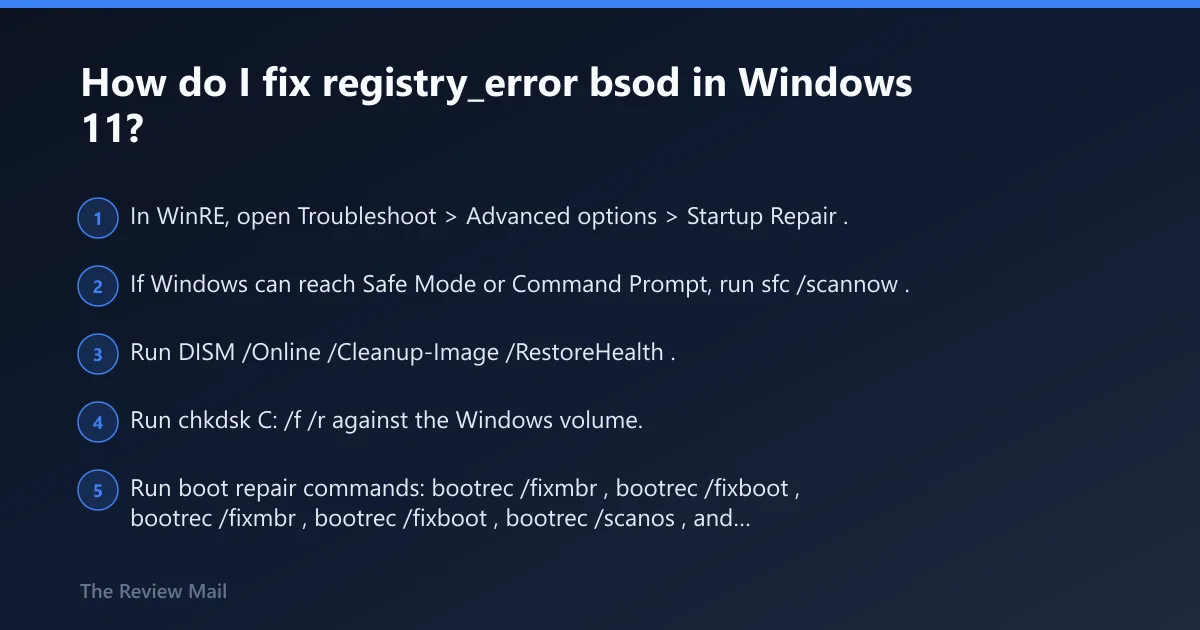
Use the repair ladder in this order: Startup Repair, then SFC and DISM, then CHKDSK, then bootrec, and finally reset or reinstall only if the drive still reads normally. I follow that order because boot repair can fix damaged startup files, while SFC and DISM target Windows file integrity.
- In WinRE, open Troubleshoot > Advanced options > Startup Repair.
- If Windows can reach Safe Mode or Command Prompt, run
sfc /scannow. - Run
DISM /Online /Cleanup-Image /RestoreHealth. - Run
chkdskC: /f /r against the Windows volume. - Run boot repair commands: bootrec /fixmbr, bootrec /fixboot, bootrec /scanos, and bootrec /rebuildbcd.
- If restore points are missing or broken, use Reset This PC from WinRE.
sfc /scannow
DISM /Online /Cleanup-Image /RestoreHealth
chkdsk C: /f /r
bootrec /fixmbr
bootrec /fixboot
bootrec /scanos
bootrec /rebuildbcd
How do I remove write protection from a Windows 11 drive?
First identify the Windows disk, then clear its read-only flag in DiskPart. If the drive is writable at the disk layer but still blocked, check the registry write-protect setting and set WriteProtect to 0. A wrong disk selection here can wipe the wrong device, so confirm the disk number twice.
- Open Command Prompt in WinRE.
- Type diskpart.
- Run list disk and identify the Windows disk from size and model.
- Run select disk X with the correct disk number.
- Run attributes disk clear readonly.
- Type exit to leave DiskPart, then retry the repair.
- If the block remains, open Registry Editor and check StorageDevicePolicies; set WriteProtect to 0.
If the drive stays read-only after that, stop treating it like a software problem.
Likely causes, ranked from common to worst
Most often, the failure is corrupted system files, registry hives, or boot data. Less commonly, a disk-level write-protect flag blocks writes. Worst of all is a failing NVMe SSD or other storage device that keeps dropping offline or returning I/O errors.