attempted_write_to_readonly_memory BSOD fix for Windows 11
If attempted_write_to_readonly_memory appears once, restart and check the last driver or update; if it repeats, treat it as a driver or hardware fault and test memory and storage before changing settings. Repeat crashes can lead to boot loops, damaged files, and lost work. This guide separates a one-off software clash from a repeat fault, and shows what to check first,.
What ATTEMPTED_WRITE_TO_READONLY_MEMORY means
This stop code has a value of 0x000000BE. It is issued if a driver attempts to write to a read-only memory segment.
What to note before you change anything
Write down the exact stop code, the time it happened, and whether the crash followed a driver update, a game launch, a dock attach, or a boot attempt. Save the minidump from C:\Windows\Minidump if one exists, and open Event Viewer to capture the bug check entry before you reinstall or remove anything.
One crash or a pattern?
Classify the crash first. A single BSOD can point to a one-time software clash, while repeat crashes often suggest a bad driver, a flaky device, or hardware that keeps failing under the same conditions. The pattern tells you what to test first and what evidence to keep.
| Branch | First three actions | Evidence to collect |
|---|---|---|
| Single isolated BSOD | 1) Restart normally. 2) Check Windows Update and recent driver installs from the last few days. 3) Note the app or device active at the time. | Minidump file, Event Viewer bug check entry, recent update history. |
| Repeated after one driver update | 1) Open Device Manager. 2) Roll back or uninstall the last driver change. 3) Reboot and retest the original app or boot path. | Driver version before and after, install date, repeat crash timing. |
| Repeated under gaming or load | 1) Check recently changed device drivers. 2) Test with Safe Mode with Networking. 3) Run memory and file checks. | Temp/load pattern, game name, GPU driver version, any artifact or freeze before the crash. |
| Repeated at boot | 1) Enter WinRE and Safe Mode. 2) Remove the last driver or startup change. 3) Test RAM and firmware settings. | Boot loop point, Safe Mode result, any BIOS changes, minidump if available. |
What usually causes this stop code?
Common causes include a recently changed driver, a memory problem, storage corruption, firmware settings that are not compatible with current hardware, or system files damaged during an update. The first clue is usually the crash pattern, not the message text.
Driver problems that rank highest
A recent graphics driver, chipset package, storage controller driver, or security filter driver is the first place to look when the crash follows an update or appears under load. A driver can run fine for a while and then fail when a game, sleep resume, or device handoff pushes a weak path.
RAM and storage faults
Bad RAM can surface here, but it is a stronger suspect when the crash repeats across different drivers and apps. Storage faults usually show extra signs, such as file corruption, install failures, or crashes that happen during updates and large file copies.
Firmware and BIOS settings
BIOS or UEFI settings matter when the system started crashing after hardware changes, a firmware flash, or a major Windows update. A firmware change or default reset can help when custom settings are involved.
Third-party security or filter software
Security suites, encryption tools, backup agents, and filter drivers can trigger this stop code because they sit low in the stack. If the crash started right after installing one of those tools, treat it as a possibility before you blame Windows itself.
How do I troubleshoot in Safe Mode?
Safe Mode helps when normal boot fails because it starts Windows with fewer drivers and services. That gives you a clean path to remove or roll back the last change, and Safe Mode with Networking lets you fetch a clean driver package if the machine still stays stable enough to connect.
Boot to WinRE and open Advanced startup
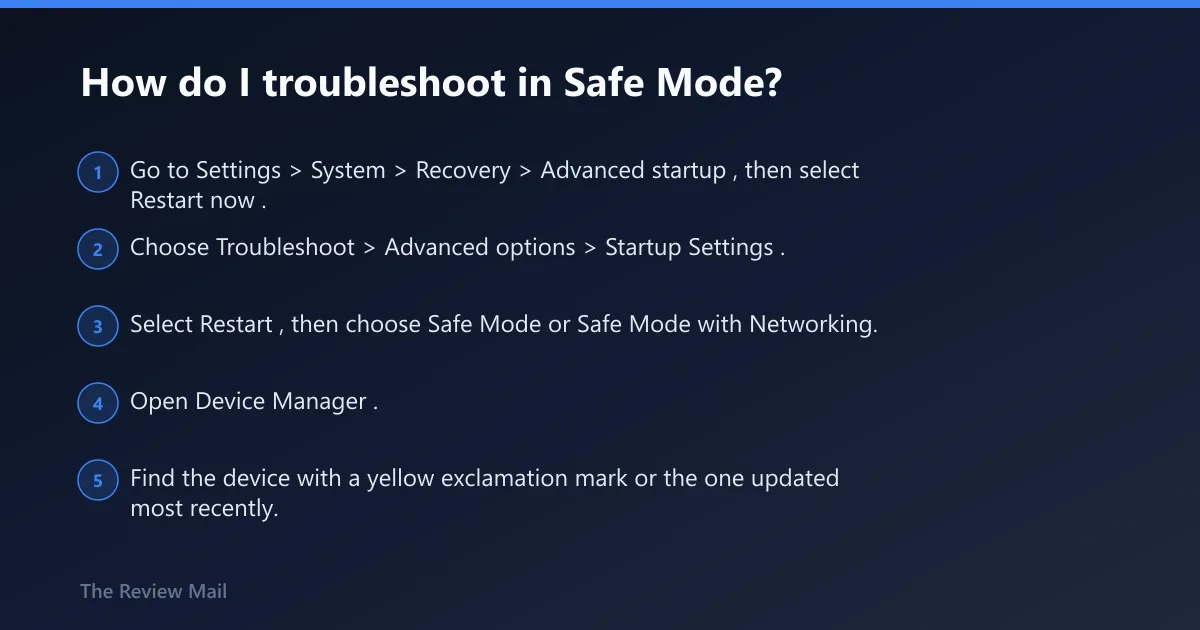
- Go to Settings > System > Recovery > Advanced startup, then select Restart now.
- Choose Troubleshoot > Advanced options > Startup Settings.
- Select Restart, then choose Safe Mode or Safe Mode with Networking.
Use Safe Mode to remove a suspect driver
- Open Device Manager.
- Find the device with a yellow exclamation mark or the one updated most recently.
- Open Properties > Driver, then choose Roll Back Driver or Uninstall device.
SupportAssist and Dell diagnostics can run after Safe Mode if the machine is a Dell. They are useful when you need a vendor test result or an error code for support.
Safe Mode path:
Settings > System > Recovery > Advanced startup > Restart now > Troubleshoot > Advanced options > Startup Settings

Driver rollback path:
Device Manager > (device) > Properties > Driver tab > Roll Back Driver / Uninstall device

Collect:
C:\Windows\Minidump\*.dmp
Event Viewer > Windows Logs > System
Recent driver update history
Which driver should I update, roll back, or uninstall first?
Start with the driver that changed most recently, then move to the driver class most tied to the crash pattern. If the problem began after a driver install, roll it back before trying a newer package. If Device Manager shows a warning icon, work that device first.
Check Device Manager for warning icons
- Open Device Manager.
- Look for yellow exclamation marks.
- Open the device, then review Driver details and the install date.
Decide between update, roll back, and uninstall
- If the crash began after a fresh driver, choose Roll Back Driver first.
- If the driver is old or missing from the vendor package, choose Update driver.
- If the driver looks corrupt or the device is clearly the trigger, choose Uninstall device, then reboot and let Windows reload it or install a known-good package.
Should I run SFC, DISM, or CHKDSK?
Run SFC when Windows files may be damaged, pair it with DISM when the image may be unhealthy, and reserve CHKDSK for storage symptoms such as file corruption, install errors, or repeated disk warnings. These tools do not replace driver triage; they come after the pattern points away from a single bad driver.
Run SFC from an elevated Command Prompt
- Open Command Prompt as administrator.
- Run
sfc /scannow. - Reboot and check whether the crash returns.
Pair SFC with DISM when Windows files look damaged
- Open admin Command Prompt.
- Run
DISM /Online /Cleanup-Image /RestoreHealth. - Run
sfc /scannowagain after DISM finishes.
When CHKDSK makes sense and when it does not
- Use
chkdskonly if the system shows storage signs such as corruption or disk warnings. - Do not use it as the first move for a driver-linked crash.
- If storage symptoms exist, schedule the disk scan and then retest the original app or boot path.
sfc /scannow
DISM /Online /Cleanup-Image /RestoreHealth
chkdsk
Could RAM, BIOS, or firmware be the real cause?
Yes, especially when the crash repeats under load, at boot, or after a hardware or firmware change. Run a memory test next, then consider BIOS or UEFI if the pattern still points to instability. A firmware reset to defaults can also help when custom settings are in play.
Run Windows Memory Diagnostic with mdsched.exe
- Press Win + R, type mdsched.exe, and press Enter.
- Choose to restart and test now.
- Review the result after Windows boots again.
Check whether a BIOS or UEFI update is warranted
- Open the system’s firmware setup screen during startup.
- Check the installed BIOS or UEFI version against the vendor’s support package.
- If the crash began after a new CPU, RAM kit, SSD, or major update, install the vendor-recommended firmware update by following the manufacturer’s published steps for that model.
Reset firmware defaults when instability points there
- Enter BIOS or UEFI setup.
- Load setup defaults or optimized defaults.
- Save and reboot, then retest before changing anything else.
Prevention
When the machine is stable again, keep the last known-good driver version noted in a text file. That makes rollback faster the next time a new package triggers the same stop code.
If that didn’t work, try this next
If the crash keeps returning after driver rollback, file repair, and memory testing, move to the most invasive path: uninstall the suspect driver in Safe Mode, test with clean boot, then consider vendor hardware diagnostics or a full reset. Do not keep stacking random fixes once the same pattern repeats.
- Boot to Safe Mode again.
- Remove the suspected driver or security tool.
- Run vendor diagnostics such as Dell SupportAssist or Dell diagnostics, then review any error codes they generate.
Frequently asked questions
What does attempted write to readonly memory mean in Windows 11?
It means a driver tried to write where Windows marked memory as read-only, which can crash Windows 11 and Windows 10. The first thing to check is whether it happened once or repeatedly, then look at the last driver change and the minidump before altering more settings.
Is attempted_write_to_readonly_memory usually a driver problem or RAM problem?
Start with drivers, especially GPU, chipset, storage, and security software. RAM becomes more likely when the crash repeats across different apps and after driver rollback. A quick next step is Device Manager plus mdsched.exe, not a blind parts swap.
How do I fix attempted write to readonly memory BSOD in Windows 11?
Begin in Safe Mode through WinRE, roll back or uninstall the last changed driver in Device Manager, then run sfc /scannow and DISM /Online /Cleanup-Image /RestoreHealth. If it repeats under load, add Windows Memory Diagnostic and a firmware check.
Should I update, roll back, or uninstall a driver first?
Roll back first when the crash started right after a new driver install. Update first when the device is clearly stale and no recent change lines up with the crash. Uninstall first when the driver looks corrupt, the device is the repeated trigger, or Windows keeps crashing during boot.
Can Safe Mode help me troubleshoot this stop code?
Yes. Use Settings > System > Recovery > Advanced startup > Restart now, then choose Troubleshoot > Advanced options > Startup Settings and select Safe Mode or Safe Mode with Networking. That path lets you remove a suspect driver when normal boot keeps crashing.
Do I need to run SFC, CHKDSK, or Windows Memory Diagnostic?
Run SFC when system files may be damaged, CHKDSK only when storage symptoms point there, and Windows Memory Diagnostic when the crash repeats under load or at boot. The sequence matters: driver checks first, then file repair, then memory and disk testing.
Can a BIOS update fix attempted write to readonly memory?
It can, if the crash follows a new device, an unstable firmware setting, or a board-level compatibility issue. If that pattern is present, check the vendor BIOS release notes, update through the vendor’s published workflow, and consider loading firmware defaults before retesting.
How do I tell if this BSOD was a one-time glitch or a real hardware issue?
A single crash that never returns after a restart often points to a one-time clash. Repeat crashes at boot, under heavy load, or after the same driver change can point to hardware or a persistent driver fault. Preserve the minidump and Event Viewer entry before making another change.