kernel_security_check_failure bsod fix for Windows 11
KERNEL_SECURITY_CHECK_FAILURE on Windows 11 usually points first to a recent driver change or another recent system change; start with the last change, and if it began after an update or new device, test that item first. Ignore it and the machine can slide from random blue screens into boot loops, lost work, and damaged files. This guide gives a triage-first decision tree, then the exact fixes for drivers, memory, storage, BIOS, and Windows repair. For the source, see.
What KERNEL_SECURITY_CHECK_FAILURE means on Windows 11
This stop code is commonly identified as bug check 0x00000139. It means the kernel detects the corruption of a critical data structure. The loader did not properly initialize the stack cookie security cookie. The fastest first check is the last change: a new driver, update, device, BIOS tweak, or memory profile. Crash timing matters. A boot loop points somewhere different from a crash that appears only under gaming load.
What symptoms matter before you start fixing anything
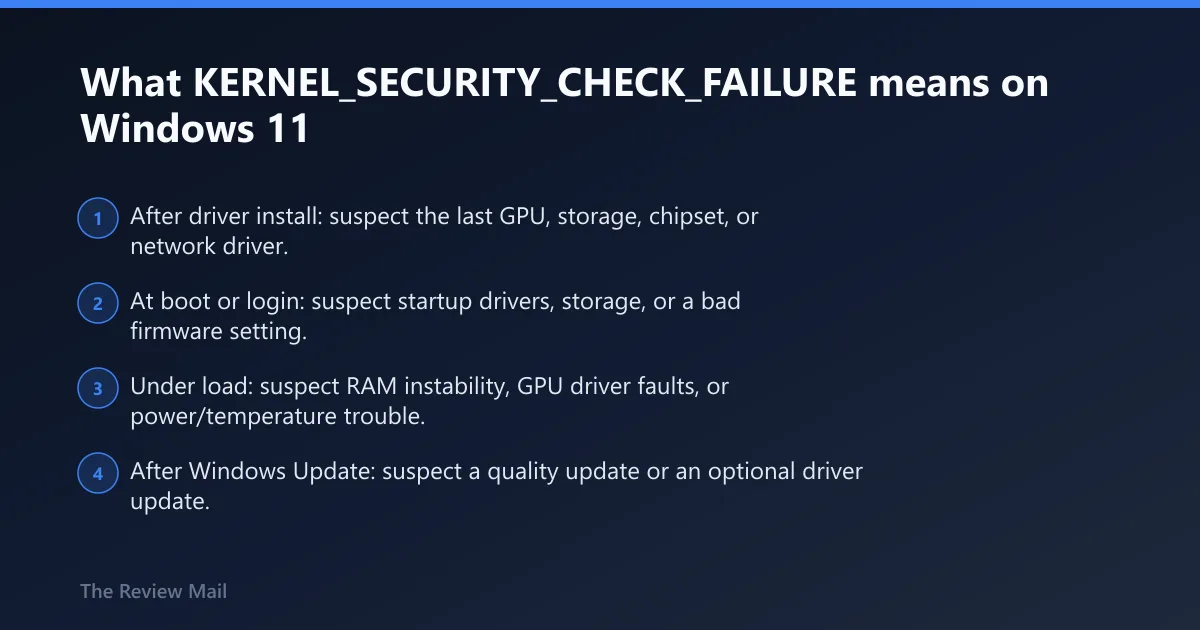
- After driver install: suspect the last GPU, storage, chipset, or network driver.
- At boot or login: suspect startup drivers, storage, or a bad firmware setting.
- Under load: suspect RAM instability, GPU driver faults, or power/temperature trouble.
- After Windows Update: suspect a quality update or an optional driver update.
What usually causes this BSOD?
Common triggers include a driver problem, memory instability, a damaged system or disk state, an incompatible driver build, or unstable firmware settings. Crash timing changes the odds. A fresh driver install makes that driver the lead suspect. Load-only crashes push memory stability higher on the list.
Likely causes, ranked by the clues you already have
- Driver issues: recent install, update, or version mismatch.
- Memory instability: RAM errors, XMP/EXPO effects, borderline timings.
- Storage errors: file-system corruption or a failing SSD/HDD.
- System file damage: Windows image or file corruption.
- Firmware problems: BIOS/UEFI compatibility or unstable defaults.
Use this triage table to narrow the cause
| Trigger pattern | Likely cause | Fastest verification step | Safest fix path |
|---|---|---|---|
| Crash after driver install | GPU, storage, chipset, or network driver mismatch | Device Manager > Properties > Driver tab > check version and date | Safe Mode, then Roll Back Driver or Uninstall device |
| Crash at boot or login | Startup driver, storage issue, or firmware setting | Safe Mode boot and review recent changes | Remove the last driver, then reset unstable BIOS settings |
| Crash under gaming load | GPU driver, RAM instability, or XMP/EXPO profile | Disable XMP/EXPO and repeat the same load | Use a known-good GPU driver, then memory testing |
| Crash after Windows Update | Quality update, optional driver update, or rollback issue | View update history and installed drivers | Uninstall the last update or rollback the driver |
Did a driver change trigger the crash?
A recent driver change is one of the strongest clues you can get. GPU, storage, chipset, and network drivers are the usual suspects because they touch kernel paths often and can corrupt structures quickly when the version does not fit the hardware or the current Windows build. Windows 11 will sometimes push an optional driver update that looks harmless and is not.
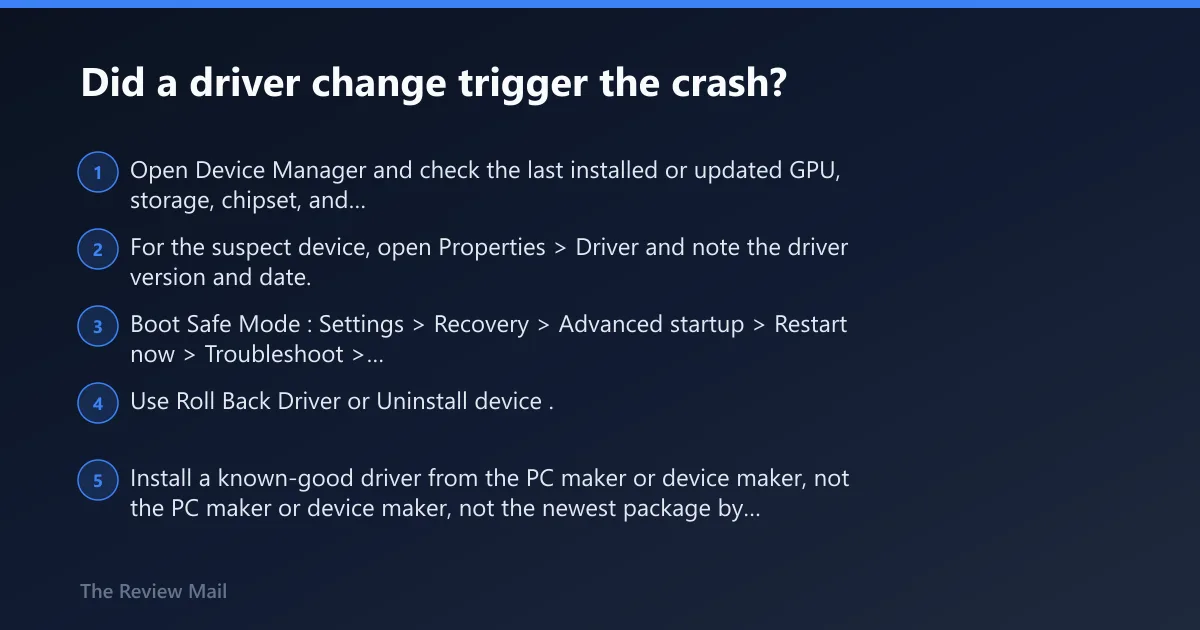
- Open Device Manager and check the last installed or updated GPU, storage, chipset, and network device.
- For the suspect device, open Properties > Driver and note the driver version and date.
- Boot Safe Mode: Settings > Recovery > Advanced startup > Restart now > Troubleshoot > Advanced options > Startup Settings.
- Use Roll Back Driver or Uninstall device.
- Install a known-good driver from the PC maker or device maker, not the newest package by default.
- If Windows Update keeps reapplying it, pause updates or use the Windows Update settings to review and remove the latest driver update if applicable.
Safe Mode entry: Settings > Recovery > Advanced startup > Restart now > Troubleshoot > Advanced options > Startup Settings
Driver rollback path: Device Manager > (device) > Properties > Driver tab > Roll Back Driver / Uninstall device
Is RAM or storage instability the real problem?
If the crash appears under gaming, compiling, rendering, or any heavy load, memory instability moves up the list. XMP or EXPO can expose weak RAM settings even when Windows seems fine at idle. Storage faults matter too, because file-system corruption and boot-drive problems can disturb the kernel at startup and during heavy paging.
- Turn off XMP or EXPO in BIOS/UEFI and load defaults.
- Run Windows Memory Diagnostic with
mdsched.exeor usememtest86. - Open Command Prompt as administrator and run
chkdsk C: /f. - Check SSD or HDD health in the drive maker’s tool if available.
- If the crash stops after memory settings are relaxed, keep the lower setting and retest the same workload.
Run the built-in Windows repair tools in the right order
Run DISM first when the Windows image may be damaged, then run SFC so it can repair files against a clean component store. SFC fixes protected system files; DISM repairs the image that SFC depends on. These are worth doing when crashes started after an update, a bad shutdown, or repeated failed boots.
- Open Command Prompt as administrator.
- Run
DISM /Online /Cleanup-Image /RestoreHealth. - After it finishes, run
sfc /scannow. - Reboot and test the same activity that caused the BSOD.
- If the crash continues with the same pattern, move back to drivers or hardware.
DISM /Online /Cleanup-Image /RestoreHealth
sfc /scannow
How do I check the minidump for KERNEL_SECURITY_CHECK_FAILURE?
Minidumps are usually stored in the system Minidump folder, and full dumps are usually stored in the system memory dump file. A minidump contains the crash stop code, stack trace, loaded modules, and the thread that failed. That often points to the bad driver or module instead of forcing guesswork. When the dump implicates a storage driver or memory manager path, hardware rises on the list.
- Open File Explorer and check the system Minidump folder for the newest file.
- Note the crash time and match it to the last driver or update change.
- Open the dump in a debugger or send it to the hardware vendor if the stack names a device driver.
- Look for the module name in the stack trace, not just the stop code.
- If the same module appears in more than one dump, that is your best lead.
Still crashing after that?
If the crash still repeats, BIOS/UEFI becomes the next place to check. A firmware update can fix hardware compatibility, while a reset to defaults can clear an unstable memory or CPU setting. If the machine only started failing after a Windows update, uninstall the last quality update or optional driver update before taking the system apart.
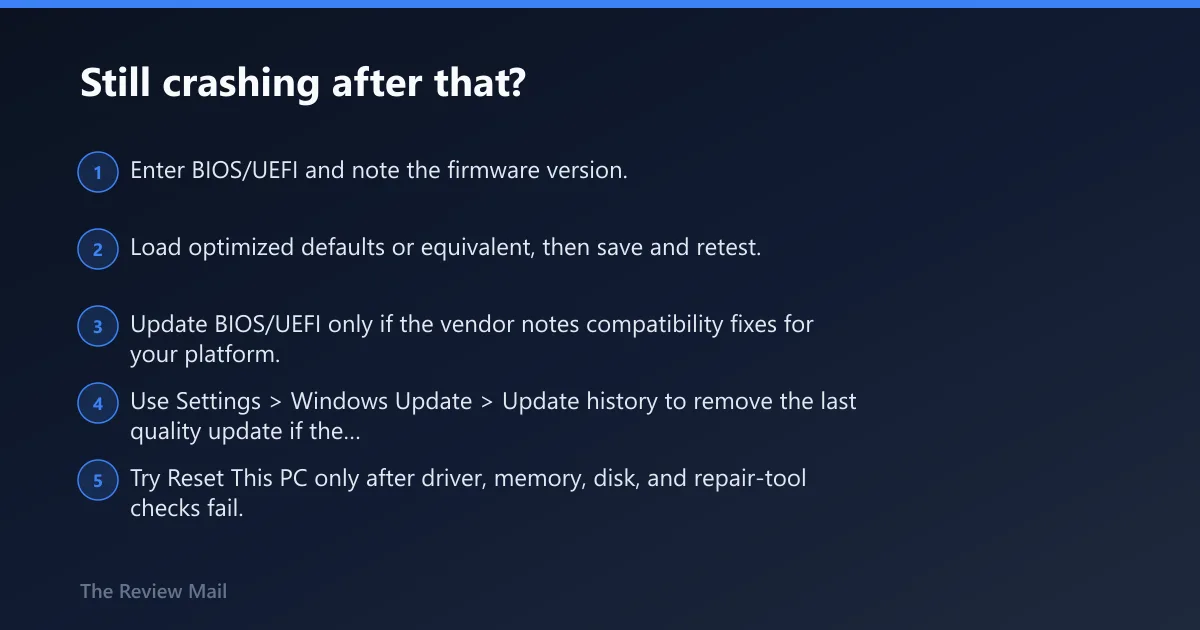
- Enter BIOS/UEFI and note the firmware version.
- Load optimized defaults or equivalent, then save and retest.
- Update BIOS/UEFI only if the vendor notes compatibility fixes for your platform.
- Use Settings > Windows Update > Update history to remove the last quality update if the timing fits.
- Try Reset This PC only after driver, memory, disk, and repair-tool checks fail.
Prevention: After the system is stable, keep one driver path at a time. Do not stack a BIOS update, GPU update, and memory tuning change on the same day if you want a clear blame trail next time.
Frequently asked questions
How do I fix KERNEL_SECURITY_CHECK_FAILURE in Windows 11?
Start with the last change, then boot Safe Mode and remove the most recent driver or update that fits the crash timing. If the system stays stable, run DISM, then SFC, then test memory with Windows Memory Diagnostic or memtest86. Finish with a known-good driver and a storage check if the same stop code returns.
What causes kernel_security_check_failure BSOD on Windows 11?
The usual causes include a driver problem, unstable RAM settings, disk corruption, a damaged Windows image, an incompatible driver build, or a loader initialization problem with the stack cookie. Crash timing is the best clue.
Is kernel_security_check_failure a driver problem or bad RAM?
Often it is a driver problem first, but load-only crashes make memory instability more likely. If the blue screen appears right after a GPU or storage driver change, start there. If it happens during games or stress, disable XMP or EXPO and run a memory test before reinstalling drivers again.