0x000000da: What It Means and How to Fix It in Windows
0x000000da is a BSOD stop code that usually points to a hardware or driver fault, so the right move is to read crash evidence first and split the case by memory, storage, GPU, or kernel driver clues. If you guess and swap parts blindly, you can waste hours, lose data, and hide the failing component. This guide shows how to collect minidumps, check Event Viewer, use Driver Verifier carefully, and decide when the fault belongs to RAM, storage, a device driver, or the board.
This guide is part of our Windows BSOD stop codes: full list and fixes series.
What does 0x000000da mean in Windows?
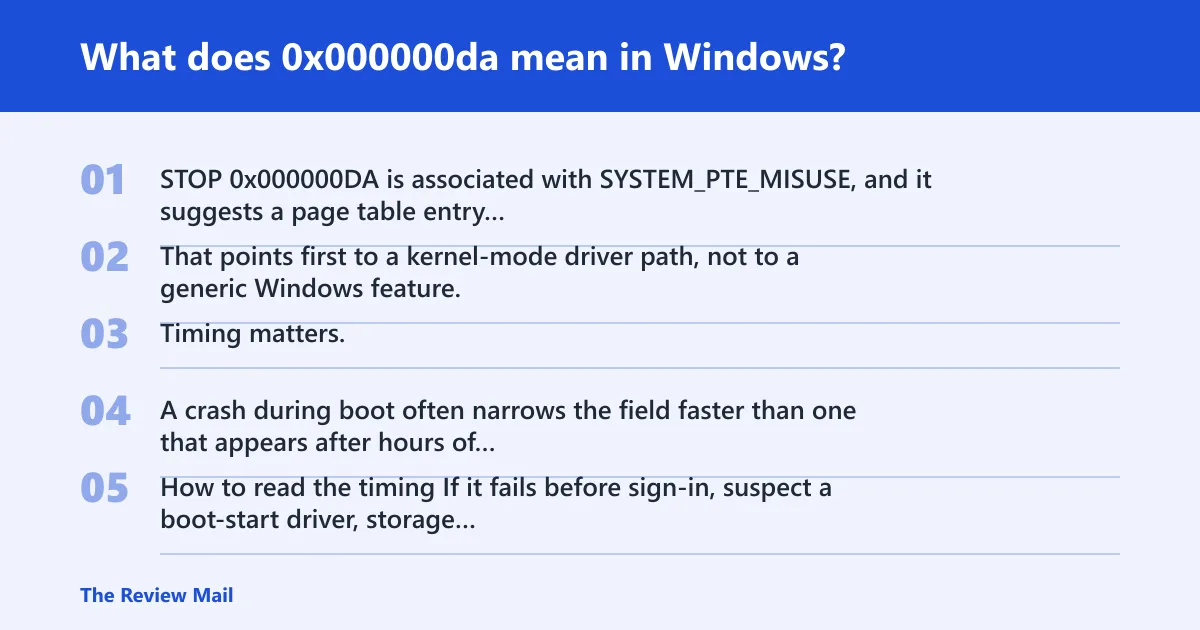
STOP 0x000000DA is associated with SYSTEM_PTE_MISUSE, and it suggests a page table entry routine was used incorrectly. That points first to a kernel-mode driver path, not to a generic Windows feature. Timing matters. A crash during boot often narrows the field faster than one that appears after hours of normal runtime.
How to read the timing
If it fails before sign-in, suspect a boot-start driver, storage controller path, or firmware interaction. If it fails only under load, a GPU, chipset, memory, or filter driver becomes more likely. A crash that began right after a driver or Windows update is a different branch than one that started after a new SSD, RAM kit, or BIOS change.
What the code does and does not tell you
The code does not name one component. It tells you the failure happened in the path that manages PTEs, so the best next step is to collect dump evidence before touching settings. Per Microsoft support, the parameter values can narrow the misuse pattern, including duplicate frees, wrong mapping counts, and changed MDL fields.
What usually causes 0x000000da?
Most often this is a driver or driver-adjacent memory management problem. Less commonly, bad RAM, unstable storage, or firmware mismatch can make the same crash path appear. The fastest branch comes from symptom pattern: boot-loop crashes with no login often point lower in the stack than a desktop crash that appears only when a specific app or device wakes up.
Likely causes, ranked by evidence pattern
Use this as a triage map, not a verdict.
| Likely cause | Symptom pattern | Dump or log clue | Next test | Safe to try | High-risk |
|---|---|---|---|---|---|
| Driver misuse | Crashes after a driver update, new peripheral, sleep/wake, or specific app | Faulting module or stack trace names a third-party .sys file | WinDbg inspection, then targeted rollback or update | Yes | Driver Verifier on the whole system |
| Memory instability | Random crashes across apps, different stop codes, or failures under load | No clear third-party driver; memory-related corruption in the trace | Windows Memory Diagnostic, then extended memtest86 passes | Yes | Repeated overwrites of evidence before dumps are saved |
| Storage corruption | Boot problems, file corruption, update failures, or sudden restart loops | Disk, NTFS, or paging activity around the crash time | chkdsk and SSD health checks | Yes | Full reinstall before preserving dumps |
| Firmware or board instability | Crash appears after BIOS change, power event, or hardware swap | Evidence is noisy or inconsistent across dumps | Return BIOS to known-good settings, then test parts one by one | Sometimes | Overclocking, undervolting, or repeated forced power-offs |
Use the crash evidence first
Start with Windows Error Reporting, minidumps, Event Viewer, and Reliability Monitor before changing drivers or running repair tools. That gives you crash timing, repeat patterns, and the first clue about whether the problem is software, memory, storage, or firmware. A minidump cannot prove every cause, but it can point to the branch that deserves the next test.
Where to find the files
Minidumps usually live in C:\Windows\Minidump. WER data can be reviewed through Reliability Monitor and Event Viewer, then matched to the crash time. In Event Viewer, check Windows Logs > System for bug check events, disk warnings, display resets, and driver errors around the same minute.
What a minidump can prove
A dump can show the faulting module, a stack trace, and the stop context. It cannot prove that the named driver is the root cause in every case, because corruption from RAM or storage can poison the evidence. That is why the dump should be read with the event timeline and the recent-change list.
What to do in a crash loop
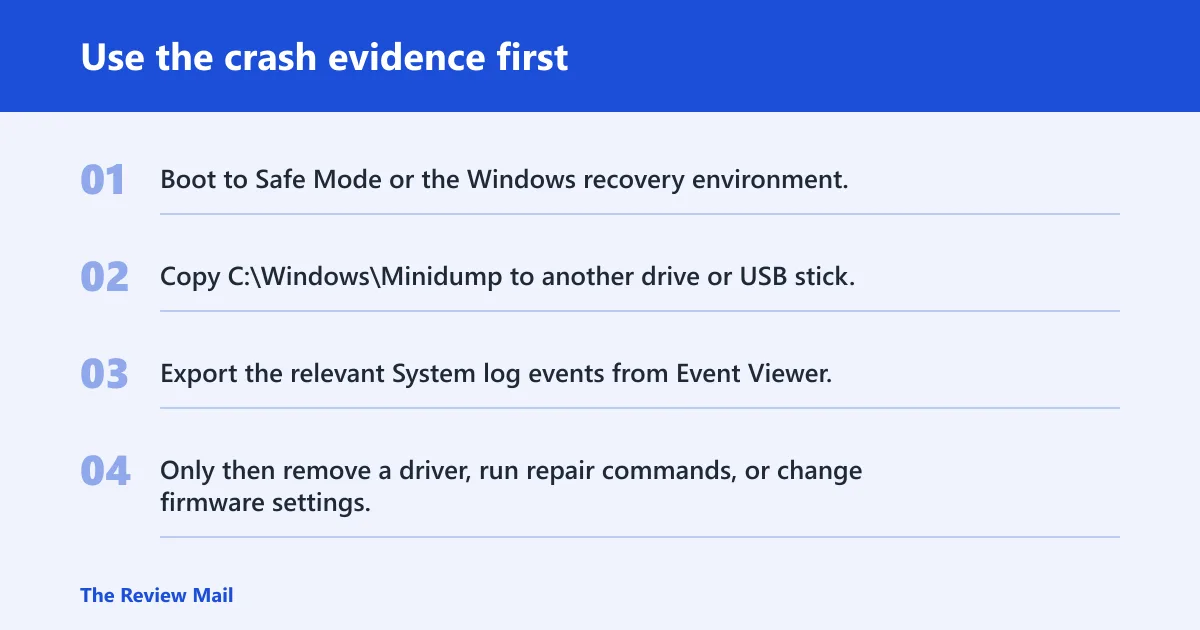
- Boot to Safe Mode or the Windows recovery environment.
- Copy
C:\Windows\Minidumpto another drive or USB stick. - Export the relevant System log events from Event Viewer.
- Only then remove a driver, run repair commands, or change firmware settings.
How do I identify the faulty driver behind 0x000000da?
WinDbg is the right tool when the dump points to a module name, stack frame, or suspicious kernel path. Use it to load symbols, inspect the bug check, and check whether a third-party driver appears near the top of the trace. If Driver Verifier is used, it is usually best aimed at a small suspect set, because stressing the whole system can sometimes cause a boot loop.
WinDbg and Driver Verifier in practice
- Open the newest dump in WinDbg.
- Run symbol setup, then inspect the crash context and loaded modules.
- Use the stack and module list to identify any non-Microsoft .sys file near the top.
- If one driver keeps appearing, update it or roll it back in Device Manager.
- Use Driver Verifier only for a narrow suspect set, not as a first move on an unstable booting PC.
Safe boundaries for Driver Verifier
Driver Verifier is for stress-testing suspect drivers so their misuse shows up faster. It is not a general repair tool. If the machine is already in a boot loop, avoid enabling it further until the dumps are saved. If Verifier triggers fresh crashes, disable it from Safe Mode after the test window closes.
Can bad RAM or storage cause 0x000000da?
Yes. Bad RAM can corrupt the data structures that the crash path depends on, and storage faults can damage the files or paging activity involved in the failure. Memory diagnostics help, but a single clean pass does not clear the machine. Storage checks matter too, especially when the crash began during updates or after power loss.
Memory diagnostics and when to rerun them
- Run Windows Memory Diagnostic from the Start menu.
- If the PC has repeated unexplained crashes, rerun with memtest86 for extended passes.
- Test one RAM stick at a time if the system uses multiple modules.
- Restore BIOS memory settings to stock before you judge the result.
A pass with no errors is useful, but not final. Marginal RAM often fails under heat or longer runtime, so extended passes are worth it when the crash is intermittent or the machine only fails under load.
Storage checks before replacement
- Open an elevated Command Prompt and run
chkdskon the system volume. - Check SSD health in the vendor tool if one is available.
- Review System log disk warnings and any reset events from the crash window.
- If the machine crashes during boot, test with a known-good drive before replacing the board.
How do I fix a 0x000000da blue screen on Windows 11?
On Windows 11, start with dump preservation, then repair the system files that can be fixed without changing hardware. If the crash started right after an update, roll that branch first. If it began after a new device or driver, remove the change before you run deeper repair steps. Keep the sequence simple.
Repair Windows files and update fallout
- Open an elevated Command Prompt.
- Run
sfc /scannow. - If SFC cannot repair everything, run
DISM /Online /Cleanup-Image /RestoreHealth. - Restart and recheck the dumps before repeating any other change.
SFC repairs protected system files. DISM repairs the Windows component store that SFC depends on, so DISM is often the better next step when the image itself is damaged. If the crash began immediately after Windows Update, use the Windows Update Troubleshooter and review update-related System events before assuming a hardware fault.
If the crash began after Windows Update
- Open Settings > System > Troubleshoot > Other troubleshooters and run the Windows Update Troubleshooter.
- Check View update history for the last successful install before the crash started.
- Roll back the most recent driver in Device Manager if a device update landed at the same time.
- Run SFC, then DISM, then retest.
What logs should I check for 0x000000da?
Check Event Viewer, Reliability Monitor, and Windows Error Reporting first. Those sources show whether the crash lined up with a driver install, a disk warning, a failed update, or a hardware reset. The best log set is the one that matches the exact minute of the crash, not a broad list from days earlier.
What to compare
- Reliability Monitor: look for the first red X before the BSOD started.
- Event Viewer > Windows Logs > System: note bug check, disk, display, and driver events at the crash time.
- Windows Error Reporting: confirm whether a minidump was written.
C:\Windows\Minidump: match the dump timestamp to the event window.
How to stop repeating the same guess
If the same third-party module appears in several dumps, that branch comes first. If dumps are missing or corrupted, focus on storage and memory before treating the driver as proven guilty. If logs show disk resets or update failures before the crash, do not skip the storage branch.
Still not working?
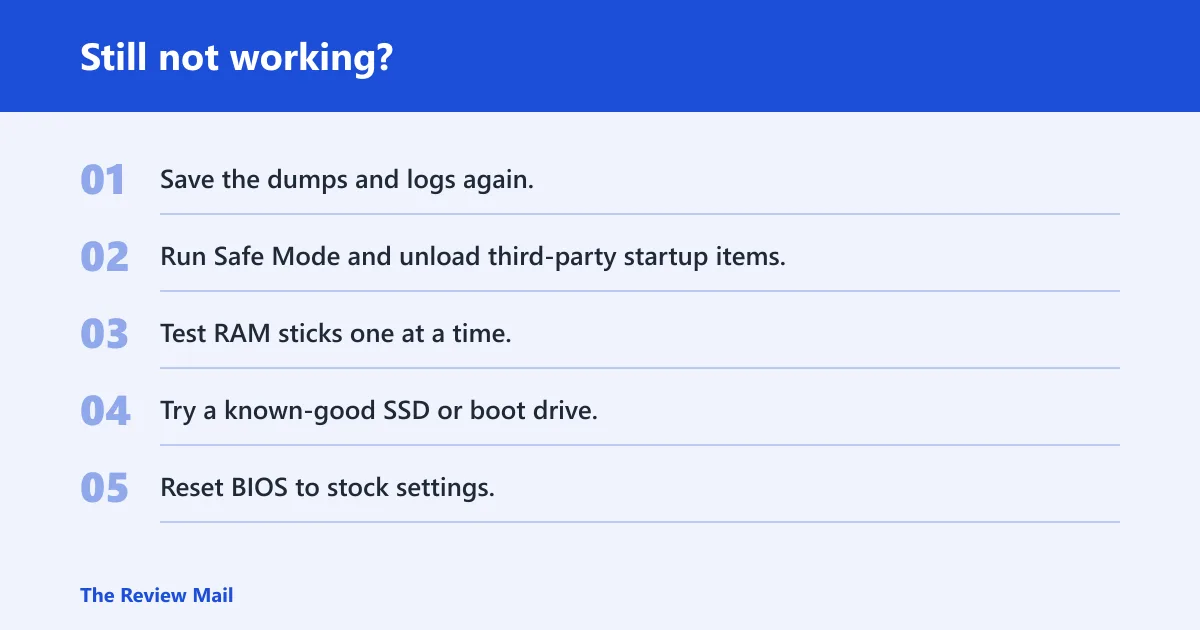
If the same crash returns after dumps, event logs, SFC, DISM, and a targeted driver rollback, stop software-only fixes. At that point the next escalation is hardware isolation: test RAM in single-stick mode, test the SSD in another system, remove all overclocks, and inspect PSU stability and motherboard firmware. If the machine still loops before login, hand it to vendor support or a repair shop that can test board-level faults.
Escalation ladder
- Save the dumps and logs again.
- Run Safe Mode and unload third-party startup items.
- Test RAM sticks one at a time.
- Try a known-good SSD or boot drive.
- Reset BIOS to stock settings.
- Escalate to PSU, motherboard, or GPU testing if the crash persists.
Prevention: keep BIOS settings at stock until the machine is stable, and install one driver or firmware change at a time so the next dump has a clear before-and-after point.
Frequently asked questions
What does 0x000000da mean in Windows?
It is the stop code for SYSTEM_PTE_MISUSE. In plain terms, a kernel routine handled a page table entry incorrectly. The best first move is to save the minidump, check the System log around the crash time, and then decide whether the evidence points to a driver, RAM, storage, or firmware branch.
Is 0x000000da a driver problem or hardware problem?
It can be either, but driver misuse comes first on the list. If a specific .sys file appears in multiple dumps, start there. If the crash is random, happens under load, or changes stop codes, test memory and storage next. A single dump rarely proves the whole story.
How do I fix a 0x000000da blue screen on Windows 11?
Copy the minidump, check Event Viewer and Reliability Monitor, run sfc /scannow, then DISM /Online /Cleanup-Image /RestoreHealth if needed. If the crash began after a driver or update, roll that change back in Device Manager or through Windows Update history before replacing hardware.
What causes stop code 0x000000da after a Windows update?
A driver updated at the same time is the usual clue, followed by component-store damage or a failed reboot sequence. Check update history, System log entries, and the newest dump. If the crash started right after Patch Tuesday, roll back the latest device driver first, then repair Windows files.
How do I identify the faulty driver behind 0x000000da?
Open the newest minidump in WinDbg, load symbols, and inspect the stack for a third-party driver. If one module keeps showing up, roll it back or update it in Device Manager. Driver Verifier can help isolate one suspect driver, but do not run it broadly on a system that already fails to boot.
Can bad RAM cause 0x000000da?
Yes. Memory faults can corrupt the structures that the crash path depends on. Run Windows Memory Diagnostic first, then memtest86 for extended passes if the problem keeps returning. If the machine has multiple sticks, test one stick at a time so a bad module does not hide in the mix.