0x000001ce Invalid Kernel Stack Address Fix for Windows
0x000001CE is the INVALID_KERNEL_STACK_ADDRESS bug check. It means an invalid initial kernel stack address was encountered during the context switch. Leave it alone and you can turn a bootable PC into a repeat-crash loop, then waste hours on the wrong fix. This guide gives a step-by-step path for driver, RAM, and boot checks, plus the next move after each result.
What 0x000001ce means
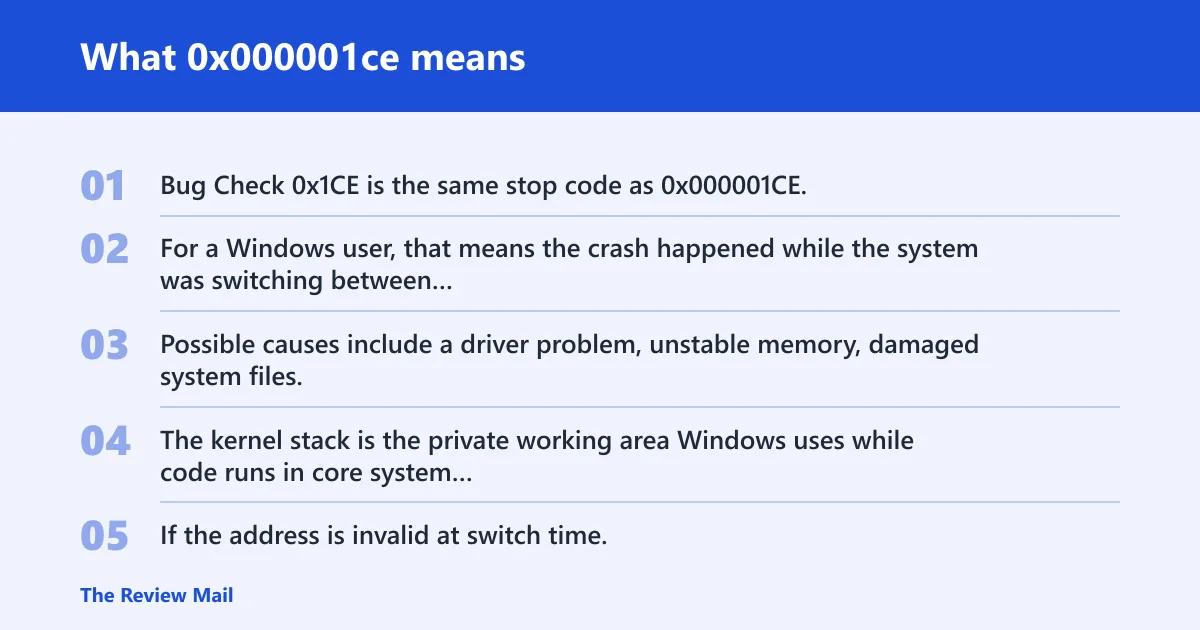
Bug Check 0x1CE is the same stop code as 0x000001CE, with the name INVALID_KERNEL_STACK_ADDRESS.
For a Windows user, that means the crash happened while the system was switching between threads or processes and found stack state that should not exist. Possible causes include a driver problem, unstable memory, damaged system files, or a boot-path issue.
What Windows is checking during the crash
The kernel stack is the private working area Windows uses while code runs in core system mode. If the address is invalid at switch time, Windows stops right away because continuing would risk more corruption.
Why this points to kernel, driver, or boot-state trouble
This stop code is not a general app crash. It lands low in the boot or runtime path, where driver code, memory instability, and damaged system files can all surface.
📊 The bug check value is 0x000001CE. Source: Bug Check 0x1CE Invalid_Kernel_Stack_Address.
How to read the crash pattern
A single crash after a driver update looks different from a machine that loops through the same blue screen every start. If Windows sometimes reaches the desktop, the problem usually sits closer to drivers or a recent change. If it fails before sign-in, storage, memory, or boot repair moves higher on the list.
One-off crash versus repeat crash
A one-off BSOD that never comes back after a restart often points to a temporary driver fault or a bad update. A repeating BSOD, especially one that appears at every boot, points to a lasting problem such as corrupted system files, a failing device driver that loads early, or hardware instability.
Clues from Safe Mode, startup, and login timing
If Safe Mode loads, third-party drivers may be more likely than hardware to be causing the issue. If the machine fails before Safe Mode, then the boot environment, storage, or memory moves up the list. If it crashes only after login, a startup program or display/storage driver can be the trigger.
Likely causes, ranked from most to least common
Most often, this stop code comes from a driver problem. Damaged system files or a failed update can also contribute. Memory faults and disk or boot problems matter too, but they rise in priority when the crash happens early, repeats at startup, or survives Safe Mode changes.
| Symptom pattern | Likely cause | First test | Escalation path |
|---|---|---|---|
| Blue screen after a new driver, peripheral, or GPU update | Driver problem | Safe Mode, then Device Manager rollback | Uninstall the driver, then clean boot |
| Crash after Windows Update or after a failed restart | Corrupt system files or a failed update | sfc /scannow and DISM /Online /Cleanup-Image /RestoreHealth | WinRE startup repair or update rollback |
| Random crash on startup, plus other odd errors | Memory instability | Windows Memory Diagnostic | memtest86, then replace faulty memory |
| Crash before sign-in, repeated boot failure | Disk, boot, or recovery-environment problem | WinRE startup repair, then chkdsk | USB repair media, then offline repair or reinstall |
Is 0x000001ce a driver problem?
It can be. Driver checks are a sensible first step when Windows still reaches Safe Mode or the desktop. A display, storage, chipset, antivirus filter, or other low-level driver can break kernel-stack handling during a context switch.
- Open Settings > Windows Update > Update history and note the last driver or quality update.
- Open Device Manager, expand the device category, right-click the most recent driver, and choose Properties > Driver > Roll Back Driver if available.
- If rollback is unavailable, choose Uninstall device, then restart.
- Run a clean boot with msconfig, then disable non-Microsoft startup items and services.
- If the crash stops, re-enable items one at a time until the offender returns.
If the machine will not reach the desktop, use Safe Mode first. Press Shift while selecting Restart, then choose Troubleshoot > Advanced options > Startup Settings > Restart, and pick Safe Mode from the list.
Can RAM or a bad drive cause 0x000001ce?
Yes. Memory instability can make the kernel stack look invalid during a context switch, and storage faults can corrupt the files Windows needs to boot cleanly. Those checks become more important when the crash repeats, appears before sign-in, or survives driver changes.
- Run Windows Memory Diagnostic from the Start menu, then restart and let the test complete.
- If errors appear, rerun with memtest86 from USB for a longer pass, then test sticks one at a time.
- Open an elevated Command Prompt and run
chkdskC: /f /r. - Review whether the crash began after a storage driver, SSD firmware change, or sudden power loss.
- If disk checks fail repeatedly, stop local troubleshooting and back up data before replacing hardware.
A storage problem can look like a driver problem when the system file load path is damaged. If Safe Mode works but normal boot does not, the split often comes down to which driver or service is added back during full startup.
Can I repair 0x000001ce from WinRE or USB?
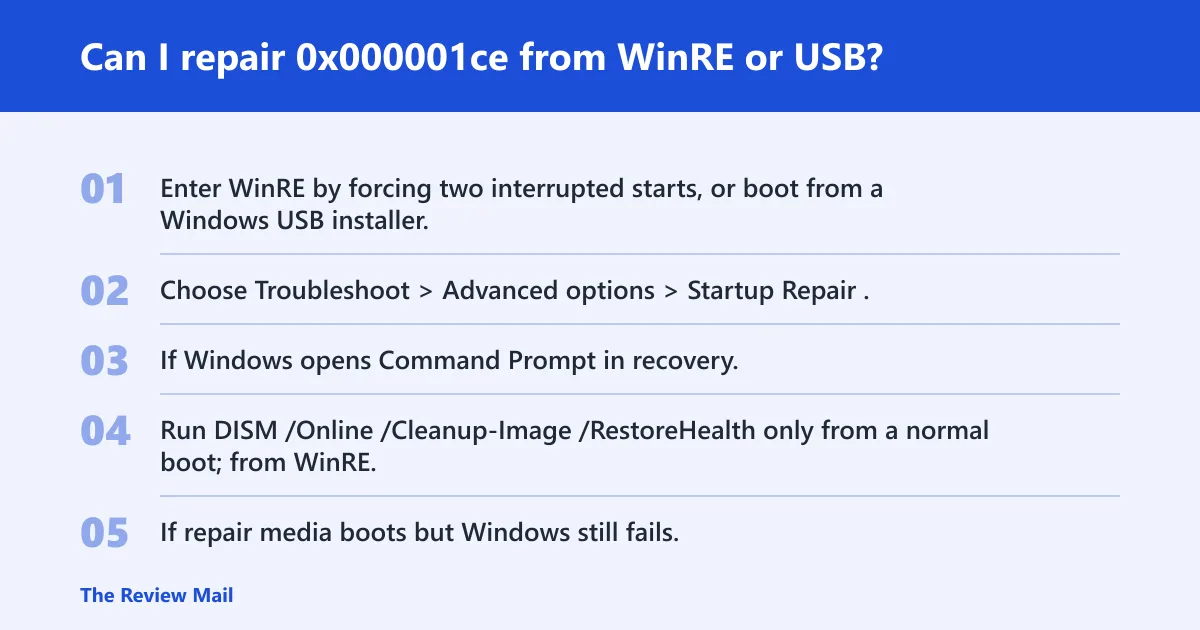
Yes. If Windows will not boot normally, WinRE and install media are the right next steps. Start with startup repair, then use offline file repair, then move to USB repair media if the built-in recovery tools do not load.
- Enter WinRE by forcing two interrupted starts, or boot from a Windows USB installer.
- Choose Troubleshoot > Advanced options > Startup Repair.
- If Windows opens Command Prompt in recovery, run
sfc /scannow/offbootdir=C:\ /offwindir=C:\Windows only if your recovery environment assigns Windows to C:. - Run
DISM /Online /Cleanup-Image /RestoreHealthonly from a normal boot; from WinRE, focus on startup repair and disk checks first. - If repair media boots but Windows still fails, use Reset This PC only after data backup and only when driver and file repair fail.
If that didn’t work, try this next
If startup repair fails twice, try offline file checks and disk repair before reinstalling. If the machine still crashes after USB repair media, collect the dump files and review them along with the exact device list and the last update or driver change.
Triage table and decision tree for support staff
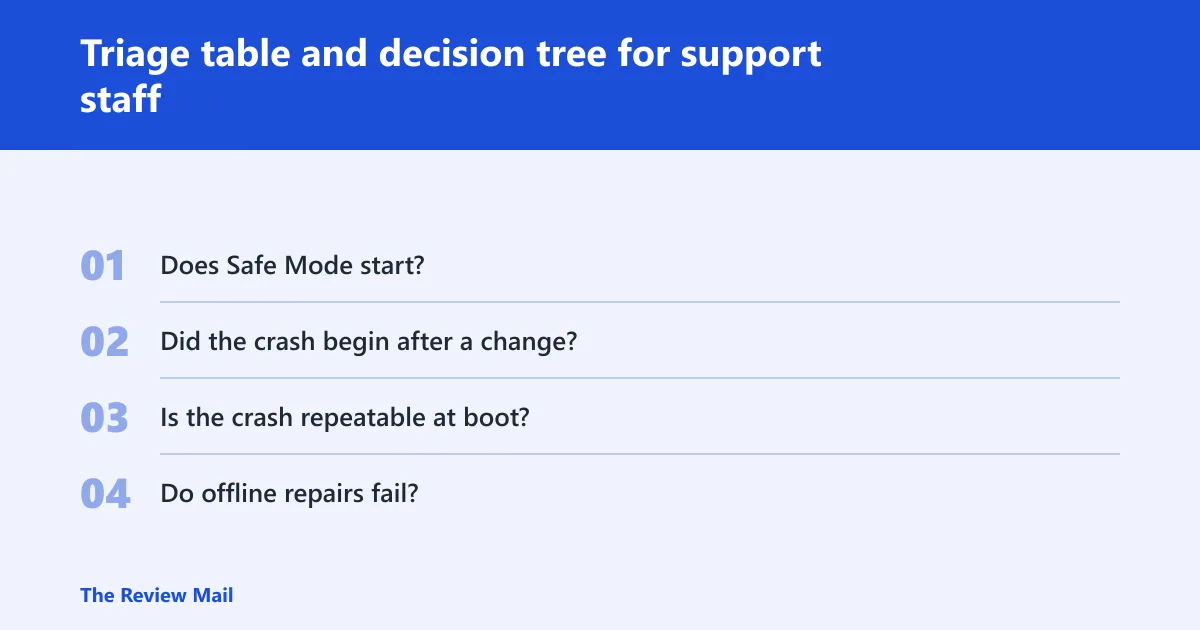
This is the shortest support path. Start with boot timing, then split by Safe Mode, then decide whether the next move is driver rollback, memory testing, or recovery-environment repair. Do not mix those branches.
| Symptom pattern | Likely cause | First test | Escalation path |
|---|---|---|---|
| Boots in Safe Mode, crashes in normal mode | Driver fault | Clean boot and driver rollback | Remove recent driver or device software |
| Crashes before sign-in or during boot loop | Boot or recovery-environment issue | Startup Repair in WinRE | USB install media, offline repair |
| Random crashes, memory errors, or freezes | RAM instability | Windows Memory Diagnostic | memtest86, isolate sticks, replace bad module |
| Crashes after recent update or file corruption signs | Corrupt system files | sfc /scannow, then DISM /Online /Cleanup-Image /RestoreHealth | WinRE repair or repair install |
- Does Safe Mode start? Yes: test drivers first. No: move to WinRE repair.
- Did the crash begin after a change? Yes: roll back that change. No: test memory and disk.
- Is the crash repeatable at boot? Yes: use startup repair, then USB media.
- Do offline repairs fail? Yes: collect dump files and hand off for analysis.
When to hand off to dump analysis
Escalate when the machine keeps blue-screening after driver rollback, memory tests, startup repair, and offline file checks. At that point, the next useful step is reviewing the dump files, the exact device list, and the last update or driver change rather than repeating the same repairs.
Frequently asked questions
What does 0x000001ce mean?
It is Bug Check 0x1CE, named INVALID_KERNEL_STACK_ADDRESS. Microsoft says the system found an invalid initial kernel stack address during a context switch.
How do I fix 0x000001ce on Windows?
Start with the last driver or update change, then try Safe Mode, Device Manager rollback, and a clean boot. If Windows will not start normally, use WinRE startup repair. If the crash repeats, run Windows Memory Diagnostic and chkdsk before moving to USB repair media.
Is 0x000001ce caused by RAM or a bad drive?
It can be. RAM faults can break kernel-stack handling, and disk problems can damage boot files or system components. Test memory first if the crash is random, and test disk health first if the crash happens during boot, after a failed update, or with file errors.
Can I repair 0x000001ce from WinRE or USB?
Yes. Use Troubleshoot > Advanced options > Startup Repair in WinRE first. If that fails, boot from Windows install media and try offline repair paths. If the system still will not boot, back up data and consider a repair installation or professional support.
What is invalid kernel stack address in Windows?
It is Windows’ way of saying the kernel saw a stack address that did not look valid during a context switch. The practical takeaway is simple: something in the low-level boot or driver path went wrong, so the next step is to test drivers, memory, and startup repair in that order.
Does 0x000001ce point to a driver or hardware problem?
It can point to either, but drivers are often the first place to look if Safe Mode works. Hardware rises on the list when the machine crashes before sign-in, fails memory tests, or keeps failing after driver rollback and offline repair.
What if my ASUS laptop shows 0x000001ce?
Treat it the same way as any other Windows PC: check recent BIOS, chipset, storage, and graphics driver changes, then test Safe Mode and WinRE. If the model has a vendor recovery utility, use it only after standard Windows driver rollback and offline repair steps fail.