0x0000006d: What It Means and How to Fix the Error
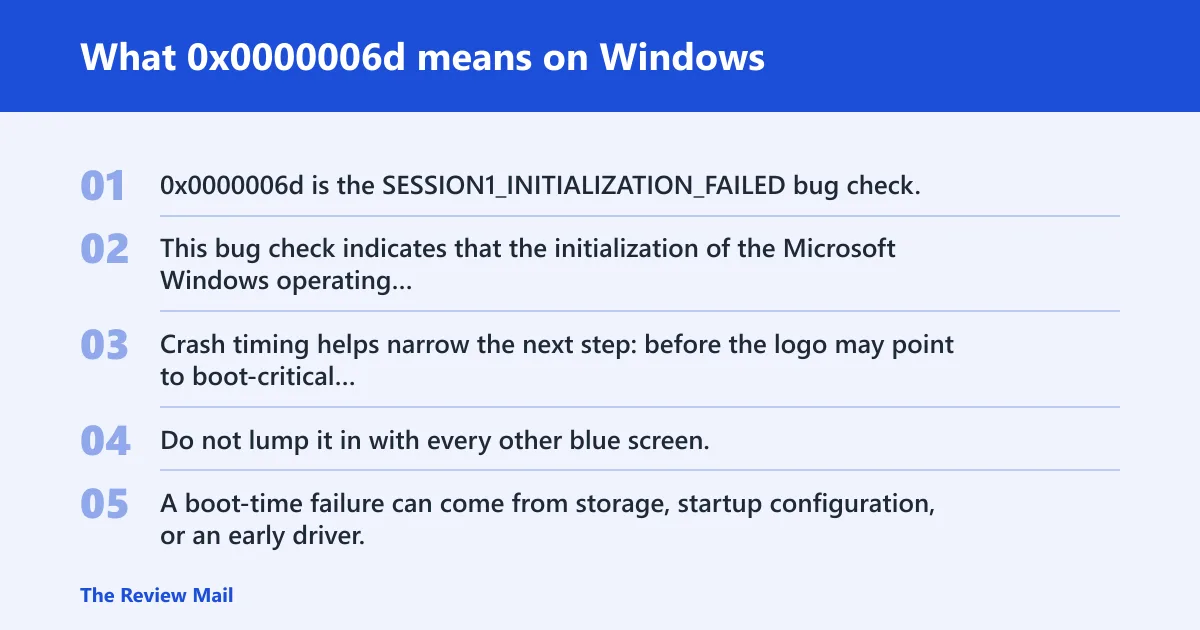
0x0000006d is the SESSION1_INITIALIZATION_FAILED bug check, and it has a value of 0x0000006D. This bug check indicates that the initialization of the Microsoft Windows operating system failed. Crash timing helps narrow the next step: before the logo may point to boot-critical drivers or disk, at sign-in may point to profile or logon components, and after the desktop appears may point to a recent driver, update, or file corruption.
Do not lump it in with every other blue screen. A boot-time failure can come from storage, startup configuration, or an early driver. A sign-in failure can point to profile services or a corrupted registry hive. A desktop crash often shifts suspicion toward the newest driver, update, or Windows file damage.
What 0x0000006d means on Windows
Likely causes ranked by crash timing
Timing is the fastest way to sort the cause family. Before the sign-in screen, the problem usually sits in boot configuration, storage, or an early driver. During sign-in, user profile or logon components move up the list. After the desktop appears, the newest driver or recent patch becomes the first place to look.
| Crash timing | Most likely cause family | First two actions to try |
|---|---|---|
| Before the logo or very early boot | Boot configuration, storage, early driver, or disk corruption | Enter WinRE and run Startup Repair; then try Safe Mode or chkdsk |
| At the sign-in screen | Profile service, registry hive, or logon component damage | Boot Safe Mode; then run System Restore to undo the last change |
| After the desktop loads | Recent driver, update, or Windows file corruption | Use Device Manager to roll back the newest driver; then run SFC and DISM |
| WinRE only, never reaches Safe Mode | Deeper boot-store damage, file-system corruption, or failing storage | Run Startup Repair; then try System Restore or chkdsk from WinRE |
What should I do first after a 0x0000006d blue screen?
The first move is to note exactly when the crash happens, because that timing points to the subsystem that failed. After that, try the least destructive repair first: Safe Mode if Windows still reaches it, or WinRE if it does not. Do not start with registry edits or reinstall plans.
- Write down whether the crash happens before the logo, at sign-in, or after the desktop appears.
- Disconnect any newly attached USB devices, docks, or external drives.
- Try Settings > System > Recovery > Advanced startup in Windows 11, or Settings > Update & Security > Recovery > Advanced startup in Windows 10.
- If Windows will not boot, use the recovery menu to open Troubleshoot > Advanced options > Startup Repair.
- If the last change was a driver or update, prepare to roll it back in Safe Mode or use System Restore.
Can Safe Mode fix stop 0x0000006d?
Yes, when the crash is driven by a third-party driver, startup item, or recent change that Safe Mode leaves unloaded. Safe Mode keeps only the core Windows loadout, so a clean boot there points away from system files and toward something added recently. If Safe Mode fails too, move up to WinRE.
- Open WinRE and choose Troubleshoot > Advanced options > Startup Settings > Restart.
- Press 4 for Safe Mode or 5 for Safe Mode with Networking.
- Open Device Manager, then uninstall or roll back the newest display, storage, or chipset driver.
- If the crash began after a patch, check Windows Update history and remove the most recent update or driver update from the normal update interface if Windows still opens.
- If Safe Mode holds, disable the newest startup app or perform a clean boot with msconfig.
What to try in WinRE and Startup Repair
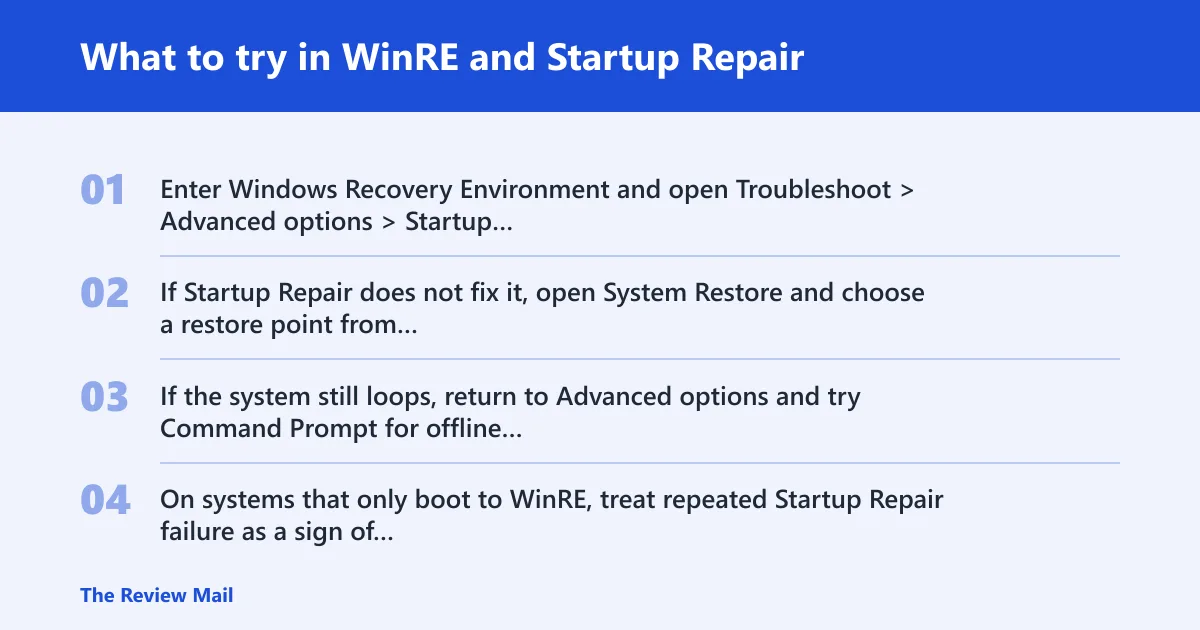
WinRE is the right place when Windows will not boot normally. Start with Startup Repair, because it checks boot configuration and startup files without manual edits. If that fails, use System Restore to roll back recent changes while preserving personal files. This is the best next step after a bad update or driver install.
- Enter Windows Recovery Environment and open Troubleshoot > Advanced options > Startup Repair.
- If Startup Repair does not fix it, open System Restore and choose a restore point from before the crash began.
- If the system still loops, return to Advanced options and try Command Prompt for offline repair steps.
- On systems that only boot to WinRE, treat repeated Startup Repair failure as a sign of deeper corruption, not as a reason to keep rerunning it.
System Restore is especially useful when the crash started right after a driver install or Windows update. It rolls back system changes and keeps personal files in place. If the restore point predates the failure and the machine boots afterward, that usually confirms a software change rather than a dead disk.
Does 0x0000006d point to registry or disk corruption?
It can point to either, but the timing decides which one is more likely. A sign-in crash with no recent driver change can fit registry damage. A boot loop, read errors, or repeated repair failure pushes disk or file-system corruption higher. Registry repair belongs later, after easier rollback options are exhausted.
- Run
chkdskfirst if the machine never reaches the desktop or shows repeated boot failure. - If Windows can still open Command Prompt, use offline repair from WinRE before manual registry edits.
- Restore the registry from a known good restore point if System Restore is available.
- Avoid hand-editing boot and registry entries unless you have a backup and a clear recovery plan.
If the problem is registry-related, a bad boot or logon entry is usually involved. If the storage path is damaged, the machine may fail in different places each reboot. That inconsistency is a useful clue, not a reason to keep changing settings blindly.
Should I run chkdsk or SFC for 0x0000006d?
Start with SFC when Windows still boots far enough to run protected-file checks; start with chkdsk when boot failure, repair loops, or storage symptoms make disk corruption more likely. SFC and DISM are the better pair for system-file damage, while chkdsk is the better first test for file-system trouble.
- In an elevated Command Prompt, run
sfc /scannow. (Microsoft Support) - If SFC reports that it could not fix files, run
DISM /Online /Cleanup-Image /RestoreHealth, then runsfc /scannowagain. - If the system is stuck before the desktop, open WinRE and run
chkdskfrom Command Prompt against the Windows volume. - If the crash began after storage instability, add a memory check with Windows Memory Diagnostic or memtest86.
SFC checks protected Windows files. chkdsk checks the file system itself. Those are different problems, and the order matters. If SFC passes but the boot still fails, the issue often sits lower, in disk structure or boot configuration.
Can a bad update trigger 0x0000006d?
Yes. A bad update can trigger this stop code when it replaces a driver, startup component, or system file that Windows needs very early in boot or at sign-in. If the failure started soon after an update cycle, a driver update or cumulative update is one of the first things to check.
- Boot to Safe Mode if possible and open Settings > Windows Update > Update history.
- Uninstall the most recent quality update or driver update from Settings > Windows Update > Update history > Uninstall updates.
- If Windows will not start normally, use System Restore from WinRE.
- If the crash followed a driver change, open Device Manager and roll back the last installed driver.
If the update rollback fixes the crash, stop there and keep the machine stable. Reinstall the same update only after checking whether the device vendor has a newer driver package.
Why does 0x0000006d say SESSION1_INITIALIZATION_FAILED?
That wording matches the stop code’s internal name and points to a failure during Windows initialization. In practice, the quickest test is the crash stage: if it happens before sign-in, boot repair and startup files move to the front; if it happens after sign-in begins, profile or logon components are more suspicious.
- Open WinRE and run Startup Repair.
- Use System Restore if the crash began after a driver or update.
- Run
sfc /scannowand thenDISM /Online /Cleanup-Image /RestoreHealthif Windows boots far enough.
If the system still fails at the same stage after those steps, the issue is probably below the level of a single bad app or profile tweak. At that point, disk and boot-store checks deserve more attention.
How do I tell 0x0000006d apart from other BSOD stop codes?
Use the crash stage and the code name together. 0x0000006d is SESSION1_INITIALIZATION_FAILED, so it usually appears during startup or logon rather than as a random desktop crash. Nearby boot codes can look similar, but this one is tied to initialization failure during Windows startup.
- Check whether the crash happens before the logo, at sign-in, or after the desktop loads.
- Compare that timing with the last change: driver, update, disk activity, or profile change.
- Do not confuse it with a generic runtime BSOD that appears while using an app.
The stop-code number matters, but the symptom timing matters more. A code seen only at boot should be treated as a startup path problem until that is ruled out.
Still not working?
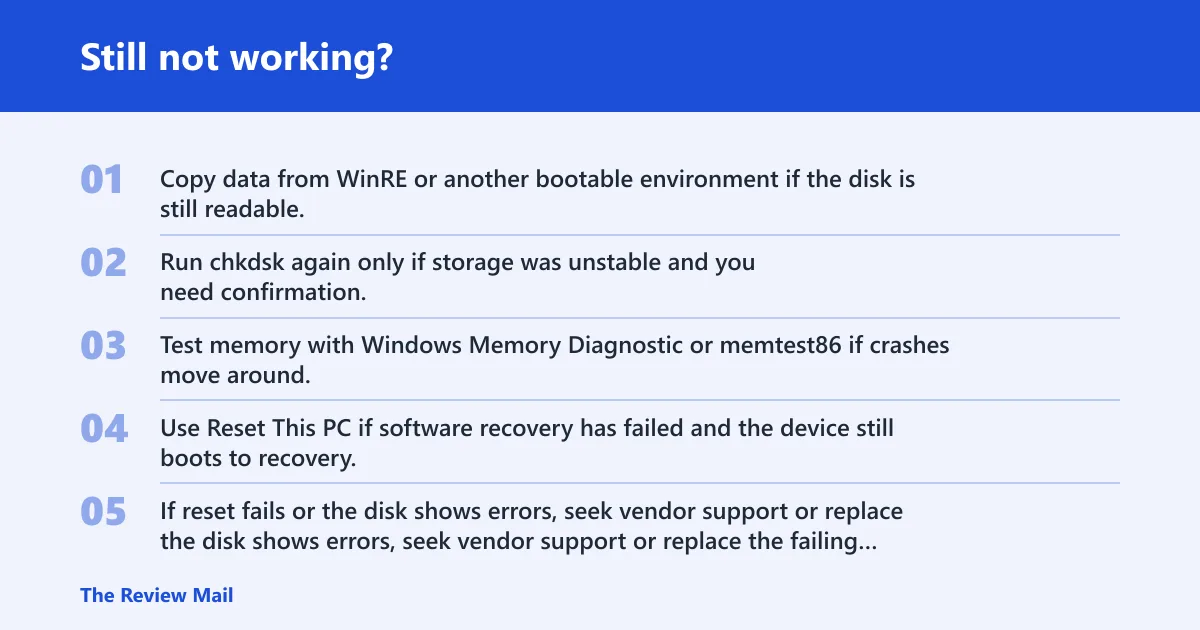
If Safe Mode, Startup Repair, System Restore, SFC, and chkdsk do not change the behavior, stop cycling the same repairs. Back up data first if the machine still offers any route to files, then move to a reset, reinstall, or hardware diagnosis. Repeated boot loops often mean the next step is more invasive, not more of the same.
- Copy data from WinRE or another bootable environment if the disk is still readable.
- Run
chkdskagain only if storage was unstable and you need confirmation. - Test memory with Windows Memory Diagnostic or memtest86 if crashes move around.
- Use Reset This PC if software recovery has failed and the device still boots to recovery.
- If reset fails or the disk shows errors, seek vendor support or replace the failing hardware.
Prevention is simple here: install driver and Windows updates one at a time, and keep a restore point before major changes. That gives you a clean rollback when the next startup failure appears. If you are using a Lenovo device, use its recovery and support options as part of that hardware check when software repairs do not hold.
Frequently asked questions
What does 0x0000006d mean on Windows?
It is the SESSION1_INITIALIZATION_FAILED stop code. In plain terms, Windows failed while starting up its operating-system initialization stage, so the crash often appears during boot or sign-in rather than during normal app use. The fastest first move is to note the crash timing and enter WinRE or Safe Mode.
Is 0x0000006d a boot error or a driver error?
It can be either, and timing separates the two. A crash before the sign-in screen often points to boot configuration, storage, or an early driver. A crash after the desktop appears usually shifts suspicion toward the newest driver or update. That is why the stage of the failure matters first.
What should I do first after a 0x0000006d blue screen?
Restart once, record when the crash happens, and try Safe Mode if Windows still reaches recovery. If it does not, open WinRE and run Startup Repair. If the problem started after a change, the next best step is System Restore rather than manual registry work.
Can safe mode fix stop 0x0000006d?
Yes, when the cause is a third-party driver, startup item, or recent update that Safe Mode does not load. If Safe Mode works, uninstall or roll back the newest driver in Device Manager and then reboot normally. If Safe Mode also fails, the fault is probably deeper than one driver.
Does 0x0000006d point to registry or disk corruption?
It can point to both. Disk or file-system damage becomes more likely when Windows cannot reach the desktop or Startup Repair keeps failing. Registry damage becomes more likely when the crash happens at logon or after a recent system change. chkdsk and System Restore are the usual first checks.
Should I run chkdsk or sfc for 0x0000006d?
Run SFC when Windows still opens far enough to check protected files. Run chkdsk when boot failure, repair loops, or storage symptoms suggest file-system damage. If SFC finds corruption, pair it with DISM, then rerun SFC. If the machine cannot boot, run chkdsk from WinRE instead.