0x00000135 BSOD: What It Means and How to Fix It in Windows
Stop code 0x00000135 usually means Windows hit a kernel-mode failure tied to a driver, security component, or bad system state. Use the minidump to identify the faulting module before you replace hardware. Skip the dump and you can waste hours swapping parts while the real cause stays hidden. This guide shows how to read the crash file, separate driver from kernel and hardware clues, and isolate the cause step by step.
This guide is part of our Windows BSOD stop codes: full list and fixes series.
What does stop code 0x00000135 mean in Windows?
0x00000135 is the REGISTRY_FILTER_DRIVER_EXCEPTION bug check, a Windows blue-screen stop code for an unhandled exception in a registry filtering driver (per Microsoft support). The label tells you the crash class, but not the full cause. For that, you need the minidump, the bugcheck parameters, and the module named in the analysis output. (Microsoft Learn)
That distinction matters. A report can name halmacpi.dll or another system component, yet the actual fault can still sit in a third-party driver, a bad callback, or a system-state transition that exposed the bug. One dump report shows 0x00000135 alongside bugcheck 0x00000124, with halmacpi.dll in the analysis output, on Microsoft Windows Operating System under Windows 7 SP1 RTM build 7601 on a 32-bit installation. The minidump path shown there is C:\Windows\Minidump\032312-21340-01.dmp, and BlueScreenView was the inspection tool.
How to read the minidump for 0x00000135
The quickest path is to open C:\Windows\Minidump and inspect the newest .dmp file with a reader such as BlueScreenView or WhoCrashed. BlueScreenView is good for a fast pass because it shows the bugcheck code and the module it thinks is implicated. WhoCrashed is useful when you want a plain-language summary. Neither tool is the final word; both are triage tools.
Copy the four bugcheck parameters exactly as shown. Microsoft says !analyze can help determine the root cause, and it specifically points to the 3rd parameter for identifying the offending driver. If you only record the stop code and skip those values, you lose the context needed to separate a real driver fault from a bystander module.
- Open
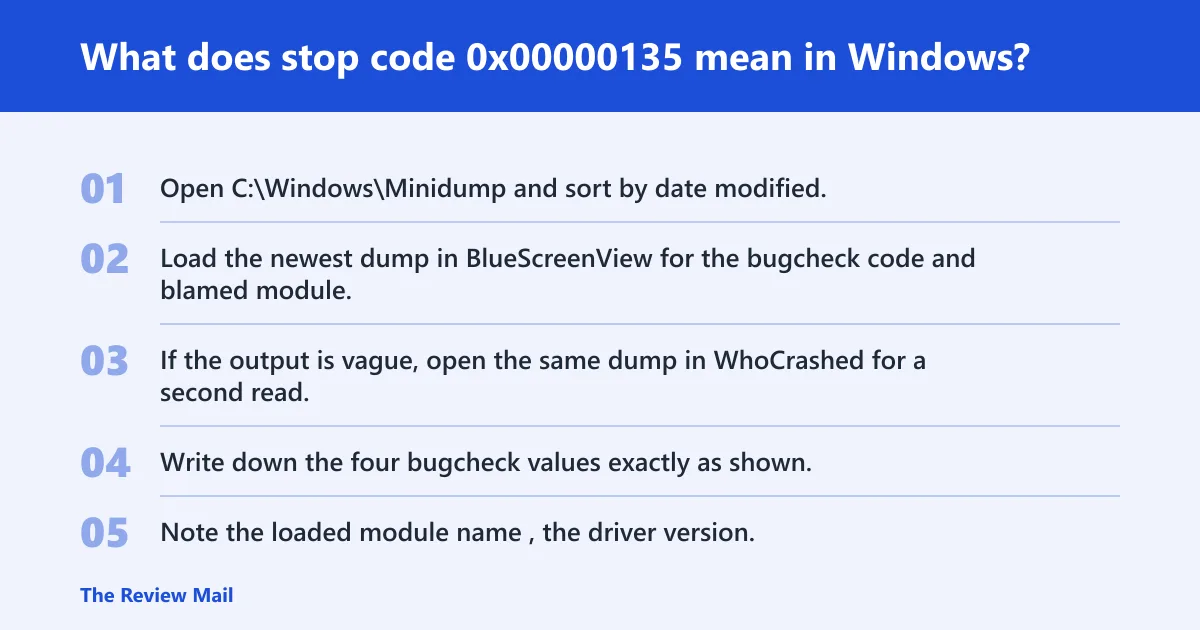
C:\Windows\Minidumpand sort by date modified. - Load the newest dump in BlueScreenView for the bugcheck code and blamed module.
- If the output is vague, open the same dump in WhoCrashed for a second read.
- Write down the four bugcheck values exactly as shown.
- Note the loaded module name, the driver version, and whether the crash happened during boot, sleep/resume, or heavy load.
0x00000135 triage table: what the parameters tell you
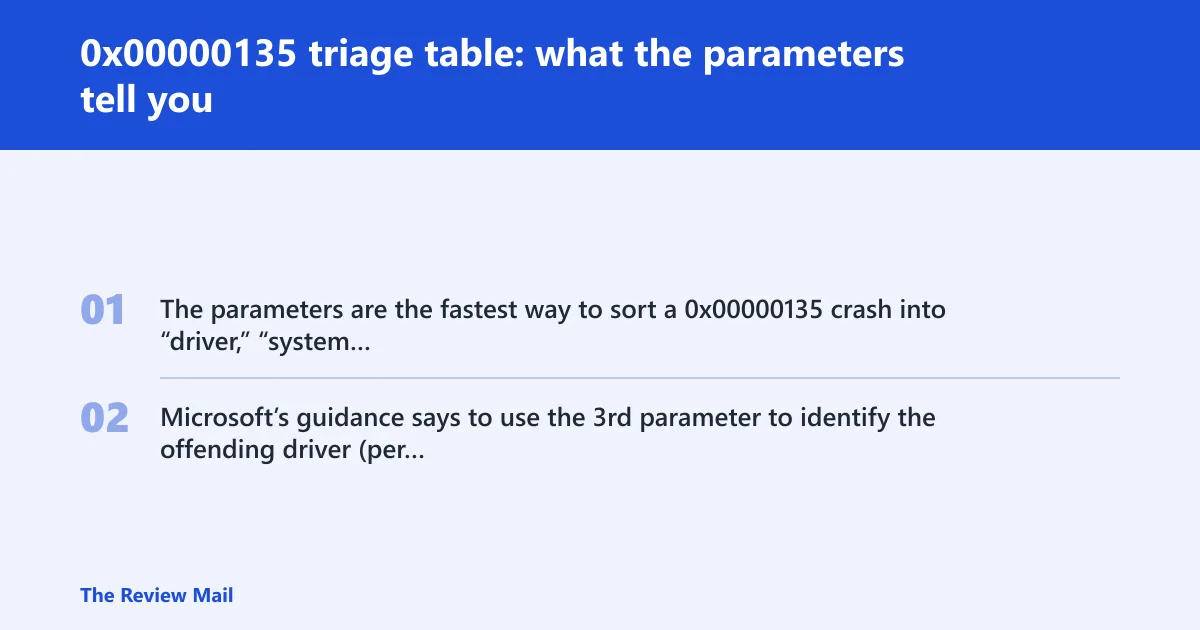
The parameters are the fastest way to sort a 0x00000135 crash into “driver,” “system component,” or “state problem.” The same named module can appear in more than one pattern, so treat the bugcheck values as the main evidence. Microsoft’s guidance says to use the 3rd parameter to identify the offending driver (per Microsoft support).
| Bugcheck parameter meaning | Likely subsystem | What to look for in the minidump | First safe action |
|---|---|---|---|
| Parameter 1: exception or failure code shown by the dump | Registry filter driver or another callback path | Repeat crashes with the same code; a filter driver listed near the stack | Check recent driver installs and device software first |
| Parameter 2: context data tied to the crash path | System-state or callback context | Crash happens on boot, sleep, resume, or logon rather than random idle time | Test the triggering state in Safe Mode or clean boot |
| Parameter 3: offending driver pointer or identifier | Specific registry filtering driver | BlueScreenView or WhoCrashed names the same third-party module again | Roll back, update, or remove that driver |
| Parameter 4: related data or reserved value | Corruption, bad pointer, or follow-on failure | Module name shifts between reports; kernel module appears as a bystander | Check system files and then hardware stability if the pattern repeats |
What usually causes 0x00000135?
The most common cause is a third-party driver that mishandles a registry callback. Less often, the crash reflects unstable memory, storage, firmware, or a bad transition during sleep, boot, or load. The named module in a dump can be a bystander, so the right next step is to match the parameters and stack, not to assume the first module is guilty.
Picture a machine that blue-screens only after waking from sleep. That points more toward a filter driver or firmware-state problem than a random RAM fault. Say a dump keeps naming halmacpi.dll; that file is a Hardware Abstraction Layer DLL, so it deserves attention, but it does not prove it is the root cause.
If the dump points to a driver
If the 3rd parameter and the stack both point to one driver, treat that as your lead. Update or roll back only that component first. Do not start with broad system changes.
- Open Device Manager.
- Find the related device, then open Properties > Driver.
- Use Roll Back Driver if the problem started after a recent change.
- If rollback is unavailable, choose Uninstall device, then reboot.
- Reinstall the vendor package only if the same device still faults after reboot.
If the dump points to halmacpi.dll or a kernel component
When analysis output names halmacpi.dll, ntkrnlpa.exe, or another kernel file, treat it as evidence, not proof. That is especially true on legacy reports such as Windows 7 SP1 or 32-bit systems, where analysis tools often surface kernel modules even when the trigger sits elsewhere.
- Check whether the crash happens during boot, sleep/resume, or under load.
- Run
sfc /scannowfrom an elevated Command Prompt. - Run
DISM /Online /Cleanup-Image /RestoreHealthif the OS version supports it. - Compare another dump before changing hardware.
Why the crash happens after sleep, boot, or heavy load
State-transition crashes are a common clue. A system that fails only after sleep or startup often points to a driver that does not handle registry or device callbacks cleanly. Heavy-load crashes push the same path harder and can expose memory instability or a stale firmware issue. The trigger matters because it tells you which subsystem to test first.
If that didn’t work, try this next
- Boot into Safe Mode and see whether the crash still appears.
- Use a clean boot via msconfig to disable third-party startup items and services.
- Reproduce the problem in the same state that caused it before.
- If it only happens on wake or boot, inspect power-management and storage drivers before changing anything else.
A common first-timer mistake is to run a memory test before checking the dump. That can help later, but it is the wrong first move if the 3rd parameter points to a single driver.
Can corrupt system files cause 0x00000135?
Yes, but usually as a secondary factor rather than the first suspect. Corrupt system files can break the code path a registry filter driver relies on, and a bad kernel file can appear in the stack even when the fault started elsewhere. Run file checks after the dump shows a system component or after driver isolation fails.
- Open an elevated Command Prompt.
- Run
sfc /scannow. - Then run
DISM /Online /Cleanup-Image /RestoreHealthif the system image needs repair. - Reboot and compare the next dump.
Do memory tests help diagnose 0x00000135?
Yes, but only after the dump suggests instability rather than a specific bad driver. Memory diagnostics help when the same stop code keeps returning with different module names, or when crashes happen under load, during resume, or while the system is changing power states. If the 3rd parameter isolates one driver, fix that first.
- Run Windows Memory Diagnostic from the Start menu, or boot memtest86 if you need a deeper pass.
- Test one memory stick at a time if the crash keeps repeating.
- Recheck the dump after each change.
- If the crash remains tied to the same driver, stop chasing RAM and return to that driver path.
Still not working?
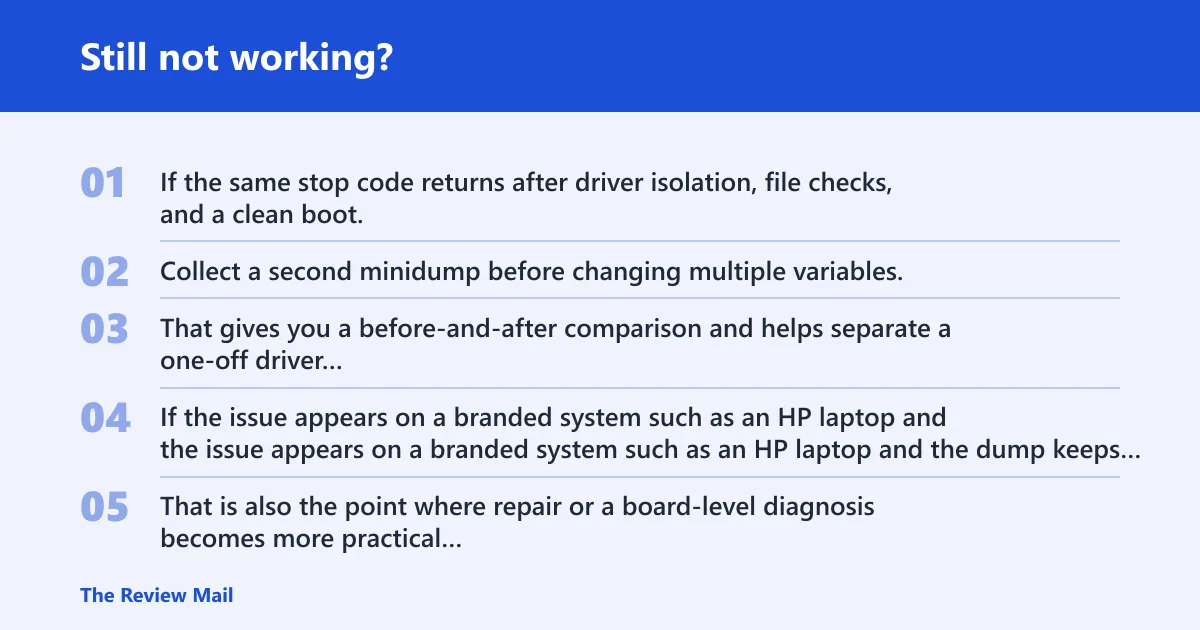
If the same stop code returns after driver isolation, file checks, and a clean boot, move to BIOS, firmware, and hardware stability checks. Collect a second minidump before changing multiple variables. That gives you a before-and-after comparison and helps separate a one-off driver exception from a repeatable platform problem.
If the issue appears on a branded system such as an HP laptop and the dump keeps pointing to storage, chipset, or power-management paths, vendor support may need the exact module name, bugcheck values, and crash trigger. That is also the point where repair or a board-level diagnosis becomes more practical than software changes.
Prevention: after the system is stable, keep the exact driver version that matched the last clean dump and avoid stacking several firmware or driver updates at once. That makes the next crash easier to trace.
Frequently asked questions
What does stop code 0x00000135 mean in Windows?
It is the REGISTRY_FILTER_DRIVER_EXCEPTION bug check, which means a registry filtering driver hit an unhandled exception (per Microsoft support). The fix path starts with the minidump, especially the 3rd parameter and the blamed module, because the label alone does not identify the actual cause.
Is 0x00000135 usually hardware or driver related?
It is usually driver-related first, especially when the dump points to a registry filter, device software, or a module that appears after sleep or boot. Hardware becomes more likely when multiple dumps disagree on the module, the crash moves with load, or memory tests and disk checks both show instability.
How do I identify the faulty driver from a 0x00000135 minidump?
Open the newest file in C:\Windows\Minidump with BlueScreenView or WhoCrashed, then copy the four bugcheck values and compare the 3rd parameter with the implicated module. If the same driver appears across dumps, roll it back or uninstall it from Device Manager.
Can corrupt system files cause 0x00000135?
Yes. Run sfc /scannow first, then DISM /Online /Cleanup-Image /RestoreHealth if the crash output points to a system component or the same kernel file keeps appearing. If the dump instead points to one driver, fix that driver before spending time on repair commands.
What should I test first after a 0x00000135 BSOD?
Check the minidump before anything else. Open the newest dump, note the four parameters, and look at the 3rd parameter in the analysis output. If the same module appears again, test that driver path first. Only after that should you move to Safe Mode, clean boot, or memory diagnostics.
Do memory tests help diagnose 0x00000135?
They can, but they are not the first move when the dump points to one registry filtering driver. Use Windows Memory Diagnostic or memtest86 when crashes stay inconsistent across dumps, happen under heavy load, or keep returning after driver cleanup and file checks.