
0x00000139: What It Means and How to Fix the BSOD
0x00000139 (KERNEL_SECURITY_CHECK_FAILURE) has a value of 0x00000139 and indicates that the kernel detects the corruption of a critical data structure. Use the bug-check parameters to narrow the cause fast. If param 1 points to a corrupt list entry or stack cookie, treat it as memory or driver corruption, not a random crash. Ignoring the pattern can mean repeat BSODs, boot loops, and lost work. This guide explains each 0x00000139 parameter, maps it to likely causes, and shows the next fix to try.
This guide is part of our Windows BSOD stop codes: full list and fixes series.
What 0x00000139 means
0x00000139 is the Windows bug check code for KERNEL_SECURITY_CHECK_FAILURE. On the screen, that usually means a blue screen followed by an unexpected reboot. First, collect the minidump, then note any driver change that happened just before the crash. (Microsoft Learn)
What to collect first
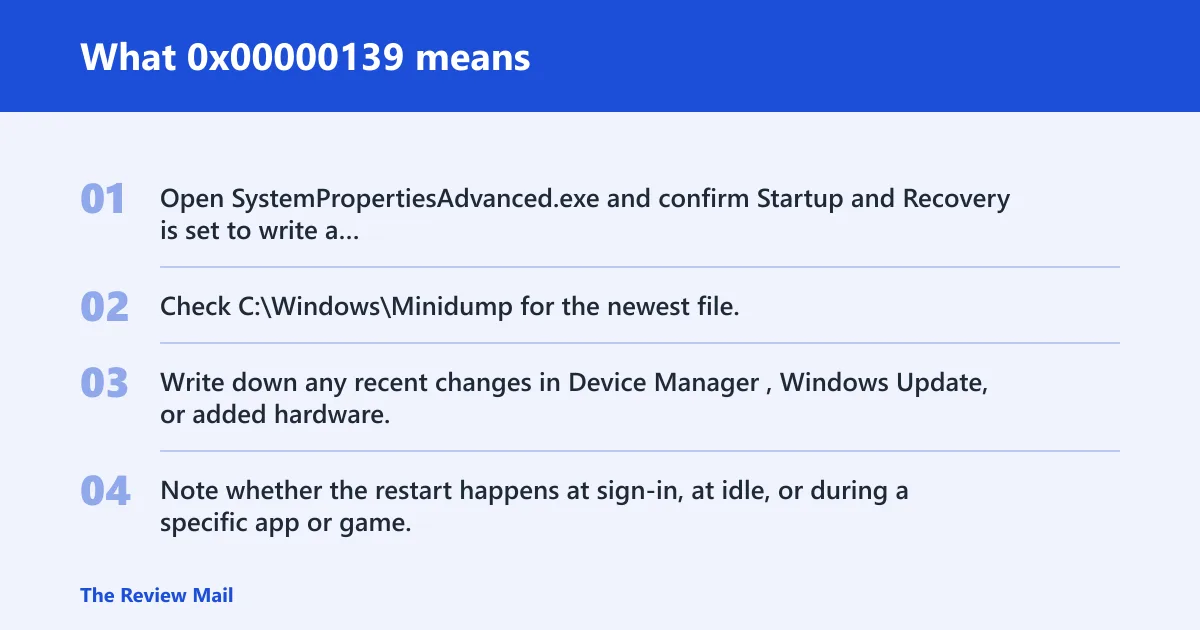
- Open SystemPropertiesAdvanced.exe and confirm Startup and Recovery is set to write a small memory dump.
- Check
C:\Windows\Minidumpfor the newest file. - Write down any recent changes in Device Manager, Windows Update, or added hardware.
- Note whether the restart happens at sign-in, at idle, or during a specific app or game.
Say your PC crashes only after a USB Wi-Fi adapter loads. That timing matters more than the blue screen text. It narrows the search toward the driver that started just before the kernel noticed corruption.
📊 The bug check KERNEL_SECURITY_CHECK_FAILURE has value 0x00000139. Source: Kontrola chyb 0x139 Kernel_Security_Check_Failure.
What usually causes stop code 0x00000139?
Common causes often include bad or incompatible drivers, memory corruption, and list or timer damage. The original corruption often happens earlier than the crash, so the failing screen may not name the real culprit.
Likely causes, from most common to less common
- Driver bugs or version mismatches after a new device, update, or rollback.
- LIST_ENTRY corruption, often from double remove or double insert patterns.
- Synchronization object damage, such as KEVENT corruption.
- KTIMER corruption, especially with periodic timers.
- General memory corruption, including bad RAM or a driver writing past bounds.
Suppose a laptop starts crashing after a graphics driver update and a second monitor is attached. That leans toward software or driver mismatch. If the same machine begins failing only after long uptime, timer or memory corruption becomes more plausible.
Which bug-check parameters matter most?
Parameter 1 matters most because it describes the corruption type. That single value can separate a list problem from timer or synchronization-object damage, which changes the first safe move. Before changing drivers, open the dump in WinDbg or ask for a dump analysis that shows the parameter values and the faulting module.
How to read parameter 1 at a practical level
| Crash pattern | Likely parameter 1 category | First safe action |
|---|---|---|
| Crash after driver install, random app closes, or reboot while idle | List corruption or other pool damage | Rollback the newest driver in Device Manager |
| Crash after wake, sleep, or periodic background activity | KTIMER damage | Update chipset, storage, and power-management drivers |
| Crash when a service starts or a device signals | Synchronization object corruption | Enable Driver Verifier after saving recovery options |
The inconsistency may be found later than when the corruption happened, so the faulting module in the minidump may be the victim, not the source. That is why parameter 1 and recent changes matter more than the blue-screen headline.
How do I fix 0x00000139 on Windows 10 or 11?
Start with the least invasive driver checks, then move to built-in repair tools. The quickest safe fix is usually a driver rollback or update, because driver-induced corruption is a realistic path to this bug check. Windows 10 and 11 use the same Device Manager path.
Fix driver-related causes first
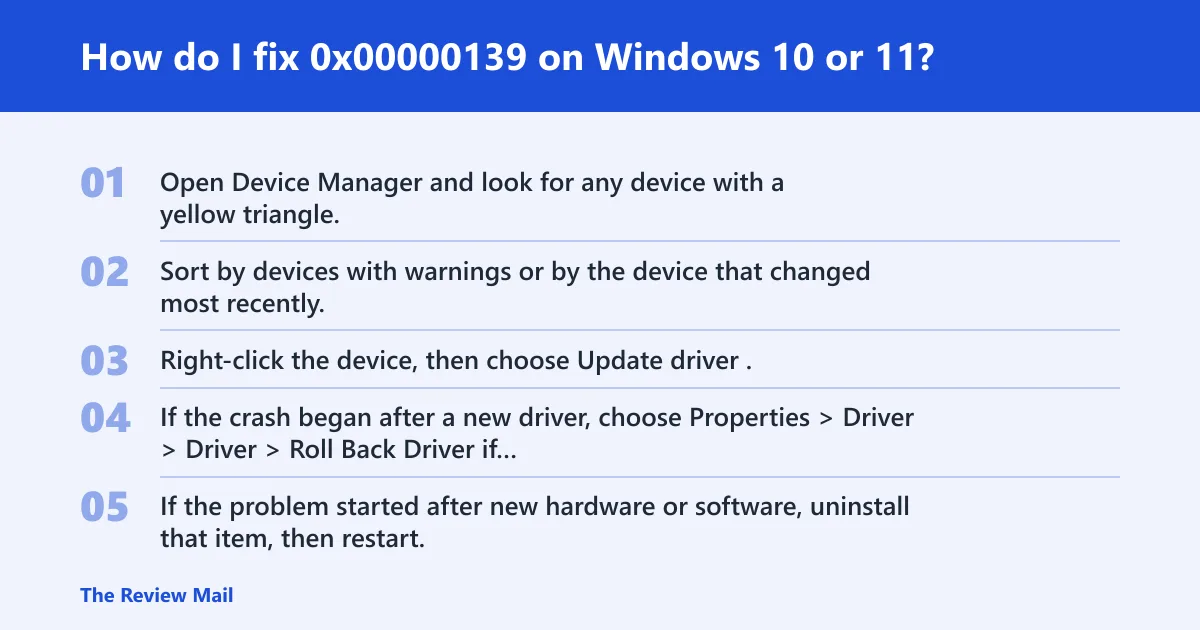
- Open Device Manager and look for any device with a yellow triangle.
- Sort by devices with warnings or by the device that changed most recently.
- Right-click the device, then choose Update driver.
- If the crash began after a new driver, choose Properties > Driver > Roll Back Driver if that button is available.
- If the problem started after new hardware or software, uninstall that item, then restart.
- Re-test after one change at a time.
Use built-in Windows repair tools next
- Open Command Prompt as administrator.
- Run
sfc /scannow. - If SFC reports unrepaired files, run
DISM /Online /Cleanup-Image /RestoreHealth. - Restart and check whether the crash repeats.
Windows System File Checker is worth running, but it may not fix a true kernel corruption bug check. It repairs damaged system files; it does not usually repair a driver that has already written bad data into kernel memory.
Should you run SFC or Windows Troubleshooter?
Yes, but treat the built-in repair steps as first-pass checks, not a cure for every 0x00000139 case. The Hardware and Devices troubleshooter can catch a basic device issue, and sfc /scannow can repair file damage. If the crash is rooted in list, timer, or synchronization-object corruption, those tools often come back clean.
When SFC is worth it, and when it is not
- Run
sfc /scannowif the crash started after a Windows update, failed shutdown, or suspicious file behavior. - Run
DISM /Online /Cleanup-Image /RestoreHealthif SFC reports unrepaired files. - Skip repeating SFC if the PC keeps crashing with the same parameter pattern after driver changes.
- Move on to dump analysis if the minidump still points to kernel object corruption.
A common first-timer mistake is running SFC three or four times while ignoring a newly installed network driver. That wastes time. If the crash started right after a driver change, fix that path first.
Use Driver Verifier when driver updates do not help
Driver Verifier is the next step when updates and rollbacks do not stop the crashes. Use it only if you can boot into Safe Mode or have a recovery plan, because bad verifier settings can force faster crashes.
Enable verification carefully
- Open Command Prompt as administrator.
- Run verifier.
- Choose Create standard settings, then select Select driver names from a list.
- Target only non-Microsoft drivers first.
- If freed-pool corruption is suspected, include Special Pool.
When to stop and collect dumps
- If enabling Verifier triggers a faster BSOD, save the new minidump.
- Record the exact driver name shown in the verifier crash.
- Turn Verifier off with verifier /reset after collecting evidence.
- Do not keep adding more drivers once one clear suspect appears.
Verifier is useful when a driver keeps hiding the original corruption point. It is less useful if the machine cannot stay up long enough to write a dump, in which case Safe Mode and offline analysis are better next steps.
What does parameter 1 mean in bug check 0x139?
Parameter 1 describes the corruption type, which is the fastest way to split 0x00000139 into a list, timer, or synchronization-object case. That matters because LIST_ENTRY corruption often points to double remove or double insert behavior, while timer or KEVENT damage points you toward a different driver or subsystem.
0x139 triage table
| Parameter 1 clue | Likely corruption type | What to do first |
|---|---|---|
| List entry mismatch or doubly linked list failure | LIST_ENTRY corruption | Rollback the last driver that touches that device class |
| Timer-related kernel object failure | KTIMER corruption | Update storage, chipset, and power drivers |
| Event or synchronization object inconsistency | KEVENT or similar object damage | Enable Driver Verifier with Special Pool |
The bad state may be found later than when the corruption happened. That means the first driver to appear in the dump may not be the real source, which is why the parameter pattern matters more than the exact moment of the crash.
Can bad drivers trigger 0x00000139?
Yes. Bad drivers are one of the common causes, because a faulty kernel-mode driver can write into the wrong memory, corrupt a list entry, or damage a synchronization object before Windows detects the problem. When that happens, the visible failure is the stop code, not the original write.
Driver update path that stays safe
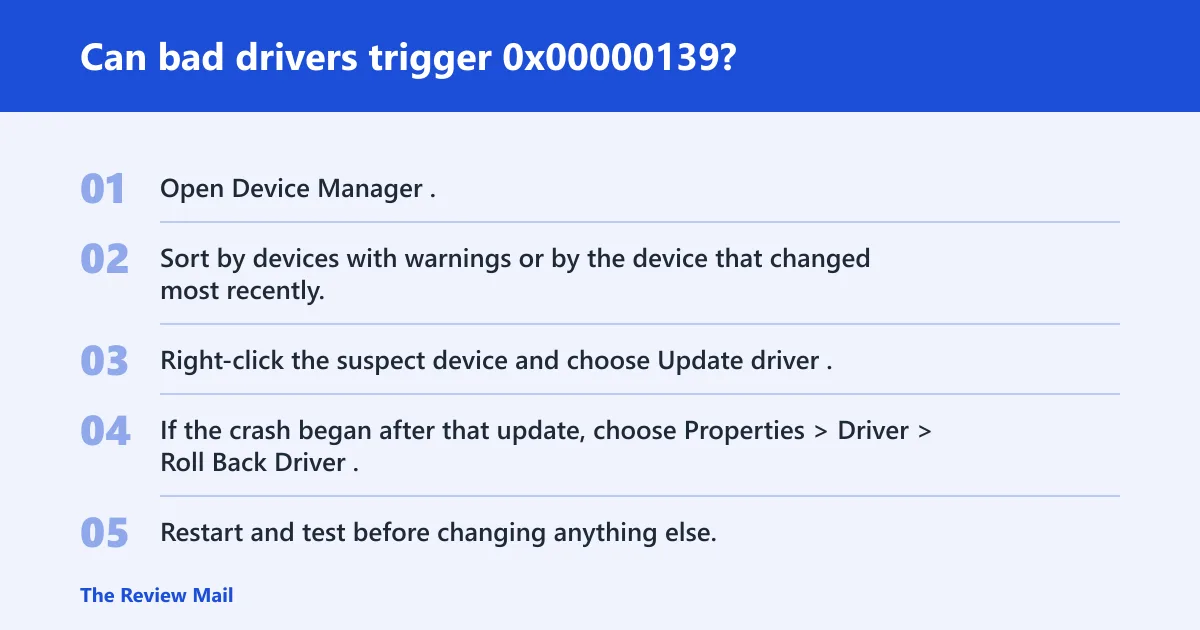
- Open Device Manager.
- Sort by devices with warnings or by the device that changed most recently.
- Right-click the suspect device and choose Update driver.
- If the crash began after that update, choose Properties > Driver > Roll Back Driver.
- Restart and test before changing anything else.
When to remove recent software
- Open Settings > Apps > Installed apps.
- Uninstall newly added antivirus, virtualization, RGB, or tuning software one item at a time.
- Restart after each removal.
- Check whether the crash still appears.
Windows 11 and Windows 10 behave the same here. The menu labels differ slightly, but the point is the same: isolate the newest driver or kernel-level tool before changing the rest of the system.
What should I do if the BSOD keeps restarting the PC?
If the PC keeps rebooting, stop broad fixes and move to evidence collection. Repeated restarts usually mean the corruption is still active, and basic repair steps have not isolated it. At that point, Safe Mode, minidumps, and dump analysis matter more than another generic scan.
If that did not work, try this next
- Boot into Safe Mode.
- Copy the newest files from
C:\Windows\Minidump. - Run verifier /querysettings if Driver Verifier is already on.
- If the system still loops, use Reset This PC only after backing up data.
- Seek vendor or admin help if the same parameter pattern repeats across multiple dumps.
Prevention is mostly about driver discipline: keep a record of the last update before a crash, and avoid stacking several driver or firmware changes at once. That makes the next 0x00000139 easier to sort.
Frequently asked questions
What does 0x00000139 mean in Windows?
It is the stop code for a kernel security check failure. Save the minidump and compare the crash timing with the last driver or software change.
Is 0x00000139 the same as KERNEL_SECURITY_CHECK_FAILURE?
Yes. The code value and the bug-check name match. If you see both, treat them as the same fault path and use parameter 1 to distinguish list corruption from timer or synchronization-object damage.