acpi.sys failed Windows 11: what to do after a crash
If acpi.sys fails on Windows 11, the blue screen can point to a firmware or chipset issue, and sometimes to Windows file corruption or an update problem.
Handled badly, it can block boot and make it harder to tell whether the problem is firmware, a driver, or Windows itself. Start with the OEM model, the BIOS version, and the recent update history before changing more settings.
What acpi.sys failed means on Windows 11
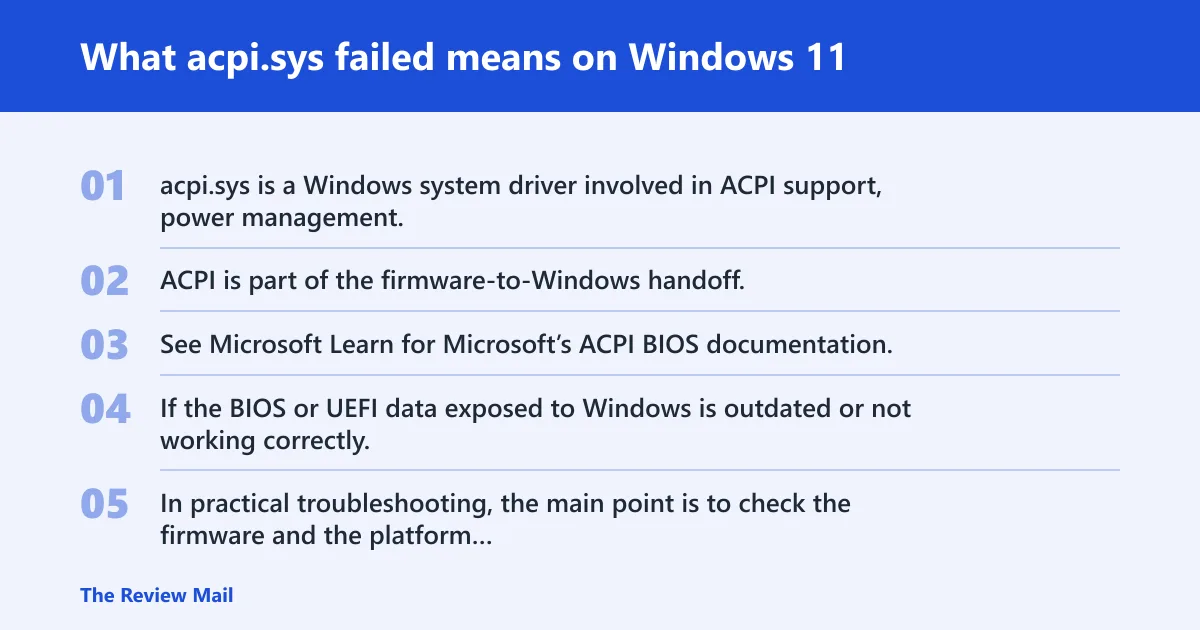
acpi.sys is a Windows system driver involved in ACPI support, power management, and hardware coordination during startup and normal use.
What ACPI, UEFI, DSDT, SSDT, and AML do
ACPI is part of the firmware-to-Windows handoff. See Microsoft Learn for Microsoft’s ACPI BIOS documentation. If the BIOS or UEFI data exposed to Windows is outdated or not working correctly, Windows may not start normally.
In practical troubleshooting, the main point is to check the firmware and the platform driver package first, then see whether Windows becomes stable again.
How this differs from a normal driver crash
A normal device-driver crash often happens after Windows has already loaded far enough to reach the sign-in screen. An acpi.sys failure may happen earlier in the boot process, before sign-in.
📊 ACPI was first published in December 1996. Source: ACPI.
Likely causes
The most practical causes to check are the motherboard BIOS, the chipset driver, and whether Windows has enough information to start stably after a recent change.
1) Outdated or mismatched BIOS and ACPI tables
I noticed that the motherboard BIOS is outdated.
Update it by following MSI’s instructions for the exact model.
- Open Settings > System > About and note the exact OEM model name.
- Go to the MSI website using the link below, download the latest Chipset driver, and install it.
- Use the motherboard support page for that model: https://www.msi.com/Motherboard/B450-TOMAHAWK-MAX-II/support#driver.
- Driver name: AMD Chipset Driver Version: 7.01.08.129.
- Extract the ZIP file, run the file ” AMD_Chipset_Software “, and follow the on-screen instructions to install the driver.
- After the update, load firmware defaults, save, and reboot once before changing anything else.
2) Chipset or platform-package problems
A missing or incorrect chipset package can contribute to startup instability.
- Confirm the exact motherboard or OEM model in Settings > System > About.
- Install the latest chipset driver for that exact model from the OEM support page.
- Restart the computer and test whether it boots stably before making other changes.
- Return firmware settings to defaults and test stability before making any other changes.
3) Windows corruption after an update
If the problem started after an update, check recent update history and Windows recovery options.
- Open Settings > System > Recovery.
- Use recovery options if Windows needs repair after a recent change.
- Review recent updates in Settings > Windows Update > Update history.
4) Hardware enumeration problems that stop boot
If the system cannot boot normally, use recovery tools to get back into Windows or repair startup.
- At the sign-in screen, hold Shift while selecting Restart to open recovery.
- If needed, boot from Windows installation media and choose Repair your computer.
- Use recovery options to test whether Windows can start normally again.
Which symptom do you see? Use this triage matrix

Use the symptom that matches what you see now, then follow the safest next step for that situation.
| Observable symptom | What it suggests | Safest next step | When service becomes likely |
|---|---|---|---|
| BSOD during boot or restart | Firmware, chipset, or Windows repair may be needed | Open recovery and try startup repair | The same crash returns after firmware defaults and chipset installation |
| Boot loop before the sign-in screen | Windows cannot complete startup normally | Use recovery and attempt a repair boot | The loop continues after repair steps |
| Black screen before sign-in | Startup is failing early | Use Windows recovery from the sign-in screen or installation media | No progress after repair attempts |
| Windows reaches the desktop but later crashes | An update, chipset issue, or driver problem may be involved | Check update history and install the correct chipset driver | Crashes continue after those steps |
| Windows cannot boot far enough to use normal tools | Repair tools are needed first | Use recovery media or the sign-in screen to open recovery | Recovery also fails |
Can a BIOS or firmware update fix acpi.sys failed?
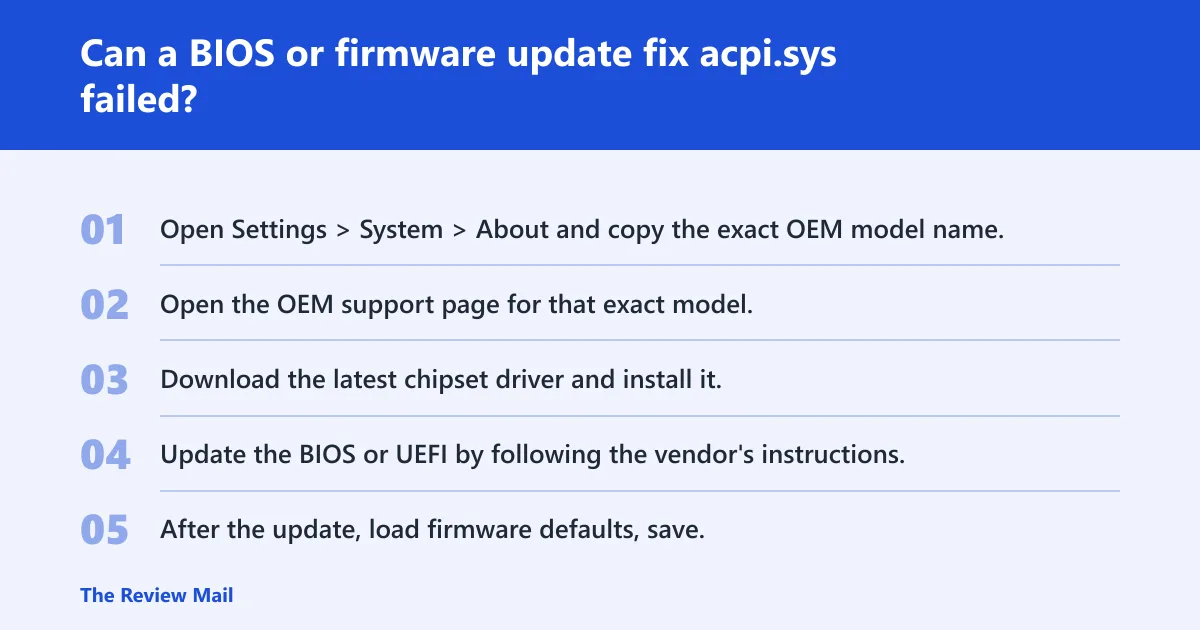
Yes. If the motherboard BIOS is outdated, updating it can help. After the update, load firmware defaults, save, and reboot once before changing anything else.
What to check before you update firmware
Use the exact OEM model and the motherboard support page for that model. If MSI provides a chipset driver for the board, install that first, then update the BIOS by following MSI’s instructions.
- Open Settings > System > About and copy the exact OEM model name.
- Open the OEM support page for that exact model.
- Download the latest chipset driver and install it.
- Update the BIOS or UEFI by following the vendor’s instructions.
- After the update, load firmware defaults, save, and reboot once before changing anything else.
When to stop changing Windows drivers
If Windows still fails after the firmware defaults test and the correct chipset driver install, stop changing random drivers and move to recovery steps and log collection.
How do you check Windows and platform support safely?
Check the exact model and the current recovery state first, then verify whether the system can boot stably enough to continue.
Safe checks after boot is possible
- Open Settings > System > About and confirm the OEM model name.
- Open Settings > System > Recovery to see available recovery options.
- Review Settings > Windows Update > Update history for recent changes.
- If the system boots normally, install the chipset driver for the exact model.
If the machine boots for a while and then crashes, that can still point to a recent update or a chipset/firmware mismatch.
What to do when Windows 11 will not boot
Use recovery tools first. If Windows 11 will not boot because of acpi.sys, try startup repair or safe mode before considering a reinstall.
Recovery path from the sign-in screen or install media
- At the sign-in screen, hold Shift while selecting Restart to open recovery.
- If needed, boot from Windows installation media and choose Repair your computer.
- Use Troubleshoot > Advanced options > Startup Repair.
- If that fails, open Startup Settings and boot into Safe Mode.
- Use System Restore or Uninstall Updates if the crash started after a change.
- After a stable boot, collect the stop code and any minidump files for review.
Where to find the minidump files
Open C:\Windows\Minidump in File Explorer. Copy any .dmp files there to a safe location before making more changes.
When does this point to hardware or service?
If the problem continues after the BIOS update, the chipset driver install, and the firmware defaults test, then hardware or service support may be needed.
What to pass to OEM support or a repair shop
- The exact OEM model from Settings > System > About.
- The current BIOS or UEFI version.
- The stop code and whether the machine loops, bluescreens, or black-screens before sign-in.
- Any minidump files from
C:\Windows\Minidump.
Keep the OEM BIOS and the matching chipset driver for your exact model, and use the vendor’s instructions when updating firmware.
Prevention: Keep the OEM BIOS and the matching chipset driver for your exact model, and check the firmware release notes before applying updates.
Frequently asked questions
What is acpi.sys
acpi.sys is a Windows system driver used for ACPI support, power management, and hardware coordination during boot and normal operation.
Why did acpi.sys fail on Windows 11
Possible causes include an outdated motherboard BIOS, a missing or mismatched chipset driver, Windows update issues, or a startup problem that requires recovery tools.
Can a BIOS update fix acpi.sys failed
Yes. If the BIOS is outdated, update it by following MSI’s instructions for the exact model, then load defaults and reboot once before changing anything else.
Is acpi.sys failure a driver problem or firmware problem
It can be either. Start with the BIOS and chipset driver for the exact model, then use recovery tools if Windows still will not boot stably.
How do I know if my laptop supports ACPI
Check Settings > System > About for the exact model and use the OEM support page for that model. If Windows boots normally, ACPI support is already part of the system.
Does ACPI.sys failure mean my motherboard is bad
No. It can be caused by an outdated BIOS, a chipset driver issue, or Windows startup corruption. Only after those steps fail does hardware become more likely.
How do I recover when Windows 11 won’t boot because of acpi.sys
At the sign-in screen, hold Shift while selecting Restart to open recovery. If needed, boot from Windows installation media and choose Repair your computer. Then use Startup Repair, Safe Mode, System Restore, or Uninstall Updates as needed.