0x00000157: What It Means and How to Fix It on Windows
Stop code 0x00000157 points to a Windows failure that you should treat as a diagnosis workflow problem: identify the crash context, capture the minidump and system logs, then pick the fix path from the evidence. Chasing random fixes can hide a driver, memory, or storage fault. This guide shows what to collect, how to read it, and which fixes match each result.
What 0x00000157 means on a Windows blue screen
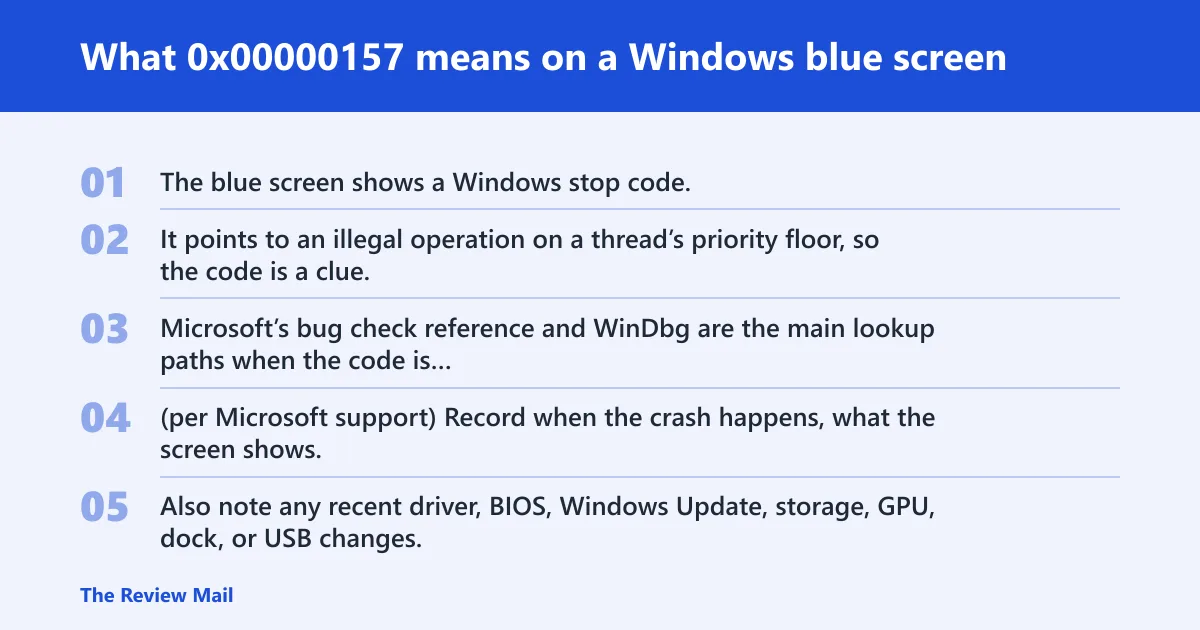
The blue screen shows a Windows stop code, and 0x00000157 is the KERNEL_THREAD_PRIORITY_FLOOR_VIOLATION bug check value. It points to an illegal operation on a thread’s priority floor, so the code is a clue, not a full diagnosis. Microsoft’s bug check reference and WinDbg are the main lookup paths when the code is not clearly documented. (per Microsoft support)
What to note before you change anything
Record when the crash happens, what the screen shows, and whether a dump file is saved. Also note any recent driver, BIOS, Windows Update, storage, GPU, dock, or USB changes. Those details decide whether you start with software rollback, firmware review, or device testing.
What a dump file adds
A bug check dump file holds more memory contents from the failure moment, which helps explain the system state during the stop. For kernel-mode analysis, understanding the dump may require processor memory registers and assembly. A kernel live dump is different: it does not reset the operating system and captures memory during abnormal situations where Windows can continue. Live dump stop codes are not listed in the bug check reference page. (per Microsoft support)
What causes bug check 0x00000157 to keep coming back?
When 0x00000157 repeats, the most likely causes are a bad kernel-mode driver, a platform or firmware mismatch, or a device fault that appears under load. The code alone does not name a single part. Use the crash pattern to rank the suspects instead of reinstalling Windows first.
Recent driver changes and bad kernel-mode drivers
Drivers are the first place to look if the crashes started after a device update, security tool install, GPU update, or chipset package change. A filter driver or tuning utility can also sit in the path. If the failure lines up with one device class, start there.
Firmware, BIOS, or platform instability
Boot-only crashes, sleep-resume crashes, and repeat failures after firmware updates point toward BIOS or UEFI settings, power management, or platform code. If the machine fails before sign-in, the driver list is often less useful than firmware state and memory behavior.
Memory, storage, or peripheral faults under load
Crashes during gaming, file copies, or USB use often point to memory pressure, storage errors, or a single peripheral path. That does not prove a bad part. It does mean you should test the subsystem that matches the trigger before replacing anything else.
How do you collect the right crash evidence first?
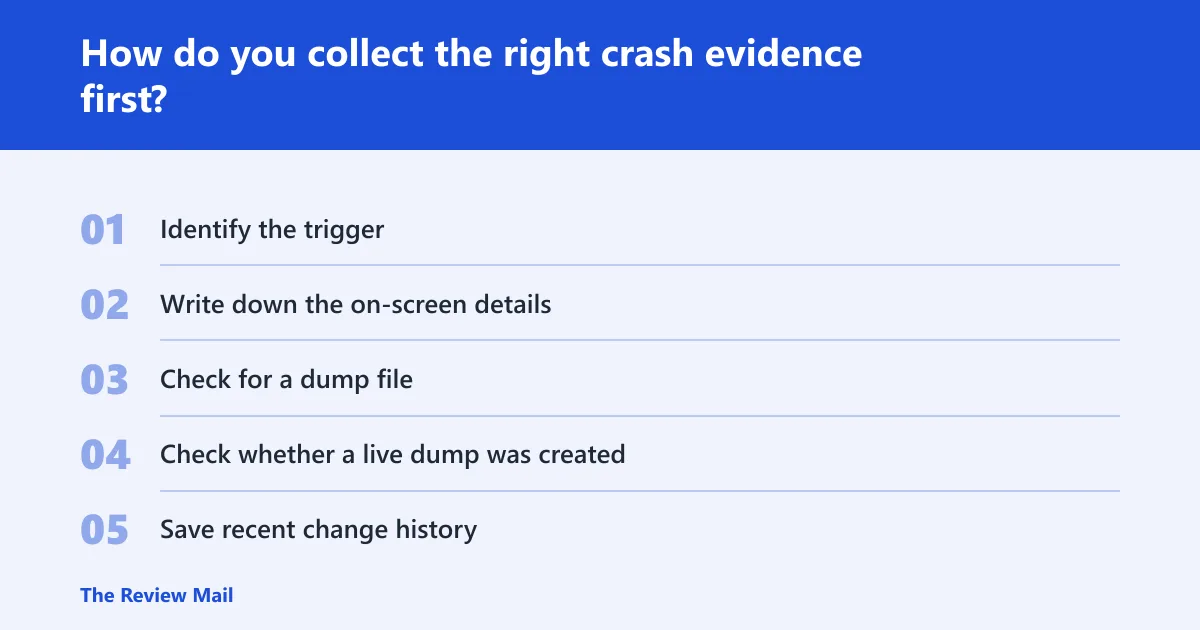
Start by matching the crash to its trigger, then capture the stop code, parameters, and dump location before Windows overwrites useful evidence. That gives you a path to driver, firmware, or hardware triage. If the machine still boots, grab the logs first and change settings second.
- Identify the trigger. Note whether the crash happens at boot, sleep/resume, gaming, file transfers, or USB plug-in.
- Write down the on-screen details. Save the exact stop code, any parameter values, and any driver or file name shown on the blue screen.
- Check for a dump file. Look in
C:\Windows\Minidumpfor a minidump, orC:\Windows\MEMORY.DMPfor a kernel dump. - Check whether a live dump was created. If the PC did not reset, a live dump may have been captured for later analysis.
- Save recent change history. List driver installs, Windows Update installs, BIOS changes, dock changes, and new peripherals.
Say your 2 TB external drive crashes the PC only when you copy files to it over USB-C. That points you toward the port, cable, storage driver, or enclosure before you start a memory test that says nothing about that path.
How do you use WinDbg to analyze 0x00000157?
Open the dump in kernel mode analysis, then run !analyze and read the failure bucket, module hints, and parameter data. Microsoft recommends WinDbg’s !analyze extension for bug check analysis. When the stop code needs extra context, use !analyze -show <code> and pass the stop code parameters. If the radix is not 16, prefix the code with 0x. (per Microsoft support)
How to run the analysis
- Install WinDbg and open the minidump or MEMORY.DMP.
- Run !analyze -show
0x00000157. (Microsoft Learn) - If you have parameter values, add them after the code as prompted by your dump context.
- Check the bug check name, failure bucket, and any module or driver reference.
- Compare the result with the crash trigger before changing drivers or firmware.
Why the parameters matter
Microsoft says stop code parameters are extra arguments passed to !analyze. For this bug check, parameter 3 may indicate that the priority counter overflowed, underflowed, or that the target priority value was invalid. That is the kind of detail that separates a bad driver path from a deeper system fault.
How do I fix 0x00000157 blue screen on Windows 11?
On Windows 11, start with the newest driver or update that matches the crash trigger, then move to the subsystem tied to that trigger. Do not jump to a reset before you check the dump and the recent change list. If the crash began after a patch or driver, rollback is the fastest first move.
- Open Device Manager. Right-click the device that matches the crash, choose Properties, then use Driver to roll back, update, or uninstall.
- Check the Update history. Go to Settings > Windows Update > Update history and match the crash date to a driver or cumulative update.
- Run system file repair. Open an elevated Command Prompt and run
sfc /scannow, thenDISM /Online /Cleanup-Image /RestoreHealth. - Review startup conflicts. Use msconfig for a clean boot if a third-party filter or tuning tool lines up with the timing.
Driver-related fixes for 0x00000157
Driver faults are the most common next step when the stop happens after a device or Windows update, or when one class of hardware is involved. Focus on storage, network, GPU, and chipset drivers first. Third-party filter drivers, security tools, and tuning utilities are worth removing if the timing fits. (per Microsoft support)
- Roll back the last change. In Device Manager, open the device that changed most recently and choose Roll Back Driver if available.
- Update the subsystem driver. Install the latest storage, GPU, network, or chipset package from the device maker or OEM support page.
- Remove the filter layer. Uninstall third-party security, disk, RGB, or tuning software that adds kernel components.
- Test without the extra software. Use a clean boot from msconfig to see whether the stop code disappears.
A common first-timer mistake is unplugging the dock and restarting before the device finishes applying the 0x00000157 fix. That makes the evidence harder to read. Change one subsystem, then retest the exact trigger.
Firmware or hardware-related fixes for 0x00000157
If crashes happen before sign-in, during sleep, or only under heavy load, move to firmware and hardware checks. BIOS or UEFI settings, memory stability, storage errors, power delivery, and a bad USB path can all fit the pattern. Use the trigger to choose the test order, not guesswork.
- Check BIOS or UEFI updates. Review the OEM support page for firmware notes and update guidance.
- Return to default platform settings. Disable overclocking, memory tuning, and unusual power settings before more testing.
- Test memory. Run Windows Memory Diagnostic or memtest86 if the crash appears during load or at boot.
- Check storage. Run
chkdskon the system volume if file access or boot stability is part of the pattern. - Unplug nonessential USB devices. Retest one device path at a time if the failure follows a dock, hub, or external drive.
Use the 0x00000157 triage checklist
Use this one-page checklist before you reinstall Windows or replace hardware. It keeps the crash pattern, evidence, and next action in one place, which helps separate driver, firmware, and hardware signals. Keep the exact stop code, parameters, and dump path with the note.
| Checklist section | What to record | Next action if it points that way |
|---|---|---|
| Crash timing | Boot, sleep/resume, gaming, file copy, or USB insert | Match the subsystem to the trigger |
| Recent changes | Driver, Windows Update, BIOS, dock, or new peripheral | Rollback the newest matching change |
| Dump capture | C:\Windows\Minidump or C:\Windows\MEMORY.DMP | Open in WinDbg before swapping parts |
| WinDbg command | !analyze -show 0x00000157 | Review the failure bucket and parameter data |
| Next decision | Driver, firmware, or hardware path | Apply only the matching fix track |
Still not working?
If the stop code returns after driver rollback, firmware review, and subsystem testing, stop local guessing and hand the case to the OEM or IT team. A repeated crash after clean boot, default firmware settings, and dump review can point to a board, storage, or memory replacement path. Send the dump file, the exact timing, and the list of recent changes with it.
- Escalate to OEM support. Do this when crashes survive firmware updates and hardware isolation steps.
- Escalate to IT. Do this when the device is managed, BitLocker-protected, or tied to enterprise drivers and policies.
- Replace only after evidence points there. Treat repeated memory, storage, or platform failures as replacement candidates once the dump and trigger pattern agree.
Prevention: keep BIOS, chipset, storage, GPU, and dock firmware on the same change log. That makes the next crash easier to match to the last modification.
Frequently asked questions
What does stop code 0x00000157 mean in Windows?
It is a bug check value tied to a thread priority floor violation. The practical response is to capture the crash context, check recent driver or firmware changes, and open the dump in WinDbg before you assume one part is bad. The stop code is a clue, not a final answer.
How do I use WinDbg to analyze stop code 0x00000157?
Open the minidump or MEMORY.DMP, then run !analyze -show 0x00000157. If you have parameter values from the blue screen or logs, add them to the analysis context. Review the failure bucket, module hints, and parameter 3 status before you change drivers or hardware.
Do I need a dump file to diagnose 0x00000157?
A dump file is not mandatory, but it is the fastest way to confirm whether the trigger matches a driver, firmware, or subsystem fault. Without it, you are left with timing clues and recent changes only. Save C:\Windows\Minidump or C:\Windows\MEMORY.DMP before cleanup.
Is 0x00000157 a driver problem or hardware problem?
Either is possible. If the crash starts after a driver, update, or third-party filter install, start there. If it happens at boot, after sleep, or only under load, check firmware, memory, storage, and the specific USB or PCIe path that matches the trigger.
What should I check first after a BSOD with 0x00000157?
Check the crash timing, the latest driver or Windows Update change, and whether a dump file was saved. Then open the dump in WinDbg with !analyze -show 0x00000157. That sequence gives you evidence before you roll back drivers or touch BIOS settings.
Can Windows Updates or device drivers trigger 0x00000157?
Yes. If the BSOD begins right after a cumulative update, driver package, dock firmware update, or security tool install, treat that as the first lead. Roll back the newest matching change, then retest the same boot, sleep, gaming, or USB path that caused the crash.