PFN LIST CORRUPT BSOD: How to Fix It on Windows 11
Start with the last change. If PFN_LIST_CORRUPT began after a driver or Windows update, roll that back first; if it appears during boot or memory-heavy tasks, test RAM next. Ignoring the pattern wastes time, risks data loss, and can turn one bad component into repeated crashes. This guide ranks the fixes in order and shows how to tell driver, RAM, storage, and update faults apart before you try anything random.
PFN LIST CORRUPT: what it means and what it does not
PFN_LIST_CORRUPT is a Windows blue screen stop code that appears to involve corrupted Page Frame Number data. The PFN list is Windows’ memory-management data structure for tracking page frames and memory state. It affects Windows 10 and Windows 11, and it can appear after installs, updates, driver changes, or storage trouble.
It does not mean one single part is guilty every time. The crash can come from a bad driver, unstable RAM, disk errors, or damaged system files. Quikbox links the stop code to disk location tracking, which is why storage checks matter early, not at the end.
What to note before you fix anything
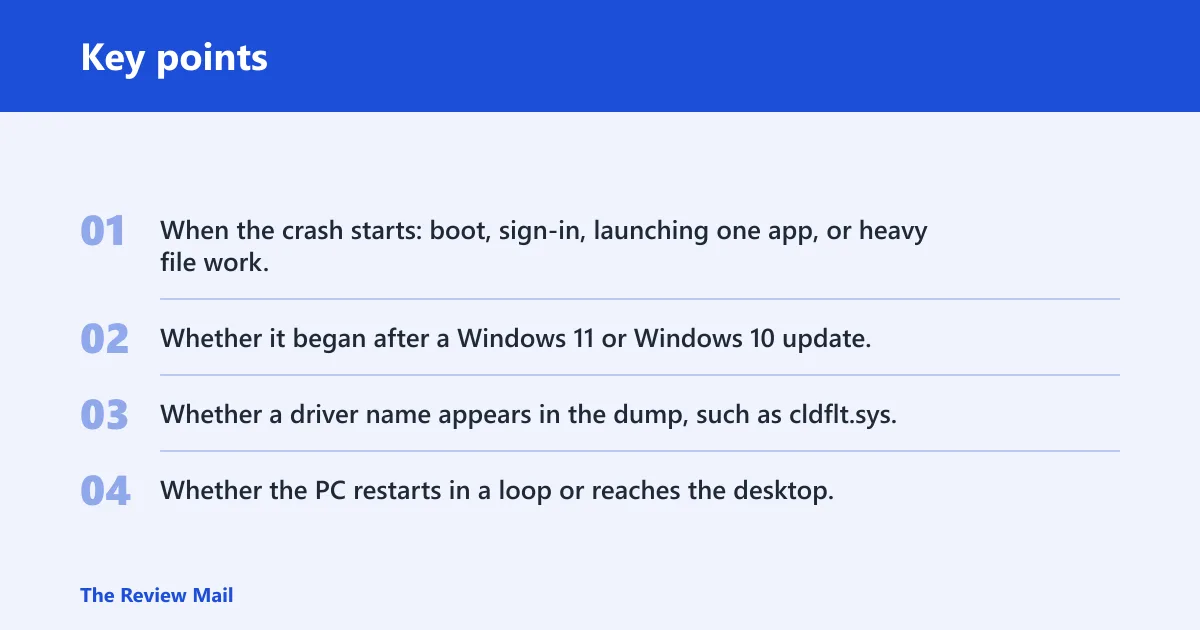
- When the crash starts: boot, sign-in, launching one app, or heavy file work.
- Whether it began after a Windows 11 or Windows 10 update.
- Whether a driver name appears in the dump, such as cldflt.sys.
- Whether the PC restarts in a loop or reaches the desktop.
What is most likely causing PFN_LIST_CORRUPT?
The trigger pattern matters more than the stop code alone. A crash right after a driver install points first to that driver or a filter driver conflict. A crash during boot or while opening large files points more toward RAM or storage. If the system started failing right after Windows Update, suspect a recent regression before you run broad repairs.
Likely causes ranked by symptom pattern
- Recent driver or update change: most likely when the crash starts immediately after a new device driver, Windows update, or software install.
- RAM instability: more likely when the PC crashes during boot, after waking, or under memory load.
- Storage trouble: more likely when crashes follow file copies, updates, or disk-heavy activity.
- System-file corruption: more likely when the PC boots but repeatedly fails in the same places.
Picture a Windows 11 desktop that starts crashing the same day a storage driver updates. That timing is a clue. A stop code without timing is only half the diagnosis.
Did the crash start after a driver change or Windows update?
If the blue screen began after a driver change or update, fix that first. Safe Mode is the right place to work when Windows keeps restarting because it loads fewer drivers and gives you space to remove, roll back, or update the suspect component. On Windows 10 and Windows 11, this is the fastest way to separate a regression from hardware trouble.
Try these steps first
- Boot into Safe Mode: Settings > Recovery > Advanced startup > Restart now > Troubleshoot > Advanced options > Startup Settings.
- Open Device Manager.
- Find the device that changed recently, then open Properties > Driver tab.
- Select Roll Back Driver if the problem started after a newer driver.
- If rollback is unavailable, choose Uninstall device, then restart and let Windows reinstall it.
Third-party antivirus, RGB control software, backup tools, and storage filter software can also clash with Windows drivers. Remove or disable the most recent one first, especially if the crash began right after installation.
Can bad RAM cause PFN list corrupt BSOD?
Yes. Bad RAM moves near the top of the list when the crash happens during boot, while opening large files, or under memory pressure. If the machine fails in Safe Mode too, or if the blue screen appears before you reach the desktop, RAM becomes a stronger suspect than a single app or driver. A common first-timer mistake is chasing three driver updates before testing memory.
How to test memory without guessing
- Press Win + R, type mdsched.exe, and start Windows Memory Diagnostic.
- Choose the restart option and let the test run.
- If you want a stronger pass, run memtest86 from bootable media.
- If the test reports repeated errors, stop software cleanup and inspect the RAM sticks, slots, and memory profile settings.
Suppose a 16 GB PC crashes only when copying a 20 GB archive or opening a huge photo library. That pattern points harder at memory or storage than at a single app.
Should you check the SSD or hard drive next?
Yes. Check storage next when the crash follows file copies, updates, or disk activity, or when the system shows SMART warnings. Disk errors and bad sectors can corrupt the data Windows uses to manage memory state. If CHKDSK finds repeated problems, stop treating the issue as software-only.
Run a disk check in this order
- Open an elevated Command Prompt.
- Run
chkdskc: /f /r. - Accept the reboot if Windows schedules the scan for startup.
- Watch for repeated bad-sector or file-system repair messages.
Quikbox defines /f as fixing disk errors and /r as recovering bad-sector information. If CHKDSK keeps finding errors on the same drive, or if SMART tools report new errors, suspect failing storage rather than a one-off file problem. A drive clone or replacement is the next step, not another registry cleaner.
Repair Windows files and the component store
Run system-file repair when the PC boots far enough to work, but the crash repeats after updates or after a bad shutdown. SFC checks protected system files. DISM repairs the Windows image that SFC depends on. These tools help when the crash pattern points to corruption, but they do not explain repeated RAM or disk errors.
Use SFC before DISM
- Open an elevated Command Prompt.
- Run
sfc /scannow. (Microsoft Learn) - If SFC cannot repair files, run
DISM /Online /Cleanup-Image /RestoreHealth. - Restart and retest the same scenario that caused the crash.
sfc /scannow
DISM /Online /Cleanup-Image /RestoreHealth
PFN LIST CORRUPT triage matrix
Use this table to choose the next step instead of trying every repair in random order. The timing of the crash usually tells you whether to start with rollback, memory, storage, or system repair. A driver name in a dump is a clue, not a conviction.
| Trigger timing | Likely cause | First test | Escalation path |
|---|---|---|---|
| Right after a driver install or update | Driver regression or filter conflict | Device Manager > Driver tab > Roll Back Driver | Uninstall the device driver, remove recent third-party antivirus or RGB tools, then retest |
| During boot or under memory-heavy work | Bad RAM or unstable memory settings | Windows Memory Diagnostic or memtest86 | Reseat memory, test sticks one at a time, then inspect BIOS memory settings |
| After file copies, updates, or SMART warnings | SSD or hard drive trouble | chkdsk c: /f /r | Check SMART data, clone the drive, replace the drive if errors repeat |
| After corruption, sudden power loss, or repeated failed boots | System-file or component-store damage | sfc /scannow | DISM /Online /Cleanup-Image /RestoreHealth, then retry SFC |
How to read a driver name in a dump
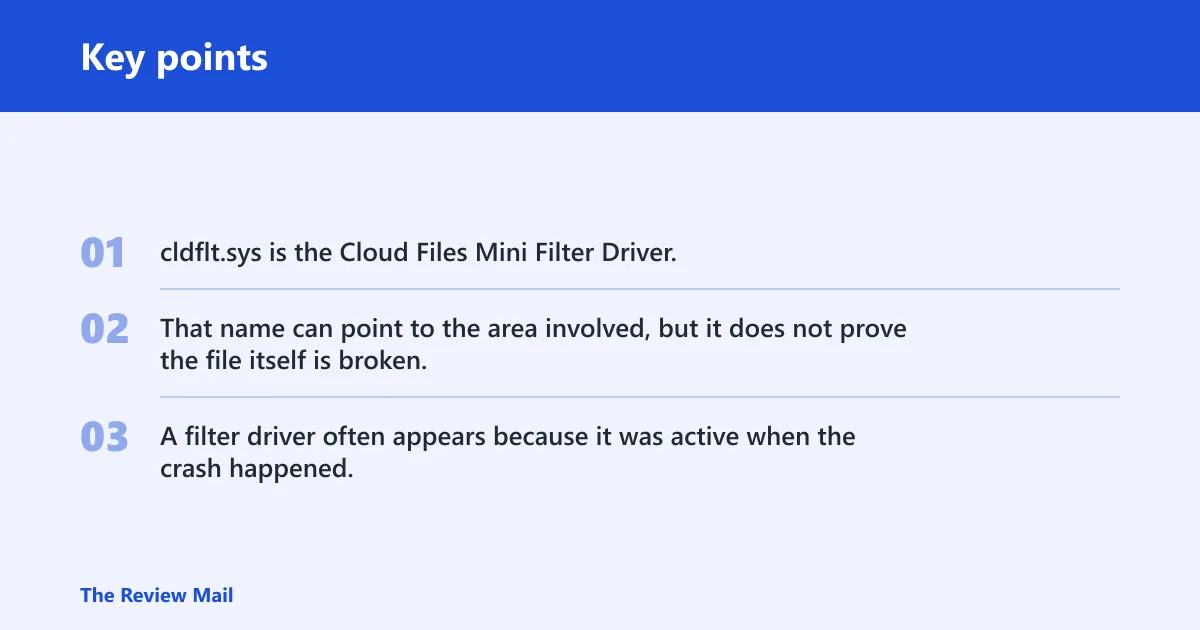
cldflt.sys is the Cloud Files Mini Filter Driver, and it has appeared in PFN_LIST_CORRUPT investigations. That name can point to the area involved, but it does not prove the file itself is broken. A filter driver often appears because it was active when the crash happened, not because it was the original fault.
What if PFN list corrupt points to cldflt.sys or another driver?
If the dump names cldflt.sys or another driver, treat it as a lead, then test the related software and device path. Filter drivers from cloud sync, backup, antivirus, and storage tools can sit between Windows and the disk. The crash may disappear only after the linked app or driver is updated, removed, or rolled back.
Try the driver path in order
- Open Device Manager and find the related device or storage controller.
- Use Roll Back Driver if a recent update preceded the crash.
- If rollback fails, choose Uninstall device, restart, then install the vendor’s known-stable version.
- Remove any recent cloud sync, antivirus, backup, or RGB software that adds a filter driver.
Still not working?
If Safe Mode fixes do not hold, and RAM, CHKDSK, SFC, and DISM all fail to change the pattern, suspect hardware before piling on more software repairs. Repeated memory errors point to RAM or board issues. Repeated disk errors point to a failing SSD or hard drive. If the machine still crashes after those checks, an in-place repair or a vendor hardware check makes sense.
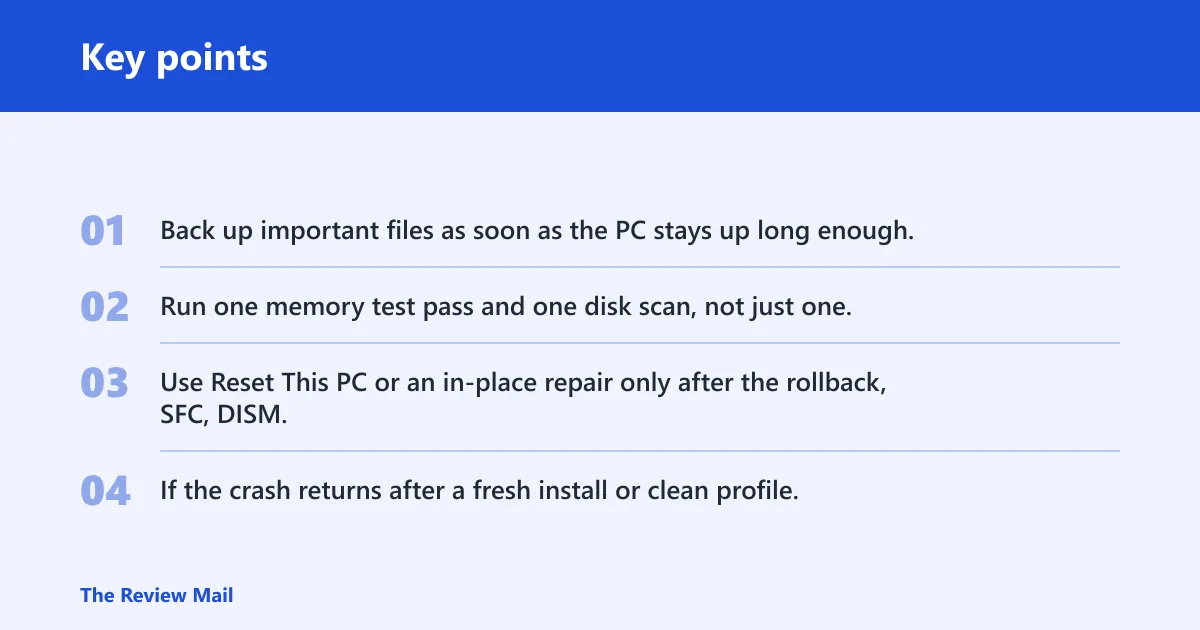
If that did not work, try this next
- Back up important files as soon as the PC stays up long enough.
- Run one memory test pass and one disk scan, not just one.
- Use Reset This PC or an in-place repair only after the rollback, SFC, DISM, and
CHKDSKpath fails. - If the crash returns after a fresh install or clean profile, stop chasing software and inspect the RAM, SSD, or motherboard.
Prevention: After the system is stable, create a restore point before driver or feature updates. Add one change at a time, then reboot and confirm the PC stays stable before installing the next driver or utility.
Frequently asked questions
What does PFN LIST CORRUPT mean on Windows 11?
It means Windows hit corrupted Page Frame Number data while managing memory. Start with the last change, then use Device Manager for driver rollback, Safe Mode if the PC keeps restarting, and CHKDSK if the crash follows disk activity. Windows 11 and Windows 10 both show this stop code.
How do I fix PFN list corrupt blue screen after a Windows update?
Open Safe Mode, then roll back or uninstall the driver that changed around the same time as the update. If the crash started immediately after Windows Update, check Device Manager first, then run sfc /scannow and DISM /Online /Cleanup-Image /RestoreHealth if the driver change does not explain it.
Should I update or roll back drivers for PFN_LIST_CORRUPT?
Roll back first if the crash began after a newer driver, because timing makes that the fastest proof step. Use Device Manager > Properties > Driver tab > Roll Back Driver. If rollback is unavailable, uninstall the device and install the last stable version from the device maker.
What commands can repair PFN list corrupt errors?
Start with sfc /scannow. If SFC cannot finish the repair, run DISM /Online /Cleanup-Image /RestoreHealth, then reboot and retest. If the crash came after disk activity, add chkdsk c: /f /r from an elevated Command Prompt.
When should I suspect a failing SSD or hard drive?
Suspect storage when the system crashes during file copies, after updates, or when SMART tools report errors. If CHKDSK keeps finding the same bad sectors or file-system problems, back up the data and plan for drive replacement. A repeated disk fault is stronger evidence than a single blue screen.