Disable reboot on BSOD in Windows 11: exact steps now
Turn off Windows 11’s automatic restart after a blue screen so the PC stays on the stop codes; turn it back on after you record the error. If it reboots instantly, you lose the code and the fastest path to the real fix. This guide shows where to disable automatic restart in Windows 11, how to note the BSOD details, and what to do next.
Why does Windows 11 restart before you can read the stop code?
Windows 11 often restarts automatically after a serious problem, and the stop code may stay visible for only a few seconds. The crash screen can be blue or black. Treat this as a capture problem first.
The fastest first step is to turn off automatic restart, then photograph the screen the next time it appears. The same screen can also show a module name or file name.
Crash-capture checklist
| Step | What to record | Why it matters |
|---|---|---|
| 1 | Exact stop code text | Points the next fix toward the right driver, device, or system component |
| 2 | Any module name or file name | Often identifies the faulting component |
| 3 | Whether it happened during boot, sleep, update, or normal use | Helps narrow the trigger |
| 4 | Whether the screen was blue or black | Confirms the crash screen type without changing the next steps |
| 5 | Whether new hardware or a new app was added recently | Matches the most common first checks |
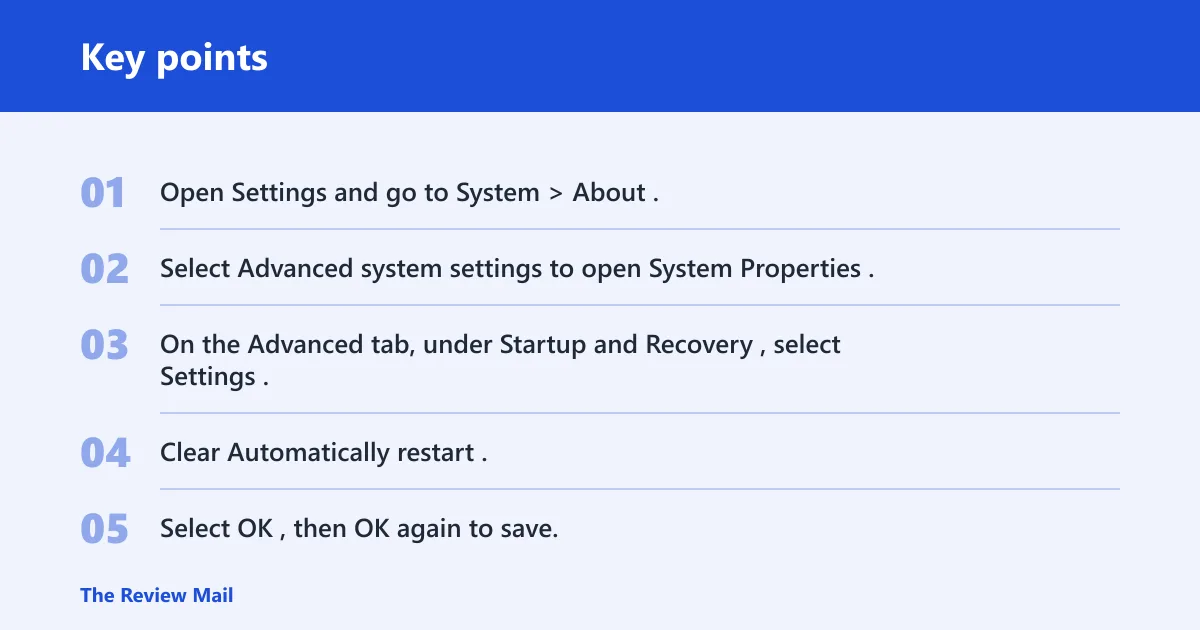
- Open Settings and go to System > About.
- Select Advanced system settings to open System Properties.
- On the Advanced tab, under Startup and Recovery, select Settings.
- Clear Automatically restart.
- Select OK, then OK again to save.
Note template: stop code; module/file name; when it happened; whether the screen was blue or black; whether new hardware, a driver change, or an update came first. Keep a photo if the text disappears too quickly.
📊 Windows 11 can unexpectedly shut down or restart after a serious problem. Source: Řešení potíží s neočekávanými restartováními systému Windows a….
How do I disable automatic restart in Windows 11?
Open System Properties, then go to Startup and Recovery and clear Automatically restart. That setting keeps the crash screen visible long enough to read the stop code and any module name. Use it as a temporary visibility setting, not a permanent change.
The path is built into Windows 11, so you do not need advanced tools. If you are troubleshooting a repeating crash, save the change, reproduce the problem, and capture the screen before moving on to repair steps.
- Press Windows, type Advanced system settings, and open it.
- In System Properties, choose the Advanced tab.
- Under Startup and Recovery, select Settings.
- Under System failure, clear Automatically restart.
- Select OK.
Picture a laptop that reboots before the code appears. Clearing automatic restart keeps the next crash on-screen long enough to photograph the bottom line. That one change is often the difference between guessing and having a usable stop code.
Where is the Startup and Recovery setting in Windows 11?
You can reach Startup and Recovery from System Properties in Windows 11. The exact path is Settings > System > About > Advanced system settings > Advanced tab > Startup and Recovery > Settings. That is the control for automatic restart after a crash.
This is the setting to change when the screen vanishes too quickly to read. It is separate from repair tools such as Safe Mode, Device Manager, or System Restore.
- Open Settings.
- Select System, then About.
- Select Advanced system settings.
- In System Properties, open Startup and Recovery.
- Clear Automatically restart and save.
Can I stop Windows 11 from rebooting after a BSOD without using advanced tools?
Yes. The automatic restart setting is built into Windows 11 and can be changed through the normal Settings path. You do not need third-party crash tools to keep the stop screen visible long enough to record the code, module name, or file name.
Use it once, capture the crash details, and then move to a repair step. This is a visibility change, not a fix for the underlying hardware, driver, or software problem.
- Go to Settings > System > About.
- Select Advanced system settings.
- Open Startup and Recovery under the Advanced tab.
- Clear Automatically restart.
- After you capture the stop code, go back and re-enable it if you are done troubleshooting.
What are the most common causes of repeated BSOD reboots?
Repeated BSOD reboots most often come from a recently added device, a driver problem, compatibility issues with a specific app, or a change that left Windows unstable. A Blue Screen of Death may also occur because of a compatibility problem with an application or security software. Less commonly, low free space, a broken update state, or damaged files in the installation media are involved.
Say your desktop started rebooting after a new USB audio interface was plugged in. That is a strong clue to remove the device first. Or suppose a driver warning appears in Device Manager after a graphics update; that points you toward the driver, not the crash screen setting.
- Recently added hardware: unplug new peripherals and remove newly installed internal hardware.
- Driver or device issue: check Device Manager for warning symbols.
- Windows update issue: install the latest updates.
- Low disk space: free enough space to leave about 10 to 15 percent open.
- System corruption: try System Restore if the problem started after a change.
Which fixes should you try after you have the stop code?
Start with the built-in basics: remove newly added hardware, then check Device Manager for devices marked with an exclamation point. After that, install the latest Windows updates and make sure the system has about 10 to 15 percent free disk space.
The stop code does not always point to one single cause. Use the stop code and any module name to choose the next repair step.
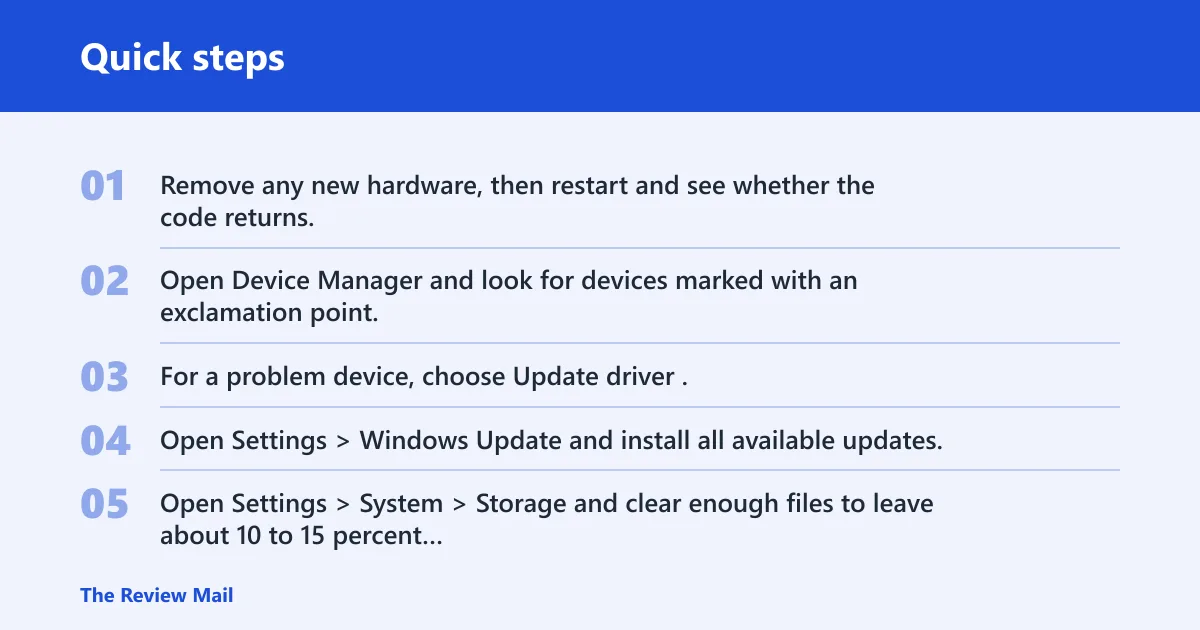
- Remove any new hardware, then restart and see whether the code returns.
- Open Device Manager and look for devices marked with an exclamation point.
- For a problem device, choose Update driver. If that fails, choose Disable device or Uninstall device.
- Open Settings > Windows Update and install all available updates.
- Open Settings > System > Storage and clear enough files to leave about 10 to 15 percent free.
- If the crash began after a recent change, open System Restore and roll back to a restore point.
Device Manager path to check
Start > Device Manager
Look for devices with an exclamation point.
Right-click the device > Update driver
If that fails: Right-click the device > Disable device or Uninstall device
How do I use Safe Mode if my PC keeps rebooting after a BSOD?
Use Safe Mode when normal startup keeps crashing and blocks troubleshooting. It lets you continue with driver checks, update work, and other basic fixes without loading as many components.
If the same stop code comes back after a reboot, Safe Mode gives you a cleaner place to remove a bad driver, uninstall a new device, or run repair steps. Keep automatic restart off until you finish capturing the crash details.
- Open Settings > System > Recovery.
- Under Advanced startup, select Restart now.
- Choose Troubleshoot > Advanced options > Startup Settings.
- Select Restart.
- Choose the Safe Mode option shown on screen, then continue troubleshooting.
Should I disable automatic restart permanently or only while troubleshooting?
Only while troubleshooting. Automatic restart is useful after the crash has been captured because it returns the PC to normal behavior after a serious fault. Leaving it off permanently can hide repeated crashes from casual use, but it also leaves you staring at a stop screen whenever the problem returns.
Turn it back on once you have the stop code and any module name. That keeps the setting tied to its job, short-term visibility for diagnosis.
- Disable Automatically restart only long enough to catch the crash screen.
- Record the stop code and any module name.
- Run the next fix from the code and symptom.
- Turn Automatically restart back on after the issue is resolved or the crash is documented.
What should I do if the same BSOD keeps coming back after I disable reboot?
If the same stop code returns, move from capture to repair. Start with the simplest cause first: remove newly added hardware, then check Device Manager, then install Windows updates, and then make sure enough disk space is free. If the crash started after a recent change, use System Restore.
If the PC will not stay stable, switch to Safe Mode and keep going there. A common first-timer mistake is to leave automatic restart off and stop there. The next step is to use the code to pick the repair.
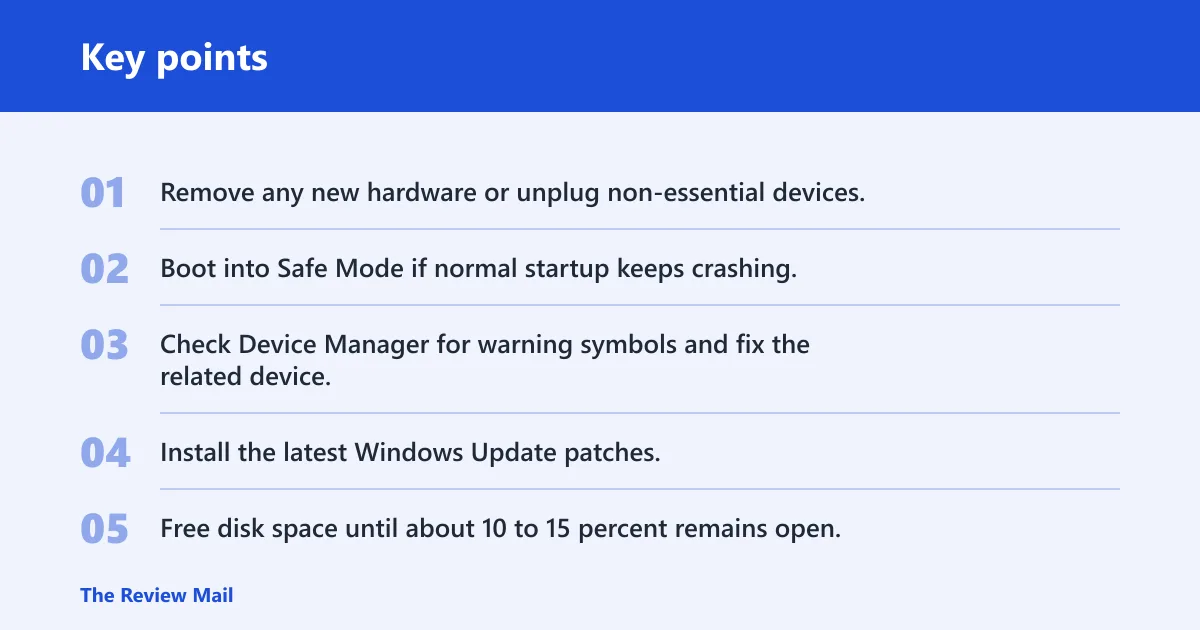
- Remove any new hardware or unplug non-essential devices.
- Boot into Safe Mode if normal startup keeps crashing.
- Check Device Manager for warning symbols and fix the related device.
- Install the latest Windows Update patches.
- Free disk space until about 10 to 15 percent remains open.
- Use System Restore if the problem began after a change.
If that didn’t work, try this next
- Uninstall non-essential apps if the installation wizard rolled back to the previous setup.
- Disconnect non-essential devices if the installation wizard rolled back to the previous setup.
- Re-download the setup files if the installation wizard rolled back to the previous setup.
- Perform a clean installation if the installation wizard rolled back to the previous setup.
Does Windows 11 show different BSOD colors or stop code screens on different versions?
Yes. The crash screen can appear in different colors, so the exact look can vary. The important part is the stop code at the bottom of the screen, plus any module name or file name that appears with it.
Do not wait for one exact look. Focus on the text, not the color. If the screen disappears too quickly, disable automatic restart, photograph the next crash, and then turn the setting back on after you finish.
Frequently asked questions
How do I disable automatic restart after a blue screen in Windows 11?
Open Settings > System > About > Advanced system settings, then open Startup and Recovery and clear Automatically restart. That keeps the next crash screen visible long enough to read or photograph the stop code.
Why does Windows 11 restart too fast to read the stop code?
Automatic restart is enabled on many PCs, so the stop code may only appear briefly before the system restarts. Disable the setting, then use a photo or written note to save the code and any module name shown on the screen.