Show Disabled Devices Windows 10: Device Manager Steps
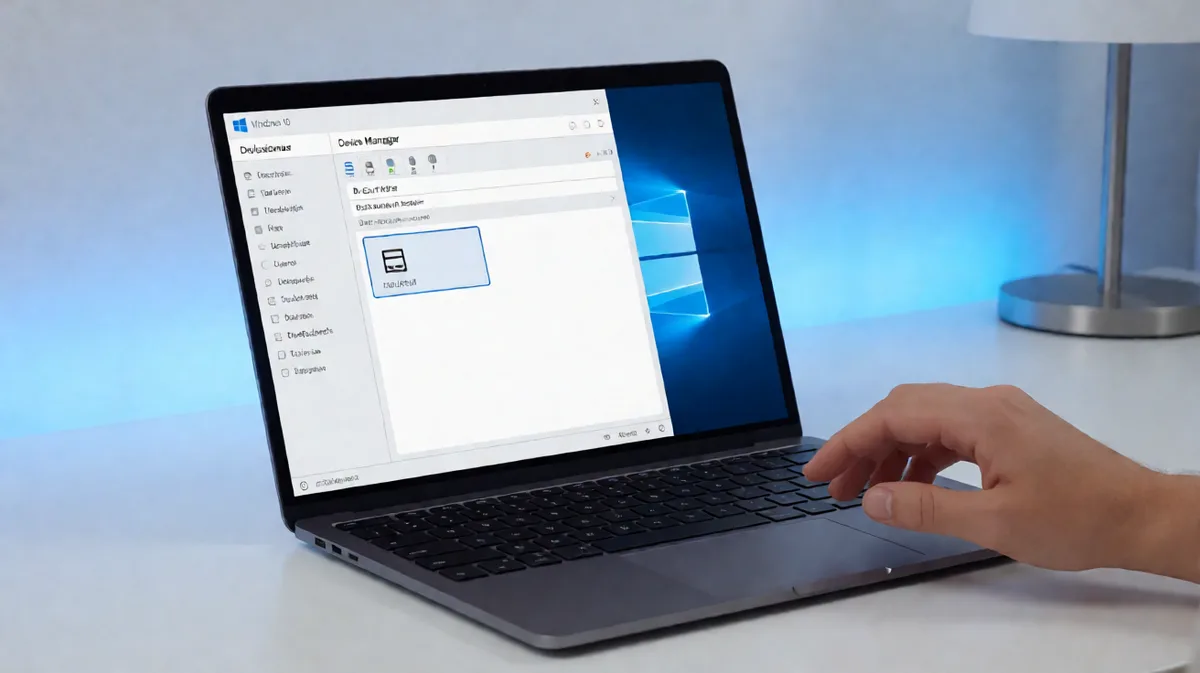
In Windows 10, open Device Manager, then choose View > Show hidden devices. Dimmed entries can be disabled devices, while ghosted ones are often non-present hardware. Remove only the entries you can identify. Mixing them up can disable the wrong adapter, strip a driver you still need, or leave stale items that keep troubleshooting messy. This guide shows how to reveal hidden devices, tell disabled hardware from non-present hardware, and clean Device Manager without touching the wrong entry.
Disabled, Hidden, And Non-Present Device States
In Device Manager, disabled, hidden, and non-present are different states. A disabled device is still installed but not currently turned on. A hidden or non-present device is often hardware that is no longer attached, or an inactive entry Windows keeps for troubleshooting.
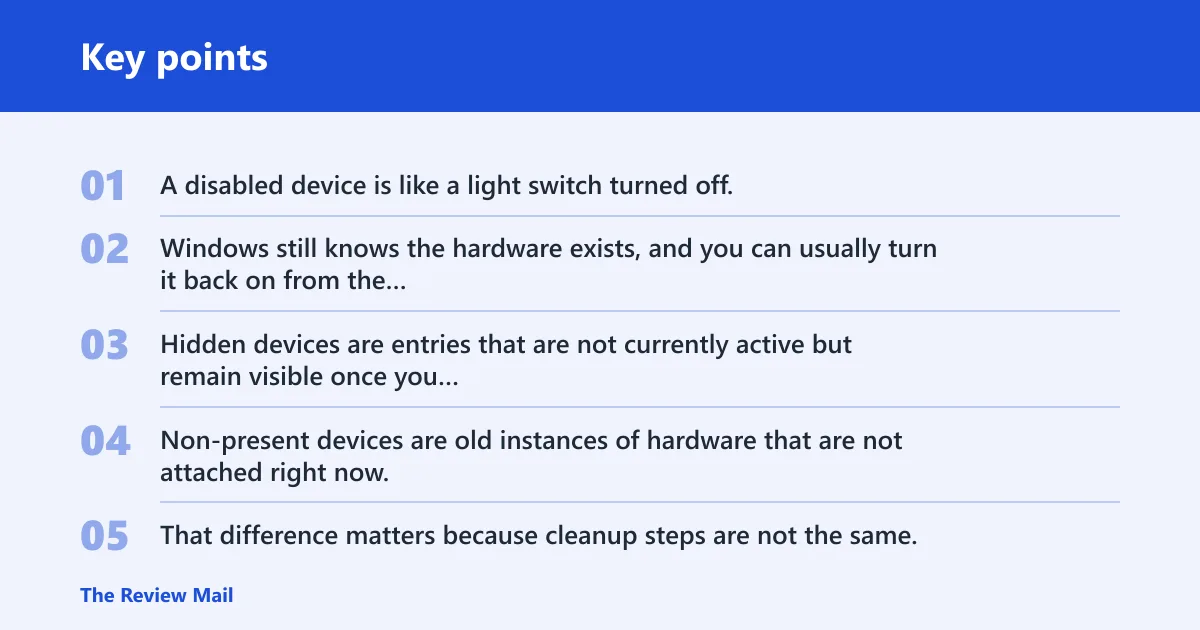
Disabled vs hidden vs non-present: the plain-English difference
A disabled device is like a light switch turned off. Windows still knows the hardware exists, and you can usually turn it back on from the context menu. Hidden devices are entries that are not currently active but remain visible once you enable the view option. Non-present devices are old instances of hardware that are not attached right now.
That difference matters because cleanup steps are not the same. A disabled network adapter may need only Enable device. A non-present Bluetooth headset entry may be safe to uninstall if it is clearly stale. A hidden audio endpoint might be a duplicate that should stay removed until the device returns.
What a greyed-out Device Manager entry usually means
Greyed-out text usually means Windows sees the entry, but the hardware is not currently active. That can happen after unplugging a USB dock, removing a Bluetooth device, disconnecting an external audio interface, or moving a laptop between docked and undocked states. Grey does not automatically mean “safe to delete.”
A down-arrow icon or context menu entry that offers Enable device usually points to a disabled device. A faded label with no disable marker often points to a hidden or non-present device. The icon matters, but the device category and current hardware connection matter too.
Why Show hidden devices is not the same as enabling hardware
Show hidden devices changes visibility. It does not change the device state. It simply tells Device Manager to list extra entries, including hidden and non-present hardware, so you can inspect them. To bring hardware back online, you still need to right-click the specific device and choose Enable device.
That distinction is easy to miss. Turning on the hidden-device view can reveal a greyed-out USB controller or Bluetooth adapter, but the entry will still be disabled if Windows marked it that way. Visibility and operability are separate settings.
Where is Show hidden devices in Device Manager?
Show hidden devices is in Device Manager’s View menu. Open Device Manager, use the menu bar, and select View > Show hidden devices. If the menu bar is collapsed, press Alt to reveal it first. The setting applies to categories and individual entries.
Open Device Manager from the Start menu or Run box
Use either path:
- Press Start, type Device Manager, and open it.
- Or press Win + R, type
devmgmt.msc, and press Enter.
Once Device Manager opens, scan the hardware tree. Categories such as Universal Serial Bus controllers, Bluetooth, Audio inputs and outputs, and Network adapters are the first places to check for hidden leftovers.
Use Alt to reach the menu bar if it is hidden
Some windows show a compact interface with the menu bar minimized. Press Alt once to expose the menus, then choose View. Select Show hidden devices to reveal dimmed entries that are otherwise invisible.
After that, expand the relevant category. Hidden entries usually appear in place, often dimmed. The tree can become crowded quickly, especially under USB controllers after repeated docking, unplugging, or driver updates.
How do you know whether a device should be re-enabled or left alone?
Start by reading the icon, the device category, and whether the hardware is currently connected. If Device Manager offers Enable device, the entry is disabled and may simply need to be turned back on. If the entry is greyed out and the hardware is gone, it is more likely hidden or non-present.
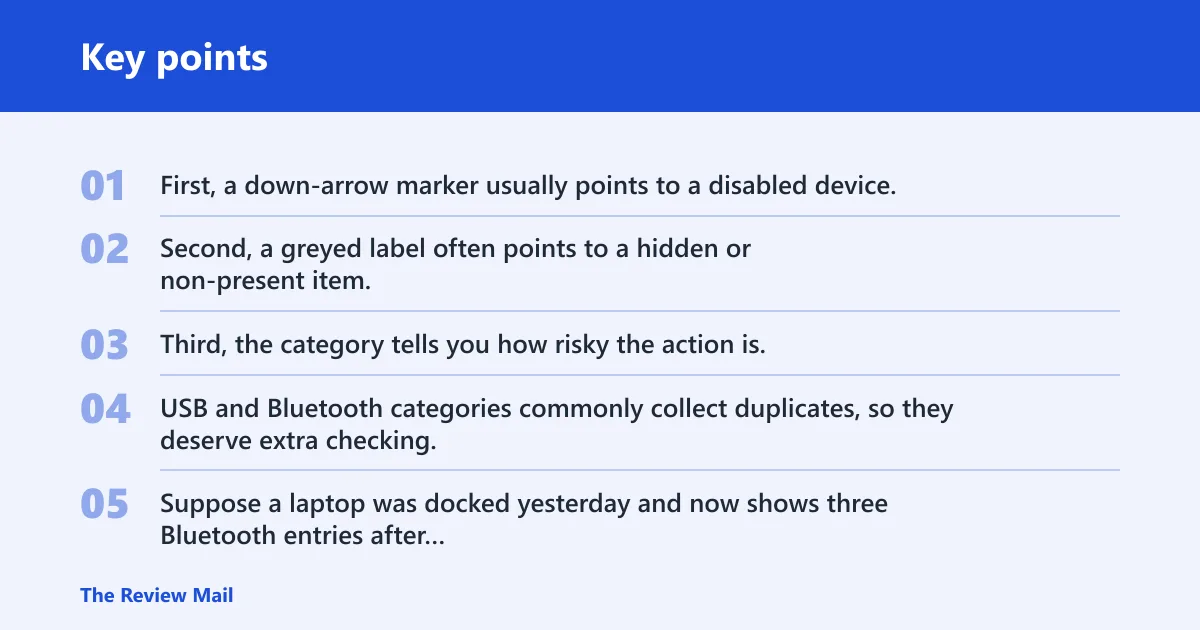
Read the icon, state, and category before acting
Look for three clues. First, a down-arrow marker usually points to a disabled device. Second, a greyed label often points to a hidden or non-present item. Third, the category tells you how risky the action is. USB and Bluetooth categories commonly collect duplicates, so they deserve extra checking.
Suppose a laptop was docked yesterday and now shows three Bluetooth entries after undocking. One may be the active adapter, while the others are old device instances. Removing the wrong one can make pairing disappear until Windows rebuilds the driver state.
When a disabled device can be re-enabled from the context menu
If the device is known hardware and Device Manager shows Enable device, that is the next step. Right-click the entry, choose Enable device, then wait for Windows to refresh the status. If the device returns to normal text and starts working, no uninstall step is needed.
A common first-timer mistake is to uninstall a disabled Wi-Fi adapter when a simple enable action would have been enough. That can trigger extra driver cleanup and make recovery harder than necessary.
When a hidden or non-present entry should stay removed
If the entry belongs to hardware that was permanently removed, such as a dock, old USB headset, or retired Bluetooth peripheral, leaving it hidden is often harmless. Uninstalling it is only useful when the stale entry causes confusion, duplicate instances, or a driver conflict after an upgrade.
Do not remove an item just because it is greyed out. Confirm that the hardware is no longer attached, that the instance path matches an old connection, and that you are not looking at the active device in a duplicate pair.
| Device Manager state | What it usually means | Next action | Warning |
|---|---|---|---|
| Disabled | Hardware is installed but turned off | Right-click and choose Enable device | Do not uninstall first unless the device is broken |
| Hidden | Inactive or disconnected entry shown after View > Show hidden devices | Review the category and decide whether it is stale | Hidden does not mean safe to delete |
| Non-present | Previously connected hardware that is not attached now | Uninstall only if you recognize the instance as old | Check for a duplicate active device first |
How do you clean up duplicate USB or Bluetooth entries safely?
USB and Bluetooth collect stale entries because they remember each connection, dock, and pairing path. After repeated plug and unplug cycles, Windows can keep multiple instances of the same hardware. Cleanup is safest when you verify the active instance through the hardware ID or device instance path before uninstalling anything.
Why USB controllers and Bluetooth adapters collect old entries
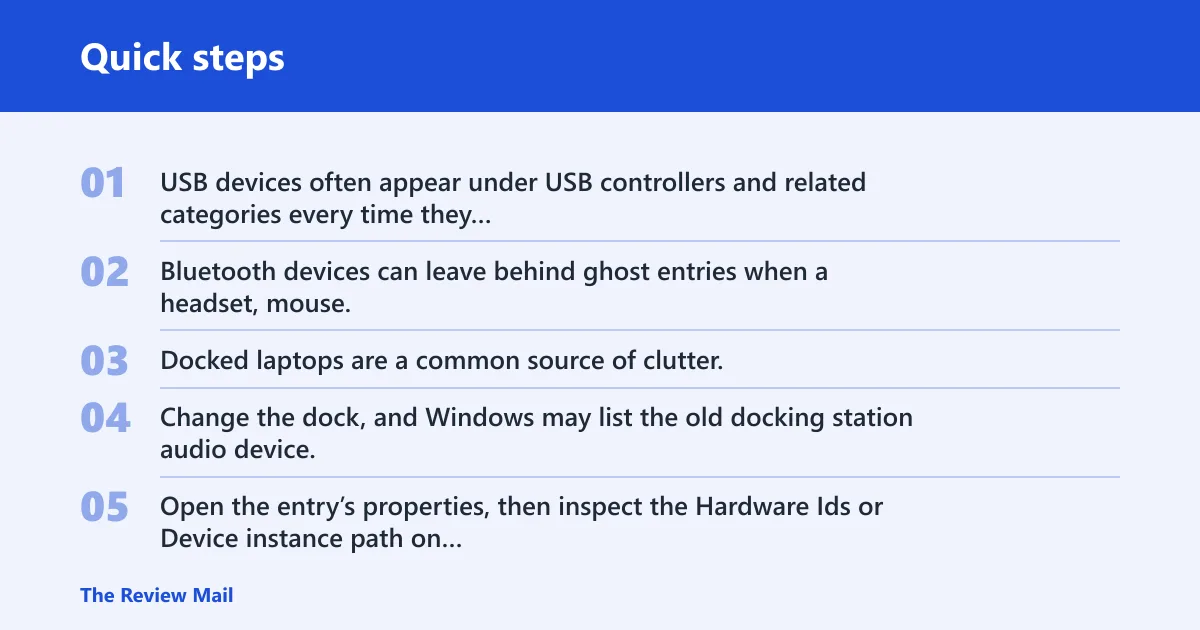
USB devices often appear under USB controllers and related categories every time they connect through a different port or dock path. Bluetooth devices can leave behind ghost entries when a headset, mouse, or keyboard pairs, unpairs, or reconnects through a different radio or driver revision.
Docked laptops are a common source of clutter. Change the dock, and Windows may list the old docking station audio device, an older Ethernet adapter instance, and several USB hubs that no longer match the current connection.
How to compare device instance paths or hardware IDs before uninstalling
Open the entry’s properties, then inspect the Hardware Ids or Device instance path on the Details tab. These values help separate one physical device from a duplicate entry. If two names look the same, the instance path can show whether one is the current device and the other is a leftover copy.
That check matters because duplicate names are common. Two entries may both say “Bluetooth Device” or “USB Composite Device,” but only one is attached to the live hardware path. The other may be a phantom entry from an earlier connection.
When to use Uninstall device and when to stop
Use Uninstall device when the entry is clearly stale, duplicated, or tied to hardware you no longer use. Stop when the active device is uncertain, the driver package is shared with another device, or the entry is the only visible instance of current hardware. If in doubt, leave it in place.
Uninstalling can also affect how Windows reloads the driver package. In some cases the package remains in the driver store and returns after reconnecting the hardware. In others, the entry disappears until the device is reattached or Windows redetects it.
How do you view removed or non-present devices in Device Manager?
To view removed or non-present devices, open Device Manager and turn on View > Show hidden devices. This reveals devices that are not currently attached, including ghost entries left after upgrades, dock changes, or unplug/replug history. Those entries are useful for troubleshooting, but they are not always safe to delete.
How hidden devices help diagnose driver conflicts after Windows updates or device swaps
When hardware changes after a Windows update or a device swap, old entries can remain alongside the new ones. That can create conflicts in USB, Bluetooth, audio, and network categories. Hidden devices make those leftovers visible, which helps identify the stale instance that is still hanging around.
Picture a desktop that moved from motherboard audio to a USB headset after an update. Device Manager may keep the old audio endpoint plus the new one. Showing hidden devices helps separate the inactive endpoint from the active headset path.
Why removed entries can stay visible after hardware is gone
Windows keeps device records for drivers, settings, and past connections. The entry can remain because the driver package still exists or because the device instance is stored for future reconnects. That is normal. The record is not proof that the hardware is still attached.
What should you do after enabling or uninstalling a device?
After enabling or uninstalling a device, rescan hardware changes in Device Manager first. If the device does not return or the status does not update, restart Windows 10. Then reconnect the hardware and check whether the driver package and device instance reappear as expected.
Refresh or rescan hardware changes
In Device Manager, use the action that scans for hardware changes so Windows can rebuild the device tree. This is the fastest way to confirm whether the system sees the device again after an enable or uninstall action.
Restart if the device does not reappear
If the entry remains missing, a full restart often clears stale state and reloads the driver stack. That is especially useful after Bluetooth, audio, or network changes, where Windows may need a clean restart to complete re-enumeration.
Check whether the driver package reappears after reconnecting the hardware
Reconnect the hardware and watch the category that should contain it. If the correct driver package and instance return, the cleanup worked. If Windows installs a different driver or shows a duplicate again, compare the hardware ID and instance path before taking another action.
Frequently asked questions
how to show hidden devices windows 10
Open Device Manager, then choose View > Show hidden devices. If the menu bar is not visible, press Alt first. Hidden entries will appear dimmed in the device tree, especially under USB, Bluetooth, audio, and network categories.
how do i show disabled devices in device manager windows 10
Disabled devices are already listed in Device Manager, but they may appear with a down-arrow marker or in a greyed state. Open the relevant category and look for entries that offer Enable device when you right-click them. That means the hardware is installed but turned off.
where is show hidden devices in windows 10
Show hidden devices is in the View menu inside Device Manager. Open Device Manager from Start or by running devmgmt.msc, then select View > Show hidden devices. Press Alt if the menu bar is collapsed.
how to enable a disabled device in windows 10
In Device Manager, right-click the disabled entry and choose Enable device. This works when Windows has only turned the hardware off. If the device stays missing after that, rescan hardware changes or restart Windows to refresh the driver state.
how do i uninstall a hidden device in device manager
First confirm that the hidden entry is stale, duplicate, or clearly non-present. Then right-click it and choose Uninstall device. Be careful with USB and Bluetooth entries, since similar names can hide different instances of the same class of hardware.