Missing Device Manager in Windows 11: Fixes That Work
A missing Device Manager in Windows 11 usually means one of three issues: the shortcut is gone, hidden devices are off, or a hardware category failed to load. Fixing the wrong layer wastes time and can hide driver or hardware faults. This guide shows how to open Device Manager, turn on hidden devices, and restore a missing hardware category.
What “missing Device Manager” usually means
That symptom can also mean the console opens, but the specific device class never appears. For example, Bluetooth or Wi‑Fi may be absent because the adapter driver did not enumerate, while Camera or Microphone may be blocked by firmware, privacy settings, or a laptop vendor’s driver package.
| Symptom | Most likely layer | Exact next step |
|---|---|---|
| Device Manager will not open at all | UI access issue | Open devmgmt.msc from Run, then try Start search and the Settings path. |
| Device Manager opens, but a device is not listed | Hidden device state | Turn on Show hidden devices and check whether the entry appears faded. |
| A category such as Bluetooth, Camera, Microphone, or Wi‑Fi is gone | Driver enumeration failure | Confirm the model with msinfo32, then check Windows Update and OEM drivers. |
| A known internal device is absent everywhere | Hardware or firmware disablement | Check BIOS/UEFI settings, then review chipset and OEM support pages. |
How to open Device Manager in Windows 11
Open Device Manager from the Run dialog with devmgmt.msc first. If that works, the console is present and the problem is usually search, policy, or a missing shortcut rather than a broken hardware tree. (Microsoft Learn)
Use the Run dialog with devmgmt.msc
- Press Windows key + R.
- Type
devmgmt.msc. - Press Enter.
This direct console launch is the cleanest test. It skips Start search and pinned shortcuts, so it tells you whether Device Manager is installed and callable.
Open it from Start search or Settings
Search for Device Manager from Start. If Windows returns no result, try the All apps list, then open Settings and use the hardware-related paths that lead into device management tools. Search failures often reflect indexing trouble, not a missing console.
What to check if the app still will not launch
If devmgmt.msc fails too, check for an administrative block, Safe Mode behavior, or corrupted system files. A managed work PC can hide device tools through policy. A damaged shell or system file set can also stop MMC consoles from opening.
Why Device Manager may be missing or blocked
Device Manager may seem missing because Start search cannot find it, a policy blocks the console, or Windows is too damaged to open the management snap-in. The fix depends on whether the problem is user interface access, restricted permissions, or a deeper system issue.
Start search cannot find it
Search can fail even when the tool still exists. Try devmgmt.msc from Run before you assume Windows removed it. If the console opens there, the search index or Start menu is the problem, not Device Manager itself.
Administrative restrictions or policy settings
On some managed systems, local policy can block Device Manager or related MMC tools. If this is a work laptop, use an administrator account and check whether the PC is joined to a company domain or management service. If so, the restriction may be intentional.
Safe Mode, system file, or shell issues
Safe Mode can limit what loads, which changes what you see in Device Manager. Corrupted system files can also stop the console from opening. If devmgmt.msc fails and other built-in tools fail too, repair Windows system files before chasing driver work.
Suppose a 14-inch laptop suddenly stops showing the Device Manager shortcut after a failed update. If devmgmt.msc still opens from Run, the search shell is the issue. If it does not, the repair path moves toward Windows system files or policy checks.
How to make hidden devices show in Device Manager?
Turn on Show hidden devices to separate a truly missing device from one that is disabled or no longer active. Hidden devices often appear faded. That can mean Windows still has a record of them, even if the hardware is not active right now.
Turn on Show hidden devices
- Open Device Manager.
- Select View.
- Choose Show hidden devices.
Then expand the relevant category again. A faded entry usually points to a device record that Windows has kept, not a new device that is currently present and working.
How a faded entry differs from a true absence
A faded entry means Windows knows about the device but is not loading it now. A true absence means the category never appears, or the device class is missing entirely. That difference matters because faded entries often respond to enable, reinstall, or driver cleanup steps.
When hidden devices point to an old driver record
Old Bluetooth adapters, removed webcams, and retired audio endpoints often remain hidden after upgrades. If you see a greyed-out item, it may be an older driver record rather than active hardware. Remove it only when you are sure the current hardware uses a different entry.
What to do when a hardware category is missing
When a category such as Bluetooth, Camera, Microphone, or Wi‑Fi is missing, the problem is usually not the Device Manager app itself. It is more often a driver enumeration failure, a disabled device in firmware, or a vendor-specific driver package that has not loaded.
Bluetooth missing from Device Manager
Bluetooth is a common example because its adapter often depends on a specific OEM driver. If Bluetooth is absent from Device Manager, check Windows Update first, then the laptop maker’s Bluetooth package. The user’s example problem involved updating a Bluetooth driver, which is a typical starting point.
Camera missing from Device Manager
Camera issues on laptops often come from privacy settings, a disabled internal camera, or a missing OEM camera driver. If the Camera category is absent, verify that the laptop model actually includes one and then check BIOS/UEFI for any camera disablement before you reinstall drivers.
Microphone missing from Device Manager
Microphone problems often trace back to audio driver packages or privacy controls. On a laptop, the internal microphone can disappear from the tree if the audio codec or vendor bundle is missing. Check Windows privacy access, then the audio and chipset drivers for that model.
Wi‑Fi adapter missing from Device Manager
A missing Wi‑Fi adapter usually points to a driver problem, a disabled wireless card, or firmware settings that prevent enumeration. If Ethernet still works, use it to install the wireless driver package from the OEM site. If no wireless hardware appears at all, BIOS/UEFI checks come next.
Picture a 15.6-inch laptop that shows Bluetooth but not Wi‑Fi after a reset. That split often means part of the radio stack loaded and part did not. The next step is not a generic reinstall; it is model-specific wireless and chipset support for that machine.
Use msinfo32 to confirm the system before changing drivers
Use msinfo32 to confirm the PC make and model before you change drivers. That matters because driver pages are model-specific, and a wrong package can leave the device tree unchanged or create a second problem.
Find the PC make and model
The system information tool lists hardware details that help you match the exact laptop variant. The thread behind this issue asked for the laptop make and model and recommended opening System Information with msinfo32. That is the right order before downloading drivers.
Confirm whether the hardware should exist
Some laptops ship with optional cameras, fingerprint readers, or Wi‑Fi cards. If the model does not include a feature, Device Manager will not magically list it. Confirm the system specs first, then decide whether you are restoring missing hardware or looking for a component that was never installed.
Match the device to the OEM support page
Once you know the exact model, use the manufacturer support page for chipset, wireless, camera, microphone, or Bluetooth packages. OEM packages are often more complete than generic drivers for laptops, especially when the device sits behind firmware controls or vendor utilities.
Follow the right repair order
Start with Windows Update, then install chipset and OEM drivers, and then check BIOS or UEFI for any disabled hardware. If the device still does not enumerate, the problem may be outside Windows and need OEM support.
Run Windows Update and optional driver updates
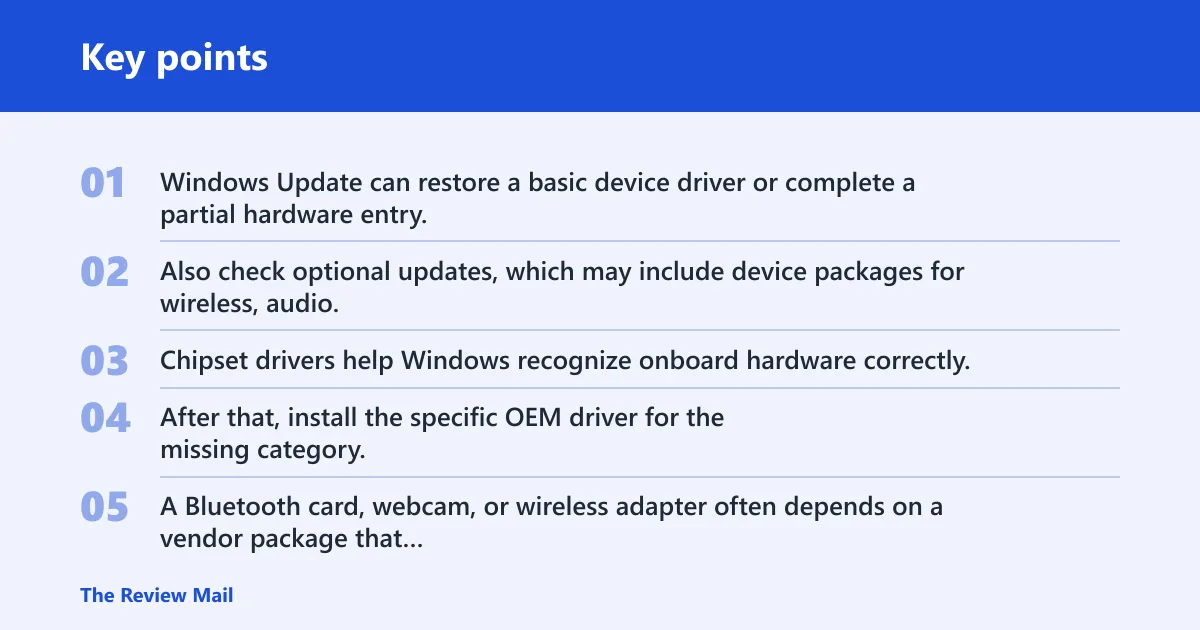
Windows Update can restore a basic device driver or complete a partial hardware entry. Also check optional updates, which may include device packages for wireless, audio, and camera hardware. This is the fastest low-risk repair step.
Install chipset and OEM device drivers
Chipset drivers help Windows recognize onboard hardware correctly. After that, install the specific OEM driver for the missing category. A Bluetooth card, webcam, or wireless adapter often depends on a vendor package that Windows does not fully replace on its own.
Check BIOS or UEFI for disabled hardware
If a device still does not appear, enter BIOS or UEFI and look for settings tied to wireless, camera, microphone, or onboard peripherals. Hardware that is disabled there will not show in Device Manager, even if Windows is healthy.
Escalate to OEM support if the device still does not enumerate
If Windows Update, chipset drivers, OEM packages, and BIOS or UEFI checks do not restore the device, contact the manufacturer. At that point, the problem may be a board-level fault, a firmware block, or a model-specific driver issue that needs vendor help.
Frequently asked questions
How do I open Device Manager if it’s missing in Windows 11?
Press Windows key + R, type devmgmt.msc, and press Enter. That direct launch is the best first test because it skips Start search and shortcut problems. If it opens, Device Manager is present and the issue is probably search or policy related.
Why is Device Manager missing in Windows 11?
It is usually not gone. More often, Start search fails, a policy blocks the console, Safe Mode changes what loads, or system files are damaged. If devmgmt.msc works from Run, the tool is still there and the access path is the problem.
How do I fix camera missing in Device Manager on Windows 11?
Check whether the laptop actually includes a camera in its model specs, then review privacy settings, BIOS or UEFI disablement, and OEM camera drivers. If the category is absent, a vendor driver or firmware setting is more likely than a normal Device Manager display issue.
How do I fix microphone missing in Device Manager on Windows 11?
Look at privacy access first, then install or repair the audio and chipset drivers for the exact laptop model. Internal microphones often depend on the OEM audio bundle. If nothing appears, use msinfo32 to confirm the model before trying another driver package.
Why is Bluetooth missing from Device Manager in Windows 11?
Bluetooth commonly disappears when the adapter driver fails to load or the wireless radio is disabled at the firmware level. Start with Windows Update, then install the OEM Bluetooth package for that exact laptop. The reported example also involved a Bluetooth driver update, which fits this pattern.
How do I get Wi‑Fi adapter missing in Device Manager back?
Install the model-specific wireless driver, then check BIOS or UEFI for a disabled radio. If the adapter never appears, confirm the laptop make and model with msinfo32 and match the wireless chipset to the OEM support page before moving to hardware fault diagnosis.