Device troubleshooter Windows 10: how to run it and fix faults
The Windows 10 device troubleshooter can fix basic hardware and driver issues, but if it is missing in Settings or returns nothing, go straight to Device Manager, connection checks, and driver updates. A dead USB port, failing audio device, or bad driver can waste time while the fault stays unresolved. This guide shows when the device troubleshooter helps, why it may be hidden or ineffective, and what to try next for the most common hardware failures.
Tool Capabilities And Device Manager Comparison
The Hardware and Devices Troubleshooter is a legacy Windows diagnostic tool that checks common hardware issues and tries to fix them automatically. It can help with simple detection problems, but it is not a cure-all. If the fault is a bad cable, a missing driver, or a hardware failure, you usually need a different next step.
Hardware and Devices Troubleshooter vs. Device Manager
Use the troubleshooter when Windows sees a device but behaves oddly, such as a Bluetooth accessory that pairs and then drops, or a printer that appears but will not complete setup. Use Device Manager when you need to inspect device status, check driver warnings, or find an error code. Device Manager is the better place to confirm whether Windows has flagged a problem.
When the tool can help and when it cannot
The tool is most useful for broad detection issues and some driver-related faults. It is far less useful when the problem is outside Windows, such as a disabled USB port, a dead headset jack, a failed keyboard, or a Bluetooth adapter that is switched off in firmware.
📊 Microsoft documents Device Manager as available for Windows 10. Source: Open Device Manager.
Where to find the hardware and devices troubleshooter
On Windows 10, the path is in Settings under Update & Security > Troubleshoot > Additional troubleshooters. Microsoft’s Windows 10 guidance uses that menu structure, but the tool is hidden or de-emphasized in newer builds, so you may not see it in the same place on every system.
Open it from Windows Settings
- Open Settings.
- Go to Update & Security.
- Select Troubleshoot.
- Open Additional troubleshooters.
- Look for Hardware and Devices, then start it and click Next.
Microsoft documents the Windows 10 path through Update & Security, Troubleshoot, and Additional troubleshooters. The walkthrough starts with Next, then scans for common hardware faults. If the option appears, that is the cleanest route for a normal Windows 10 setup.
What to do if it is hidden in your build
Some Windows 10 installations no longer surface the Hardware and Devices entry in the same obvious way. If you do not see it, do not keep hunting through menus for long. Move to Device Manager, check the device’s connection and driver state, and use the command-line launcher if you specifically want the legacy diagnostic tool.
How do I run the troubleshooter from Command Prompt?
You can launch the legacy Hardware and Devices troubleshooter from an elevated Command Prompt with msdt.exe -id DeviceDiagnostic. This helps when the Settings path is hidden or when a menu entry will not open. If Windows blocks msdt.exe in your environment, skip it and use Device Manager plus direct driver checks.
Open an elevated Command Prompt
- Search Command Prompt from Start.
- Right-click it.
- Choose Run as administrator, or press Ctrl + Shift + Enter after selecting it.
- Approve the prompt if Windows asks for permission.
Run msdt.exe -id DeviceDiagnostic
At the administrator prompt, type msdt.exe -id DeviceDiagnostic and press Enter. The diagnostic window should open and begin the Hardware and Devices scan. Microsoft’s command-line method uses a DeviceDiagnostic identifier for the legacy troubleshooter.
What to do if msdt.exe does not open
If msdt.exe is missing, blocked, or does nothing, that is a sign to stop treating the troubleshooter as the main fix. Go to Device Manager, verify whether the device is listed, and check for driver warnings or missing hardware. If the problem concerns Bluetooth or USB, connection checks usually come first anyway.
How do I open Device Manager in Windows 10?
Open Device Manager by searching for it from Start. Microsoft documents Device Manager as available for Windows 10, and it is the right place to inspect device status and drivers. If a device has an issue, Device Manager often shows a warning icon or an error code that points to the real problem.
Open Device Manager from Start search
- Click the Start button.
- Type Device Manager.
- Select the app from the results.
Check status codes, driver tabs, and warnings
In Device Manager, expand the device category and look for warning icons. Open the device’s Properties to check the General tab for status and the Driver tab for version, update, rollback, or uninstall options. This is where you confirm whether Windows sees the device but has a driver problem, or whether it does not see the device at all.
Say your USB headset works on one PC but not a Windows 10 laptop. Device Manager shows the audio device only after you reconnect it, and the Driver tab reports a basic Microsoft driver. That points you toward a driver refresh, not repeated runs of the troubleshooter.
Which fix should you try first for common hardware failures?
The best first action depends on the symptom. Bluetooth, USB, audio, input devices, and Device Manager errors each point to a different next step. The troubleshooter is only one branch in that decision tree. If the device is not detected at all, direct connection and driver checks usually beat another scan.
| Symptom | Best first action | Skip the troubleshooter when… |
|---|---|---|
| Bluetooth device not working | Turn Bluetooth off and on, remove and re-pair the device, then check Device Manager for adapter warnings. | The adapter is missing, disabled, or the device will not stay paired after a restart. |
| USB device not working | Try another USB port, cable, and device, then inspect Device Manager for a USB controller or unknown device entry. | The same device fails in every port or has no power light at all. |
| Audio device not working | Check output selection, unplug and reconnect wired audio, then open the sound device in Device Manager. | No audio device appears anywhere, or the same headset fails on more than one device. |
| Keyboard or mouse not working | Try another port, another battery, or another receiver, then check Device Manager for HID warnings. | The keyboard or mouse is dead on every computer you test. |
| Device Manager error or warning icon | Open Properties, read the status message, and update, roll back, or reinstall the driver. | The error returns after a clean reinstall or points to firmware or hardware failure. |
Bluetooth problems
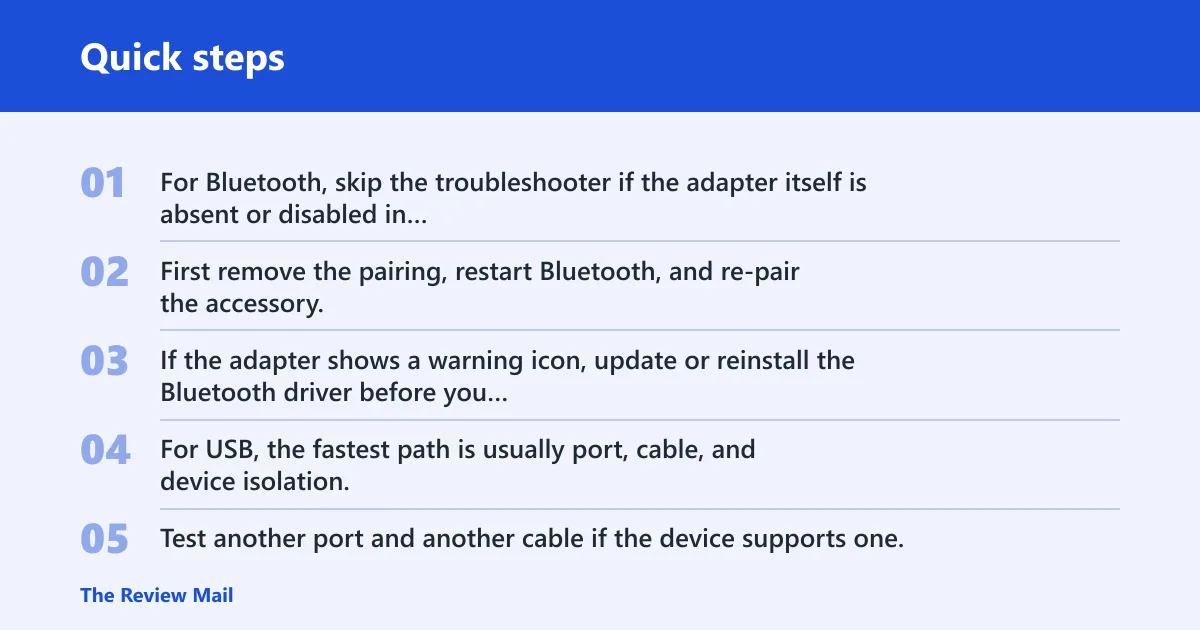
For Bluetooth, skip the troubleshooter if the adapter itself is absent or disabled in Device Manager. First remove the pairing, restart Bluetooth, and re-pair the accessory. If the adapter shows a warning icon, update or reinstall the Bluetooth driver before you spend time on repeated scans.
USB device problems
For USB, the fastest path is usually port, cable, and device isolation. Test another port and another cable if the device supports one. If nothing changes, check Device Manager for unknown USB devices or controller warnings. The troubleshooter can run afterward, but it is not the first tool when the connection itself looks suspect.
Audio device problems
For audio, confirm the output device and volume settings, then inspect Device Manager and the sound control panels. A missing speaker or headset entry points to a driver or detection problem. If a plug-and-play headset works elsewhere, the issue is usually local to the PC, not the accessory.
Keyboard, mouse, and other input device problems
For input devices, battery checks, receiver placement, and another USB port are often more effective than a legacy troubleshooter. If the device still fails, look for Human Interface Device warnings in Device Manager. A wireless mouse that wakes only after re-plugging its receiver often points to power or port behavior, not a general Windows scan.
Device Manager errors
When Device Manager shows an error code or warning icon, treat that as the clearest clue. Read the status text, then update, roll back, or uninstall the driver and restart. If the warning returns immediately, the device may have a firmware, compatibility, or hardware fault that the troubleshooter will not clear.
When should you skip the troubleshooter and go straight to drivers or hardware checks?
Skip the troubleshooter when the symptom already points to the cause. A dead port, a loose cable, a failed adapter, or a BIOS-level setting usually needs direct checks. The tool is better for broad detection problems than for faults that are clearly tied to power, connection, or firmware.
Connection, port, and power checks
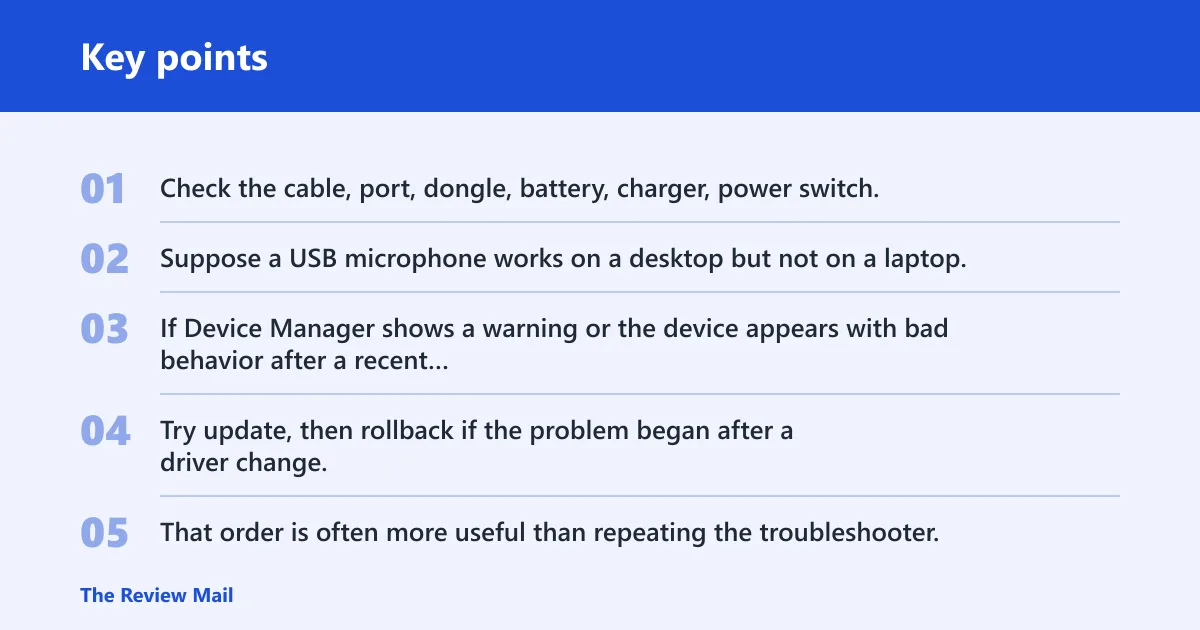
Start with the physical path. Check the cable, port, dongle, battery, charger, power switch, and any hardware mute or wireless toggle. Suppose a USB microphone works on a desktop but not on a laptop; that often means the laptop port, cable, or power delivery is the issue, not Windows itself.
Driver update, rollback, or reinstall
If Device Manager shows a warning or the device appears with bad behavior after a recent change, move to the driver tab. Try update, then rollback if the problem began after a driver change, then uninstall and let Windows redetect it. That order is often more useful than repeating the troubleshooter.
Firmware and BIOS checks for persistent failures
If a device keeps disappearing, never shows up in Device Manager, or fails across restarts and ports, check firmware and BIOS settings. Bluetooth, onboard audio, and some USB controllers can be disabled there. The legacy troubleshooter cannot fix a controller that is turned off before Windows loads.
What if the troubleshooter opens but does not fix anything?
If the scan finishes with no useful result, do not assume the device is fine. Restart and retest, try another port or another machine, then move to Device Manager and driver checks. A scan that opens but reports nothing actionable is common when the fault is outside the legacy tool’s scope. (Microsoft Support)
Restart and retest
Restarting matters because Windows may need to reload a driver, power state, or service. After the restart, check the device again before changing too many settings at once. Microsoft’s own flow expects a scan followed by a retest, not an endless loop of repeated scans.
Check the device in another port or on another PC
If possible, use the device somewhere else. A known-good port or a different computer tells you whether the fault follows the device or stays with the PC. That simple split saves time, especially with USB accessories, external audio gear, and wireless receivers.
Move to Device Manager and driver checks
When the troubleshooter gives no next step, Device Manager becomes the main diagnostic view. Inspect the device name, status text, and driver details. If Windows 10 sees the hardware but the device still fails, the problem is usually driver-related or physical rather than a missing Windows diagnostic.
How do I run the device troubleshooter in Windows 10?
Open Settings, go to Update & Security > Troubleshoot > Additional troubleshooters, then start the Hardware and Devices troubleshooter and click Next. If that path is missing, use an elevated Command Prompt and run msdt.exe -id DeviceDiagnostic.
Where is the hardware and devices troubleshooter in Windows 10?
Microsoft’s Windows 10 path places it in Settings under Update & Security, then Troubleshoot, then Additional troubleshooters. That is the standard route on Windows 10, though newer builds may hide it more aggressively or move attention toward Device Manager and other settings.
What if device troubleshooter is missing in Windows 10?
If the troubleshooter is missing, treat that as a cue to switch tools. Use Device Manager, verify the device connection, and check for driver warnings or missing entries. If needed, launch the legacy tool from msdt.exe -id DeviceDiagnostic, but do not stall if Windows blocks it or never opens it.
Can I run the troubleshooter from Command Prompt in Windows 10?
Yes. Open Command Prompt as administrator, then run msdt.exe -id DeviceDiagnostic. That command launches the legacy Hardware and Devices troubleshooter. If the command fails, skip the detour and continue with Device Manager plus direct checks for cables, ports, drivers, or firmware settings.
Why is my Bluetooth device not working in Windows 10?
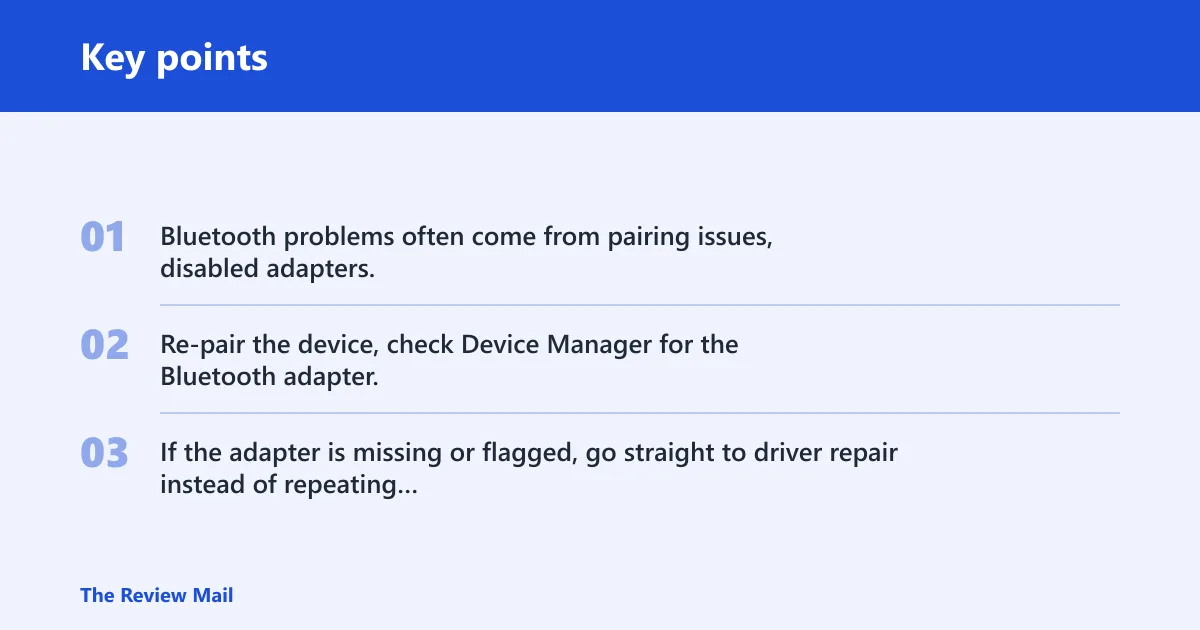
Bluetooth problems often come from pairing issues, disabled adapters, or driver warnings rather than a broad Windows fault. Re-pair the device, check Device Manager for the Bluetooth adapter, and confirm it is enabled. If the adapter is missing or flagged, go straight to driver repair instead of repeating the troubleshooter.
Why is my USB device not working in Windows 10?
USB failures are often caused by a bad port, bad cable, no power, or a controller driver issue. Try another port and another cable first. Then inspect Device Manager for unknown devices or controller warnings. If the device is dead everywhere, the hardware itself may be the real problem.
Why does Device Manager not work in Windows 10?
Device Manager may look unhelpful when it shows no warning icons, but the device still fails because the fault is physical, firmware-based, or intermittent. If Device Manager will not open at all, that points to a broader Windows problem. A restart, system repair, or admin check may be needed before device troubleshooting can continue.