Driver Entry Point Failed Windows 10 Fix
For a driver entry point failed Windows 10 fix, start with the exact DLL or driver module name. If the error began after an update, roll back that component or repair its package before you try anything else. Missing that match wastes time and can leave the same app, device, or boot path crashing again. This guide shows how to read the error path, match it to the faulty module, and choose rollback, repair, or a clean reinstall.
This guide is part of our Windows driver errors: full list and fixes series.
What the error means
Copy the exact module name from the error dialog first, because the fix depends on whether the failing file is an app DLL, a device driver package, or a Windows system component. If the path mentions a vendor DLL after a driver update, start with rollback instead of a full reinstall.
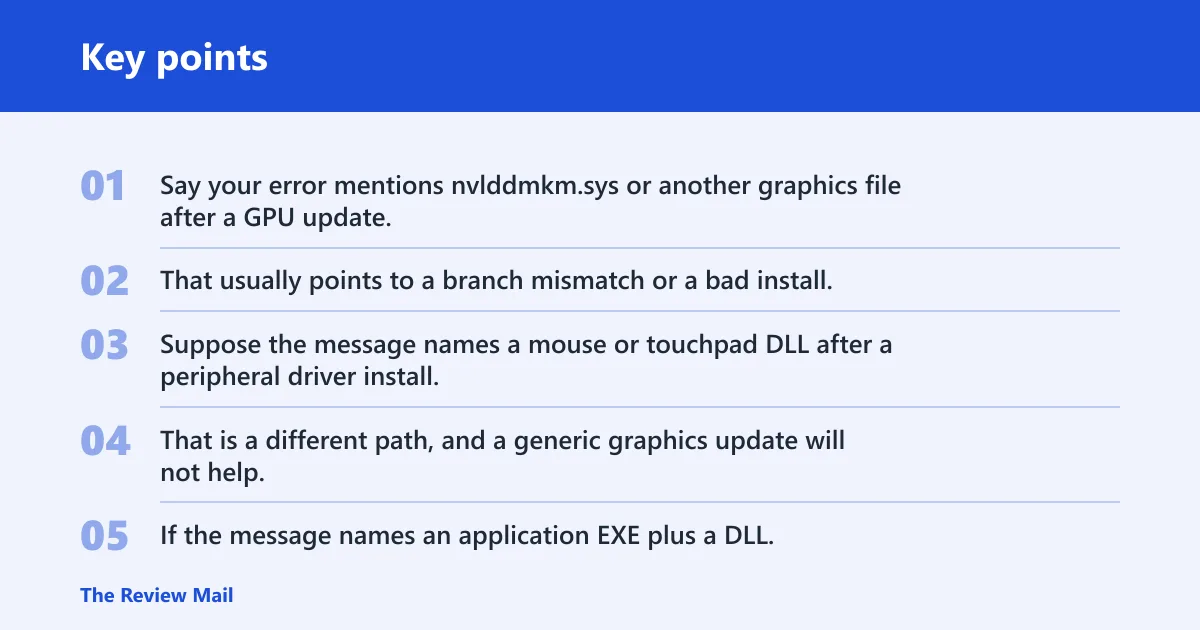
Say your error mentions nvlddmkm.sys or another graphics file after a GPU update. That usually points to a branch mismatch or a bad install. Suppose the message names a mouse or touchpad DLL after a peripheral driver install. That is a different path, and a generic graphics update will not help.
Separate app-to-DLL mismatch from driver failure
Check the wording around the failure. If the message names an application EXE plus a DLL, the app may be calling a function that the installed DLL does not provide. If the message names a driver file such as a device vendor module, the installed driver stack is the main suspect.
📊 NVIDIA’s manual search includes operating system selection for Windows 10 32-bit. Source: Nvidia.
Likely causes
Most often, this error follows a bad driver branch choice, the wrong architecture, or a recent update that left the old package partly in place. Less often, a damaged Windows file or a broken app install points to the wrong module. Start with the most recent change.
- Check the error text and note the exact module name.
- Match that name to the last driver or app you changed.
- Choose rollback for a recent update, repair for a partly damaged package, or clean reinstall if the package is the wrong branch, architecture, or device model.
Graphics driver fixes
Graphics errors are the most common driver-side version of this problem. NVIDIA, Intel, and AMD each split packages by product family, and a wrong branch or wrong architecture can leave an app calling a missing entry point. Do not skip the product page, OS choice, or language selection.
Use Device Manager to roll back or uninstall
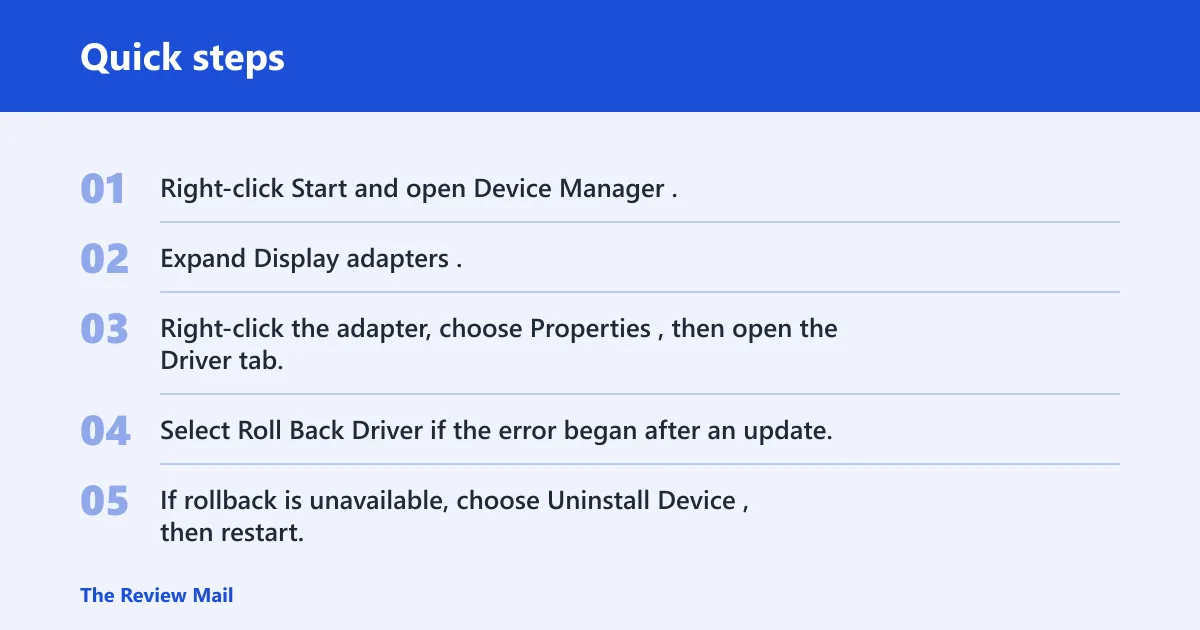
- Right-click Start and open Device Manager.
- Expand Display adapters.
- Right-click the adapter, choose Properties, then open the Driver tab.
- Select Roll Back Driver if the error began after an update.
- If rollback is unavailable, choose Uninstall Device, then restart.
After restart, reinstall the correct package from the vendor page. NVIDIA offers GeForce and Networking drivers from one hub, and its manual search includes Windows 10 32-bit plus driver language selection. NVIDIA also separates Game Ready Drivers from Studio Drivers; Game Ready targets day-of-launch support for games, while Studio prioritizes reliability for creative workflows. (Nvidia)
Match the correct vendor package
- For NVIDIA, pick the right product family, then the correct branch: GeForce or workstation, Game Ready or Studio.
- For Intel, use the download center or Intel Driver & Support Assistant, which supports Windows 10 and offers curated driver and software updates after download and install.
- For AMD, use Auto-Detect and Install only on Windows 11 and Windows 10 64-bit version 1809 and later. (AMD)
- Reboot after installation.
Pointing device and peripheral fixes
Mouse, touchpad, and USB-related errors need a different path. A broken peripheral driver can point at the wrong module even when the graphics stack is fine. In that case, reinstall the device package instead of chasing display drivers.
Check device entries and rescan hardware
- Open Device Manager.
- Expand Mice and other pointing devices or Universal Serial Bus controllers.
- Right-click the affected device and open Properties to check for an error state.
- Choose Uninstall device, then select Action > Scan for hardware changes.
- Install the vendor package for the exact mouse, touchpad, dock, or USB controller model if Windows reloads a generic driver.
A common first-timer mistake is to fix a touchpad error by reinstalling a graphics driver because the popup appeared after login. If the module name points to a pointing-device file, stay with that device family.
System file fixes
If the module name looks like a Windows component, or the error keeps returning across different apps, check the system files before another driver change. System File Checker helps separate OS corruption from a driver-specific mismatch. If SFC finds unrepaired files, move to DISM.
Run SFC and then DISM if needed
- Open Windows Terminal (Admin) or Command Prompt (Admin).
- Run
sfc /scannow. - If SFC reports unrepaired files, run
DISM /Online /Cleanup-Image /RestoreHealth. - Restart Windows 10 and retry the original app or device.
If the same exact module name appears after this step, the issue is more likely the driver package or the app itself than Windows file corruption.
Driver entry triage table
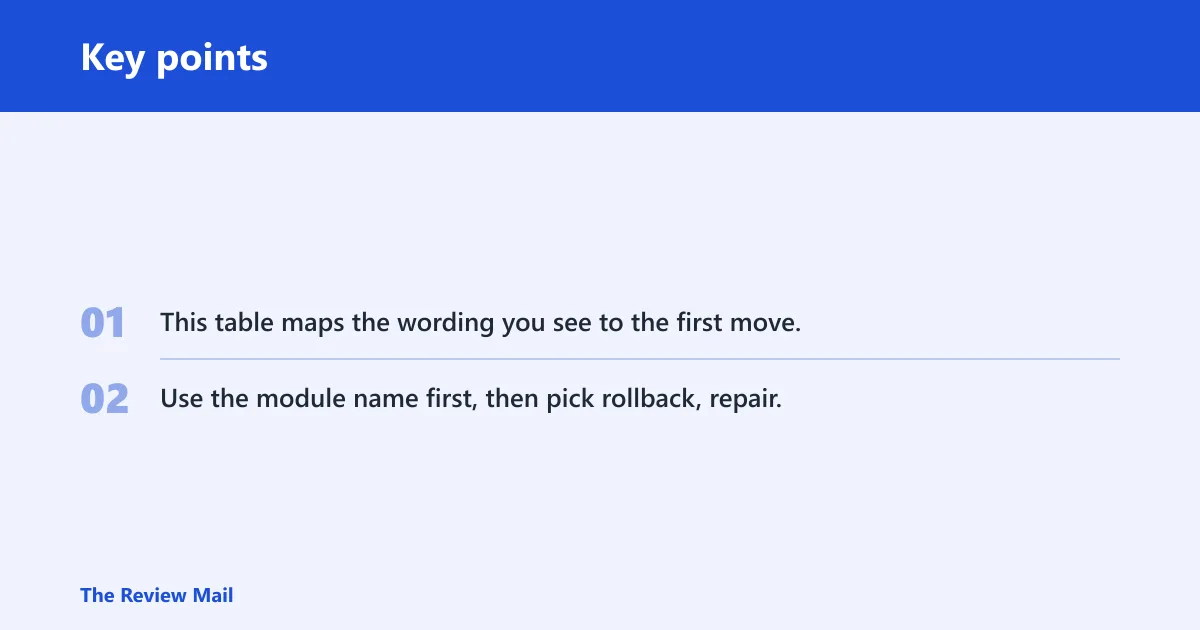
This table maps the wording you see to the first move. Use the module name first, then pick rollback, repair, or a clean reinstall based on the package type and how recently it changed.
| Symptom | Likely cause | First action | When to use a clean reinstall |
|---|---|---|---|
| Graphics DLL or GPU driver name after a recent update | Wrong branch, bad update, or architecture mismatch | Device Manager > Display adapters > Properties > Driver > Roll Back Driver | Use it when rollback is unavailable or the wrong NVIDIA, Intel, or AMD package was installed |
| Pointing-device or USB module name after plugging in a mouse, touchpad, dock, or hub | Corrupt peripheral package or generic driver swap | Device Manager > uninstall device > Scan for hardware changes | Use it when the vendor package keeps failing or Windows keeps restoring the wrong driver |
| System DLL name across several apps, or the error appears after Windows maintenance | Windows file corruption or a broken dependent DLL | Run sfc /scannow, then DISM if needed | Use it when SFC and DISM finish cleanly but the same module still fails |
Still not working?
If rollback, repair, and SFC do not stop the error, boot into Safe Mode and remove the driver there. Safe Mode helps when the driver blocks normal startup or reloads itself during sign-in. If the device stays unstable, use the vendor auto-detect tool only after the basics, then move to a manual clean uninstall and fresh package.
Boot into Safe Mode and remove the driver
- Hold Shift while selecting Restart.
- Choose Troubleshoot > Advanced options > Startup Settings > Restart.
- Press the Safe Mode option shown on screen.
- Open Device Manager and remove the problem device driver.
- Restart normally and install the correct package again.
Intel Driver & Support Assistant can help find tailored updates, but it still needs a working baseline and installed tool first. AMD Auto-Detect and Install follows a download-and-run workflow and can cover graphics plus chipset updates. If those tools miss the problem, a manual reinstall is the safer path.
Prevention: keep a copy of the exact driver version you are using before major updates, especially for graphics and chipset packages. That makes rollback quick if the next install breaks the module again.
Frequently asked questions
How to fix entry point not found in Windows 10
Start with the exact module name in the error, then choose rollback, repair, or reinstall based on what changed last. Use Device Manager for device drivers, SFC for system files, and the vendor’s correct package for the exact model, OS, and architecture.
Why does my driver say entry point not found?
That usually means the installed driver package is calling a function the linked DLL does not provide, or the wrong branch was installed for the hardware. A recent update, a rollback conflict, or a 32-bit versus 64-bit mismatch are common reasons.
Should I reinstall the driver or roll it back first?
Roll back first if the error started after a driver update and Device Manager offers the option. Reinstall only when rollback is unavailable, the package is wrong for the device, or the driver files are damaged beyond a simple version reversal.
Can a bad NVIDIA, Intel, or AMD driver cause this error?
Yes. NVIDIA, Intel, and AMD generally provide packages that should match the product, branch, and operating system. NVIDIA separates Game Ready and Studio drivers, Intel offers curated updates through its support assistant, and AMD’s auto-detect tool targets Windows 10 64-bit version 1809 and later.
How do I tell whether the problem is the driver or the app?
Read the module name. If the failing file is a device driver or vendor DLL, start with that package. If the error names an app EXE and a missing DLL, reinstall the app first, then check whether the DLL also belongs to a driver package.
How do I cleanly remove a broken driver on Windows 10?
Use Device Manager to uninstall the device, then remove leftover files in Safe Mode if the device reloads badly. After that, install the correct vendor package manually. For graphics, choose the exact product, branch, OS, and language before reinstalling.