Windows 11 BAD_POOL_CALLER Explained: Fixes That Work
A Windows 11 BAD_POOL_CALLER BSOD usually points to a bad driver, faulty memory, or corrupted system files; if it started after one change, roll that back first, but if it repeats across boots, treat it as hardware or file corruption. Ignoring it can leave you stuck in a restart loop and risk data loss. This guide shows how to sort driver conflict, memory fault, and software corruption apart, then fix the right cause.
BAD_POOL_CALLER on Windows 11
BAD_POOL_CALLER is a Blue Screen of Death stop code. On Windows 11, it is commonly tied to 0xC2, which usually means the system hit a pool memory allocation problem, often because a driver asked for memory the wrong way or damaged what it touched.
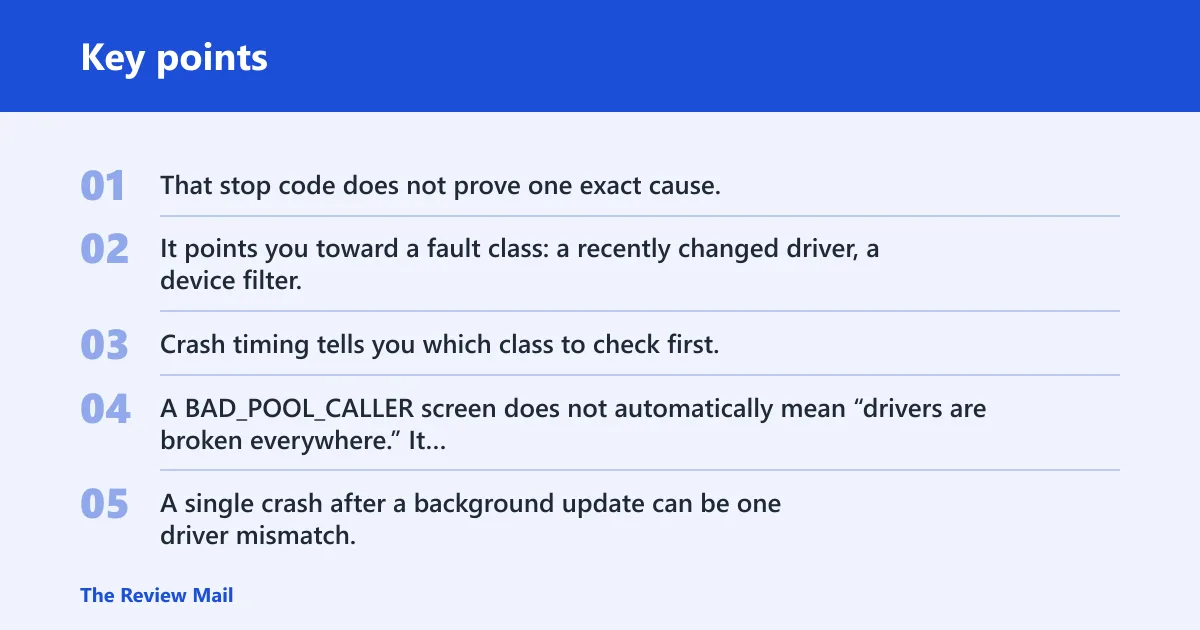
That stop code does not prove one exact cause. It points you toward a fault class: a recently changed driver, a device filter, a bad app, RAM trouble, or a corrupted system component. Crash timing tells you which class to check first.
What the stop code does not prove
A BAD_POOL_CALLER screen does not automatically mean “drivers are broken everywhere.” It also does not prove the whole machine is failing. A single crash after a background update can be one driver mismatch. Repeated crashes at boot are a different pattern and usually call for quicker checks of memory and possible corruption.
BAD_POOL_CALLER decision matrix
| Scenario | First three checks | Diagnostic tool | Escalation step |
|---|---|---|---|
| One-time crash after an update | Check the update timeline; review the changed driver in Device Manager; roll back the update or driver | Device Manager | Install the vendor driver package if Windows Update reused a bad build |
| Repeated crashes at boot | Enter Safe Mode; check whether the system still crashes; inspect recent driver and startup changes | Safe Mode | Run memory and corruption checks, then remove the newest driver or app |
| Crash after installing software | Uninstall the new app; disable related startup items; check security software or filter drivers | Safe Mode | Use a clean reinstall of the app or remove the conflicting filter |
| Crash after touchpad or HID changes | Check the HID or touchpad device entry; roll back the driver; test the Microsoft class driver | Device Manager | Replace the vendor driver package or remove the device software |
| Crash with memory-related symptoms | Run Windows Memory Diagnostics; stop overclocking; check for repeated bugchecks | Windows Memory Diagnostics | Review minidumps, then test RAM modules or board settings |
How do I fix BAD_POOL_CALLER on Windows 11?
Start with the smallest change that matches the timing of the crash. If it began right after one update, it is often reasonable to roll back that update or driver. If it began after an app install, remove that app. If Windows 11 now crashes at boot or in a loop, switch to Safe Mode and work from there.
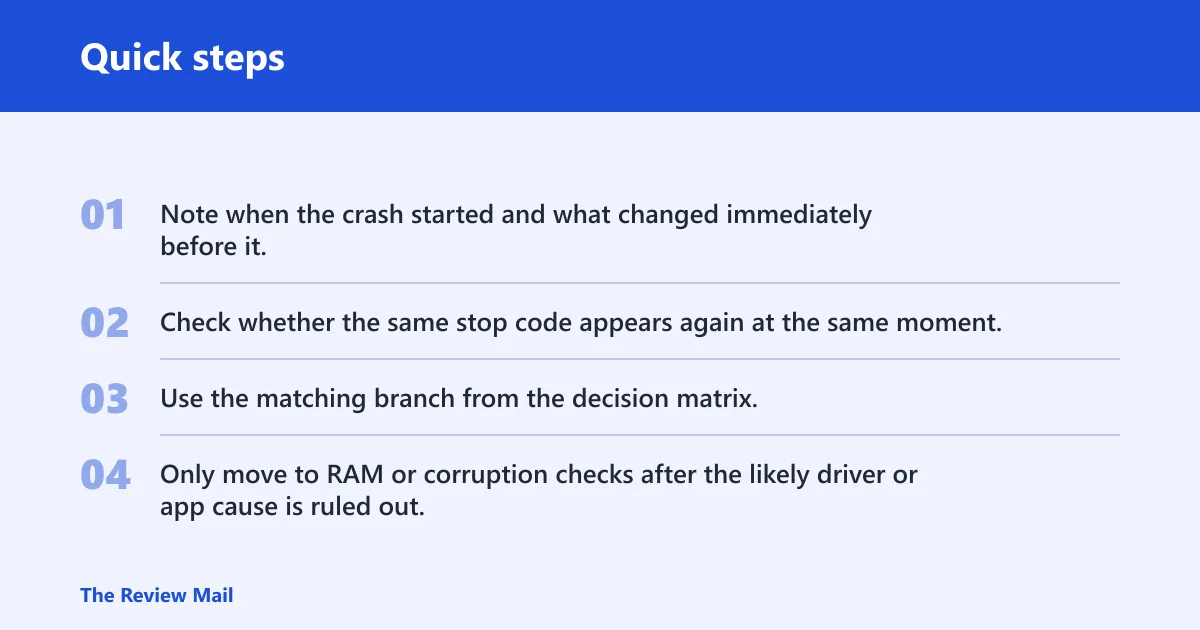
- Note when the crash started and what changed immediately before it.
- Check whether the same stop code appears again at the same moment.
- Use the matching branch from the decision matrix.
- Only move to RAM or corruption checks after the likely driver or app cause is ruled out.
Crash after an update
If BAD_POOL_CALLER appeared right after Windows Update, a driver update, or a firmware push, treat that as the strongest lead. A one-time crash after an update often points to a driver conflict rather than failing hardware. The first job is to identify what changed and reverse only that piece.
Open Device Manager and look for the device whose driver changed near the crash. Pay extra attention to GPU, storage, HID, and touchpad entries, because those classes often appear in minidumps when a bad pool access occurs. Then roll back the driver, or uninstall the update if Windows exposes that path.
Say your laptop rebooted into BAD_POOL_CALLER immediately after a touchpad driver update and then worked once after rollback. That pattern points to a driver conflict, not a full reset. If rollback fails, install the vendor’s own driver package rather than waiting on a generic update.
Crash after software install
A bad app or recent install can trigger BAD_POOL_CALLER, especially if the software adds a service, filter driver, or security component. Uninstall the newest app first. If the machine is too unstable to remove it normally, use Safe Mode so Windows loads fewer third-party components.
After removal, check startup items and security software. A fresh install can leave behind a startup helper that keeps the problem alive. Reboot and confirm that the same stop code no longer returns. If it does, the app may have exposed a deeper driver issue, so move to the minidump and driver branch next.
Touchpad and HID drivers
HID changes matter because touchpads, mice, keyboards, pen devices, and related filters sit close to the input stack. A bad HID or touchpad driver can hit pool memory in a way that looks random until you notice the crash began right after a device or utility update.
Open Device Manager, find the affected HID or touchpad device, and check whether the driver was just added or changed. If so, roll it back first. If rollback is unavailable, uninstall the device entry and let Windows load the built-in Microsoft class driver on restart. That is often enough to separate a vendor bug from a hardware fault.
Suppose the only change was a new touchpad package and the system now blue-screens when two-finger scrolling starts. Remove that package before trying a full repair cycle. A touchpad driver that misbehaves during input is usually a narrower problem than broad file corruption.
Memory and corruption checks
If the crash repeats across boots, or the screen points to different drivers each time, check RAM and system integrity. BAD_POOL_CALLER can come from memory errors that make good drivers look guilty. It can also come from corrupted system files, which is why memory and image repair sit behind the timing-based triage, not in front of it.
First, stop overclocking and return hardware settings to default. That includes CPU, memory, and any manual tuning in firmware. An unstable clock can corrupt the very pool allocations that the stop code complains about.
Next, run Windows Memory Diagnostics. Use the restart-now option and let it check for problems. If it reports an error, treat RAM, slot, or board settings as an active suspect and do not skip straight to file repair.
Then repair Windows image corruption with DISM. Run the health scan first, then the restore step. After that, run SFC with sfc /scannow to repair protected system files. DISM and SFC help when corruption is part of the chain, but they are not the right first move for every crash.
Minidump review guide
Minidump files help you see which driver or subsystem was active at the crash. On Windows 11, look in C:\Windows\Minidump. If the folder contains recent files, their timestamps can show whether the same fault repeats at the same step or shifts after each reboot. (Microsoft Learn)
Open the dump in a debugger or hand it to the device vendor if you do not want to parse it yourself. The useful clues are the bugcheck context, the driver name, and whether the same module appears across multiple crashes. A HID, storage, filter, or GPU driver name is more actionable than the stop screen alone.
A common first-timer mistake is to ignore the minidump and keep reinstalling unrelated software. That wastes time. If the dump keeps naming one driver family, fix that branch before touching Windows itself.
When to escalate
Escalate to a reset, reinstall, or vendor support if the same bugcheck keeps returning after rollback, Safe Mode removal, RAM testing, and image repair. If minidumps keep pointing at the same device family, vendor support may have a newer package or a known issue. If the crash survives all of those checks, a Windows reset or reinstall becomes reasonable.
Do not start there. BAD_POOL_CALLER is often narrow enough to fix with one driver or one app removal. The point of triage is to avoid a broad rebuild when the evidence still points to a smaller cause.
Frequently asked questions
What does BAD_POOL_CALLER mean on Windows 11?
It is a Windows BSOD stop code tied to a pool memory allocation or driver interaction problem, and it commonly appears as 0xC2. On Windows 11, it usually means a driver, faulty memory path, or corrupted file touched memory the wrong way during normal operation.
Is BAD_POOL_CALLER usually caused by drivers?
Yes, drivers are a common cause, especially for HID, touchpad, GPU, storage, and security filter software. That said, a driver-looking crash can still be caused by bad RAM or corrupted files, so the stop code should guide you, not end the diagnosis.
Should I check memory if Windows 11 keeps crashing with BAD_POOL_CALLER?
Yes. If the crash keeps returning, especially at boot or with changing driver names, run Windows Memory Diagnostics early. Repeated pool errors can come from RAM, slot problems, or unstable hardware settings, and overclocking should be stopped before you keep chasing software fixes.
How do I find the minidump for a BAD_POOL_CALLER BSOD?
Look in C:\Windows\Minidump. That folder stores small crash files that can show the bugcheck context and the driver names involved. If the same module appears more than once, that is a stronger clue than the blue screen text alone.
Will DISM and SFC fix BAD_POOL_CALLER?
They can, but only when system-file or image corruption is part of the problem. Run DISM with RestoreHealth, then sfc /scannow. If the crash is really a bad driver or unstable memory issue, those commands may not change anything.
When is reinstalling Windows necessary for BAD_POOL_CALLER?
Reinstalling becomes reasonable when the crash survives rollback, app removal, Safe Mode cleanup, memory testing, and DISM or SFC repair. If minidumps keep pointing at different components without a clear driver branch, a clean reinstall or vendor support is the last practical step.