Code 53 in Windows: What It Means and How to Fix It
In Device Manager, the error appears in the device’s Properties window under Device status. It indicates that the device has been reserved for use by the Windows kernel debugger for the duration of the boot session. You may see it on USB peripherals, Bluetooth adapters, Wi-Fi cards, audio devices, graphics adapters, and other add-in hardware.
This guide is part of our Windows driver errors: full list and fixes series.
Code 53 is CM_PROB_USED_BY_DEBUGGER.
What code 53 means in Device Manager
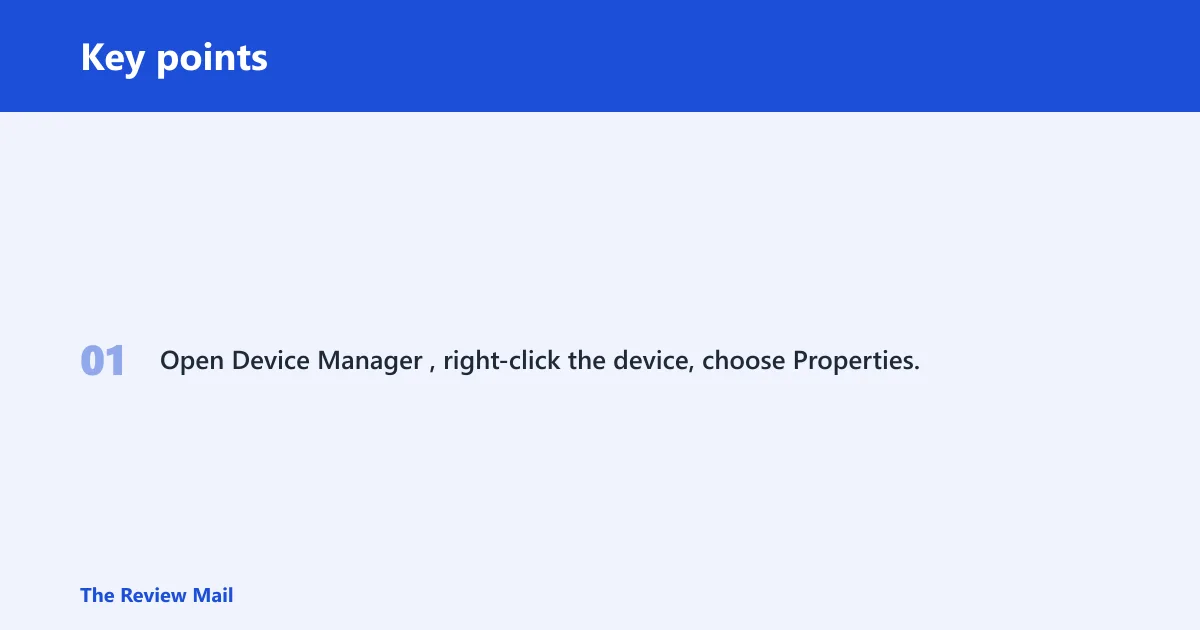
Open Device Manager, right-click the device, choose Properties, then check Device status.
Code 53 decision table
| Scenario | Most likely cause | Fastest test | Recommended fix | Driver action |
|---|---|---|---|---|
| Status mentions debugger use or a reservation for the boot session | Kernel debugging is enabled | Run bcdedit /debug off | Turn debugging off, restart, then check the device again | Leave the driver alone first |
| Status stays the same after a recent configuration change | Device entry may need to be refreshed | Uninstall the device, then scan for hardware changes | Remove the entry and let Windows detect it again | Reinstall only if needed |
| Device started failing after a driver swap | Driver change may be involved | Check the current driver version on the Driver tab | Roll back if the previous version worked; otherwise reinstall the current driver package | Roll back or reinstall |
| Status clears in one session and returns later | Debugging was turned back on | Run bcdedit /debug off again after restart | Keep debugging off unless you need it | Leave the working driver in place |
Why does code 53 appear in Device Manager?
Code 53 can appear when Windows has reserved the device for kernel debugging during the boot session. If that setting is enabled, the device will stay blocked until debugging is turned off and the PC is restarted.
If a Bluetooth adapter shows a yellow warning after debugging was enabled for troubleshooting, the adapter can remain blocked until the debug setting is turned off and the machine restarts.
If kernel debugging is enabled
- Open Command Prompt as administrator.
- Run bcdedit /debug off. (reported by thewindowsclub.com)
- Restart the PC.
- Open Device Manager again and check Properties > Device status for the same device.
If the device entry is stuck
- Open Device Manager, right-click the affected device, and choose Uninstall device.
- Confirm removal if Windows asks.
- In Device Manager, choose Action > Scan for hardware changes.
- Reopen Properties > Device status and check whether the warning changed.
Should you roll back, reinstall, or update the driver?
Use rollback when the problem started right after a driver change and the earlier version worked. Use reinstall when the device still shows the warning after you have turned debugging off and refreshed the device entry. Use update when you already have a newer package that you know is meant for that device. Do not keep changing the driver if debugging is still enabled.
For device-specific package checks, go to the OEM support page for the exact model, such as a Lenovo laptop or a desktop board page, and match the device name and firmware notes before you install anything.
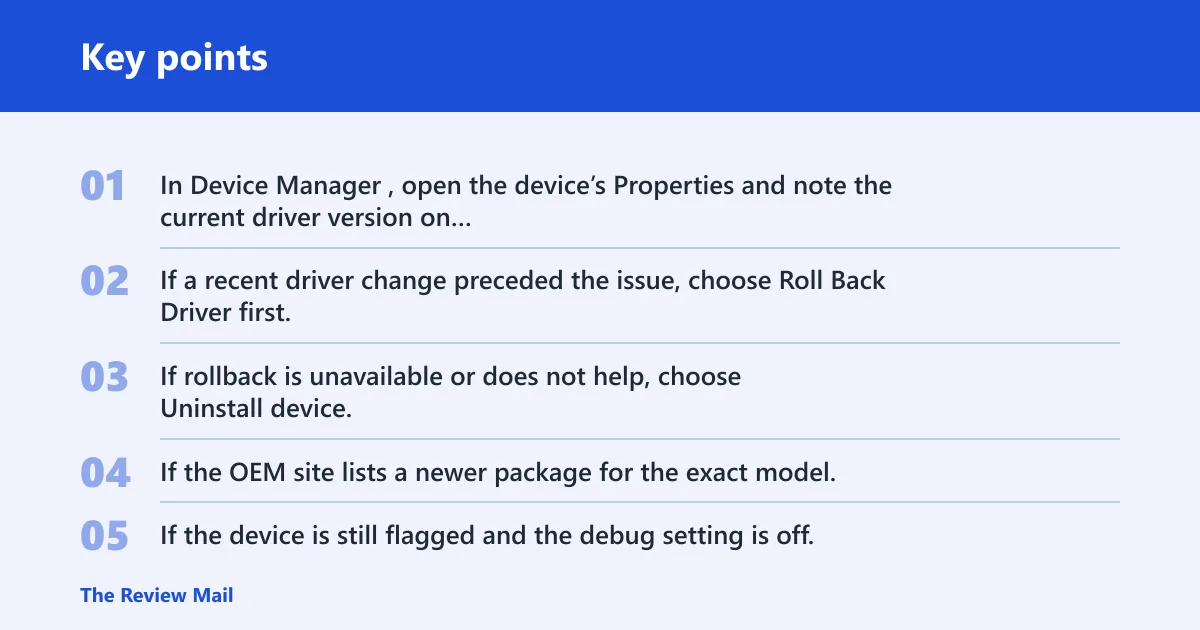
Driver workflow
- In Device Manager, open the device’s Properties and note the current driver version on the Driver tab.
- If a recent driver change preceded the issue, choose Roll Back Driver first.
- If rollback is unavailable or does not help, choose Uninstall device, then use Action > Scan for hardware changes.
- If the OEM site lists a newer package for the exact model, install that vendor package and then recheck Device status.
- If the device is still flagged and the debug setting is off, stop changing drivers and move to restore or vendor support.
When not to change the driver again
If bcdedit /debug off has not been run yet, that is the first step to take before more driver work. Turn debugging off, restart, and verify the device status before touching the package again.
When should you use System Restore for code 53?
Use System Restore when the warning began right after a driver install, a Windows change, or another configuration change that you can roll back. It is the better next step when the status stays wrong after you turn debugging off and refresh the device entry. After restore, check the device status again before making more changes.
Open Control Panel > Recovery > Open System Restore, then choose a restore point from before the issue started. If Windows gives you more than one point, pick the most recent one from before the change.
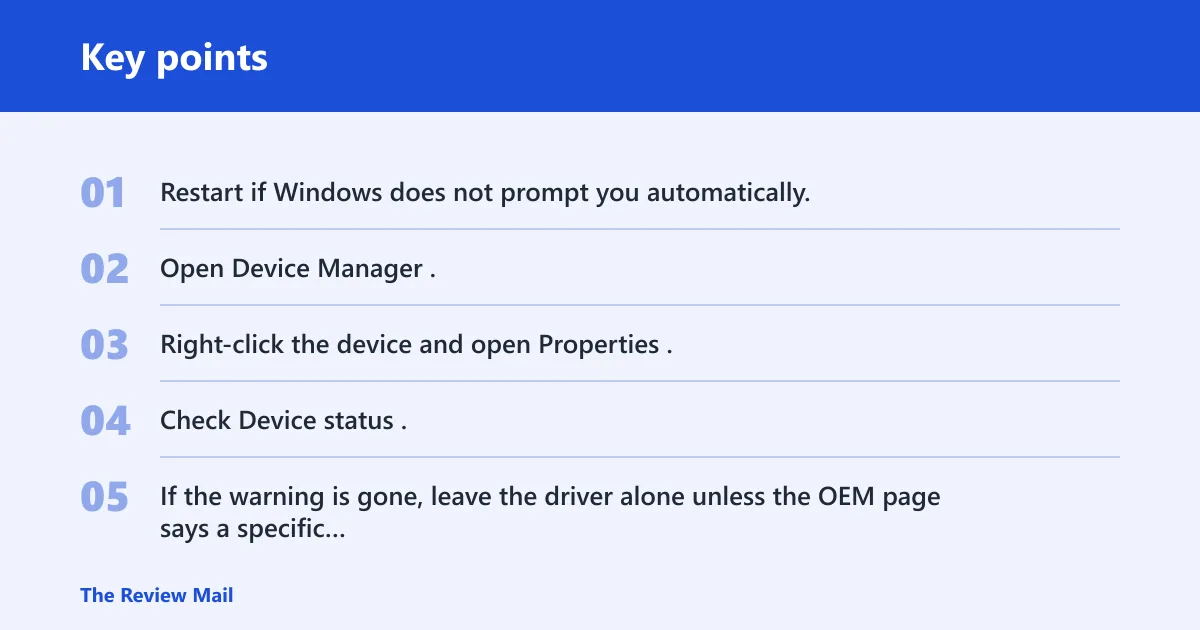
After restore, verify the device again
- Restart if Windows does not prompt you automatically.
- Open Device Manager.
- Right-click the device and open Properties.
- Check Device status.
- If the warning is gone, leave the driver alone unless the OEM page says a specific update is required.
What to do if the status is still stuck
If the warning stays after you turn off debugging, refresh the device entry, and check a restore point, verify the exact device class and model on the OEM support page. That page is where you confirm the correct package for the exact model.
If your Wi-Fi adapter shows the same status after bcdedit /debug off and a reinstall, check the OEM model page for the correct driver family and then escalate to vendor support if the device still will not start.
Frequently asked questions
What is code 53?
It is a Device Manager status tied to Windows kernel debugging reservation. The first thing to check is whether debugging is enabled, then turn it off with bcdedit /debug off if needed and restart the PC.
Is code 53 a driver or hardware problem?
It is usually a Windows debugging-setting issue first. Start with the debug setting and the device entry. If the device still shows the warning after you turn debugging off and refresh it, then look at the driver or the OEM package for that exact model.
Can code 53 be caused by unsigned drivers?
That is not the main branch to check here. The direct test is still the debug setting and the device’s Device status text. If you are using a vendor package, install the one that matches the exact model and then recheck the device in Device Manager.
Should I uninstall the device for code 53?
Yes, if debugging is off and the warning remains after a recent change. In Device Manager, choose Uninstall device, then Action > Scan for hardware changes.
What is code 53 on a motherboard?
In Windows troubleshooting, the same Device Manager code still refers to the Windows debugging reservation. Check the motherboard’s chipset or onboard device entry in Device Manager, then verify the debug setting and the device’s driver state.
What is code 53 for police?
That is a different code system and not the Windows Device Manager status covered here. For a PC error, stay in Device Manager, check Device status, and use bcdedit /debug off if debugging is enabled.