Ndis Sys Blue Screen Windows 11
ndis.sys blue screen Windows 11 usually means the crash involved the Windows networking driver layer. The most likely cause is an outdated or faulty network driver. Start with the Wi‑Fi or Ethernet adapter in Device Manager: roll it back if Windows recently changed it, or remove and reinstall it from the OEM or chipset vendor package. That helps separate driver trouble from Windows file corruption or hardware faults.
Quick answer
ndis.sys is part of Windows networking. When it appears in a blue screen, the crash happened while Windows was handling network traffic, so the adapter driver is the first thing to check. In some cases, the issue can also involve system file corruption or hardware.
📊 The Microsoft article says it covers NDIS 3.0 through 6.89. Source: NDIS Versions Overview for Windows Drivers.
Which symptom pattern do you see?
Match the crash timing first. That tells you where to start and keeps you from replacing the wrong driver. If the pattern is unclear, note whether the crash happens only when networking is active.
Crashes on Wi‑Fi connect or reconnect
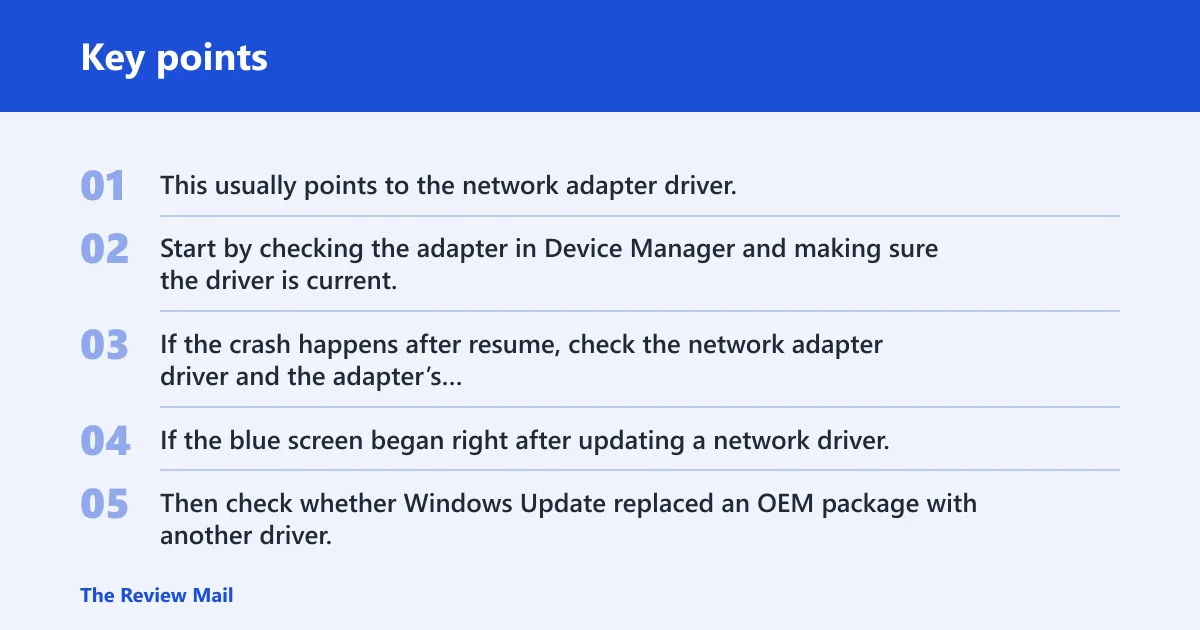
This usually points to the network adapter driver. Start by checking the adapter in Device Manager and making sure the driver is current.
Crashes after sleep or wake
If the crash happens after resume, check the network adapter driver and the adapter’s power settings in Device Manager.
Crashes after a driver update
If the blue screen began right after updating a network driver, roll back the adapter driver in Device Manager first. Then check whether Windows Update replaced an OEM package with another driver.
Crashes only under load
Crashes during heavy downloads, gaming, backups, or video calls can still point to a network driver problem. If the issue keeps happening, move on to driver checks and hardware testing.
Crashes in Safe Mode with Networking
If the system still crashes in Safe Mode with Networking, the base network stack, adapter driver, or hardware is more suspect than a third-party app.
Ndis.sys triage matrix
Use this matrix before changing drivers. It sorts crash timing, likely layer, and the first two checks so you do not guess blindly. Start with the row that best matches the symptom, then follow the checks in order.
| When the crash happens | Likely layer | First two checks to run |
|---|---|---|
| On Wi‑Fi connect or reconnect | Network adapter driver | Device Manager > adapter > Driver tab > check provider/version; then roll back or uninstall the adapter driver |
| After sleep or wake | Adapter driver or hardware | Device Manager power settings for the adapter; then check the vendor support page for driver notes |
| After a driver update | Driver regression | Roll back the adapter driver; then install the manufacturer package instead of leaving the newer one in place |
| Only under load | Driver, hardware, or system corruption | Run Windows Memory Diagnostic; then run SFC and DISM |
| In Safe Mode with Networking | Adapter driver or hardware | Check whether the crash survives Safe Mode; then reinstall the network adapter driver from Device Manager |
Should you update or roll back the network driver?
If the problem started after a driver update, roll back first. If the system has an older or generic driver, update from the adapter maker or laptop vendor before trusting Windows Update again. Microsoft support recommends updating network drivers for ndis.sys crashes.
Check the current driver source in Device Manager
- Open Device Manager.
- Expand Network adapters.
- Open the Wi‑Fi or Ethernet adapter, then open the Driver tab.
- Check Driver Provider, Driver Date, and Driver Version.
- If the crash began after a recent update, choose Roll Back Driver. If that option is unavailable, choose Uninstall device and reinstall the package from the vendor site.
Prefer the OEM or chipset driver when Windows Update changes it
Use the manufacturer package when Windows Update appears to have replaced a tested adapter driver with another one. If the crash started after a Windows update, comparing the current driver with the vendor package is a good first step.
How do you tell if the fault is the adapter or another driver?
Additional networking software can sometimes be involved, but the adapter driver should still be checked first. Use Safe Mode and Safe Mode with Networking to see whether the crash remains when Windows loads fewer components.
Look for VPN, antivirus, packet capture, or virtual adapter software
- Open Settings > Apps > Installed apps.
- Look for VPN clients, third-party antivirus, capture tools, and virtual networking software.
- Uninstall the most recent networking-related app first.
- Restart and test the network path again.
Use Safe Mode and Safe Mode with Networking to isolate the layer
- Open Settings > System > Recovery > Advanced startup.
- Choose Restart now.
- Choose Troubleshoot > Advanced options > Startup Settings.
- Start in Safe Mode first. If stable, add Safe Mode with Networking next.
- If Safe Mode with Networking crashes, focus on the adapter driver, system files, or hardware.
Reinstall the adapter driver if the base stack looks unstable
- Open Device Manager.
- Expand Network adapters.
- Right-click the adapter and choose Uninstall device.
- Restart Windows, then install the latest driver from the OEM or chipset vendor.
Can SFC and DISM fix ndis.sys blue screen?
They can help when the crash is being made worse by corrupted Windows files, but they do not fix every networking crash. Use them after you check the driver pattern, not before it. Microsoft support recommends sfc /scannow and DISM /Online /Cleanup-Image /RestoreHealth when system file corruption is part of the picture.
Run SFC /scannow first
- Open Command Prompt as administrator.
- Run
sfc /scannow. - Wait for the scan to complete, then restart.
- Check whether the blue screen still appears under the same trigger.
Follow with DISM /Online /Cleanup-Image /RestoreHealth
- Open Command Prompt as administrator.
- Run
DISM /Online /Cleanup-Image /RestoreHealth. - Restart after the repair finishes.
- Test the network again under the same crash condition.
When should you suspect hardware?
Move to hardware suspicion when crashes survive driver rollback, driver reinstall, Safe Mode checks, and system file repair. Windows Memory Diagnostic is a sensible next step if the system also shows other unstable behavior. Microsoft support also recommends memory testing when hardware is in doubt.
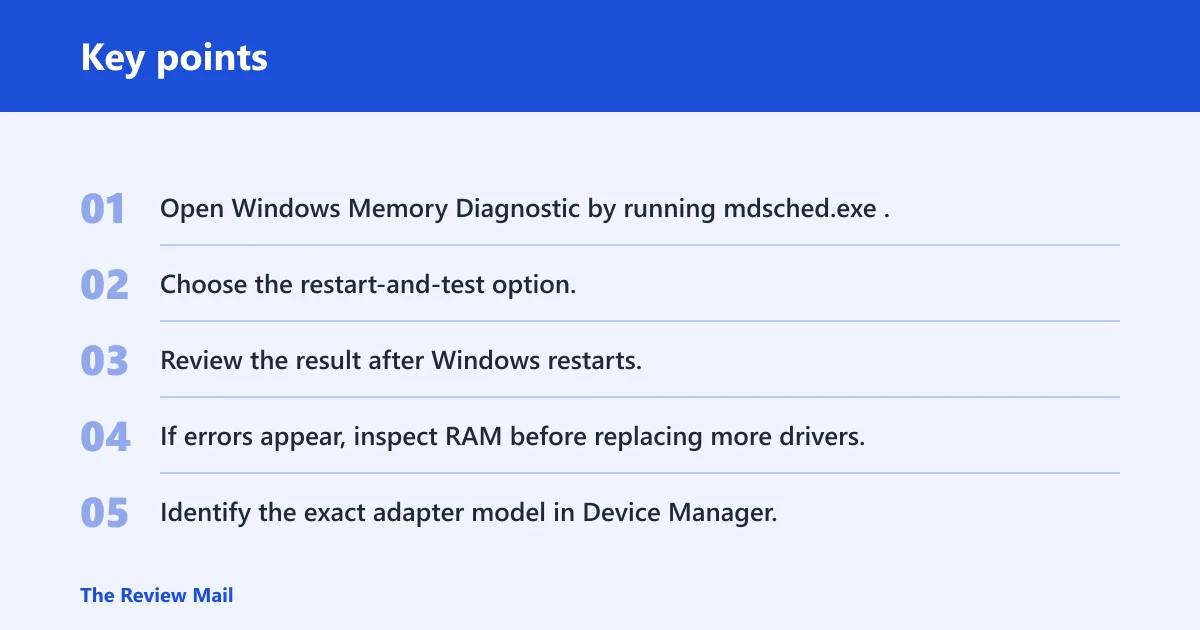
Run Windows Memory Diagnostic if crashes persist across driver changes
- Open Windows Memory Diagnostic by running mdsched.exe.
- Choose the restart-and-test option.
- Review the result after Windows restarts.
- If errors appear, inspect RAM before replacing more drivers.
Check for NIC firmware notes from the vendor
- Identify the exact adapter model in Device Manager.
- Open the vendor support page for that model.
- Look for driver notes that mention sleep, reconnect, or networking support.
- If the vendor documents a firmware fix, follow that path before a reset.
Escalate when crashes survive clean driver reinstalls and Safe Mode checks
At that point, stop treating the issue as driver-only. A faulty network adapter or broader hardware instability becomes more likely, especially if the crash also occurs with a clean reinstall and the same problem keeps returning. A vendor service check is more useful than more driver swaps.
What causes ndis.sys BSOD after installing Windows 11?
The most common cause is a network driver that no longer works correctly after the install or upgrade. A Windows update can also replace a driver, and system file corruption or hardware problems can contribute.
Frequently asked questions
How do I fix ndis.sys blue screen on Windows 11?
Start with Device Manager and the network adapter driver. Roll back the driver if the crash began after an update, or install the OEM package if Windows Update changed it. Then run sfc /scannow and DISM /Online /Cleanup-Image /RestoreHealth if the crash still repeats.
Should I use the driver from Windows Update or the manufacturer website?
Use the manufacturer site when the crash started after a Windows Update driver change or when the machine is a laptop with vendor-specific networking support. Windows Update is useful for a baseline, but the OEM or chipset package is the safer choice when you need the exact adapter driver.
Is safe mode useful for troubleshooting ndis.sys crashes?
Yes. Safe Mode removes many extra drivers, and Safe Mode with Networking adds the network path back in a controlled way. If Safe Mode is stable but Safe Mode with Networking crashes, the adapter driver or hardware moves higher on the suspect list.