
Netsh Winsock Reset Admin
Yes, netsh winsock reset needs an elevated Command Prompt or Terminal. Without administrator rights, Windows usually blocks it or returns “Access is denied.” If you use the wrong privilege level, the reset fails and the network problem stays in place. This guide shows how to confirm admin access, verify a successful reset, and handle failures.
What the reset touches and what it spares
netsh winsock reset resets the Winsock catalog, the Windows networking database that stores app-to-network communication settings. It can clear broken network protocol settings and LSP chains, then asks for a restart so Windows can load the repaired stack. It does not fix every internet problem.
Winsock corruption can follow malware, adware removal, or other software changes that rewrite network hooks. That is why the command often comes after cleanup, but not before you rule out a dead router, a bad cable, or an ISP outage.
What it resets and what it leaves alone
The reset targets networking components, not your files. It can alter protocol-related settings in the Winsock catalog, which is why apps that depend on custom network layers may act differently after a reboot. It does not erase documents, photos, or stored Wi-Fi passwords.
Suppose a VPN client was uninstalled and the machine now shows “limited connectivity” in one app but not another. That pattern points to a damaged network path in Windows, not a missing file on disk.
Does netsh winsock reset need admin?
Yes. You need an elevated shell, meaning Command Prompt or Windows Terminal opened with administrator rights. In a standard shell, Windows may refuse the command or return “Access is denied,” because the reset changes protected network settings that ordinary sessions cannot edit.
That difference matters. A normal shell can run many read-only commands, but Winsock repair writes to system networking data. If the window title does not show administrator privileges, treat it as the wrong session for this command.
What happens in a standard shell
In a standard Command Prompt or non-admin Terminal, the command may look correct but still fail. The most common result is an access error, which means the command did not complete and the catalog was not reset. Do not assume the typo is the only problem.
Windows Help & Support suggests running SFC /SCANNOW in an admin Command Prompt first when system files may also be involved. That is separate from Winsock, but it is a useful reminder that protected repair commands often need elevation.
How to spot access denied
If the console shows “Access is denied,” or it returns without the success message and restart prompt, assume the shell lacked elevation. A successful run should end with a message telling you to restart the computer.
A common first-timer mistake is opening a regular terminal from the Start menu and assuming it has admin rights. It does not unless you launch it that way.
Run the command as administrator
Open an elevated shell, type the exact command, and read the response before you close the window. MiniTool, How-To Geek, and Soubory all point to the same core rule: use an administrator session, run netsh winsock reset, then restart when Windows tells you to.
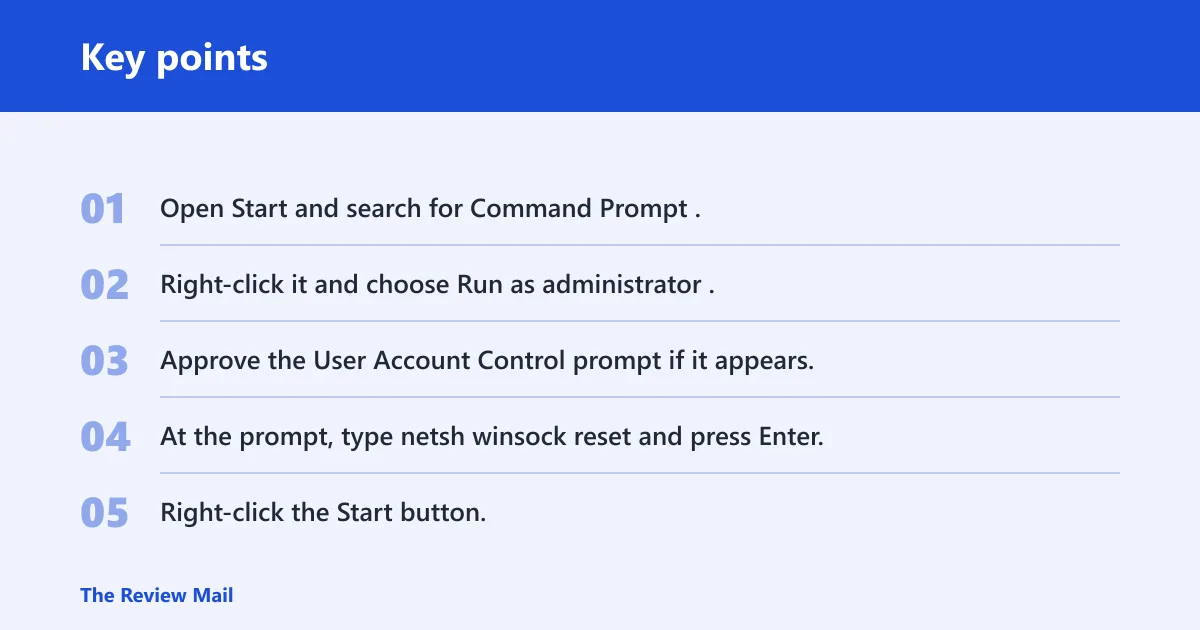
Open Command Prompt as administrator
- Open Start and search for Command Prompt.
- Right-click it and choose Run as administrator.
- Approve the User Account Control prompt if it appears.
- At the prompt, type
netsh winsock resetand press Enter.
Use this path if you want the plain text console. It is the clearest route, and it avoids extra tabs or profile choices.
Open Windows Terminal (Admin) on Windows 11
Windows 11 users can use Windows Terminal (Admin). How-To Geek notes that Windows Terminal works for this command, and Windows PowerShell also works when it is opened with admin privileges. The important part is the elevation, not the shell name.
- Right-click the Start button.
- Choose Terminal (Admin) or Windows Terminal (Admin).
- Confirm the prompt if Windows asks for permission.
- Run
netsh winsock resetin the elevated tab.
Do not use a regular PowerShell or Terminal window. The command is the same, but the privilege level is not.
Read the success message
When the command completes, Windows should say the Winsock catalog was reset and that you must restart. That restart notice is the sign that the command actually changed something. If you do not see it, recheck the shell elevation before trying again.
MiniTool says to restart after the reset completes, and How-To Geek says the command returns a success message requiring restart. Soubory gives the same warning in another form: you should expect a success message about restarting.
What happens after netsh winsock reset?
You need to restart the PC before the change takes effect. That reboot is not optional, because Windows must reload the networking stack with the repaired Winsock catalog. A quick restart from an admin shell is shutdown /r /t 0, which forces an immediate reboot.
Verification checklist after reboot
Use this short check after the system comes back up. It tells you whether the reset fixed the right layer or only removed one piece of the problem.
- Open one browser and load a known-good site.
- Open one non-browser app that uses the network, such as mail or a game launcher.
- Test DNS resolution by trying a site name that you know should resolve normally.
- If the browser works but name lookups fail, focus on DNS rather than Winsock alone.
Say your browser opens a news site, but a desktop app still cannot sign in after the reboot. That split result points to a broader network or account issue, not just the browser cache.
Winsock reset matrix
This matrix helps you decide whether the reset was the right step, whether admin rights were the problem, and what to try next. Use it after the reboot, not before.
| Symptom | Is admin required? | Next command to try |
|---|---|---|
| Access denied | Yes | Open Command Prompt or Windows Terminal (Admin), then run netsh winsock reset again |
| No internet after reboot | Usually yes for the next repair step | netsh int ip reset |
| DNS errors | Yes for the command shell | ipconfig /flushdns |
| VPN breaks after uninstall | Yes | netsh winsock reset, then restart |
| Command not recognized | Not usually the issue | Open a real Windows shell, then rerun netsh winsock reset |
| Stop and check router/ISP | No | Inspect router lights, cable, and provider status before more Windows repair commands |
What to try if it still fails
If Winsock reset does not restore connectivity, the next step depends on the symptom. DNS lookup issues point to the resolver cache, while broader network failures can need TCP/IP repair. Do not keep repeating the same reset if the failure pattern has changed.
Run ipconfig /flushdns for DNS cache problems
Use ipconfig /flushdns when web addresses fail to resolve but the connection itself looks alive. Widget Box calls out DNS lookup problems as a case where this command helps. It clears the resolver cache, which can fix stale or bad name lookups.
Run it in an elevated shell if you are already repairing the network stack. That keeps the process consistent and avoids permission issues in the same session.
Run netsh int ip reset for TCP/IP issues
If the Winsock reset alone does not fix connectivity, move to netsh int ip reset. That command resets TCP/IP settings, which sit alongside Winsock but cover a different layer. It is the right next step when IP or DHCP issues persist after the first repair.
F1 and F3 fit well here as a practical sequence: Windows support often starts with SFC /SCANNOW in admin Command Prompt when system files may be involved, and repair tools should still be launched from an elevated shell.
When to stop and inspect router, ISP, or hardware
Do not start with Winsock reset if the problem looks outside Windows. If every device on the network is down, the router’s lights are abnormal, or the modem loses sync, the fix is probably not in the PC. Check the router, the ISP, and the cable path first.
Kapil Arya also recommends checking Safe Mode to isolate the cause. That can help separate a Windows network stack problem from third-party software interference. If Safe Mode behaves the same way, widen the search beyond Winsock.
When not to start with Winsock reset
Use Winsock reset when the symptoms point to Windows network corruption, not when the outage is clearly outside the PC. Router failure, ISP downtime, and adapter hardware trouble can all look like “no internet,” but the repair path is different.
Router outage symptoms
If no device in the home can reach the internet, or the router cannot hand out normal connectivity, stop and check the router first. A Windows command cannot fix a failed upstream connection or a dead access point.
ISP outage symptoms
If the modem cannot sync or the provider reports a service issue, Windows repair commands are the wrong tool. Wait for the line to recover, then retest the PC afterward.
Hardware or adapter signs
If Wi-Fi disconnects only on one machine, the adapter may be failing, disabled, or poorly seated. If Ethernet link lights are off, the cable or port may be the real cause. Winsock reset does not repair broken hardware.
Frequently asked questions
What does netsh winsock reset do?
It resets the Winsock catalog, which stores app-to-network communication settings in Windows. That can repair broken protocol settings and LSP chains after malware, adware removal, or other software changes. It does not delete personal files, but it does require a restart to take effect.
How do I run netsh winsock reset as administrator?
Open Command Prompt or Windows Terminal with administrator rights, approve the UAC prompt, then run netsh winsock reset. The key step is elevation. A normal shell looks similar, but it cannot make the network changes this command needs.
Why does netsh winsock reset say access denied?
That message usually means the shell is not elevated. Open Command Prompt as administrator, or use Windows Terminal (Admin) on Windows 11, then run the command again. If you are not logged in as an administrator, you will need the admin password.
What should I try if netsh winsock reset does not fix the internet?
Try ipconfig /flushdns for DNS lookup problems and netsh int ip reset for TCP/IP issues. If every device is down, or the router or ISP appears to be the real problem, stop using Windows repair commands and check the network hardware or provider first.