HAL Error Windows 11: How to Fix Boot and File Issues
A HAL error in Windows 11 usually points to one of four causes: corrupted system files, damaged boot data, firmware settings, or failing hardware, so check those in this order: system files first, boot data second, firmware third, hardware last. If you guess wrong, you can waste time, miss the real fault, or make a boot problem worse. This guide shows how to separate each cause and apply the right repair.
What HAL means in Windows 11
HAL stands for Hardware Abstraction Layer. In Windows, it is the core component that mediates between the operating system and hardware such as the CPU, hard drive, and memory.
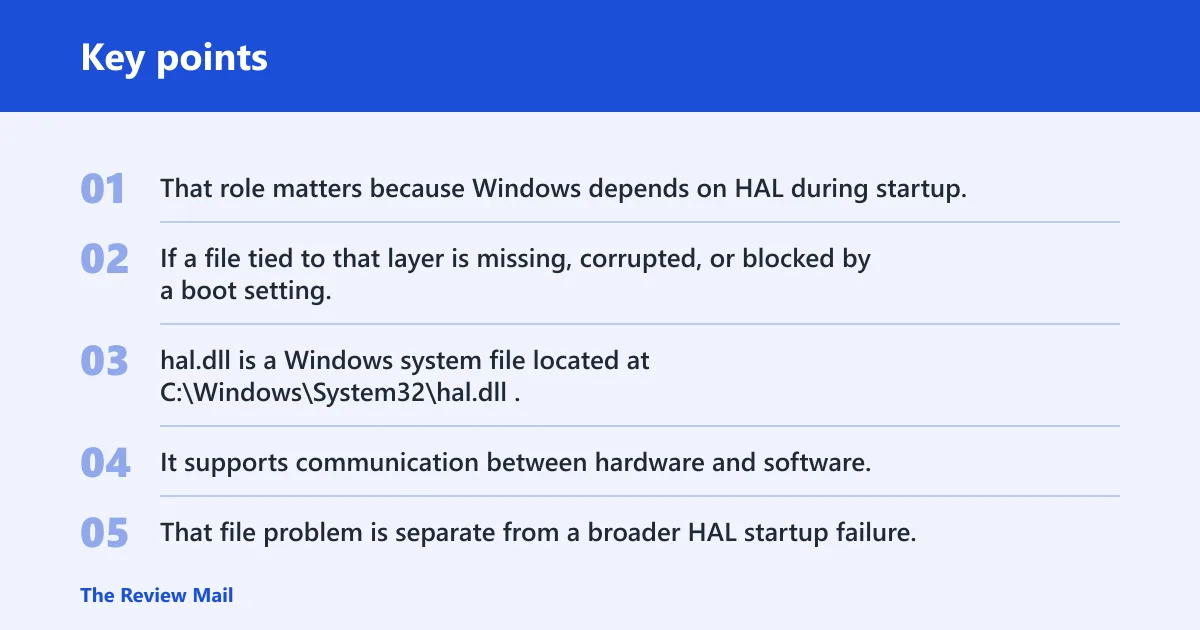
That role matters because Windows depends on HAL during startup. If a file tied to that layer is missing, corrupted, or blocked by a boot setting, the failure can appear as a boot stop, a blue screen, or a restart loop.
How hal.dll fits into boot and startup failures
hal.dll is a Windows system file located at C:\Windows\System32\hal.dll. It supports communication between hardware and software, and if it is missing or corrupted, Windows may fail before the desktop loads.
That file problem is separate from a broader HAL startup failure. One points to a broken or missing system file. The other usually points to startup initialization trouble, which can involve boot data, firmware, or hardware timing.
Why one error can point to different causes
Drivers, boot code, firmware changes, and drive corruption can all surface as a HAL-related stop. That is why the first job is diagnosis, not repair roulette. The symptom timing tells you where to start.
Say your PC shows a missing hal.dll message before any Windows logo appears. That is a boot-path problem. Suppose Windows reaches the logo, then throws HAL_INITIALIZATION_FAILED after a recent BIOS change. That points more toward firmware or hardware initialization.
What is most likely causing it?
Most often, the cause is a corrupted system file or damaged boot data. Less commonly, a BIOS setting, driver change, or failing drive or memory module is responsible. The fastest path is to match the symptom to the likely cause before you run repairs.
Missing or corrupted hal.dll
If the screen says hal.dll is missing or damaged, start with file repair. Because hal.dll is a critical Windows component, a bad copy in C:\Windows\System32\hal.dll can stop startup even when the rest of the install is intact.
- Enter Windows Recovery Environment (WinRE) by forcing three failed startups, or boot from Windows 11 installation media.
- Go to Troubleshoot > Advanced options > Startup Repair.
- If Windows still opens, open Command Prompt as administrator and run
sfc /scannow. - If SFC reports it cannot repair everything, run
DISM /Online /Cleanup-Image /RestoreHealth, then runsfc /scannowagain.
Boot order or BCD problems
Boot code issues are a common cause when Windows never reaches normal loading. A wrong boot device first in BIOS or UEFI can send the machine to the wrong disk, USB drive, or network option before Windows has a chance to start.
- Restart and enter BIOS or UEFI setup with the key shown on screen.
- Open the boot menu or boot priority list.
- Move the Windows drive to the first position.
- Save changes and restart.
- If the error began after boot setting changes, restore the previous firmware values and retest.
Driver, firmware, or hardware changes
New hardware, a firmware update, or a driver change can disrupt the startup path. HAL-related errors may appear right after installing a new SSD, adding memory, changing Secure Boot settings, or updating firmware.
- Remove any newly added internal hardware and test again.
- Undo the most recent BIOS or UEFI change, then reboot.
- If Windows loads, open Device Manager and roll back the most recently updated storage, chipset, or display driver.
- If the problem started after an update, use Settings > Windows Update > Update history > Uninstall updates.
Drive corruption after an update or crash
A damaged hard drive can produce the same symptom set, especially after a power loss, forced shutdown, or failed update. If the machine can still open Windows, disk repair belongs on the list early.
- Open Command Prompt as administrator.
- Run
CHKDSK /fon the Windows volume, for examplechkdskC: /f. - Approve the schedule if Windows asks to check the drive on restart.
- Restart and let the disk check finish before trying other fixes.
Can a bad boot order cause a HAL error?
Yes. If BIOS or UEFI points to the wrong device first, Windows may never load the correct boot files and may appear to fail with a HAL-related stop. This is especially likely after firmware updates, new drives, or changes in boot priority.
- Enter BIOS or UEFI setup.
- Open the boot priority or boot sequence screen.
- Set the Windows drive first.
- Disable temporary boot options such as USB or network boot if they keep taking priority.
- Save and reboot, then check whether the error returns.
How do you fix a missing hal.dll error?
A missing hal.dll error calls for recovery tools first, not random file downloads. Start with WinRE or installation media, then use Startup Repair, SFC, DISM, and CHKDSK in that order if Windows can still be reached or the drive looks damaged.
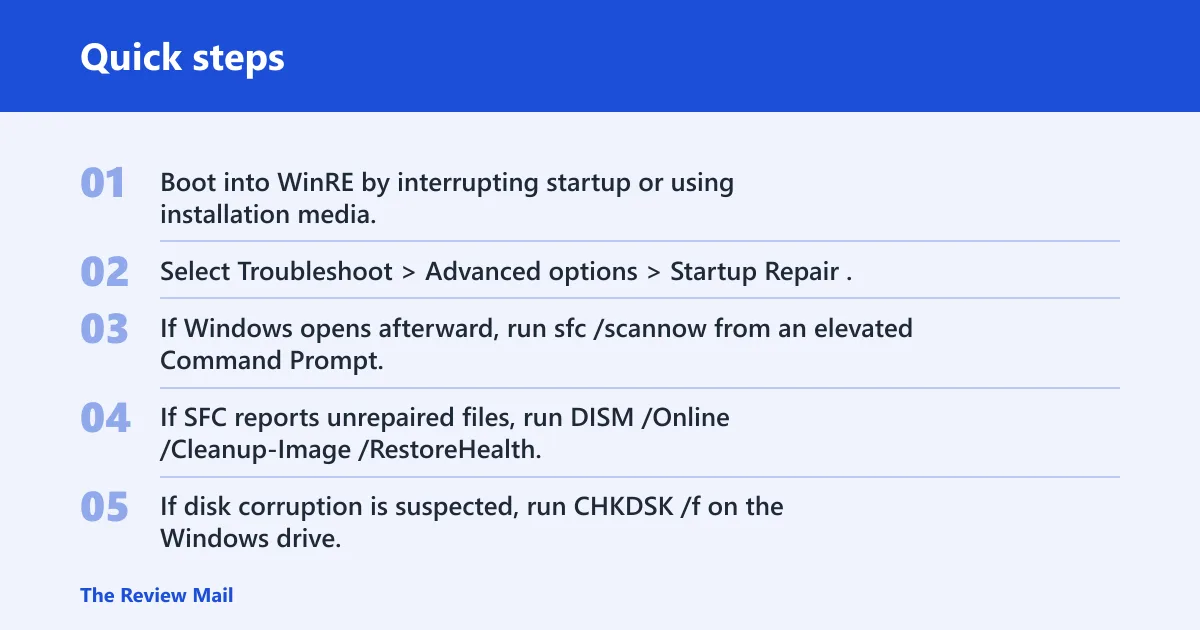
- Boot into WinRE by interrupting startup or using installation media.
- Select Troubleshoot > Advanced options > Startup Repair.
- If Windows opens afterward, run
sfc /scannowfrom an elevated Command Prompt. - If SFC reports unrepaired files, run
DISM /Online /Cleanup-Image /RestoreHealth, then rerun SFC. - If disk corruption is suspected, run
CHKDSK /fon the Windows drive.
HAL error decision matrix
| Symptom | Likely cause | Best first fix | Escalation path |
|---|---|---|---|
| Missing hal.dll at boot | Missing or corrupted system file, or boot files pointing to the wrong place | WinRE > Startup Repair | SFC, then DISM, then CHKDSK /f if the drive looks suspect |
| HAL_INITIALIZATION_FAILED BSOD | Startup initialization trouble, often after firmware, driver, or hardware change | Check BIOS or UEFI boot priority and undo recent setup changes | Rollback drivers, remove new hardware, then test memory or storage |
| Repeated restarts after update | Broken update, driver conflict, or corrupted system files | WinRE Startup Repair, then SFC | Uninstall the latest update, use DISM, then CHKDSK /f |
| Errors after new hardware or BIOS changes | Firmware mismatch, unsupported setting, or failing component | Revert the new BIOS setting or remove the new part | Test with the old configuration, then replace the failing device if the error stays |
Could hardware be the real problem?
Yes. Memory, storage, and CPU faults can trigger HAL stops because HAL sits between Windows and the hardware path. If the error appears after a new RAM stick, a new SSD, or a firmware update, treat hardware as a serious possibility.
- Power off and remove newly added hardware.
- Reseat memory modules and storage cables if the system is a desktop.
- Return BIOS or UEFI to default values if the problem began after tuning.
- Run the vendor’s memory test or storage diagnostics if available.
- If the issue repeats with known-good settings, suspect the drive or a memory module first.
A common first-timer mistake is to keep reinstalling Windows while a bad RAM stick is still installed. Suppose a 16 GB module was added yesterday and the PC now loops at the logo screen. Remove the new module first. If the machine boots normally afterward, the problem was not the Windows install.
Still not working?
If the error survives Startup Repair, SFC, DISM, CHKDSK, and boot-order checks, move to the next escalation rather than repeating the same step. At that point, a clean boot, a driver rollback, or a repair install is the next software path. A clean install is the last software step.
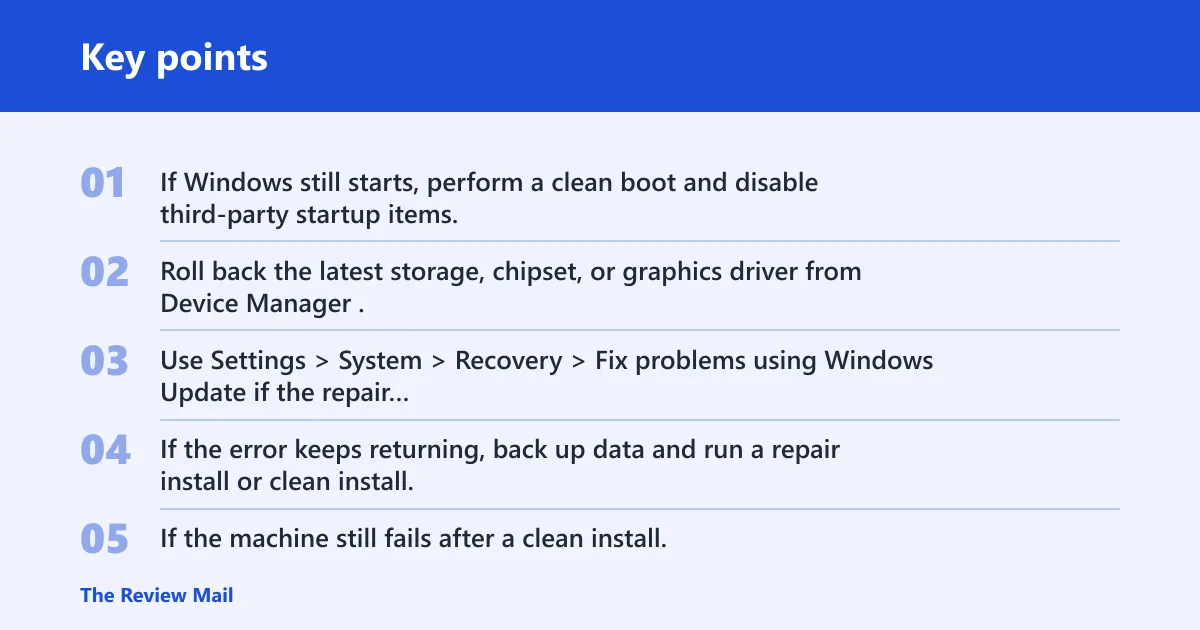
- If Windows still starts, perform a clean boot and disable third-party startup items.
- Roll back the latest storage, chipset, or graphics driver from Device Manager.
- Use Settings > System > Recovery > Fix problems using Windows Update if the repair option is available on your build.
- If the error keeps returning, back up data and run a repair install or clean install.
- If the machine still fails after a clean install, seek vendor support for hardware diagnostics.
Prevention: after recovery, change one thing at a time. Install drivers from a known-good source, leave firmware settings at defaults unless you need a specific option, and avoid stacking multiple updates and hardware changes on the same day.
Frequently asked questions
What does HAL stand for in Windows 11?
HAL stands for Hardware Abstraction Layer. It is the Windows component that mediates between the operating system and hardware such as the CPU, storage, and memory, so startup problems tied to it often point beyond a single file.
Why is HAL called HAL?
It is called HAL because its job is to abstract hardware differences away from Windows and the programs running on it. That naming is tied to function, not branding, and in Windows startup errors it usually means the hardware interface path needs checking.
How do I fix a HAL error in Windows 11?
Start in WinRE with Troubleshoot > Advanced options > Startup Repair, then run sfc /scannow, DISM /Online /Cleanup-Image /RestoreHealth, and chkdsk C: /f if the system can open. If the error started after a BIOS change, correct boot order first.
Is hal.dll missing the same as HAL_INITIALIZATION_FAILED?
No. A missing hal.dll message points to a file or boot-path problem, while HAL_INITIALIZATION_FAILED is a startup initialization failure that often follows firmware, driver, or hardware changes. The fix path is different, so treat them as separate faults.
Will Startup Repair fix HAL errors?
Sometimes. Startup Repair is the first built-in recovery step for boot problems in WinRE, and it can repair common boot file and startup issues. If it fails, move to SFC, DISM, CHKDSK, and then hardware checks instead of repeating it.