Load Driver Error in Windows 10 Installation
If Windows Setup shows “Load driver” or “No drivers found,” first check whether it cannot see the USB installer, the storage controller, or the target disk; the fix follows that one branch. Start with another USB port, because that can separate a media problem from a controller problem. (Microsoft Learn)
What the prompt means
This prompt can appear when Windows Setup cannot read something it needs during installation, such as the USB installer itself, the target disk, or the storage controller connected to that disk. Do not guess at drivers first. Identify which of those three is missing.

How the screen behaves
If the installer media is the problem, Setup may stop seeing the USB stick that booted it, or it may loop back to the same prompt after you browse for files. If the storage controller is the problem, the drive list can stay empty even though the SSD or hard drive is physically installed. If the target disk is the problem, Setup may see some disks but not the one you want.
Which driver do I need?
Use this branch first. Pick the line that matches the BIOS clue, then load only that driver family. A wrong package wastes time and can hide the real issue.
| Branch | Exact BIOS clue | Where to download | Next setup step |
|---|---|---|---|
| Installer media problem | The USB installer appears and disappears, or Setup says no drivers are found right after booting from the flash drive. | A fresh copy of Windows installation media created with the Media Creation Tool on another Windows PC. | Recreate the USB, then boot again from the rebuilt installer. |
| SATA/AHCI storage driver missing | SATA mode is set to AHCI, the disk controller looks standard, and the drive list is empty. | The system maker’s support page, or the chipset/storage page for the board or laptop. | Extract the package, load the .inf file in Setup, then recheck the drive list. |
| Intel VMD/RAID driver missing | Intel VMD, Intel RST, or RAID is enabled in firmware, and Setup cannot see the NVMe or SSD. | The device maker’s Intel Rapid Storage Technology package for that model. | Extract the package, browse to the VMD or F6 folder, load the correct .inf, then refresh the disk list. |
Installer media problem
Suppose the USB boots, but Setup still asks for a driver before any disk appears. That points first to bad or incompatible installation media, not to the SSD itself. Rebuild the installer before changing firmware settings.
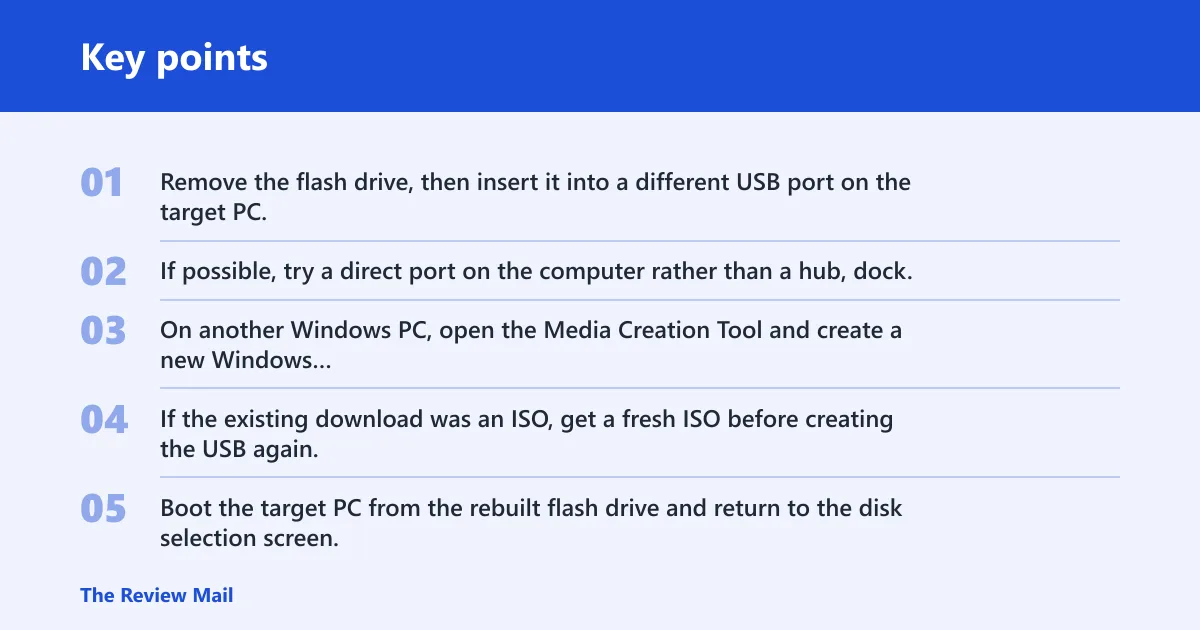
- Remove the flash drive, then insert it into a different USB port on the target PC.
- If possible, try a direct port on the computer rather than a hub, dock, or front-panel extension.
- On another Windows PC, open the Media Creation Tool and create a new Windows installation USB.
- If the existing download was an ISO, get a fresh ISO before creating the USB again.
- Boot the target PC from the rebuilt flash drive and return to the disk selection screen.
SATA/AHCI storage driver missing
This branch fits a desktop or laptop that uses a standard SATA or AHCI controller, but Setup cannot see the internal drive. The fix may be the motherboard, laptop, or chipset storage package, not a random USB driver.
- Enter firmware setup and confirm the storage mode is SATA/AHCI, not a mismatched legacy setting.
- On another PC, download the storage package from the OEM or chipset page.
- Extract the download into a folder until the .inf files are visible.
- Copy the extracted folder to the installation USB, then in Windows Setup choose Load Driver or Browse.
- Point Setup to the folder that contains the matching .inf file, then refresh the disk list.
Intel VMD or RAID driver missing
Picture a laptop with an Intel NVMe SSD and VMD enabled in firmware. The disk is present in hardware, but Setup cannot read it until the Intel Rapid Storage Technology driver is loaded. This is common on newer laptops and some OEM desktops.
- Open firmware setup and check whether Intel VMD, Intel RST, or RAID is enabled.
- Download the Intel Rapid Storage Technology package for the exact model.
- Extract the package on another PC until you can see the .inf files and the architecture folders.
- Select the folder that matches the system architecture, often under x64, then copy it to the USB installer.
- In Windows Setup, click Load Driver or Browse, load the correct .inf, and check whether the SSD appears.
Why does Windows Setup say no drivers found?
The message usually means Setup cannot see the device it needs at that moment. Most often that is the installer USB on a bad port, a storage controller that needs a separate driver, or a disk hidden behind firmware settings that do not match the controller mode.
Try a different USB port first
Older setup environments are often more tolerant on USB 2.0 than on some USB 3.x ports. If the installer was plugged into a front-panel hub or dock, move it to a direct port on the back of the PC. (Microsoft Learn)
- Close Setup.
- Move the flash drive to a USB 2.0 port if the machine has one.
- Boot the installer again.
- If the prompt returns, continue with a rebuilt USB installer.
Use a fresh installer made with Media Creation Tool
A wrong ISO or a damaged copy can sometimes trigger the prompt before Setup reaches the disk stage. Recreating the media removes that variable.
- Use another Windows PC with internet access.
- Run the Windows Media Creation Tool and create a new bootable USB.
- If you used a separately downloaded ISO, download a fresh ISO before creating the USB again.
- Boot the target PC from the new installer and check the disk screen again.
Copy the driver folder to the USB installer
If you must load a storage driver during Setup, keep the extracted folder on the same flash drive or on a second USB device. Do not copy the compressed download alone. Setup needs the extracted files, especially the folder that contains the matching .inf.
Open File Explorer and go to the Downloads folder
Right-click the driver package and choose Extract All
Open the extracted folder until .inf files are visible
Copy the extracted folder to the installation USB
Windows Setup > Load Driver > Browse > select the folder with the .inf file
Can I install Windows 10 without loading a driver?
Yes, if the controller and disk are already visible to Setup. If the drive appears after changing one firmware setting, no extra driver is needed. If the drive still does not appear, DiskPart may help only when you are sure the disk is present but partitioned badly. It will not fix a missing controller driver.
Check BIOS or UEFI settings before DiskPart
Wrong firmware settings, including UEFI or Legacy mismatch, can block Setup from seeing the drive. A factory-default reset is safer than changing several settings by hand when you do not know the current state.
- Enter BIOS or UEFI setup.
- Load factory defaults or optimized defaults.
- Check SATA mode, UEFI or Legacy boot, and any Intel VMD or RAID setting.
- Save changes and reboot back into firmware or straight into Setup.
- Return to the drive list and check whether the target disk appears.
Use DiskPart only when the disk is visible but unusable
DiskPart can prepare a disk that appears in Setup but has bad partitions. clean erases the selected disk completely, so stop before that command if the disk holds data you need. Do not use this path for a missing controller.
- At the Setup screen, press Shift+F10.
- Run the commands in order.
diskpart
list disk
select disk X
clean
create partition primary
format fs=ntfs quick
exit
- Close Command Prompt and return to Setup.
- Refresh the disk list and continue if the disk is now ready.
Still not working?
If none of the above changes the screen, move to the more invasive checks. A common first-timer mistake is to rebuild the USB three times without ever confirming whether the problem is controller-related. That wastes time and can hide a simple firmware mismatch.

- Confirm whether the machine is a desktop SATA install, an NVMe laptop install, or an OEM recovery-style install.
- Check the exact model page for the storage package, then verify the download contains the right architecture folder before booting again.
- Try the installer on a different USB flash drive if the rebuilt media still fails.
- If the target PC has no internet access, prepare the USB and storage driver on another Windows PC first.
Prevention: keep the storage driver package and the installer media in separate folders on a working PC, so you can rebuild the USB quickly if the first boot fails.
Windows Update optional driver updates do not solve a setup-time prompt, because Setup cannot use them before Windows is installed. Optional driver updates are installed later from View optional updates with Download and install, followed by a restart. (Microsoft Support)
Frequently asked questions
How do I fix load drivers on Windows 10 installation?
Try a USB 2.0 port first, then rebuild the installer with the Windows Media Creation Tool on another PC. If the disk still does not appear, load the correct storage driver from the OEM page through Load Driver or Browse, and verify the .inf file is in the extracted folder.
Why does Windows 10 setup say no drivers detected?
It usually means Setup cannot read the installer USB, the storage controller, or the target disk. Check the port, then check firmware settings such as SATA mode, UEFI or Legacy boot, and Intel VMD or RAID. If needed, reload the storage driver package and refresh the drive list.
Which driver do I need during Windows 10 installation?
If firmware shows standard SATA or AHCI, use the motherboard or laptop storage package. If Intel VMD or RAID is enabled, use the Intel Rapid Storage Technology package for that model. Extract the download first, then choose the folder that contains the matching .inf for the system architecture.
Should I use USB 2.0 or USB 3.0 during Windows installation?
Start with USB 2.0 if the installer shows a driver prompt or cannot find the media. If the flash drive works there, keep it there until Windows Setup reaches the drive selection screen.
How do I add Intel Rapid Storage driver to a Windows 10 USB?
Download the Intel Rapid Storage Technology package on another PC, extract it until the .inf files appear, and copy that extracted folder to the installation USB. During Setup, click Load Driver, then Browse, and point to the folder that matches the system architecture.