
0x00000155: What OS_DATA_TAMPERING Means in Windows
Stop code 0x00000155 is OS_DATA_TAMPERING. When it appears, start by checking the most recent software or firmware change, then use Windows repair and diagnostic tools if the crash returns. Keep a copy of the latest dump files so you can compare repeated crashes instead of guessing. See Bug Check Code Reference.
This guide is part of our Windows BSOD stop codes: full list and fixes series.
What 0x00000155 means in Windows
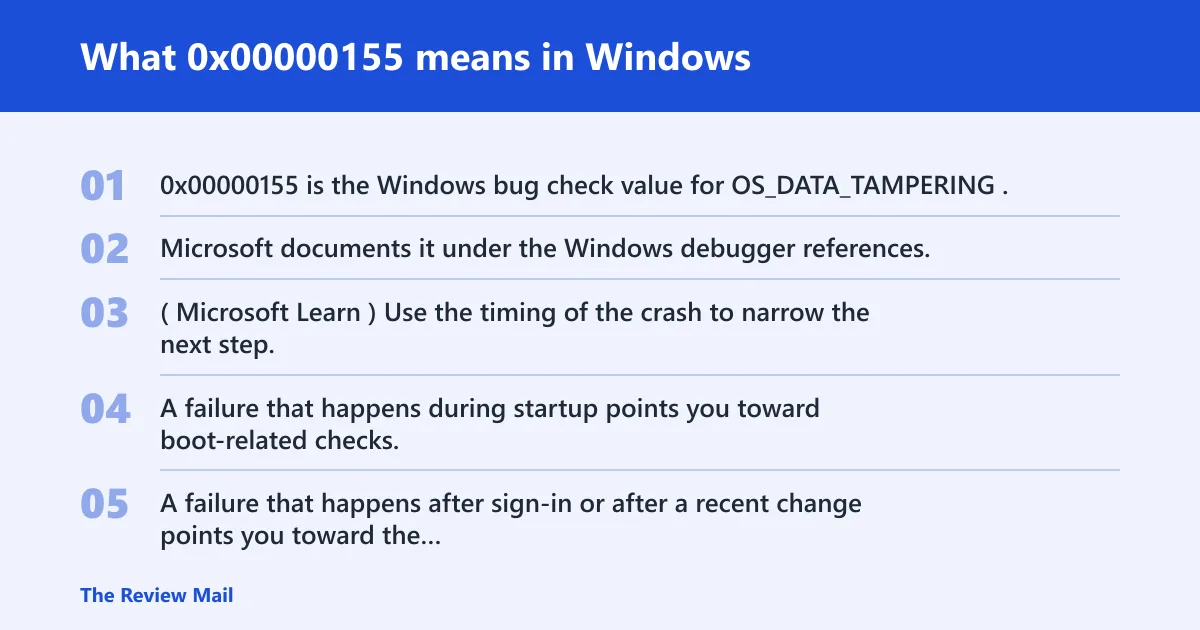
0x00000155 is the Windows bug check value for OS_DATA_TAMPERING. Microsoft documents it under the Windows debugger references. (Microsoft Learn)
Use the timing of the crash to narrow the next step. A failure that happens during startup points you toward boot-related checks. A failure that happens after sign-in or after a recent change points you toward the newest change first. A failure that repeats under load makes Windows diagnostics and dump-file review more useful.
📊 The bug check has the value 0x00000155. Source: Microsoft.
Is 0x00000155 a driver, firmware, or hardware problem?
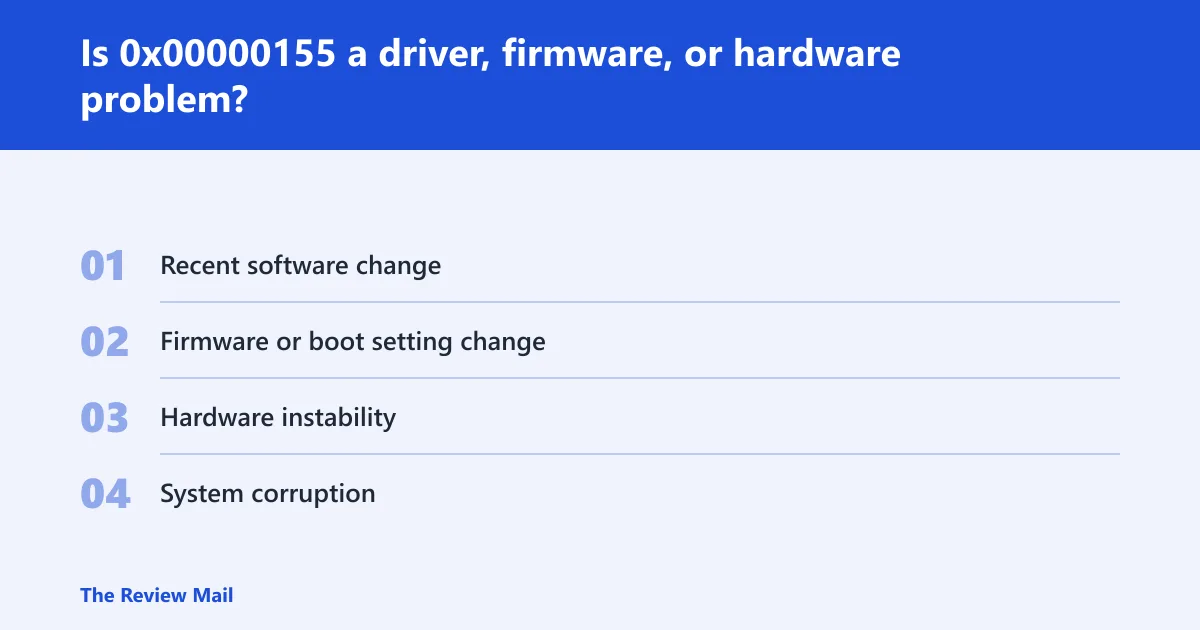
The stop code does not identify one exact cause by itself. Use the order of events to narrow the next check: first recent software changes, then firmware or boot settings, then Windows repair tools, then dump-file review if the crash keeps happening.
A single crash is weak evidence. A repeatable crash at the same point is more useful. If the problem starts right after a change, inspect that change first. If it happens before sign-in or during boot, look at boot-related settings. If it happens under load, use Windows diagnostics and dump files to compare failures.
- Recent software change: a newly installed app, update, or driver.
- Firmware or boot setting change: BIOS or UEFI changes, Secure Boot changes, or other startup-related settings.
- Hardware instability: a component that fails under load and causes repeated crashes.
- System corruption: damaged Windows files or boot data.
Likely causes, ranked from most to least common
Do not treat any single cause as proven just because it is recent. The safest triage path is to check the newest change first, then move to firmware and boot settings, then run built-in Windows repair and diagnostics if the crash continues.
Recent driver changes or security software
If the crash started after a new update or installation, remove that change first. Open Settings > Apps > Installed apps to uninstall the newest app, or use Device Manager if the new change is a device driver. If the machine was stable before that change, this is the best first check.
Overclocking, BIOS or UEFI settings, and memory tuning
If the system was changed at startup level, open the firmware setup screen and review any recent changes there. Many PCs let you enter BIOS or UEFI during startup by pressing a vendor key such as F2, Del, or a similar key shown on screen. Review Secure Boot and any other startup-related options there, and note whether they were changed recently.
Memory, storage, or other hardware instability
If the crash repeats during heavy use, use built-in diagnostics first. Run Windows Memory Diagnostic from the Start menu, and use chkdsk on the system drive if Windows continues to fail. These checks can show whether the machine is stable enough to stay in normal use.
System file or boot data corruption
If Windows starts but keeps failing after a crash, run the built-in repair commands. Open an elevated Command Prompt and run sfc /scannow, then DISM /Online /Cleanup-Image /RestoreHealth if Windows file repair is needed. If startup itself is damaged, use the Recovery Environment to reach repair tools.
How to troubleshoot OS_DATA_TAMPERING step by step
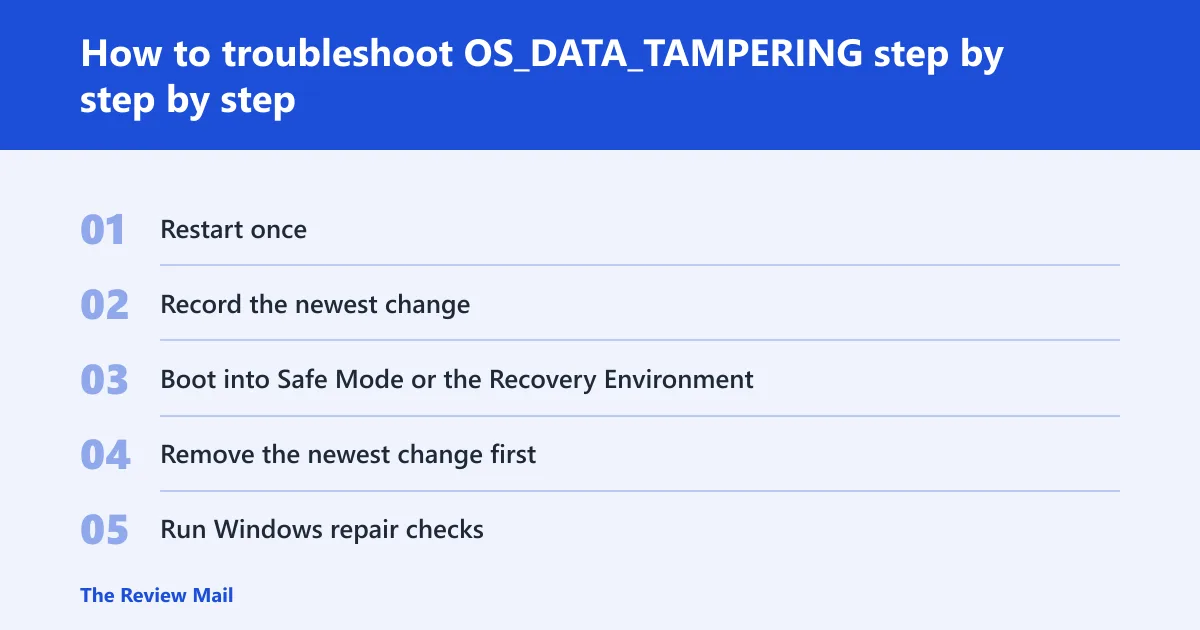
Start with the newest change, then use Windows recovery tools, then collect evidence if the crash returns. Keep the sequence simple so you can tell which step changed the behavior.
- Restart once. If the crash was isolated, a clean restart may clear it.
- Record the newest change. Note any app, update, driver, or firmware setting changed before the crash.
- Boot into Safe Mode or the Recovery Environment. Use Safe Mode when Windows still reaches the sign-in screen. Use the Recovery Environment if it does not.
- Remove the newest change first. Uninstall the last app or update, or roll back the last driver in Device Manager > Properties > Driver when that option is available.
- Run Windows repair checks. Use
sfc /scannow, thenDISM /Online /Cleanup-Image /RestoreHealthif Windows files need repair. - Check the system drive. Run
chkdskon the Windows drive if the crash returns after the rollback.
Keep the system as close to one change at a time as possible while testing. That makes it easier to tell whether a rollback or repair changed the result.
Use this decision table to narrow the cause
Match the crash timing to the next check. If the same pattern repeats after the first fix, move on to the dump files instead of trying random changes.
| When it happens | What to inspect first | Next built-in Windows step | When to escalate to dump-file analysis |
|---|---|---|---|
| At startup, before sign-in | Recent firmware or boot-setting changes | Use the Recovery Environment | If the crash repeats on every boot |
| After login or during normal use | The newest app, update, or driver change | Use Device Manager or uninstall the newest app | If the same stop code returns after rollback |
| Right after installing updates | The last update or package installed | Remove the last change and check Reliability Monitor | If the crash continues after the change is removed |
| Under heavy load or repeated use | Windows Memory Diagnostic and then chkdsk | Run the built-in diagnostics | If the checks finish but the crash still happens |
| After a firmware-setting change | Recent BIOS or UEFI settings, including Secure Boot | Review the startup settings in firmware setup | If the problem continues after the settings are reviewed |
Which logs and reports should you check next?
Check Event Viewer, Reliability Monitor, and the dump files together. Event Viewer shows the crash window, Reliability Monitor shows the failure timeline, and the dump files can show what Windows was doing when it stopped.
Open Event Viewer and look under Windows Logs > System for entries around the crash time. Then open Reliability Monitor from the Start menu and review the red X entries that line up with the first failure.
For dump files, check C:\Windows\Minidump and any full memory dump file if one exists. If the crash happens more than once, the newest dump files are usually the best evidence to hand to vendor support or a debugger workflow.
Can Safe Mode or Recovery Environment help with 0x00000155?
Yes. Safe Mode and the Recovery Environment reduce the number of things Windows loads, which makes it easier to separate a startup problem from a problem that only appears after normal Windows loads. They also give you a path to remove the latest change or open repair tools.
Use Safe Mode if Windows still reaches the sign-in screen. Use the Recovery Environment if Windows does not. From either place, remove the newest change first, then run sfc /scannow if Windows opens a command prompt with administrator rights.
If the crash only appears after docking, undocking, or connecting a device, disconnect that device and test again. If it only appears after a recent firmware change, review the startup settings in BIOS or UEFI before trying anything else.
Still not working?
If the crash keeps returning after rollback, Safe Mode, and file repair, move to deeper checks and collect the newest evidence before escalation.
- Run Windows Memory Diagnostic to check system memory.
- Run
chkdskon the Windows drive and review the drive’s health tools if the manufacturer provides them. - Open BIOS or UEFI setup and review recent startup-related settings, including Secure Boot.
- Collect the newest dump files from
C:\Windows\Minidumpor any full memory dump. - If crashes continue, pass those dump files to vendor support or a debugger workflow.
Prevention: change one thing at a time when updating Windows, drivers, apps, or firmware so the next crash is easier to trace.
Frequently asked questions
What should I do first after a 0x00000155 crash?
Check the newest change first, then use Safe Mode or the Recovery Environment if Windows still fails. If Windows reaches the desktop, remove the latest app, update, or driver change and test again.
How do I troubleshoot OS_DATA_TAMPERING after a blue screen?
Use Device Manager for rollback when possible, uninstall the newest app or update, then run sfc /scannow and DISM /Online /Cleanup-Image /RestoreHealth. If the crash repeats, run chkdsk and review the latest dump files.
What logs should I check after a 0x00000155 crash?
Check Event Viewer under Windows Logs > System, then open Reliability Monitor, then review the newest dump files in C:\Windows\Minidump or any full memory dump file.
Should I use Windows Memory Diagnostic or another tool?
Start with Windows Memory Diagnostic, then use chkdsk if the crash keeps returning. If the problem remains after those checks, keep the newest dump files for escalation.