Windows Activation Error 0x803f700f
Windows activation error 0x803F7001 means that a valid license could not be found to activate Windows on your computer. If activation fails, start by checking the edition shown in Settings > System > Activation and then use the built-in support and activation options that match your Windows version.
What 0x803F7001 usually means
On Windows 10 and Windows 11, activation is meant to confirm that Windows is properly licensed on the device. Start by opening Settings > System > Activation and reviewing the activation status shown there.
If you need help from Microsoft, type Windows Activation and click Get Help. Then click Sign In and Contact Support at the bottom of the page, sign in with your Microsoft account, under Products and Services select the Windows 10 or 11 option, under Categories select Manage Profile Information, and click Chat with a Support Agent.
Likely causes, ranked
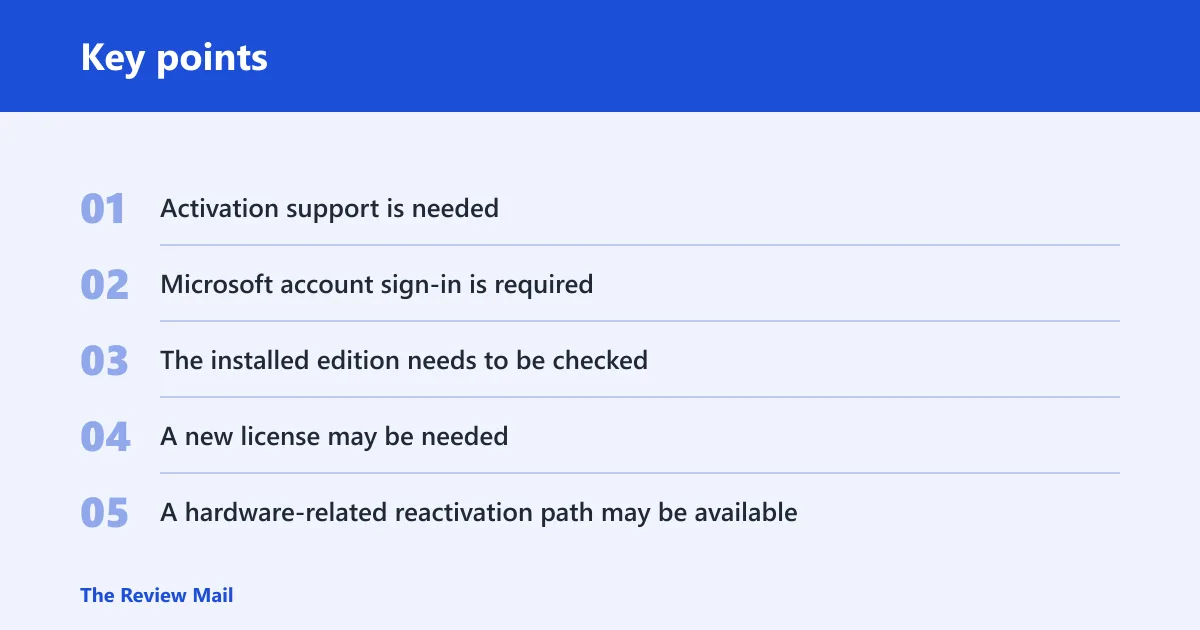
- Activation support is needed. The built-in support flow may help you confirm the license status and reach a support agent.
- Microsoft account sign-in is required. Some support and activation steps require you to sign in with your Microsoft account.
- The installed edition needs to be checked. The edition shown in Activation should be compared with your key or license.
- A new license may be needed. If no usable license is available, you may need to buy one from Microsoft Store.
- A hardware-related reactivation path may be available. If the page offers it, use the hardware change option in Activation.
| symptom | likely cause | quickest check | best fix | when to stop and reinstall |
|---|---|---|---|---|
| Activation fails after a clean install | Installed edition does not match the available license | Open Settings > System > Activation and review the edition shown there | Use the matching edition or the correct license path | Stop if the installed edition and license cannot be matched |
| Activation failed after a hardware change | The license may need reactivation after the change | Check whether Activation offers a hardware change option | Use the reactivation path if it is available | Stop if the license still does not return after the available steps |
| No product key is visible after reinstall | No usable key is available on the device | Check Activation status and whether a key is available | Use the Microsoft Store option only if you need to buy a new license | Stop if the installed edition is not the one you need |
| Key entry is rejected immediately | The key does not match the installed edition | Compare the edition shown in Activation with the key source | Use the correct key or reinstall the matching edition | Stop if the only available key belongs to another edition |
| Support or account recovery is needed | The activation path requires Microsoft account sign-in | Use the Get Help activation flow and sign in when prompted | Follow the support flow in Get Help | Stop if the support flow does not apply to your device |
📊 Microsoft recommends checking that the device is up to date and running Windows 11. Source: Microsoft.
How do I fix error 0x803F7001 on Windows 11?
Start with Settings > System > Activation. On Windows 11, use Type “Windows Activation” and click Get Help. If needed, continue through the Microsoft support flow by clicking Sign In and Contact Support at the bottom of the page, signing in with your Microsoft account, selecting Windows 10 or 11 under Products and Services, selecting Manage Profile Information under Categories, and then clicking Chat with a Support Agent. (Microsoft Support)
Windows edition mismatch
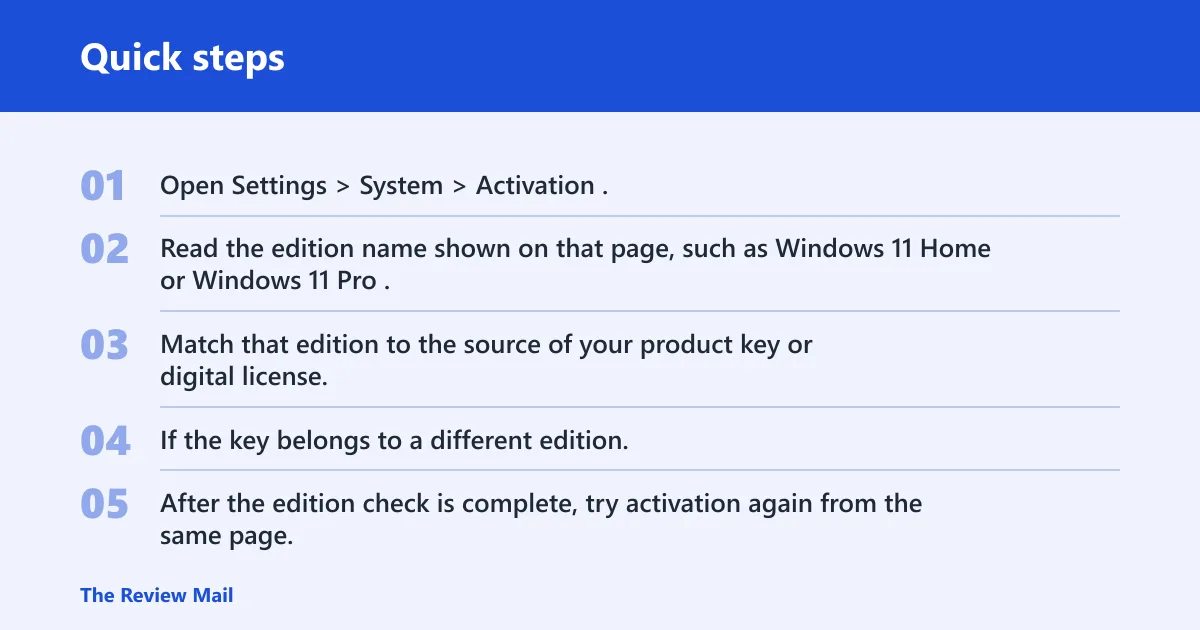
Edition mismatch is one of the first things to rule out. Open Settings > System > Activation and compare the edition shown there with your product key or digital license.
- Open Settings > System > Activation.
- Read the edition name shown on that page, such as Windows 11 Home or Windows 11 Pro.
- Match that edition to the source of your product key or digital license.
- If the key belongs to a different edition, stop and install the matching edition or use the correct key.
- After the edition check is complete, try activation again from the same page.
Suppose the machine is running Windows 11 Pro, but the only key available is for Home. Entering the Home key will not fix the mismatch. Use the matching edition or the correct key.
Missing or wrong product key
If the machine should activate with a key, use the key path from Activation settings and enter a full 25-character product key. If Windows says no product key was found, that usually means the install is using a digital license or the key was not found for this device. A key that belongs to another edition will also fail here.
- Open Settings > System > Activation.
- Select Change product key.
- Enter the 25-character key exactly as issued.
- If the key is for a different edition, stop and use the correct key or reinstall the matching edition.
- If no usable key exists, choose Go to Microsoft Store only when you need to buy a new license.
Settings > System > Activation
Change product key
slmgr /ipk <key>
slmgr /ato
Can a hardware change cause activation error 0x803F7001?
Yes. If the page offers a hardware change path, use it. Activation can sometimes require reactivation after a major hardware change, and Microsoft’s support flow may be needed if the device was previously linked to a Microsoft account.
Hardware change and digital license
When the activation page offers a hardware change option, select it and follow the available prompts.
- Open Settings > System > Activation.
- If the page points to a hardware change path, select it.
- Sign in with your Microsoft account if prompted.
- Follow the reactivate-after-hardware-change option if Troubleshoot cannot resolve it.
- If the license still does not return, compare the installed edition with the original license type before trying anything else.
Say your PC worked on Windows 11 Home until the motherboard was replaced. If the activation page offers a hardware change path, use it and sign in if prompted.
0x803F7001 triage matrix
This matrix separates the most common paths so you can stop guessing and test the right thing first. Use it as a decision table: identify the symptom, check the quickest item, then choose the fix that matches the license type and edition.
| symptom | likely cause | quickest check | best fix | when to stop and reinstall |
|---|---|---|---|---|
| Fresh install, no activation yet | Installed edition does not match the available license | Check the edition in Activation settings | Install the edition that matches the key or digital license | Stop if the media installed Home but the license is Pro, or vice versa |
| Motherboard swap | Hardware change | Look for the hardware change option | Use the reactivation path if it is available | Stop if the original edition is no longer installed |
| Wrong edition installed | Edition mismatch | Read the edition name on Settings > System > Activation | Use the matching product key or reinstall the correct edition | Stop if the key is for another edition |
| No Microsoft account link | Support sign-in may be required | Check whether the same Microsoft account is signed in | Sign in with the account you use for Microsoft support or activation help | Stop if the device was never linked to that account |
| Need a new license | No usable license exists | Check whether the Microsoft Store option appears | Use Go to Microsoft Store only when you need to buy a new license | Stop if the installation should be retail or OEM but is not |
Will the Windows activation troubleshooter fix 0x803F7001?
It can help with simple activation issues. On Windows 11, the process continues in Get Help. If the support or activation page is available, use it to move through the built-in steps before deciding whether a license issue needs a new key or support assistance.
Run the troubleshooter first
Use the troubleshooter when the install looks close to correct and you want Microsoft’s built-in checks to try the obvious fixes. On Windows 11, the activation help flow runs through Get Help.
- Open Settings > System > Activation.
- Select Troubleshoot.
- On Windows 11, let the process continue in Get Help.
- If prompted, sign in with your Microsoft account.
- Check whether the activation result changed.
If the code changes after the attempt, use the updated result to guide the next step instead of repeating the same button clicks.
Still not working?
If the edition check, key check, Microsoft account sign-in, and troubleshooter all fail, use Microsoft support from the activation help flow. Type Windows Activation, click Get Help, then click Sign In and Contact Support at the bottom of the page. Sign in with your Microsoft account, select Windows 10 or 11 under Products and Services, select Manage Profile Information under Categories, and click Chat with a Support Agent.
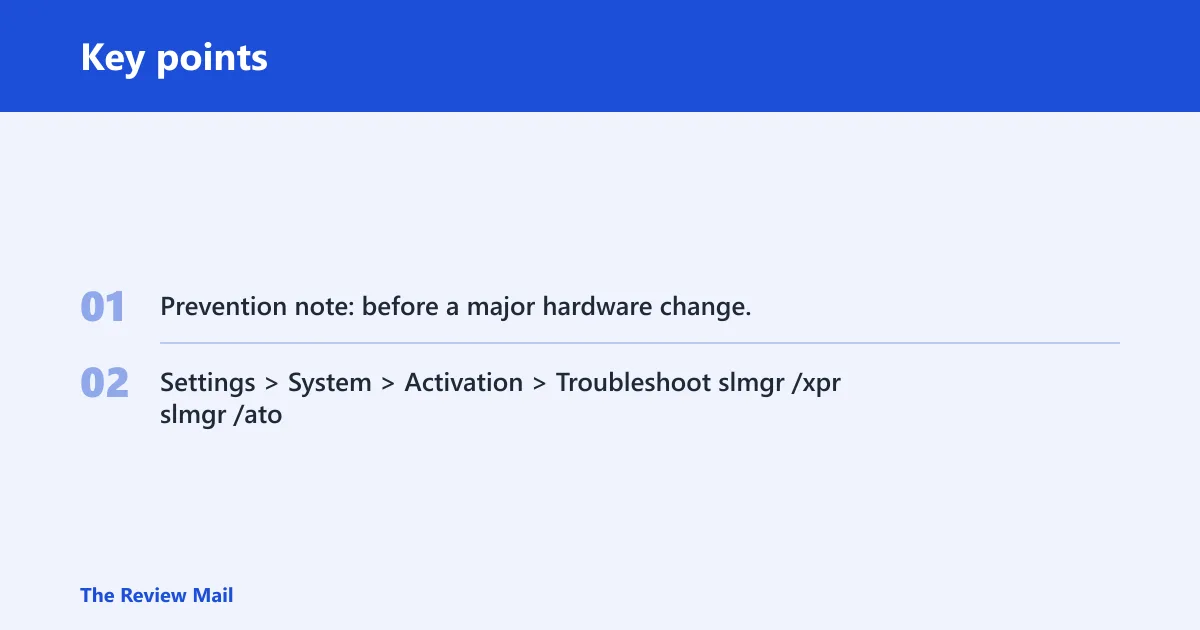
Prevention note: before a major hardware change, make sure you know which Microsoft account you use for activation support and which Windows edition is installed.
Settings > System > Activation > Troubleshoot
slmgr /xpr
slmgr /ato
Frequently asked questions
What does Windows activation error 0x803F7001 mean?
It means that a valid license could not be found to activate Windows on your computer. Start by checking Settings > System > Activation and then use the built-in support path if needed.
How do I check whether my Windows edition matches my product key?
Open Settings > System > Activation and read the edition name shown there. Then compare it with the key source.
What should I do if Windows says no product key was found?
Go to Settings > System > Activation > Change product key and verify whether you actually have a 25-character key for that edition. If not, use the Microsoft support flow in Get Help or choose Go to Microsoft Store only when you need to buy a new license.
Do I need to reinstall Windows to fix activation problems?
Only when the installed edition does not match the key or license you have. If the edition is wrong, install the matching edition.
What if the activation error changes after running the troubleshooter?
Use the new result as a clue, then return to Settings > System > Activation and continue with the edition, key, or support steps that match the updated result.