0x00010006 EaseUS Fixes for Windows Users
0x00010006 is a vendor-specific error code that can appear during backup, clone, or restore jobs. Start with the safest checks first: app access, then destination disk state, then Windows system state. That order helps you avoid unnecessary partition changes or recovery steps.
Likely causes
Start with the layer most likely to fail in a clone, backup, or restore job. A practical troubleshooting order is app permissions, then destination disk state, then Windows system conditions. That keeps you away from partition edits until the basic path is sound.
Common failure layers to sort first
| Symptom pattern | Likely layer | Safest first action |
|---|---|---|
| The job starts, then stops before any disk copy progress appears | Driver or app permission | Run the app with administrator rights and try again once |
| The job fails after selecting a target disk or destination folder | Disk or path access | Move the target to a normal data volume with write access |
| The target disk shows errors, missing space, or odd partitions in Disk Management | Destination disk | Review partition layout and health before another clone attempt |
| The failure follows a recent Windows update, driver change, or reboot prompt | Windows system state | Finish the reboot, then check storage drivers and file integrity |
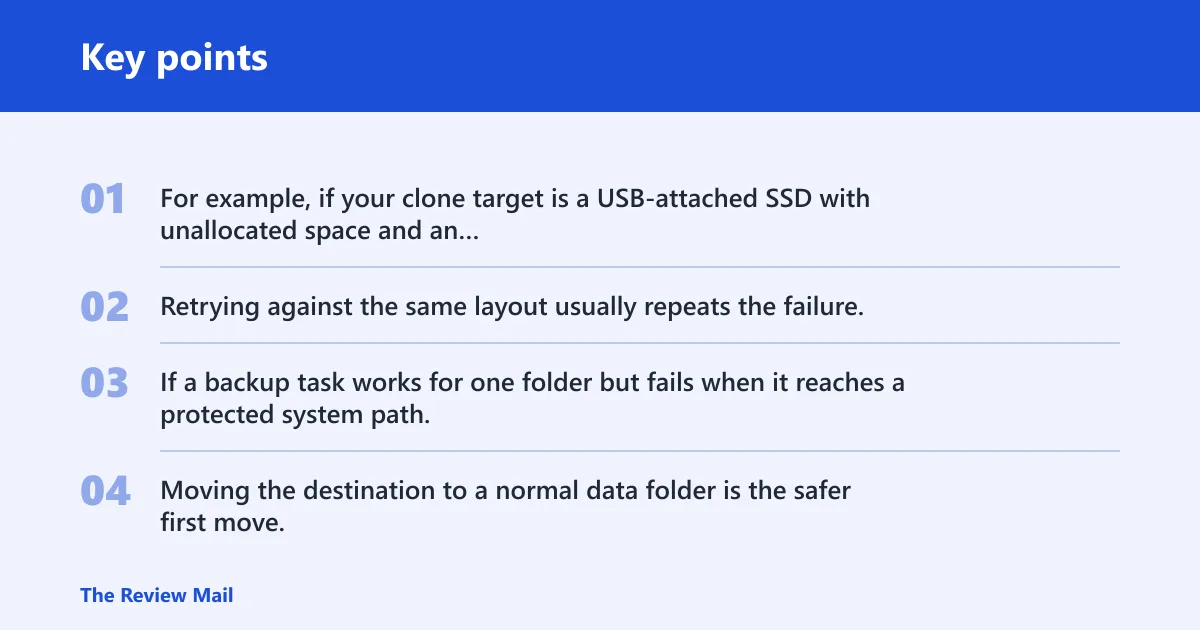
For example, if your clone target is a USB-attached SSD with unallocated space and an existing recovery partition, that points to a disk-layout problem. Retrying against the same layout usually repeats the failure.
If a backup task works for one folder but fails when it reaches a protected system path, that points to permissions or UAC rather than a damaged drive. Moving the destination to a normal data folder is the safer first move.
Fix permissions and app access
When the app cannot write to the source, the target, or a protected path, the job can stop before any disk work begins. This is the first branch to clear because it does not change partitions or boot records.
- Close the EaseUS app.
- Right-click the EaseUS shortcut or executable and choose Run as administrator.
- If the job targets a folder, choose a normal data volume such as D:\Backups instead of C:\Windows or C:\Program Files.
- When Windows shows a UAC prompt, choose Yes.
- Retry the backup, clone, or restore once.
If the job succeeds after elevation, the cause was likely access control rather than disk failure. Keep the destination on a standard data volume with read/write access and avoid repeated retries inside protected folders.
Check the destination disk
For a clone, the source drive, target drive, and destination layout all matter. A destination that is offline, nearly full, mispartitioned, or reporting bad sectors can stop the copy even when the source is fine. Check the disk before you try partition repair or boot repair tools.
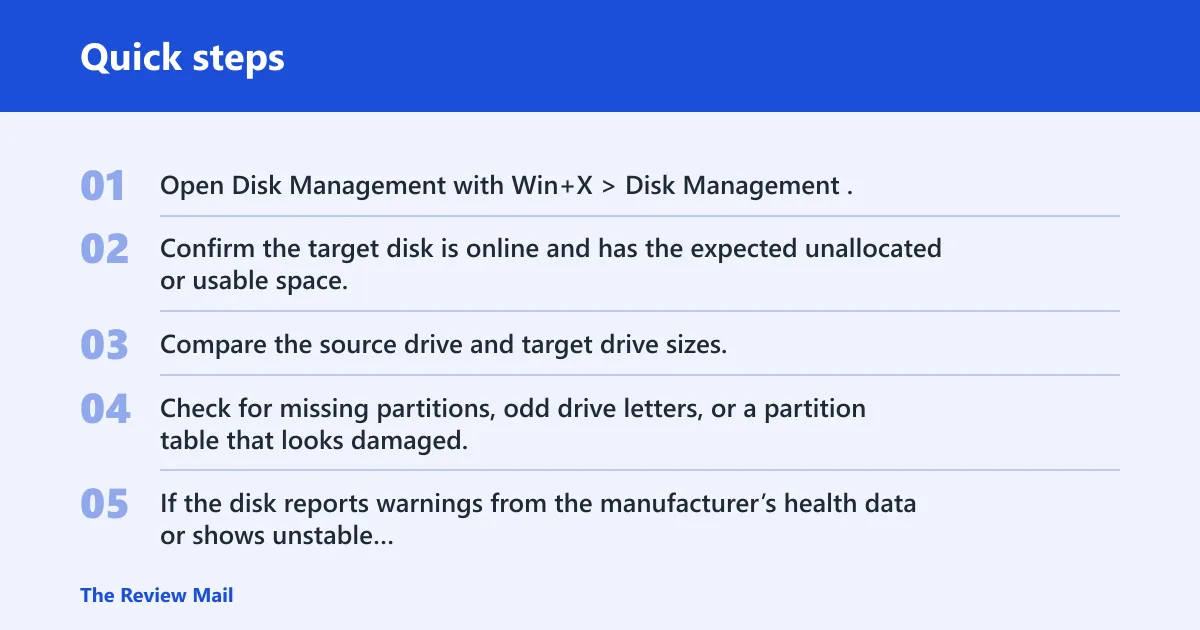
- Open Disk Management with Win+X > Disk Management.
- Confirm the target disk is online and has the expected unallocated or usable space.
- Compare the source drive and target drive sizes, then verify that the target has enough space for the used data you are copying.
- Check for missing partitions, odd drive letters, or a partition table that looks damaged.
- If the disk reports warnings from the manufacturer’s health data or shows unstable behavior in Windows, stop and back up data first.
For clone operations, a file-based workflow and a sector-by-sector workflow are not the same risk level. If the target is cramped, misaligned, or already unstable, the safer move is to back up files before trying the clone again.
Back up before partition or boot repair
Stop here if the disk is unstable, the system will not boot, or the partition map looks wrong. Do not jump straight into repartitioning or boot repair when the data is still recoverable.
| Stop and back up if you see this | Risk level | Safer next move |
|---|---|---|
| Repeated clone failure on the same target disk | Medium | Copy important files off the source or target before another try |
| Missing partitions, corrupted partition table, or boot entries that no longer load | High | Back up data before changing partitions or running boot repair tools |
| Bad sectors, read errors, or a disk that disappears and reappears in Windows | High | Recover data first, then replace or repair the disk |
A common mistake is to repair the boot path before copying files from the failing disk. That can turn a recoverable setup into a harder one. Save the files first, then decide whether the boot path needs repair.
Can security software block EaseUS?
Yes. Real-time protection, quarantine rules, firewall filtering, or device-control policies can interrupt disk tools during clone, backup, or restore jobs. Test this with a short, temporary exclusion window, then restore protection right after the check.
- Open Windows Security.
- Go to Virus & threat protection > Manage settings.
- Turn off Real-time protection briefly, then retry the job once.
- If needed, open Manage exclusions and add the EaseUS program folder or executable for the test window.
- Check Firewall & network protection if the app depends on network access or a connected device path.
- Turn real-time protection back on immediately after the test.
If the job works only while protection is off, the block is in security software rather than the disk. Review quarantine history, device-control rules, and firewall rules before the next run.
Windows system checks before retrying
When the problem follows a reboot prompt, driver update, or Windows update, the issue may be in system state rather than the EaseUS workflow itself. Check Disk Management, storage drivers, and file integrity before you retry a clone or restore.
- Restart Windows once if a pending reboot is waiting.
- Open Device Manager and expand Disk drives and Storage controllers.
- For a storage controller with a warning icon, update or reinstall the driver from Device Manager > right-click device > Update driver.
- Open an elevated Command Prompt and run
sfc /scannow. - If SFC reports unrepaired files, run
DISM /Online /Cleanup-Image /RestoreHealth, then restart.
If the system still fails after those checks, the next step is a narrower recovery path, not a bigger one. That usually means backing up data, then considering boot repair or a clean migration only after the files are safe.
How to stop repeat failures during cloning
Most repeat failures come from the same three things: the wrong target layout, blocked write access, or an unstable source or destination disk. A clean clone starts with the right source drive, the right target drive, and enough space on the destination for the layout you want.
- Confirm the source drive is the disk you actually mean to copy.
- Confirm the target drive is empty or contains data you are willing to overwrite.
- Check the destination capacity and partition layout in Disk Management before you start.
- If the target has a strange partition map, back up its data first.
- Run the app with administrator rights and avoid protected folders for any staging path.
- Retest after a clean reboot if Windows just finished updates.
If the machine will not boot, boot repair belongs after data safety checks. Use boot repair tools only after you have protected the data you need.
Frequently asked questions
What is 0x00010006 in EaseUS?
It is a vendor-specific error code that can appear during backup, clone, or restore workflows. Use the surrounding symptoms to narrow down whether the issue is permissions, disk health, or a Windows system condition.
Why does EaseUS show error code 0x00010006?
The code can appear when something blocks the job path: access rights, a destination disk problem, or a Windows system condition such as a pending reboot or storage driver issue. The exact branch matters, so start with the safest checks first instead of jumping to partition repair.
How do I fix EaseUS error 0x00010006?
Run the app with administrator rights, move any destination path to a normal data volume, check the target disk in Disk Management, and then test security software with a short exclusion window. If the system recently updated, run sfc /scannow and DISM /Online /Cleanup-Image /RestoreHealth.
Is 0x00010006 caused by disk space or permissions?
It can be either. Check the target’s free space and partition layout first, then verify read/write access and UAC behavior. If the job fails only in a protected folder or only without elevation, permissions are the more likely branch.
Does 0x00010006 mean my drive is failing?
Not by itself. A failing drive is one possible branch, but you need signs such as bad sectors, read errors, unstable detection in Disk Management, or repeated clone failure on the same disk. If any of those appear, copy important files off the drive before further repair steps.
Can antivirus or firewall trigger EaseUS error 0x00010006?
Yes. Real-time protection, quarantine rules, firewall filtering, or device-control settings can interrupt disk tools. Test with a short exclusion window in Windows Security, then turn protection back on right after the retry. If the test works, review the blocking rule before running the job again.