Error 10 Device Cannot Start: Quick Fix Guide
“Error 10” in Device Manager means Windows sees the device but cannot start it. After one driver reinstall and one restart, split the problem fast: if several devices changed after a recent update, treat it as a driver or update issue; if only one device fails, focus on that device and its hardware path. Skipping that split can waste time on fixes that won’t help and can hide a bad adapter, dongle, cable, or port. This guide shows how to triage Code 10 on Wi‑Fi, USB, Bluetooth, audio, printer, and similar devices before you touch registry edits.
What error code 10 means in Device Manager
Device Manager lists devices, often marks problem devices with a yellow triangle, and lets you disable, uninstall, update, or roll back drivers. The message can appear when Windows cannot load the driver, when an update changed the driver stack, or when hardware is failing.
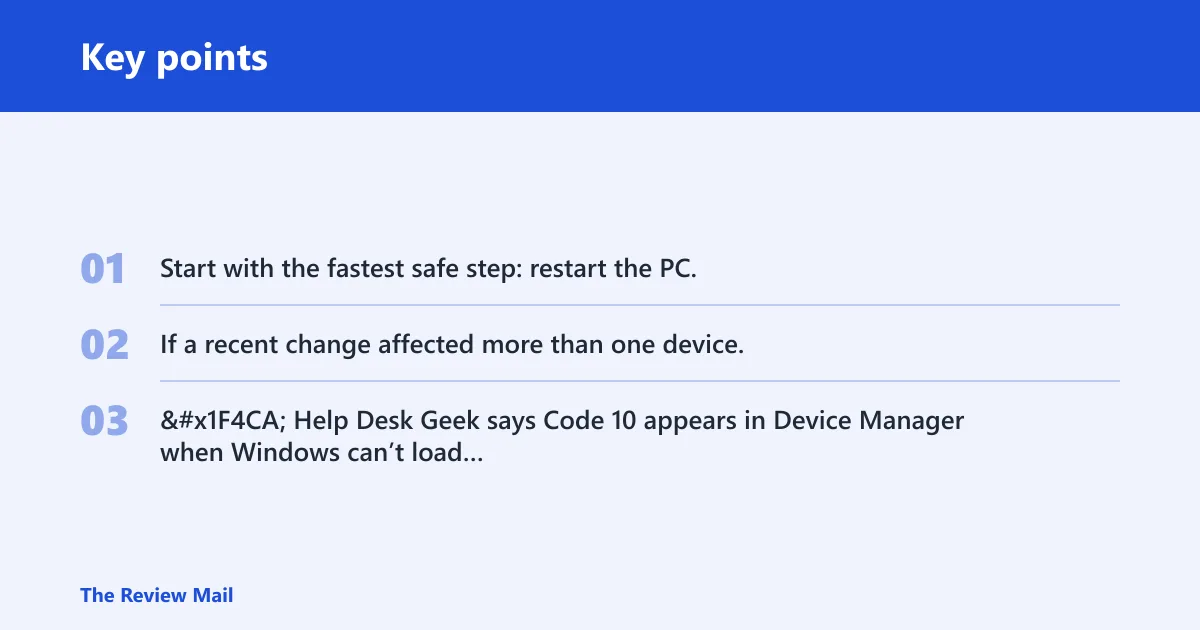
Start with the fastest safe step: restart the PC, then check whether the same device still fails in Device Manager. If a recent change affected more than one device, treat the issue as a driver or update problem first.
📊 Help Desk Geek says Code 10 appears in Device Manager when Windows can’t load the driver. Source: Fix “The Device Cannot Start. (Code 10)” Error.
Likely causes, ranked from most common to least common
Code 10 cases often come from a driver problem, sometimes from a Windows update conflict, then from device or connection hardware, and in some cases from corrupted registry filter entries. That order matters because it keeps you from jumping straight to registry edits or replacements.
- Driver problem: outdated, missing, incompatible, or corrupted.
- Windows update conflict: a recent update installed a generic driver or changed how the device loads.
- Hardware or connection fault: the device itself, the port, or internal wiring is failing.
- Registry filter entries: UpperFilters or LowerFilters can block loading when corrupted.
How do you fix code 10 on a Wi-Fi adapter?
For a Wi‑Fi adapter, the best first move is to identify the exact model and install the manufacturer driver for your Windows version. Manufacturer-supplied drivers often fit better than the generic driver Windows installs automatically, especially on laptops and bundled wireless cards.
- Open Device Manager and expand Network adapters.
- Right-click the Wi‑Fi adapter, choose Properties, then note the full model name from Details or General.
- Go to the manufacturer support site and match the device model plus your Windows version.
- Install the newest Wi‑Fi driver, then restart.
- If it still fails, in Device Manager choose Uninstall device, then restart so Windows rebuilds it.
Suppose Device Manager says only “Wireless Adapter” and the laptop maker lists three chipsets for that model. The model number under the system label or support page matters more than the generic device name.
How do you fix code 10 on USB devices?
USB devices often fail because of the port, the cable path, or the USB controller rather than the accessory itself. The quickest test is a direct connection to another port, then a reset of the USB controller under Universal Serial Bus controllers.
- Unplug the device and connect it to a different direct USB port, not a hub.
- Open Device Manager and expand Universal Serial Bus controllers.
- Right-click each USB Root Hub or USB Host Controller, choose Uninstall device, then restart.
- Reconnect the device and let Windows rebuild the controller and device entries.
- If the same device fails on another PC, the device itself is more likely at fault than the port.
USB gadgets, audio adapters, and other removable devices are common Code 10 victims, so a port swap is worth doing before deeper repair work.
How do you fix code 10 on Bluetooth or audio devices?
Bluetooth and audio failures often clear only when you use the exact OEM package for the adapter or audio chip. Generic Windows drivers may load, but they can miss vendor features or fail after an update changed the driver stack.
- In Device Manager, expand Bluetooth or Sound, video and game controllers.
- Open the device Properties and confirm the exact adapter or audio-chip name.
- On the manufacturer support site, match that model to your Windows version and install the OEM driver package.
- If the problem started after a recent update, use Driver tab > Roll Back Driver if available.
- Then choose Uninstall device, restart, and test again.
The onboard audio package from the motherboard or laptop maker can matter more than a generic audio driver, especially when the system uses vendor-specific hardware.
What should you try before registry edits?
Use the built-in Hardware and Devices troubleshooting flow if it is available on your version of Windows, then check Windows Update for any pending patches or driver updates. If the issue started after a recent change, compare the device’s driver date and version before making low-level edits.
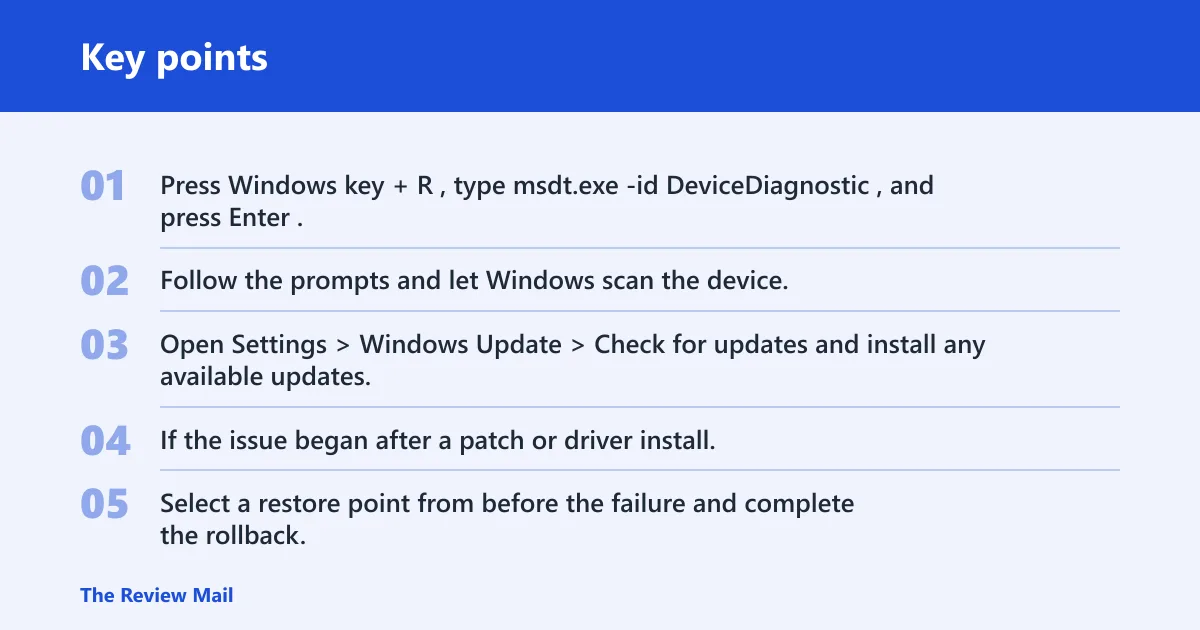
- Press Windows key + R, type msdt.exe -id DeviceDiagnostic, and press Enter.
- Follow the prompts and let Windows scan the device.
- Open Settings > Windows Update > Check for updates and install any available updates.
- If the issue began after a patch or driver install, open Control Panel > Recovery > Open System Restore.
- Select a restore point from before the failure and complete the rollback.
- If the device started failing right after a Windows update, check Settings > Windows Update > Update history and compare the driver date in Device Manager.
Say your USB Wi‑Fi dongle failed the morning after Patch Tuesday and two other devices also changed behavior. That pattern points more toward an update or driver conflict than a bad dongle.
How do you fix error code 10 this device cannot start
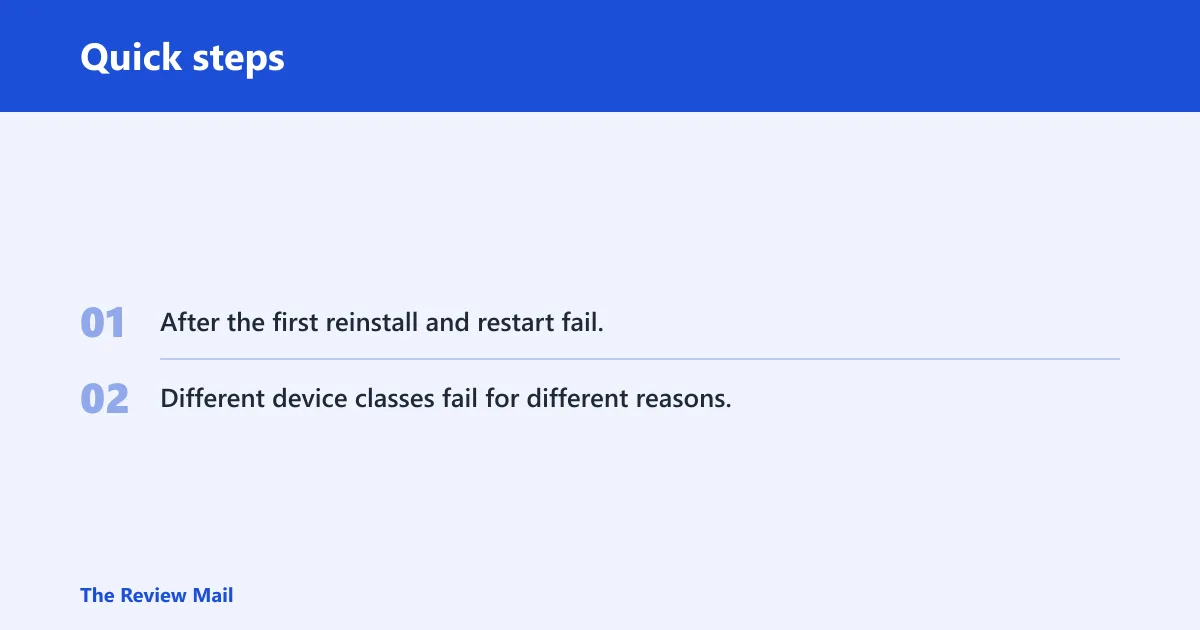
After the first reinstall and restart fail, use a device-type triage checklist instead of repeating the same step on every device. Different device classes fail for different reasons, and the next test should match the hardware.
| Device type | Fastest next test | Most likely fix | When hardware replacement is more likely |
|---|---|---|---|
| Wi-Fi | Install the OEM driver from the support site | Use the exact adapter model and Windows version | Fails on one PC after a clean driver reinstall |
| USB device | Move to a direct port, then reset USB controllers | Rebuild the controller in Device Manager | Fails on multiple ports and another PC |
| Bluetooth | Roll back the last driver or update | Install the OEM Bluetooth package | Adapter stays absent or errors in Device Manager |
| Audio | Install the motherboard or laptop audio package | Use the vendor’s codec driver, not a generic one | No device recovery after reinstall and reboot |
| Printer | Remove the device and reinstall the vendor package | Use the model-specific print software | Device works on a different PC but not this one only after repeated reinstall |
Should I uninstall and reinstall the driver for code 10?
Yes, but do it once and do it in the right order: update first, then uninstall and reinstall if the update fails. Reinstalling the same broken package over and over usually just repeats the same load failure.
- Open Device Manager and right-click the failed device.
- Choose Update driver first, then Search automatically for drivers.
- If Windows finds only a generic driver and the device still fails, download the OEM driver from the manufacturer support site.
- Back in Device Manager, choose Uninstall device.
- Restart the PC, install the OEM package, and test again.
Updating the driver first keeps you from removing a working package before you know whether a newer one will solve the problem.
Why does Device Manager say this device cannot start code 10?
Device Manager can show this when the driver is missing, mismatched, replaced by a generic update, or blocked by a hardware problem. That can affect internal and external components, including a GPU, network adapter, sound card, or removable device. The device type matters more than the error label alone.
Will deleting UpperFilters and LowerFilters fix code 10?
Sometimes, but only for devices where filter entries are blocking driver load. Treat this as an advanced fix, not a first-line step. Back up the registry first, because deleting the wrong key can make the problem worse.
- Open Registry Editor and export a backup of the affected branch first.
- Go to the device class key that contains UpperFilters and LowerFilters.
- Delete only the filter values for the affected device class.
- Restart the PC and retest the device.
Only use this step after you have already tried driver updates, uninstall and reinstall, and a restart.
When should I replace the hardware instead of troubleshooting code 10?
Replace or service the hardware if the same device keeps failing after a clean OEM driver reinstall, still fails on another PC, or continues to return Code 10 across different ports or driver versions. At that point, repeated software changes are less likely to help than a bad adapter, chip, cable, or board component.
- Test the device on another compatible PC if possible.
- Try the OEM driver once more on the original PC.
- Check whether the device disappears, reappears, or throws the same code after a reboot.
- If the failure is identical on another system, contact the manufacturer for replacement or service.
Testing the device on another PC is the clearest divider between a local driver issue and failing hardware.
Frequently asked questions
How do I fix this device cannot start. (code 10)?
Open Device Manager, update the device once, then uninstall and reinstall it if the update fails. If the device is Wi‑Fi, audio, or Bluetooth, use the manufacturer’s driver package for your exact Windows version. Restart after each change so you can judge the result cleanly.
What should I do if code 10 started after a Windows update?
Check Settings > Windows Update > Update history, then install any newer fix and compare the device’s driver date in Device Manager. If the timing matches a bad change, use System Restore or install the manufacturer’s newer driver package.