Windows 11 Vpn Error 800
Windows 11 VPN error 800 usually means the client cannot reach the VPN server before authentication, so check DNS, routing, firewall, protocol, and server status in that order. Random guesses waste time on account settings while the fault sits in basic connectivity. Use this guide to isolate the failing layer and fix it.
Likely causes
Most cases come from a short list of failures. The first few likely causes are usually local: a wrong server name or DNS lookup failure, a firewall or security rule that blocks the handshake, or a protocol mismatch on the client and server. Less often, the fault sits on the router, ISP, or VPN server itself.
If your VPN profile points to a hostname that no longer resolves, Windows can still open the profile, but the connection stops before the tunnel starts. If a laptop connects on mobile hotspot but fails on office Wi-Fi, that points away from credentials and toward the network path.
Wrong server address or DNS lookup failure
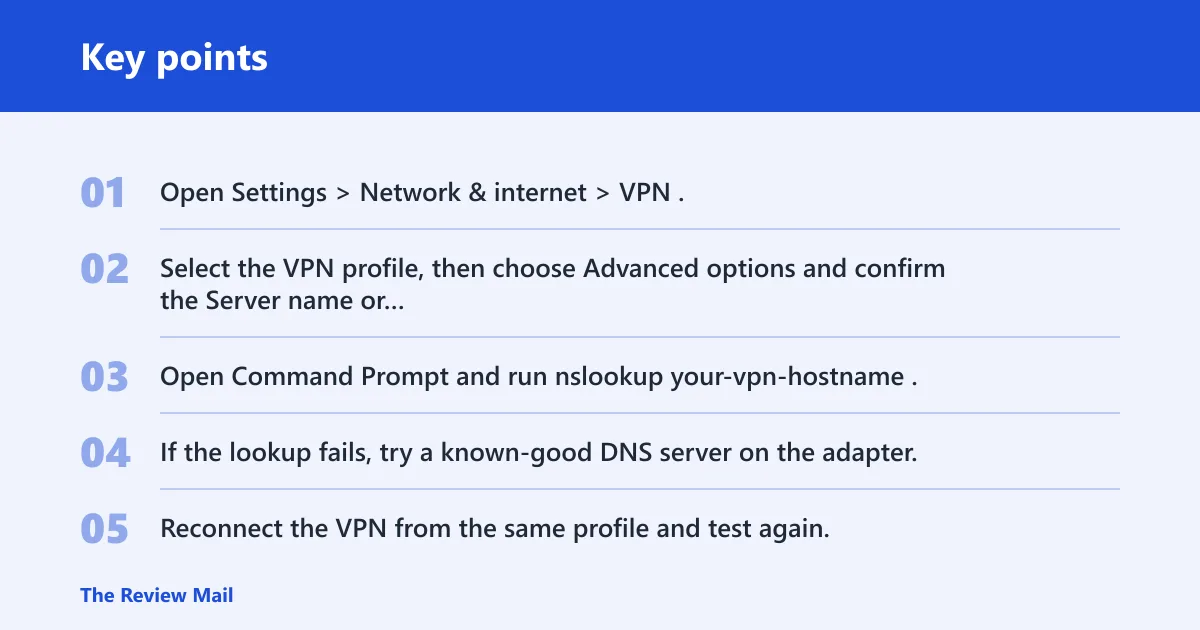
- Open Settings > Network & internet > VPN.
- Select the VPN profile, then choose Advanced options and confirm the Server name or address field.
- Open Command Prompt and run
nslookup your-vpn-hostname. - If the lookup fails, try a known-good DNS server on the adapter, then run
ipconfig /flushdns. - Reconnect the VPN from the same profile and test again.
Windows Firewall or security software blocking VPN traffic
- Open Windows Security > Firewall & network protection.
- Check both Private network and Public network profiles.
- Select Allow an app through firewall and confirm the VPN client is allowed.
- If the client uses a specific tunnel type, review inbound and outbound rules for the needed port or protocol.
- Retry the connection once, then restore your normal security settings after the test.
Protocol mismatch, especially with PPTP
- Open the VPN profile in Settings > Network & internet > VPN.
- Check which protocol the server expects. Older setups often use PPTP.
- For PPTP, confirm TCP port 1723 is permitted.
- Also confirm GRE protocol 47 is not blocked by the router or firewall.
- If the server supports another protocol, match the client setting to that server choice and retry.
Router, NAT, or ISP filtering
- Connect the same VPN profile on a different network, such as a phone hotspot.
- If it works there, the original network path may be filtering VPN traffic.
- Check the router for VPN passthrough settings, NAT rules, or strict outbound filtering.
- If the router sits behind another router or modem, test from the upstream device if possible.
- Ask the ISP whether VPN traffic is being blocked or shaped on the line.
Server outage, overload, or misconfiguration
- Test the same VPN from a different network or another device.
- Try a simple reachability check to the server host from Command Prompt.
- If the server name resolves but the tunnel never starts on any network, suspect the server.
- For Windows Server deployments, check the VPN host, routing, and remote access services.
- If the server owner can reboot Routing and Remote Access, that is a reasonable next step.
What Windows VPN error 800 means
This error usually appears before the VPN tunnel is created, so it points to reachability or handshake failure rather than a bad username or password. The client has not yet reached the step where credentials matter. Start by checking the server path, not the account.
A common first-time mistake is to keep changing the password after the same failure repeats. That usually wastes time. If the server name is wrong or the path is blocked, the login box can look normal while the connection still fails before authentication.
How do I fix VPN error 800 in Windows 11?
Start with the fastest checks: confirm the server address or hostname, then test DNS and basic reachability, then review firewall and protocol settings. If the connection works on one network but not another, stop treating it like a local credential problem and move to router, NAT, or ISP filtering.
- Open Settings > Network & internet > VPN and verify the server name, username, and password fields are filled correctly.
- Run
nslookupfor the VPN hostname, thenpingthe host if name resolution succeeds. - Check Windows Security > Firewall & network protection for profile rules and app exceptions.
- Confirm the protocol expected by the server, especially if the profile uses PPTP.
- Retry on a different network to separate local blocking from server-side failure.
Is the server address or DNS wrong?
Yes, and that is one of the most common reasons to see this failure. If Windows cannot turn the hostname into an IP address, the client cannot reach the server. A wrong IP address, expired DNS record, or stale local cache can all produce the same symptom.
- Open Settings > Network & internet > VPN and inspect the server field for typos.
- Open Command Prompt and run
nslookup vpn.example.com. - If the lookup returns no address, test another DNS server on the adapter, then run
ipconfig /flushdns. - Reconnect from the same profile and retry once.
Can Windows Firewall block it?
Yes. Windows Firewall may block VPN traffic on both private and public profiles, and third-party security software can also interfere. That block can stop the connection before authentication, which looks the same as a server problem until you test the firewall path directly.
- Open Windows Security > Firewall & network protection.
- Check Private network and Public network settings for the active adapter.
- Select Allow an app through firewall and confirm the VPN client is listed.
- Review any custom inbound or outbound rules for the port or protocol the VPN uses.
- Reconnect after making one change, then revert any test-only rule that is no longer needed.
Should you change the VPN protocol?
Yes, if the client and server do not agree on the protocol. Mixed environments on Windows 11 often fail because the server expects a different tunnel type than the profile is using.
- Open the VPN profile under Settings > Network & internet > VPN.
- Check whether the server is set up for PPTP, L2TP, SSTP, or IKEv2.
- If it is PPTP, confirm the router and firewall permit TCP 1723 and GRE 47.
- If the server supports another protocol, switch the client profile to match and test again.
Is the server reachable from your network?
Ping is a useful first check, but a successful ping does not guarantee the VPN tunnel will form. Some servers answer ping while still blocking the VPN protocol, and some networks allow ICMP while filtering the actual tunnel traffic. That is why a ping result should guide the next step, not end the diagnosis.
- Open Command Prompt and run
ping vpn.example.com. - If ping fails, treat DNS or basic routing as the first problem to fix.
- If ping succeeds, test the VPN on another network, such as a mobile hotspot.
- If the VPN works elsewhere, look at router rules, NAT filtering, or ISP blocking on the original network.
If a home router allows web browsing and ping replies, but the VPN still fails on the same line, the pattern points to protocol filtering or VPN passthrough settings, not a bad password. If a hotspot works immediately, the server is not the only suspect.
Error 800 triage matrix
| Symptom | Most likely cause | Quickest test | Next action |
|---|---|---|---|
| Hostname never resolves | DNS resolution failure | nslookup vpn.example.com | Fix DNS, then ipconfig /flushdns |
| Hostname resolves, ping fails | Server unreachable or network path issue | ping vpn.example.com | Test another network, then check server status |
| Ping succeeds, VPN still fails | Firewall, protocol, or port block | Try the same profile on a hotspot | Review Windows Firewall and protocol rules |
| Works on hotspot, fails on office Wi-Fi | Router, NAT, or ISP filtering | Compare two networks | Check VPN passthrough and outbound filtering |
| Fails on every network | Server outage or misconfiguration | Test from another device | Escalate to the VPN server owner |
| Old PPTP profile fails immediately | Protocol mismatch | Confirm PPTP settings | Match the client to the server protocol |
| Private network works, public network fails | Firewall profile rule | Check active network profile | Allow the VPN app on both profiles |
| Firewall off still fails | Wrong server name or server-side fault | Recheck server field and ping | Verify hostname, then test a different server |
| VPN fails after router change | NAT or passthrough issue | Connect through a different router | Review VPN passthrough and NAT rules |
| Recent DNS change fixed browsing but not VPN | Cached DNS or stale server record | ipconfig /flushdns | Recheck the hostname and retry the VPN |
| Connection fails after adapter trouble | Driver or local socket corruption | Reconnect after adapter reset | Update the adapter driver or reset Winsock |
Still not working?
If the earlier checks did not change the result, move to the local networking stack. Update the network adapter driver in Device Manager > Network adapters. If the adapter looks unstable, uninstall it and let Windows reinstall it after a restart. Then apply a Winsock reset if the socket state looks corrupted.
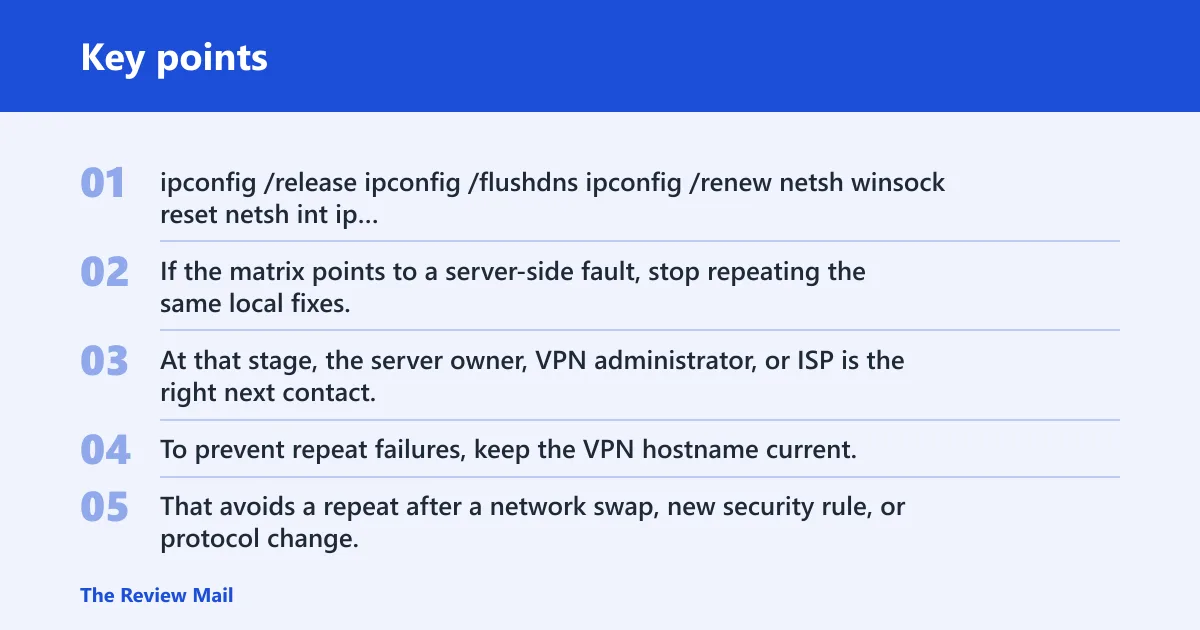
ipconfig /release
ipconfig /flushdns
ipconfig /renew
netsh winsock reset
netsh int ip reset
Open Settings > Network & internet > Advanced network settings > Network reset if the system still behaves inconsistently. If the matrix points to a server-side fault, stop repeating the same local fixes. At that stage, the server owner, VPN administrator, or ISP is the right next contact.
To prevent repeat failures, keep the VPN hostname current, and check router or firewall changes before they go live. That avoids a repeat after a network swap, new security rule, or protocol change.
Frequently asked questions
Why does my VPN say error 800 on Windows 11?
It usually means Windows cannot reach the VPN server before the tunnel is created. Check the server address, DNS lookup, firewall rules, and protocol match first. If the same profile works on another network, the original path is the problem, not the credentials.
Does error 800 mean my VPN password is wrong?
Usually not. This failure appears before authentication, so the server may not even be getting far enough to judge the username and password. If the server name resolves and ping works, the next test is firewall, protocol, or network filtering rather than changing the password again.
How do I know if DNS is causing VPN error 800?
Run nslookup your-vpn-hostname. If that fails or returns the wrong address, DNS is suspect. Flush the cache with ipconfig /flushdns, then retry the VPN from the same profile. If the hostname resolves cleanly but the VPN still fails, look at firewall or protocol rules next.
Why does my VPN connect on one network but not another?
That pattern usually points to router, NAT, or ISP filtering on the failing network. A hotspot test is the fastest comparison. If the VPN works there, check VPN passthrough settings, outbound rules, and any security device between Windows 11 and the internet path.
When is VPN error 800 a server-side problem?
It is likely server-side when the hostname resolves, the network path looks normal, and the same profile fails from multiple networks or devices. Overloaded servers, a service restart issue, or a misconfigured VPN host can all produce that result. At that point, the server owner should check the remote access stack.