0x00000076: What PROCESS_HAS_LOCKED_PAGES Means
Stop code 0x00000076, also named PROCESS_HAS_LOCKED_PAGES, can keep happening when a driver fails to release locked pages after an I/O operation, or when it tries to unlock pages that are already unlocked. The fastest first check is to remove or roll back the newest device driver, then see whether the crash stops.
What does 0x00000076 mean in Windows?
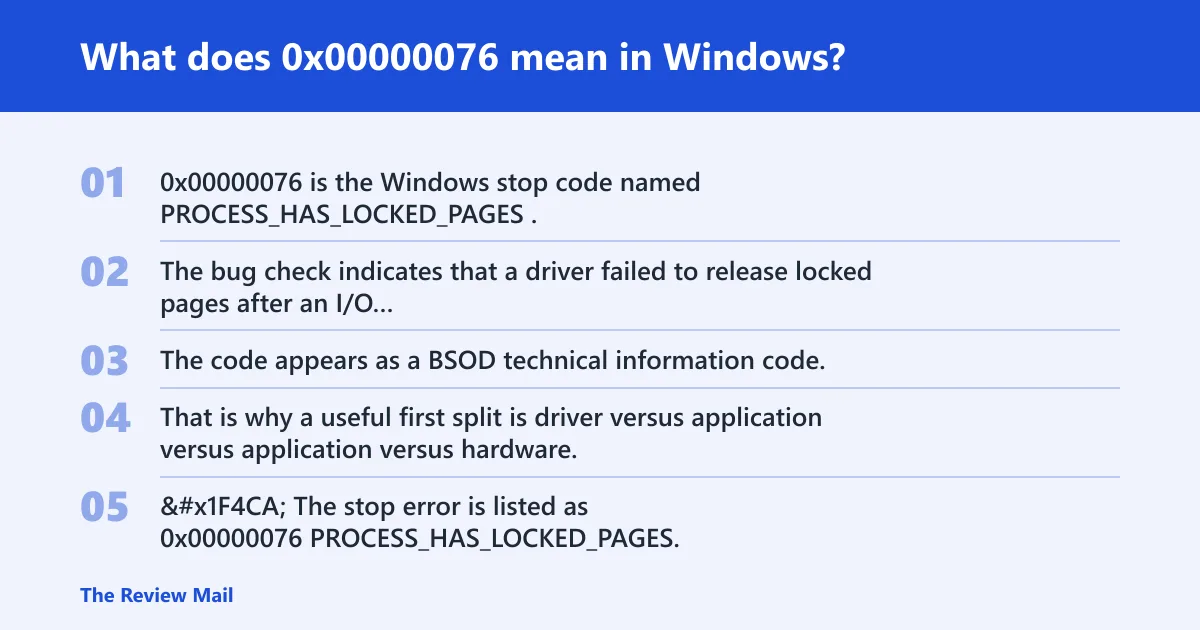
0x00000076 is the Windows stop code named PROCESS_HAS_LOCKED_PAGES. The bug check indicates that a driver failed to release locked pages after an I/O operation, or that it attempted to unlock pages that were already unlocked.
The code appears as a BSOD technical information code, so the key question is which driver path handled the locked pages incorrectly. That is why a useful first split is driver versus application versus hardware.
📊 The stop error is listed as 0x00000076 PROCESS_HAS_LOCKED_PAGES. Source: Windows XP Stop Errors.
Likely causes
A recently installed or incompatible device driver is a common starting point. The issue can happen when a driver does not release locked pages after an I/O operation, or when it tries to unlock pages in the wrong state.
If the crash began after new software, look for software that loads a driver component. If it happens only in one game or one app, that points to an app-specific driver path rather than a system-wide failure.
Which cause is most likely on your PC?
If the crash started right after a recent driver update, the driver path is often the best first bet. If it began after installing a game, capture tool, or other program that adds its own driver, treat it as a software-triggered driver issue. If the machine fails across different tasks and after driver rollback, move to targeted driver checks, startup software isolation, and then hardware testing.
Scenario guide
| Scenario | Fastest verification step | Expected signal | Next action |
|---|---|---|---|
| Gamer after a recent GPU update | Device Manager > Display adapters > Properties > Driver > Roll Back Driver | The crash stops, or the system becomes stable in the same game session | Keep the earlier driver or reinstall a vendor-certified version |
| Driver tester or lab PC with repeatable repro | Event Viewer > Windows Logs > System around the crash time | A module name or device class appears near the bug check | Remove that driver in Device Manager and retest |
| General Windows user after new software | msconfig clean boot with non-essential services disabled | The crash stops when the extra services are out of the load path | Re-enable items in small groups to isolate the trigger |
| PC with random crashes and no clear software change | Memory test with one RAM stick at a time | One module reproduces the fault or fails a memory test | Replace the bad stick, then test the remaining modules again |
Can a driver cause stop code 0x00000076?
Yes. A driver is the primary suspect for this stop code, especially if it was installed recently or came from older hardware support software. The failure can happen when the driver does not release locked pages after an I/O operation, or when it tries to unlock pages in the wrong state.
- Open Device Manager.
- Find the newest or most suspicious device class, such as display, storage, network, or USB.
- Right-click the device > Properties > Driver.
- Choose Roll Back Driver if the button is available. If not, choose Uninstall device.
- Restart and retest the same workload.
If the system becomes stable after rollback or uninstall, reinstall a known-good package from the hardware maker. If it still crashes, check Event Viewer for the module name and timing.
What should I remove or disable after getting this BSOD?
Start by removing the newest driver change, not the oldest one. Then disable non-essential startup services and items with msconfig so you can see whether a loaded service is keeping the system in the crash path. That gives you a clean split between a device driver problem and an application-loading problem.
- Press Win+R, type msconfig, and press Enter.
- Open the Services tab.
- Check Hide all Microsoft services, then choose Disable all for the remaining services.
- Open the Startup tab and open Task Manager if Windows shows that option.
- Disable non-essential startup items, then restart.
- If the crash stops, re-enable items in small groups until the offending item returns.
Also remove any software installed just before the first crash if it adds a kernel driver, such as hardware utilities or low-level system tools.
How do I troubleshoot a BSOD caused by locked pages?
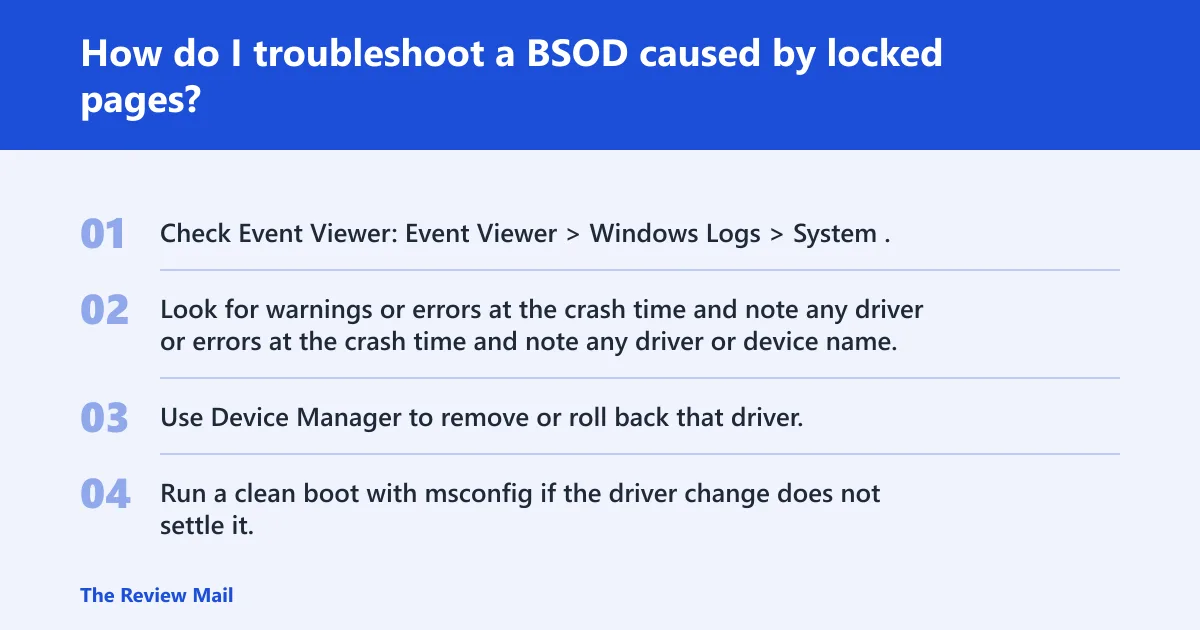
Use a ladder: driver first, then startup software, then hardware. Start with the most recent device driver change, then use msconfig to reduce third-party startup services and items, then move to memory and storage tests if the crash still returns. That order saves time because the most common failure point is a driver that left pages locked.
- Check Event Viewer: Event Viewer > Windows Logs > System.
- Look for warnings or errors at the crash time and note any driver or device name.
- Use Device Manager to remove or roll back that driver.
- Run a clean boot with msconfig if the driver change does not settle it.
Picture a 1440p gaming PC that starts crashing only after a graphics update. The fastest useful signal is whether the same game runs without a blue screen after rolling back the display driver. If the crash also happens at the desktop after startup, that makes a driver stack problem more likely than a single game file.
What hardware should I check first for 0x00000076?
If driver rollback and clean boot do not explain the crash, check RAM first, then the disk subsystem. Those checks are reasonable next steps when the driver path has not identified the cause.
- Power off the PC and remove all but one RAM stick.
- Boot and retest the same workload.
- Repeat with each module in the same slot if the system allows it.
- Run Windows Memory Diagnostic or memtest86 on any module that looks suspect.
- Run
chkdskon the system drive and inspect it for errors or corruption.
If hardware tests point to a bad stick, disk, or controller, replace that component. A replacement only makes sense after the test points in that direction.
Is 0x00000076 related to a specific game or app?
Sometimes it is. If the crash appears only in one title, one launcher, or one app that installs its own driver component, the issue may be app-specific rather than system-wide. That is common when the crash begins after a new game patch, capture tool, security suite, or device companion utility.
- Launch the same app after a clean boot.
- If the crash still appears, remove the newest related driver in Device Manager.
- Check Event Viewer for the module name tied to the crash time.
- Retest the app after the driver change.
If a single app keeps causing the crash while the rest of Windows is stable, that app or its driver component is the better suspect than the whole machine.
Does upgrading RAM or changing driver settings help with 0x00000076?
Sometimes, but only after the test results point there. New RAM helps only if a module fails one-stick testing or memory diagnostics. Driver setting changes help when rollback or uninstall stops the crashes. Blind upgrades waste time if the real issue is a bad driver package or a startup service.
- Do not replace parts until you know which part fails the test.
- Use Device Manager to roll back or uninstall the suspect driver first.
- Use a single-stick memory test before buying RAM.
- Run
chkdskbefore replacing a disk or controller.
For prevention, keep a record of the last driver, BIOS, and software change before the crash began. That makes the next isolation pass much faster.
If that didn’t work, try this next
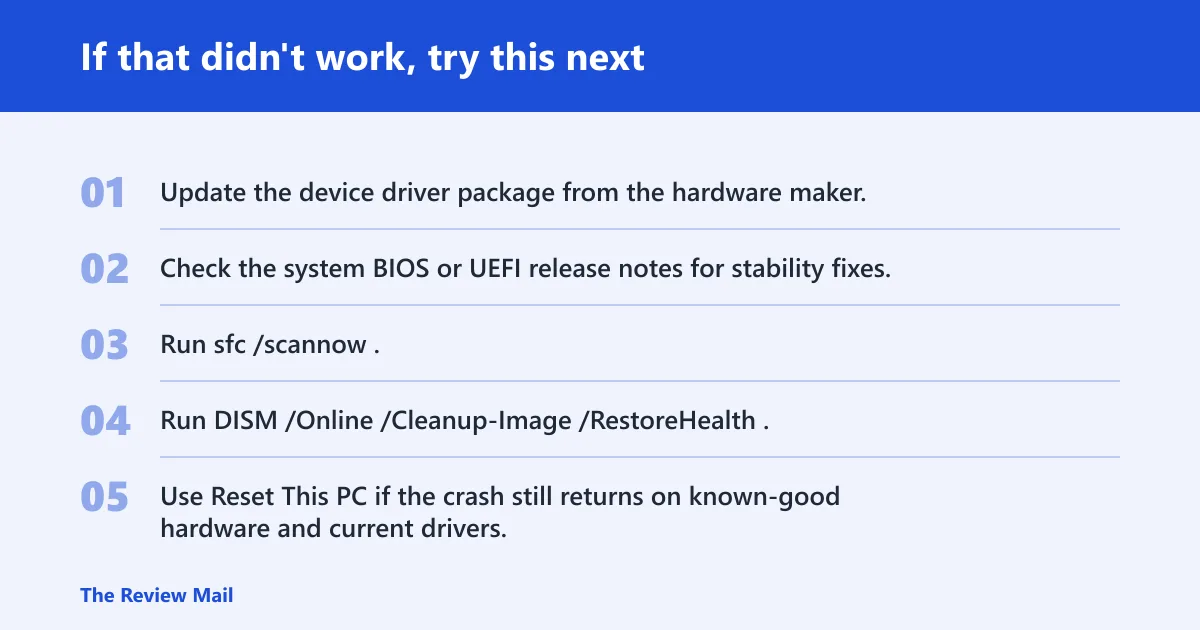
If the machine still crashes after driver rollback, clean boot, RAM isolation, and disk checking, move to the most invasive recovery steps in order. Start with a manufacturer BIOS update only if the vendor lists a fix for stability. Then try a repair install or Reset This PC if the system files and driver stack remain unstable.
- Update the device driver package from the hardware maker.
- Check the system BIOS or UEFI release notes for stability fixes.
- Run
sfc /scannow. - Run
DISM /Online /Cleanup-Image /RestoreHealth. - Use Reset This PC if the crash still returns on known-good hardware and current drivers.
If the issue persists across known-good hardware and current drivers, contact the system vendor or the device maker for advanced support. That is the point where a board-level fault, a storage controller issue, or a driver package bug may need vendor analysis.
Frequently asked questions
Why does PROCESS_HAS_LOCKED_PAGES happen?
It happens when kernel-mode code mishandles page locking during I/O. The driver either leaves pages locked after use or attempts to free pages that were already free. Check Event Viewer for the module name, then remove or roll back that driver before moving to hardware tests.