Windows Network Troubleshooter Not Fixing Issue
If Windows Network Troubleshooter fails, check six likely causes in order: service, driver, DHCP, DNS, proxy, firewall. Skip the wrong layer and you can keep Wi‑Fi or Ethernet down, block sign-ins, and waste time on fixes that cannot work. This guide shows a symptom-based decision tree for Windows 10 and 11 so you can pinpoint the fault faster.
What the failed troubleshooter is telling you
A failed run usually means the built-in diagnostic tool could not reach the layer where the fault lives. It may open and report that nothing was found, it may close early, or it may say it cannot continue. That does not mean the network is healthy. It means the tool could not complete its own checks.
Microsoft’s Network troubleshooter is built into Windows 10 and Windows 11, and Windows 11 users are often pointed to the Get Help app’s Network and Internet troubleshooter. It can help with common settings and adapter checks, but it may miss a broken service, a damaged TCP/IP stack, or a third-party filter driver. (Microsoft Support)
Sort the symptom before you change settings. A Wi-Fi icon with bars is not the same as usable internet. A browser-only failure is not the same as a dead adapter. And a passing troubleshooter can still leave DNS, proxy, or firewall layers broken.
Say your laptop shows Wi-Fi connected to the office SSID, but Teams and a browser both fail while a command prompt can still reach the router. That pattern points away from Wi-Fi radio trouble and toward DNS, proxy, or firewall filtering.
📊 Microsoft recommends the Get Help app’s Network and Internet troubleshooter on Windows 11. Source: Microsoft.
Use this symptom-to-fix table
Start with the symptom that matches what you can actually observe. The table below separates a troubleshooter that will not run from one that runs but fails to repair the real issue. That distinction matters, because the next step is different in each case.
| Observed symptom | Likely root cause | Fastest safe test | Next action |
|---|---|---|---|
| Troubleshooter will not open | Diagnostic Policy Service stopped, broken context, or damaged system component | Open Services and check whether Diagnostic Policy Service is running and set to Automatic | Start the service, then relaunch Get Help or the troubleshooter |
| It says it cannot continue | Classic troubleshooter blocked by the current context or a damaged diagnostics path | Try the Get Help Network and Internet troubleshooter, or open from Settings instead of an old shortcut | If error 0x8002801D appears, move to service checks and repair the network stack |
| Internet works in Safe Mode | Third-party VPN, antivirus, or filter driver interference | Boot normally with the security app disabled only if you know how to re-enable it safely | Uninstall or reconfigure the interfering software, then retest |
| IP address starts with 169.254 | DHCP failed to hand out a valid address | Run ipconfig /release and ipconfig /renew | Check the router, cable, or DHCP scope; then retry |
| Websites fail but ping 8.8.8.8 works | DNS, proxy, or browser-only filtering problem | Run ipconfig /flushdns and check proxy settings | Fix DNS or proxy settings, then test a second browser |
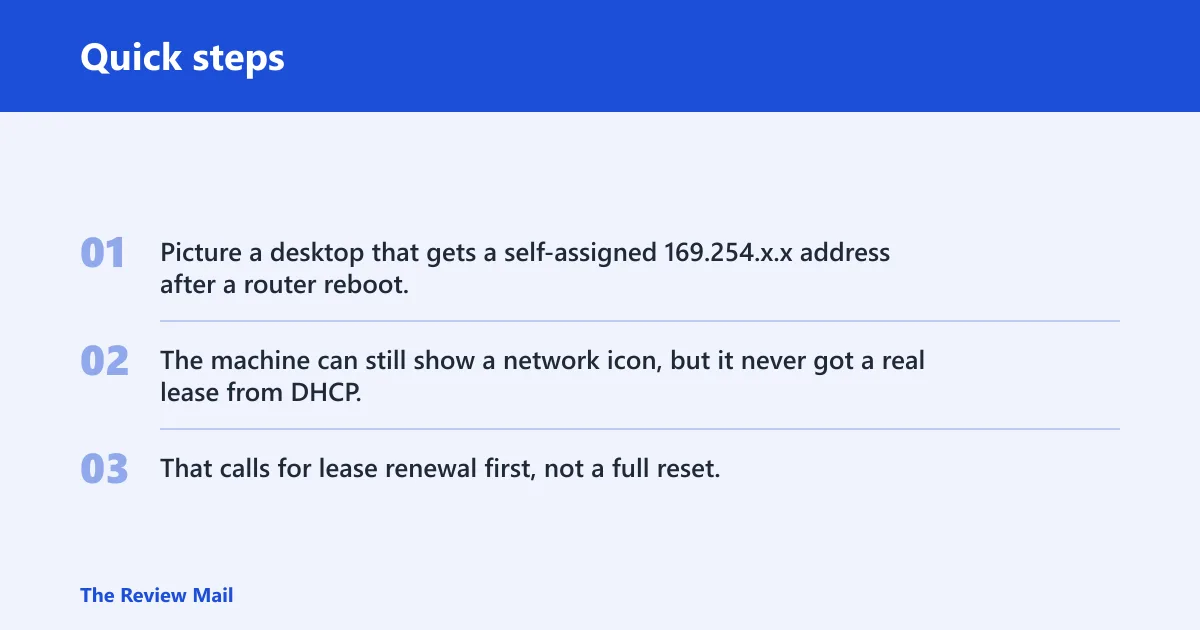
Picture a desktop that gets a self-assigned 169.254.x.x address after a router reboot. The machine can still show a network icon, but it never got a real lease from DHCP. That calls for lease renewal first, not a full reset.
How do you open the troubleshooter in Windows 11?
On Windows 11, the easiest path is usually through Settings or the Get Help app. Microsoft recommends the Get Help app’s Network and Internet troubleshooter on Windows 11. If the normal path is missing, Windows 11 Insider builds and some shells can expose it from the network icon, while Windows 10 uses a different label for the same task.
Start it from Settings
- Open Settings.
- Go to System or Network & Internet, depending on the build.
- Open Troubleshoot or Other troubleshooters.
- Run the Network and Internet troubleshooter.
Open it through Get Help
- Open Get Help.
- Search for Network and Internet troubleshooter.
- Follow the prompts and allow the diagnostic checks to run.
What to do if the menu path is missing
If Settings does not show the expected path, or the classic troubleshooter will not launch, use a different entry point rather than repeating the same failed click. Microsoft Q&A notes that error 0x8002801D means the classic troubleshooter cannot run in the current context. That is a clue to switch from the shortcut to the service and stack checks below.
Check the services that power diagnostics
Diagnostic Policy Service is the first service to check when the troubleshooter will not work. It should be running and set to Automatic. If that service is stopped, the diagnostics framework may fail before it can even identify the fault. The Infobits also lists it as a primary cause when the troubleshooter fails.
Diagnostic Policy service
- Press Win + R, type
services.msc, and press Enter. - Find Diagnostic Policy Service.
- Open its properties.
- Set Startup type to Automatic.
- If the service is stopped, start it.
Related services that should be running
Also check services tied to Windows diagnostics and networking, especially if the troubleshooter stops with no useful message. If one service will not start, that is a stronger clue than the failed troubleshooter itself. A service that fails to launch can point to permissions problems or deeper system damage.
What to do if a service will not start
If Diagnostic Policy Service refuses to start, reboot once and check again. If it still fails, move to the network stack and driver layers instead of looping on the same service. A stopped service plus a failing network adapter often means the problem is wider than a single setting.
Which network layer is broken?
Use the symptom to decide whether DHCP, DNS, proxy, or firewall interference is at fault. The Infobits says network stack damage can involve Winsock or TCP/IP, and Microsoft notes that when the Wi-Fi icon shows connected but problems remain, the issue may be a specific app, website, or firewall. That is why browser-only failures need a different fix from adapter failures.
DHCP problems and the 169.254.x.x address
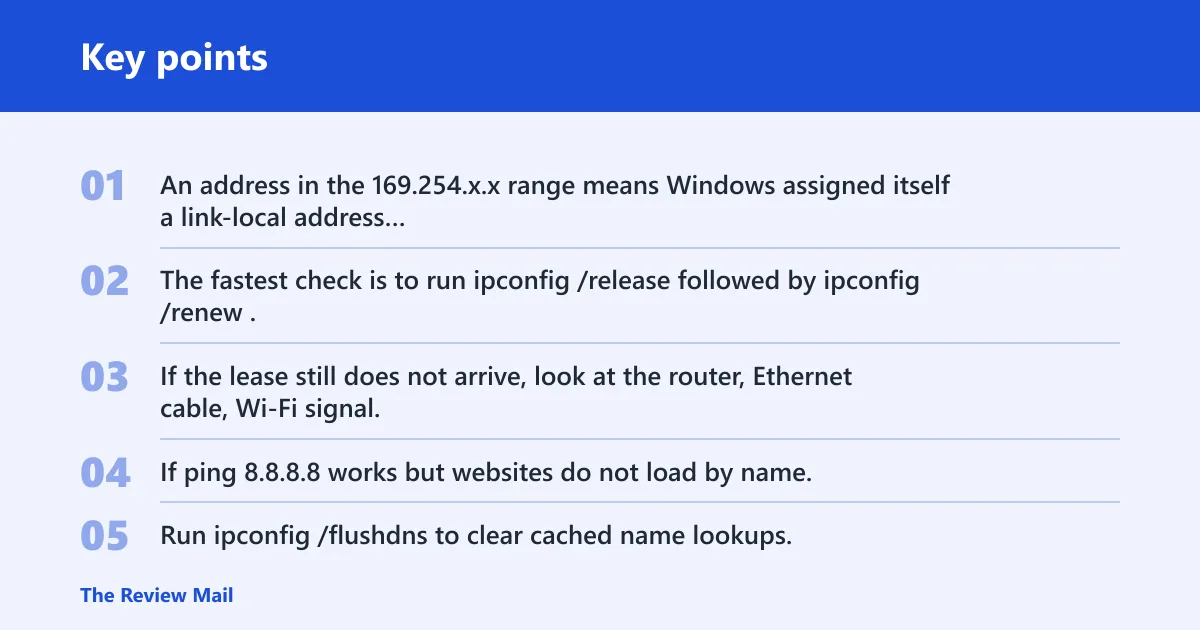
An address in the 169.254.x.x range means Windows assigned itself a link-local address because DHCP did not answer. The fastest check is to run ipconfig /release followed by ipconfig /renew. If the lease still does not arrive, look at the router, Ethernet cable, Wi-Fi signal, or the DHCP service on the network.
DNS problems when ping works but sites do not
If ping 8.8.8.8 works but websites do not load by name, the connection may be fine and DNS may be broken. Run ipconfig /flushdns to clear cached name lookups. If that does not help, inspect the DNS server settings assigned by the router or the adapter.
Proxy settings and browser-only failures
Proxy settings can block browsing even when Wi-Fi says connected. Check Settings > Network & Internet > Proxy and review any manual proxy entry. A stale corporate proxy, a leftover PAC setting, or a privacy tool can block web access while other network traffic still works.
Firewall or filter driver interference
Third-party VPN, antivirus, and firewall filter drivers can stop Windows network troubleshooting from working at all. If Safe Mode restores internet access, that is a strong clue. Recheck the security software, any packet-filtering feature, and any VPN tunnel that may be forcing all traffic through a broken path.
How do I fix Windows networking when the troubleshooter fails?
After you identify the symptom, use the least destructive fix that matches it. The Infobits recommends a manual repair path using netsh and ipconfig commands. Start with DHCP and DNS refresh commands, then move to Winsock and TCP/IP only if the simpler reset does not resolve the fault.
Refresh DHCP and DNS with ipconfig
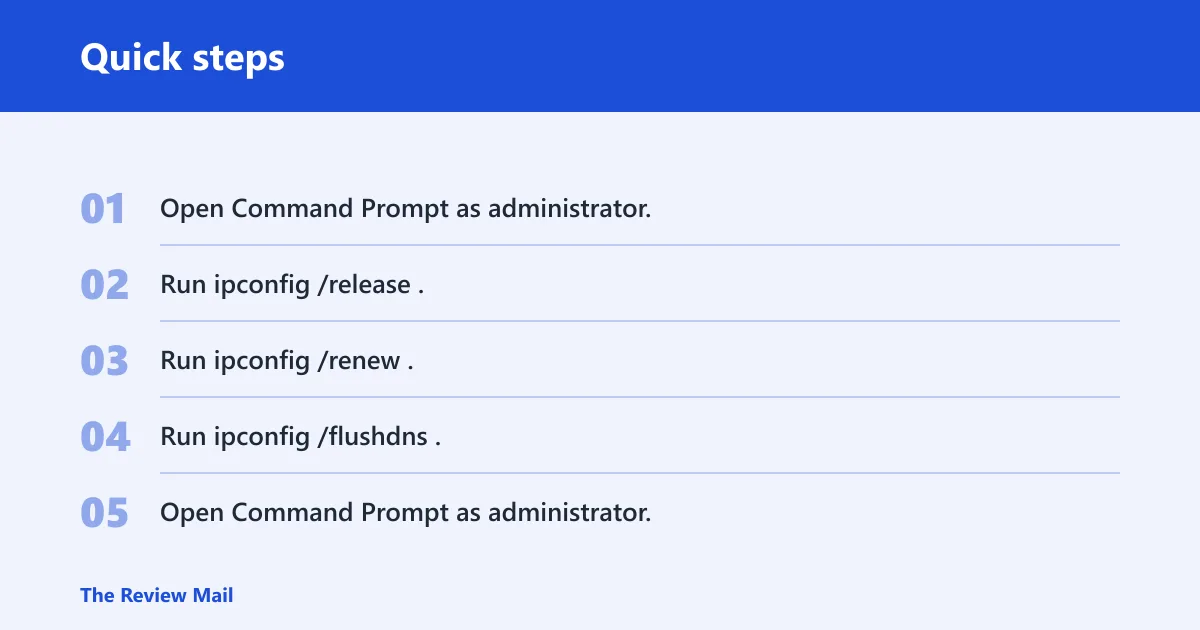
- Open Command Prompt as administrator.
- Run
ipconfig /release. - Run
ipconfig /renew. - Run
ipconfig /flushdns.
Use this path when the adapter looks connected but the address is wrong, or when name lookups fail while raw IP traffic still works. It is a low-risk refresh and often fixes stale leases or bad cached DNS entries.
Reset Winsock and the TCP/IP stack
- Open Command Prompt as administrator.
- Run
netsh winsock reset. - Run
netsh int ip reset. - Restart the PC.
Use this when the symptoms point to deeper stack damage, such as repeated connection failures, a troubleshooter that cannot complete, or an adapter that behaves differently after software changes. The Infobits specifically ties broken network stack behavior to Winsock and TCP/IP.
Update or reinstall the network adapter driver
If Wi-Fi or Ethernet still fails after service and stack checks, inspect the adapter driver. A corrupted or outdated driver can cause the troubleshooter to fail while the adapter still appears present. Use the OEM’s driver package when possible, especially on laptops and branded desktops, because Windows Update does not always ship the newest stable driver for a specific chip.
When should you use Network reset?
Use Network reset only after you have checked services, proxy settings, driver health, and the basic command-line repairs. It reinstalls network adapters and resets networking settings, which can clear stubborn configuration damage. It requires a reboot, so save work first and expect temporary loss of connectivity after the reset.
What Network reset changes
Network reset removes and reinstalls adapters and returns several network settings to default. That can help when Windows has stored a broken configuration that ordinary troubleshooting cannot repair. Geeks in Sneaks recommends this manual reset path when the troubleshooter gives no useful result.
What to back up or note first
Before you use Network reset, note any custom proxy settings, VPN setup, static IP details, or unusual firewall rules. If possible, preserve the exact values so you can restore them after the reboot. A destructive reset is a bad time to discover that a work proxy or local rule was never written down.
What to expect after the reboot
After restart, reconnect to Wi-Fi or Ethernet and retest the same symptom that failed before. If the issue was a stale adapter profile or damaged settings store, the connection often comes back on the first sign-in. If the same symptom returns, move back to driver, VPN, or upstream network checks.
Frequently asked questions
Why does Windows network troubleshooter not fix the issue?
It only diagnoses some layers and can miss service failures, driver bugs, DHCP problems, DNS errors, proxy settings, or firewall filtering. Microsoft’s guidance also notes that a connected Wi-Fi icon can still hide app, website, or firewall problems, so a passing run does not prove the whole path is healthy.
What should I do when the troubleshooter says it can’t identify the problem?
Check Diagnostic Policy Service first, because it powers the diagnostics path and should be running automatically. Then match the symptom to the right layer: 169.254.x.x for DHCP, sites failing while ping works for DNS, and Safe Mode success for third-party filtering. That usually gets you farther than rerunning the same tool.
Should I reset Winsock and TCP/IP if the troubleshooter doesn’t help?
Yes, but only after the service check and the simpler DHCP and DNS refresh steps. Use netsh winsock reset and netsh int ip reset when the symptoms suggest stack damage or the troubleshooter cannot continue. Reboot afterward so Windows reloads the repaired networking components.
How do I tell whether the problem is Wi‑Fi, DNS, driver, or firewall related?
If Wi-Fi connects but no sites load by name, suspect DNS or proxy. If Safe Mode works, suspect a driver, VPN, antivirus, or firewall filter. If the IP address is 169.254.x.x, suspect DHCP. If the troubleshooter will not open at all, check Diagnostic Policy Service before the adapter hardware.
When should I use Network reset instead of the troubleshooter?
Use Network reset after the tool has failed, the service is healthy, the adapter driver is current, and command-line repairs have not helped. It is a last-resort repair because it reinstalls adapters and clears network settings. Save any custom proxy, VPN, or static network details before you continue.
Can third-party VPN or antivirus software stop Windows network troubleshooting?
VPN clients, antivirus suites, and firewall filter drivers can block Windows network troubleshooting or leave browsing broken after the tool reports no problem. If the connection works in Safe Mode or after uninstalling the security tool, that points directly to third-party filtering rather than a basic Windows setting.