
Code 4871: Fix the RDP Logon Block
Code 4871 usually means the account can authenticate but is blocked by an RDP user right or policy assignment, most often Deny log on through Remote Desktop Services or a missing Allow log on through Remote Desktop Services. If you treat it as a generic password problem, you can waste time resetting credentials while users stay locked out. This article shows how to find the exact right, policy, or group assignment that is denying sign-in.
What code 4871 means
In the Workspot troubleshooting context, error code 4871 appears in a virtual machine security event. The sample fields matter: Logon Type: 3, Status: 0xC000015B, and Sub Status: 0xC000015B. That combination points to a permissions-and-policy problem for the requested remote logon type, not a bad password or a driver fault.
Read the event fields first
Do not start by changing credentials. Start by reading the event details and matching the symptom set to the right control. If the event shows type 3 with the same status and sub status, the account is being refused for remote logon rights. That is the branch to investigate.
A common first-timer mistake is to see a sign-in failure and assume the user is not in the right password state. Suppose the account works in a local console sign-in but fails only through RDP. That pattern shifts the search to user rights assignment, group membership, and deny rules on the target machine.
Why this points to a missing remote logon right
Workspot identifies the cause as restricted remote logon. In practice, that means the target machine is not granting the requested remote logon right, or another policy is overriding it. The key controls are Allow log on through Remote Desktop Services and Deny log on through Remote Desktop Services.
Why this is not a driver error
This error is a sign-in authorization problem, not a device driver problem. A driver issue would usually surface in a different path, such as device startup, session graphics, or hardware initialization. Here, the event fields point to a logon-right rejection before the session is allowed to continue.
Why the sign-in is blocked
The block usually comes from a local user-rights assignment, a domain Group Policy Object, or group membership on the target machine. If the user is denied in policy, membership alone will not help. If the allow right is missing, the account can still fail even when the password is correct.
Allow log on through remote desktop services
This setting grants the right needed for remote desktop sign-in. On a domain-joined machine, it is often controlled through Group Policy rather than by local editing alone. Workspot says admins should inspect this entry when code 4871 appears.
Deny log on through remote desktop services
This setting overrides access. If the affected user, or a group the user belongs to, appears here, the connection can be blocked even when the allow right is present. That is why checking only the allow list is not enough.
Remote Desktop Users group membership
Workspot also says to verify the Remote Desktop Users group. That check belongs on the target machine, because the group may be local or managed through policy. Membership is necessary in many environments, but it does not beat a deny right.
Local policy versus domain GPO
On a standalone machine, local policy may be enough. On a domain-joined machine, a Group Policy Object can replace or override local settings. If local changes do not stick, look for a domain policy applying to the computer account instead of editing the local box.
| Symptom set | Likely control to change | Yes/no diagnostic |
|---|---|---|
Event shows Logon Type 3 with Status 0xC000015B and Sub Status 0xC000015B | Remote logon rights, not credentials | Yes: treat as a permissions block |
| User is not in Remote Desktop Users on the target machine | Group membership | Yes: add the account or the correct group |
| User is listed under Deny log on through Remote Desktop Services | Deny user-right assignment | Yes: remove the user or the conflicting group |
| Allow log on through Remote Desktop Services is missing or scoped to the wrong group | Allow user-right assignment | Yes: grant the correct account or group |
| The setting changes locally but the block returns after policy refresh | Domain GPO scope | Yes: edit the applied GPO instead of local policy |
How do I fix error code 4871?
Fix it by tracing the account through the exact right that blocks remote sign-in. First verify the affected user on the target machine. Then confirm membership in Remote Desktop Users. After that, check the policy that grants the remote logon right and remove any conflicting deny entry.
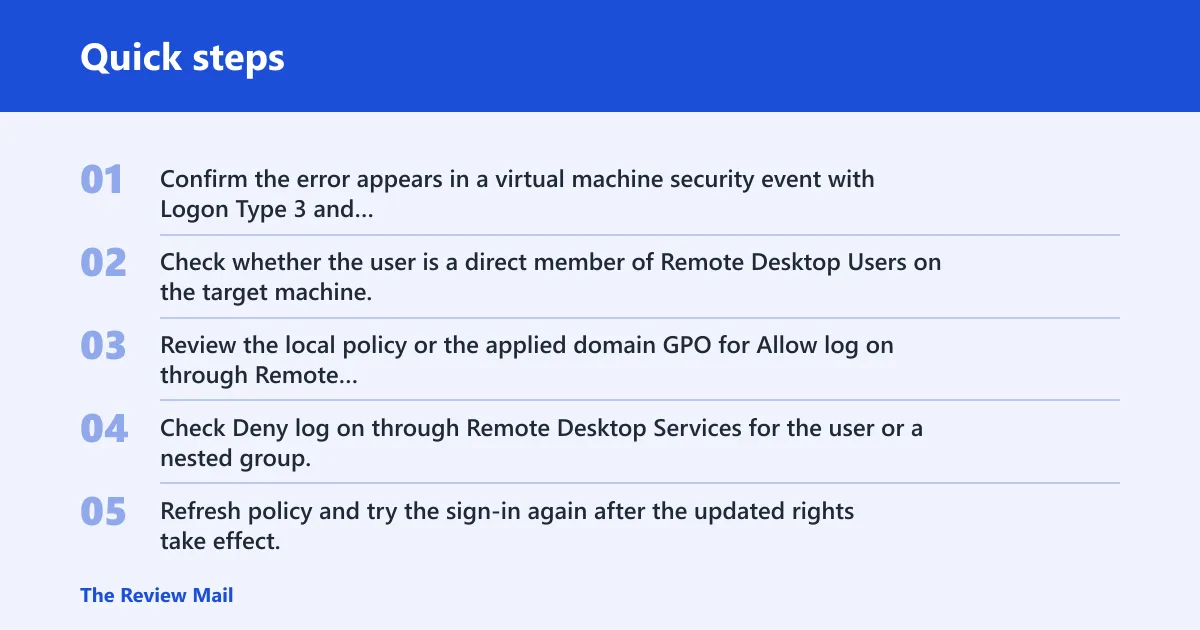
- Confirm the error appears in a virtual machine security event with Logon Type 3 and Status
0xC000015B. - Check whether the user is a direct member of Remote Desktop Users on the target machine.
- Review the local policy or the applied domain GPO for Allow log on through Remote Desktop Services.
- Check Deny log on through Remote Desktop Services for the user or a nested group.
- Refresh policy and try the sign-in again after the updated rights take effect.
Say a help desk sees the same account succeed in a web portal but fail in an RDP session to a Windows host. That narrows the issue to the remote session path. If the account is also present in a deny group, removing that conflict usually matters more than adding more allow entries.
Domain-joined machines
If the target is domain-joined, use Group Policy Management Console, or gpmc.msc, to edit or create the GPO that applies to the computer. Then check the User Rights Assignment section. That is where you control the allow and deny entries that govern Remote Desktop Services access.
Standalone machines
If the target is not managed by domain policy, local policy is the place to check first. The same user-rights assignment names apply, but the scope is the machine itself. If the account still fails after local changes, another policy source is probably overriding the setting.
How do I allow log on through Remote Desktop Services?
Open gpmc.msc, edit the GPO that applies to the target computer, and go to User Rights Assignment. Set Allow log on through Remote Desktop Services for the correct user or group, and make sure Deny log on through Remote Desktop Services does not include that account through direct or nested membership.
Use the right policy scope
In a domain, editing the wrong GPO wastes time. Confirm the computer is actually receiving the policy you change. If the setting belongs to a different GPO, the access block will remain even though the local editor shows the right name.
Keep allow and deny separate
Allow and deny are not mirror images. Deny wins. That is the practical difference readers miss most often. If the user is in both paths through direct group membership, the deny side blocks the connection. Remove the deny path first, then confirm the allow side.
Why am I getting error code 4871 when I try to log in?
You are likely hitting a permissions mismatch on the remote host, not a generic sign-in problem. The error shows the session was refused for the requested logon type, which in this case is remote access. The most common causes are a missing allow right, a deny right, or missing Remote Desktop Users membership.
Check the brokered path separately
If the sign-in goes through Workspot or CyberArk, test whether the same account works outside the brokered path. That separates a platform issue from a Windows rights issue. If the account reaches a Windows host and then fails, the target machine policy is the place to look.
Check before and after authentication
Some failures occur after credentials are accepted, at the point where Windows evaluates the user-rights assignment. That is why the event fields matter. They tell you the failure is authorization-based, not a password reset candidate.
Workspot and CyberArk checks
In Workspot or CyberArk workflows, confirm the remote session lands on a Windows host that you can identify as the target. Then check whether the failure happens before or after authentication. If the same account works through another path, the broker may not be the root cause; the target machine’s logon rights are.
What to verify on the host
Check the Event Viewer entry that records the refusal. Look for the same status pair and logon type. Then verify the target machine’s local policy or the applied domain GPO. That sequence is faster than guessing whether the broker, the password, or the endpoint is at fault.
Mastercard 4871 chargeback code
There is a second, unrelated 4871 code in payments. Mastercard reason code 4871 is a fraud chargeback code with the official name Chip/PIN Liability Shift. It is not related to Windows remote logon. Chargeback workflows use different evidence and deadlines than RDP troubleshooting.
The record to review there is DE 55 data, which is the authoritative record used to show chip and PIN authentication. Chargeback Gurus says merchants have 45 days to respond. WinningChargebacks says the chargeback window is 120 days from transaction processing date.
Frequently asked questions
What does code 4871 mean in Workspot?
In the Workspot context, code 4871 appears in a virtual machine security event and points to restricted remote logon. The sample includes Logon Type 3 plus Status 0xC000015B and Sub Status 0xC000015B. That combination means the account is being blocked by a user-rights or policy setting, not a generic credential failure.
What is status 0xC000015B?
In this troubleshooting path, Status 0xC000015B and the same sub status indicate that the logon type is not allowed for the account. When both values appear with Logon Type 3, the remote sign-in is being rejected by policy or user-right assignment. The next step is to check allow and deny entries, not credentials.
Is code 4871 a driver error or an RDP permissions issue?
It is an RDP permissions issue in this context. The event fields point to a blocked remote logon type, and Workspot identifies restricted remote logon as the cause. A driver problem would show a different failure path. Here, the practical fix is user rights assignment, group membership, or deny-rule cleanup.