Pnp Detected Fatal Error Windows 11
PNP detected fatal error means Windows stopped because Plug and Play device handling failed during startup or device initialization. If the PC loops or bluescreens, unplug external devices first, then boot into Safe Mode. Ignoring it can trap you in restart loops, corrupt updates, and leave the system unbootable. This guide helps you narrow the cause by checking the most recent change first, then working through safer Windows repair steps.
Pnp detected fatal error decision table
| Symptom pattern | Most likely cause | Fastest safe test | Next action |
|---|---|---|---|
| After USB or peripheral install | New peripheral, cable, hub, dock, or port problem | Unplug the new device and boot with only keyboard, mouse, and display attached | Reconnect one item at a time and check Device Manager |
| After Windows Update | Recent driver or update conflict | Boot into Safe Mode and check update history | Remove the latest quality update or roll back a feature update from Recovery |
| After antivirus install | Third-party security software conflict | Temporarily remove the antivirus in Safe Mode | Retest before reinstalling or replacing it |
| Boot-loop only | Startup driver fault or damaged system files | Open Safe Mode or Advanced startup options | Run repair commands, then check the last driver or update change |
| VirtualBox or other VM environment | Virtual device conflict | Boot the same VM with fewer virtual devices | Compare with a fresh VM profile that uses the default device set |
Likely causes, from fastest to deeper checks
Symptoms
The stop code 0x000000CA is associated with this crash pattern. The usual Windows 11 repair order still makes sense here: external device first, then driver and update changes, then security software or virtualization settings, and finally storage or memory checks if the problem remains.
Fastest test
If the blue screen started right after you plugged in a new USB Ethernet adapter, dock, printer, drive, or hub, test that device alone before changing broader settings. If the machine only started looping after an update or driver install, focus on the most recent change rather than the keyboard, mouse, or display.
Exact steps
Check what changed right before the BSOD: new USB device, new driver, Windows Update, antivirus install, virtualization change, or nothing obvious. That timing determines whether you start with unplugging peripherals, rolling back a driver, removing a recent update, or moving straight to Safe Mode repairs.
Expected result
The most useful outcome is a clean boot after the last change is removed or isolated. If the crash pattern disappears after one targeted step, you have the likely cause; if it stays the same, move to the next branch below instead of repeating the same fix.
Pnp detected fatal error checklist
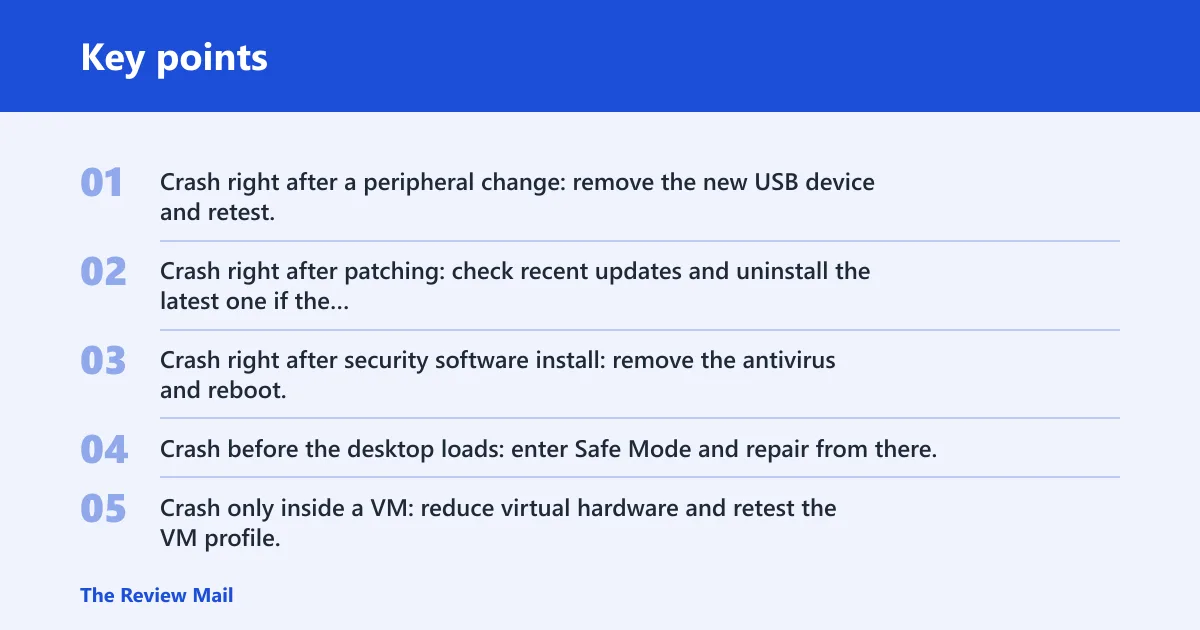
- Crash right after a peripheral change: remove the new USB device and retest.
- Crash right after patching: check recent updates and uninstall the latest one if the timing matches.
- Crash right after security software install: remove the antivirus and reboot.
- Crash before the desktop loads: enter Safe Mode and repair from there.
- Crash only inside a VM: reduce virtual hardware and retest the VM profile.
Did a USB device trigger it?
Symptoms: start here
Start here if the crash began after adding a printer, dock, external drive, audio device, or hub. A faulty peripheral, cable, or port can trigger the failure during boot, and Device Manager can also show a warning icon or a driver problem tied to that device.
Fastest test: disconnect every newly added USB
Disconnect every newly added USB device and any hub or dock, then boot with only the keyboard, mouse, and display attached. If Windows starts normally, the fault is probably in the removed peripheral path rather than the core OS.
Exact steps: power off the PC
- Power off the PC, then disconnect every newly added USB device and any hub or dock.
- Leave only the keyboard, mouse, and display attached.
- Boot Windows 11 and see whether the desktop loads without the crash.
- Open Device Manager and inspect Universal Serial Bus controllers, Human Interface Devices, and any device with a warning icon.
- Reconnect one device at a time in a different port. If one port works and another does not, keep using the working port and cable.
Expected result: if the BSOD stops after
If the BSOD stops after removing a peripheral, the device, cable, hub, or port is the likely trigger. If the crash returns only when one item is reattached, that item is the first one to replace or update.
Symptom-to-fix checklist: new dock or hub involved
- New dock or hub involved: test the PC without the hub.
- External drive involved: try a different cable and port.
- USB keyboard or mouse involved: test one device at a time.
- Warning icon in Device Manager: inspect the device entry and reconnect carefully.
Is a driver or Windows Update to blame?
Symptoms: if the crash started right
If the crash started right after a Windows Update, a driver installation, or a driver replacement, the latest software change matters more than a random hardware guess. Intel DPTF is one possible driver-related culprit if it appears in the crash history or driver list.
Fastest test: use Device Manager
Use Device Manager to roll back the most recently changed device driver first. If the problem began right after patching, remove the latest quality update from Windows Update history; if a feature update was installed recently, use Recovery to roll it back instead, because update rollback depends on what was recently installed and is not always available.
Exact steps: open Device Manager, right-click
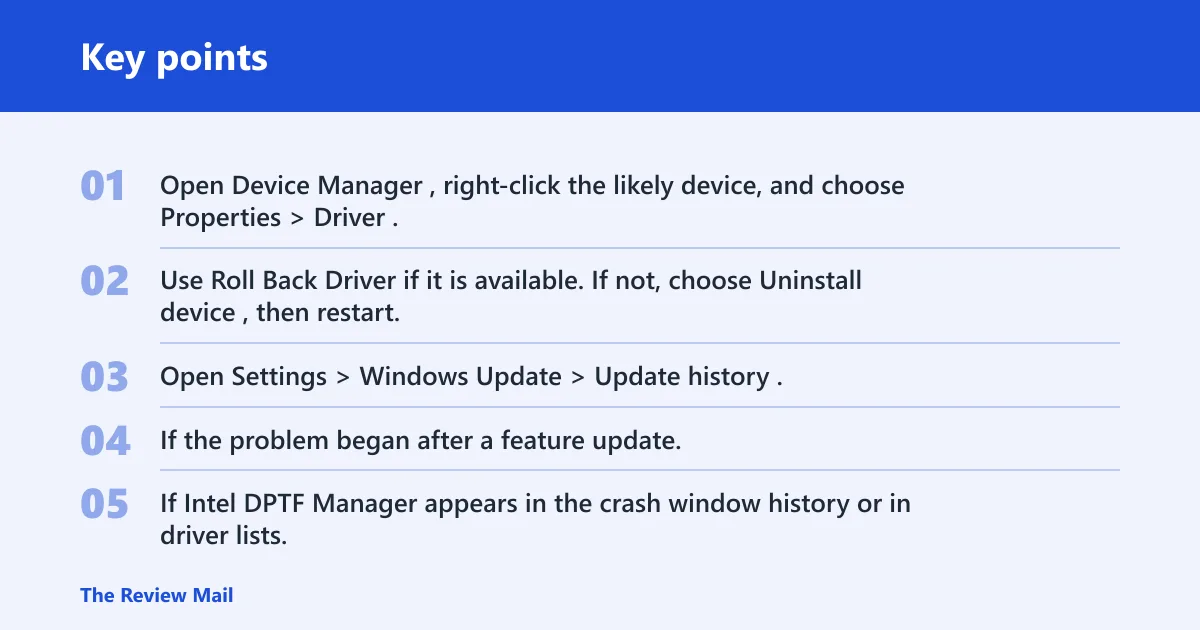
- Open Device Manager, right-click the likely device, and choose Properties > Driver.
- Use Roll Back Driver if it is available. If not, choose Uninstall device, then restart.
- Open Settings > Windows Update > Update history. Remove the latest quality update through Uninstall updates if the crash began right after patching.
- If the problem began after a feature update, use Settings > System > Recovery or Advanced startup to roll back the feature update.
- If Intel DPTF Manager appears in the crash window history or in driver lists, remove it through Device Manager and reinstall only if the crash stops.
- For driver handling paths, use driver rollback or removal as the first targeted check before deeper repairs.
Expected result: if a driver rollback
If a driver rollback or recent update removal fixes the boot loop, the machine should start normally and stay stable across restarts. If the crash persists, the driver or update was not the only issue, and you should continue with Safe Mode repairs.
Symptom-to-fix checklist: crash began after a driver
- Crash began after a driver update: use Roll Back Driver or uninstall the device.
- Crash began after a cumulative update: remove the latest quality update.
- Crash began after a feature upgrade: use Recovery to roll back the feature update if available.
- Intel DPTF appears in crash history: treat it as a possible culprit, not a universal diagnosis.
Could antivirus or virtualization software be causing it?
Symptoms: third-party antivirus software can conflict
Third-party antivirus software can conflict with Windows startup because its filter driver runs low in the system stack. VirtualBox and similar tools can also trigger crashes when guest additions, virtual USB, or other virtual devices conflict with Windows 11.
Fastest test: boot into Safe Mode
Boot into Safe Mode, then temporarily remove the third-party antivirus. For VirtualBox, reduce the virtual hardware set and test the same VM again with only the devices it actually needs.
Exact steps: boot into Safe Mode
- Boot into Safe Mode if normal startup is unstable.
- Open Settings > Apps > Installed apps, then uninstall the third-party antivirus.
- Restart and check whether the reboot loop stops before reinstalling anything.
- For VirtualBox, shut down the VM, then edit the VM settings and remove extra virtual USB controllers or other nonessential virtual devices.
- Test the same VM again. If the crash remains, compare it with a fresh VM profile that uses the default device set.
Expected result: if the crash stops after
If the crash stops after removing the software conflict, the issue is likely in that product or its driver stack. If it does not stop, move on to OS repair or hardware checks instead of reinstalling the same software immediately.
Symptom-to-fix checklist: crash after antivirus install: remove
- Crash after antivirus install: remove the product in Safe Mode and reboot.
- Crash inside a VM: strip the VM down to the basics and retest.
- Crash disappears in Safe Mode: a loaded driver or service is more likely than core hardware.
- Crash persists in Safe Mode: proceed to repair commands and hardware checks.
Run repair checks in Safe Mode
Symptoms: use Safe Mode
Use Safe Mode when Windows will not boot normally or keeps restarting before you can work on the desktop. This is the right place to run repairs without the same driver or filter loading again, and it also gives you access to recovery tools when startup is unstable.
Fastest test: from Safe Mode, run SFC
From Safe Mode, run SFC first, then DISM, then CHKDSK if the disk may be involved. CHKDSK /f /r can take a long time, especially on larger or heavily used drives, so treat it as a deeper check rather than a quick reboot fix.
Exact steps: open Advanced startup
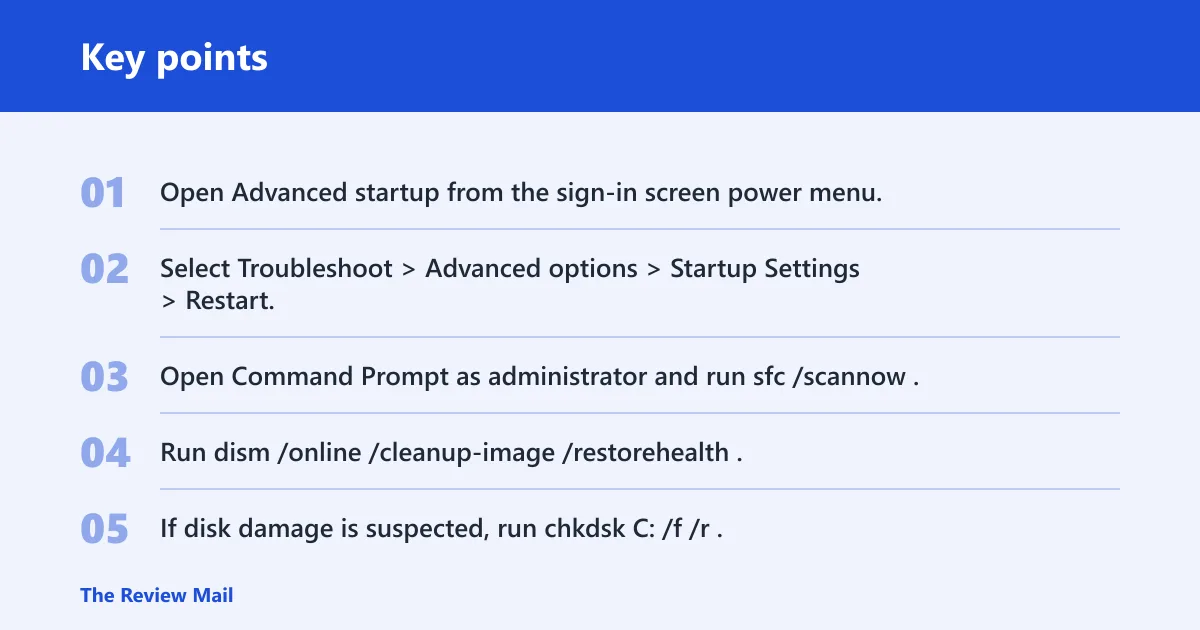
- Open Advanced startup from the sign-in screen power menu, or interrupt startup three times to reach recovery.
- Select Troubleshoot > Advanced options > Startup Settings > Restart, then press 4 or F4 for Safe Mode.
- Open Command Prompt as administrator and run
sfc /scannow. For a guided walkthrough, see Microsoft Support. - Run
dism /online /cleanup-image /restorehealth. - If disk damage is suspected, run
chkdskC: /f /r. - If Windows still will not load, return to Advanced options and choose Startup Repair.
- If a restore point exists, use System Restore from the same recovery menu.
Expected result: a successful repair sequence usually
A successful repair sequence usually lets Windows boot without repeating the stop code. If SFC or DISM finds corruption and repairs it, the next restart should be the first clean test. If CHKDSK reports repeated errors, storage health becomes a stronger suspect.
Symptom-to-fix checklist: corrupted system files suspected: run
- Corrupted system files suspected: run SFC, then DISM.
- Disk errors suspected: run
CHKDSK, but expect it to take time. - Still boot-looping: use Startup Repair from Advanced options.
- Recent clean restore point exists: use System Restore.
Should you check hardware next?
Symptoms: if the crash keeps returning
If the crash keeps returning after driver, update, antivirus, and repair steps, shift attention to hardware. Faulty RAM can cause this pattern, and storage problems can look similar when Windows reads corrupted system files or hits a bad sector. Windows Memory Diagnostic is the first built-in memory test to run.
Fastest test: run Windows Memory Diagnostic first
Run Windows Memory Diagnostic first, then check drive health. If the PC uses removable RAM, reseat the modules only if you are comfortable opening the case and the warranty allows it.
Exact steps: open Windows Memory Diagnostic
- Open Windows Memory Diagnostic from the Start menu and restart to test memory.
- If your PC uses removable RAM, reseat the modules only if you are comfortable opening the case and the warranty allows it.
- Check storage health with your drive maker’s diagnostic tool or the BIOS/UEFI health screen if available.
- If
CHKDSKreports errors again after repair, back up data and plan for drive replacement. - If repeated crashes continue after all software fixes, contact the system or motherboard vendor for board-level diagnostics.
Expected result: a clean memory test
A clean memory test and healthy drive readings make a hardware fault less likely, though not impossible. If the crash still returns after all software steps but memory or disk checks fail, the hardware path moves to the top of the list.
Symptom-to-fix checklist: random reboots and blue screens
- Random reboots and blue screens with no clear recent change: test RAM first.
- Read/write errors or repeated
CHKDSKfindings: inspect storage next. - Only one DIMM or one slot seems suspicious: reseat and retest if safe to do so.
- Hardware tests fail: stop repeating software fixes and move to service or replacement.
What to do if that did not work
Symptoms: if the PC still bluescreens
If the PC still bluescreens after the targeted fixes, use the least destructive rollback still available. Start with System Restore if there is a restore point, then try a rollback for any recent feature update, then use Startup Repair or other recovery tools if needed. A full reset is later, not first.
Fastest test: choose the rollback that matches
Choose the rollback that matches the last change you made. If you changed a driver, reverse the driver. If you installed an update, remove or roll it back. If nothing helps, use recovery tools from Advanced startup before considering a reset.
Exact steps: use System Restore first
Use System Restore first if there is a restore point from before the crash, then try a Windows recovery rollback for a recent feature update. If that still fails, use Advanced startup to reach recovery tools, and if the drive is failing or the memory test returns errors, stop chasing software changes and move to hardware service.
If even Safe Mode fails, use Advanced startup to reach recovery tools, and if the drive is failing or the memory test returns errors, stop chasing software changes and move to hardware service.
Expected result: the goal here
The goal here is to get back to a known-good system state with the smallest possible rollback. If a restore point or rollback succeeds, the machine should boot normally without repeating the BSOD. If not, the remaining issue is usually hardware or a deeper image problem.
Symptom-to-fix checklist: restore point available: use System
- Restore point available: use System Restore first.
- Recent feature update only: use the Windows rollback path if available.
- Nothing software-related reverses the crash: use Advanced startup tools.
- Hardware tests fail too: move to service or replacement instead of resets.
What does PNP detected fatal error mean?
It is a Windows 11 blue screen tied to Plug and Play device handling, and it often appears during startup or as a restart loop. A common first check is to remove recently added peripherals and see whether Windows boots normally.
How do I fix PNP detected fatal error in Windows 11?
Start with the shortest path to a clean boot: unplug new USB devices, then try Safe Mode if Windows will not reach the desktop. Next, roll back or remove the last driver change in Device Manager, remove a recent Windows update if the timing matches, and test third-party antivirus and VM software before deeper repair steps.
Why does PNP detected fatal error happen after a Windows update?
A recent update can bring a driver regression or a compatibility issue that shows up during device initialization. If the crash started right after patching, use Settings > Windows Update > Update history for quality updates, or Recovery and Advanced startup for a feature-update rollback. Update rollback depends on what was recently installed, so the rollback option may not appear in every case.
Can a driver cause PNP detected fatal error?
Yes. Faulty device drivers can trigger the crash, and a recent driver change is one of the first things to check. Open Device Manager, use Roll Back Driver if it is available, or uninstall the device and reboot to see whether the system clears the boot loop. If needed, follow the driver rollback or removal path before deeper repairs.
How do I boot into Safe Mode if PNP detected fatal error keeps restarting Windows?
Use Windows recovery rather than normal startup. On the sign-in screen, hold Shift while selecting Restart, then choose Troubleshoot > Advanced options > Startup Settings > Restart, and press 4 or F4 for Safe Mode.
Could antivirus software cause PNP detected fatal error?
Yes. Third-party antivirus tools can conflict with Windows startup. Remove the product temporarily in Safe Mode, then reboot without it. If the crash stops, reinstall a different security product or leave Windows Security in place.
What hardware should I check first for PNP detected fatal error?
Check RAM first, then storage. Run Windows Memory Diagnostic for memory faults, and use chkdsk C: /f /r if storage corruption is suspected. If both checks come back clean but the crash returns after every software fix, the motherboard, drive, or memory path needs deeper testing.
How do I know if a USB device is causing the PNP BSOD?
Remove every recently added USB device and boot with the smallest possible setup. If the machine starts clean, reconnect one device at a time and watch for the crash to return. Device Manager warnings, a bad port, or a device that fails on one PC but not another point to the peripheral path.
Is PNP detected fatal error related to VirtualBox or other virtual devices?
It can be. VirtualBox, guest additions, and virtual USB devices can conflict with Windows 11 device handling, especially after a change in the VM profile. Shut down the VM, reduce the virtual hardware set, and compare behavior with a fresh profile before blaming the guest OS itself.
FAQ
This crash is usually fixed by matching the symptom to the last change, then using the least disruptive rollback or repair. When the timing points to a USB device, driver, update, antivirus, Safe Mode repair, CHKDSK, System Restore, or memory test, start there instead of trying generic BSOD steps in random order.