Limited Connectivity Windows 10 Wi-Fi Fix: What to Try
Windows 10 Wi‑Fi limited connectivity usually points to one of five causes: DHCP, DNS, driver, power, or router. Start by checking whether you get an IP address; if you do, skip DHCP and test DNS next. Ignore it and you can lose internet access, file shares, and sign-ins even while Wi‑Fi still shows connected. This guide shows the symptom-to-cause path and the fixes to try for each warning.
What the warning usually means
The first check is simple: are you connected to Wi‑Fi and the internet, or only to the access point? Microsoft’s support page applies to Windows 10 and Windows 11, and it recommends the automated Network troubleshooter as a first step. If the Wi‑Fi bars keep moving, the device is still trying to connect, not finished. That can point to a router, DHCP, or driver problem rather than a dead adapter.
Airplane mode is the fastest sanity check. If it is on, Wi‑Fi cannot work, even if the network name still appears in the list. For Windows 10, open Settings > Network & Internet > Airplane mode and turn it off before you change anything else.
Likely causes, from most to least common
Most limited-connection warnings come from one of three layers: the PC, the router, or the ISP. A good way to sort them is to ask where the failure shows up. If only one Windows 10 PC is affected, the fault often sits in the adapter, profile, driver, or power settings. If every device on the network fails, look at DHCP, gateway, modem, or upstream service first.
Suppose your laptop connects to the SSID, but the browser shows no pages while your phone works on the same Wi‑Fi. That pattern usually points away from the ISP and toward the PC’s adapter, saved profile, or DNS settings. A different pattern matters too: if the warning appears only after sleep or sign-in, adapter power management or a driver issue jumps higher on the list.
| Symptom | Likely layer | Fastest safe test | Next action |
|---|---|---|---|
| Works on phone but not PC | PC | Open Settings > Network & Internet > Status and check whether the PC has an IPv4 address | Forget the Wi‑Fi profile, then update or roll back the adapter driver |
| Limited only after sleep | PC | Wake the PC, then check Device Manager > Network adapters > Properties > Power Management | Disable the option that lets Windows turn off the adapter to save power |
| Limited on every network | PC | Join a different Wi‑Fi network or hotspot | Reset the TCP/IP stack and reinstall or roll back the driver |
| Router login works but websites do not | Router or ISP | Open the router’s admin page, then try a known website on another device | Check DHCP, DNS, gateway, modem, and upstream status |
5-minute order of operations: 1) Turn off airplane mode. 2) Run the Windows Network troubleshooter from Settings > Network & Internet > Status > Network troubleshooter. 3) Power-cycle the modem and router by unplugging them, waiting at least 30 seconds, then plugging the modem in first and the router second. 4) Reconnect to the Wi‑Fi profile. 5) Test DNS and DHCP. That order keeps you from changing advanced settings before you know which layer is failing. (Microsoft Support)
Have you checked the simple fixes yet?
Start here if the warning is new or sudden. These steps handle the easy failures first, and they also give you a clean baseline before you touch IP settings or drivers. Microsoft recommends the Network troubleshooter as the first automated check, and it can fix common problems without manual edits.
- Open Settings > Network & Internet > Airplane mode and make sure it is off.
- Open Settings > Update & Security > Troubleshoot > Additional troubleshooters, then run the Internet Connections or network troubleshooter, depending on the build.
- Restart the modem and router. Unplug both, wait at least 30 seconds, then plug the modem back in first and the router second.
- Reconnect to Wi‑Fi and test a page you know should load, such as the router’s admin page or another stable website.
Success looks like a normal IP, active bars, and websites loading again. If the router page opens but nothing else does, skip past the router and test DNS next.
Does the problem follow one PC or every device?
If only one PC is limited, focus on that machine first. DHCP can fail to hand out an address, the saved Wi‑Fi profile can go stale, or the adapter can stop negotiating correctly after Windows Update. If every device fails, the router’s DHCP server, gateway, or WAN link is a stronger suspect. TechCult identifies the DHCP server not responding as a main cause in this family of problems, which matches the symptom where the device sees the network but never gets online.
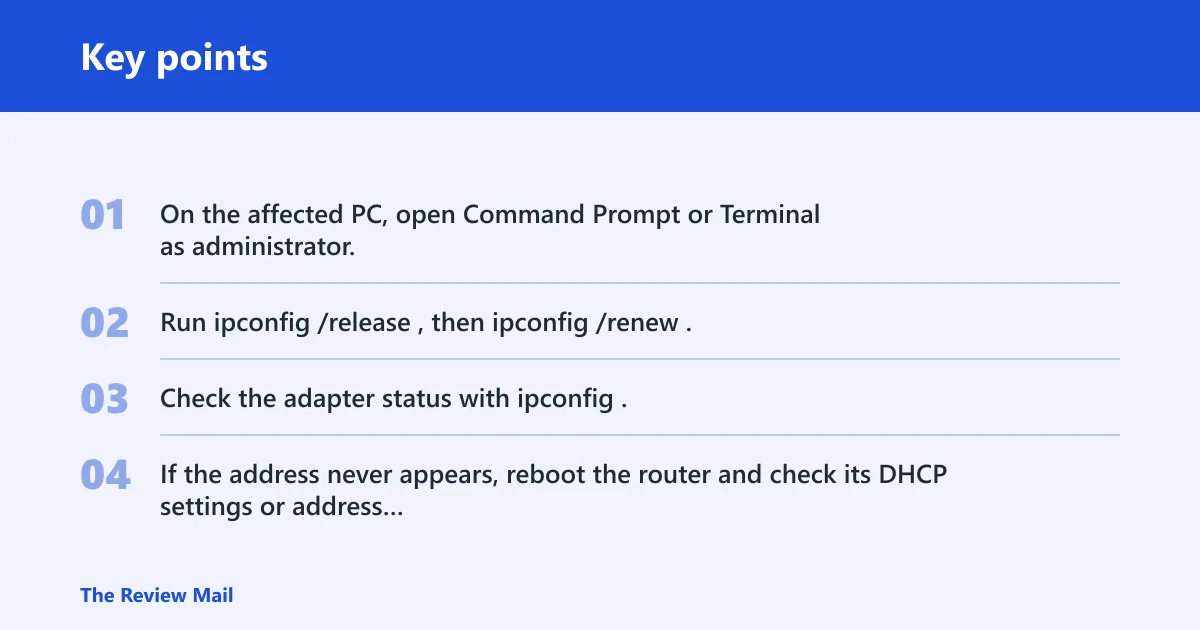
- On the affected PC, open Command Prompt or Terminal as administrator.
- Run
ipconfig /release, thenipconfig /renew. - Check the adapter status with
ipconfig. A valid IPv4 address generally means DHCP worked; 169.254.x.x usually suggests it did not. - If the address never appears, reboot the router and check its DHCP settings or address pool.
ipconfig /release
ipconfig /renew
A common first-timer mistake is to keep retrying the same PC command when the router is the side that failed. If the same issue hits a phone, a tablet, and the Windows 10 PC, address assignment or the internet uplink is more likely than a local driver issue.
Why does Wi‑Fi work but websites do not?
That pattern usually points to DNS, not radio signal. The PC can talk to the router, but names such as websites do not resolve. Microsoft notes that a firewall or specific app can also block internet access, so the problem is not always the Wi‑Fi radio itself. A fast test is to switch to a known DNS server and then flush the local cache.
- Open Control Panel > Network and Internet > Network and Sharing Center > Change adapter settings.
- Right-click the Wi‑Fi adapter, choose Properties, select Internet Protocol Version 4 (TCP/IPv4), then open Properties.
- Choose Use the following DNS server addresses and enter 8.8.8.8 and 8.8.4.4 as a test.
- Open administrator Command Prompt or Terminal and run
ipconfig /flushdns. - Test a website again. If the page loads, the old resolver path was the problem.
If the router admin page opens by IP address but not by name, DNS is a likely next thing to check. That is the classic case where DNS deserves the next fix, not the radio link.
How do you reset TCP/IP for a limited Wi‑Fi connection?
Use a TCP/IP reset when the adapter shows a connection but address or routing data looks corrupted. This is a deeper repair than a DNS change, and it belongs after simple renew and flush steps. TechCult includes netsh int ip reset c:\resetlog.txt as part of this path, and Appuals also lists Winsock and IPv4 resets for stubborn cases.
- Open Command Prompt or Terminal as administrator.
- Run
netsh winsock reset. - Run
netsh int ip reset c:\resetlog.txt. - Restart the PC.
- Reconnect to Wi‑Fi and verify that the warning is gone, then open a few different websites.
netsh winsock reset
netsh int ip reset c:\resetlog.txt
If the PC still shows limited connectivity on every network after this reset, the adapter driver or hardware is more likely than the stack itself.
Why does Wi‑Fi drop after sleep or sign-in?
When the warning appears only after sleep, the strongest clues are power management, stale profile data, or a driver that does not recover cleanly. TechCult recommends disabling the option that lets Windows turn off the Wi‑Fi adapter to save power, and that setting lives in Device Manager. A saved profile can also fail after a password, security mode, or router change.
- Open Device Manager > Network adapters, then right-click your Wi‑Fi adapter and open Properties.
- On Power Management, clear the option that lets Windows turn off the device to save power.
- Go to Settings > Network & Internet > Wi‑Fi > Manage known networks, select the network, and choose Forget.
- Reconnect and re-enter the password.
- If the warning returns after a recent update, open Device Manager and use Update driver or Roll Back Driver on the Wi‑Fi adapter.
Windows OS Hub also notes that deleting a saved profile can clear stale settings; the command is netsh wlan delete profile name=[profile_name]. That helps when the SSID is right but the saved credentials or security details are not.
netsh wlan delete profile name=[profile_name]
Still not working?
If the warning survives all of the steps above, separate the PC from the network with a different connection. Try Ethernet if the device has a port, or connect the PC to a mobile hotspot. If Ethernet works and Wi‑Fi does not, the adapter or its driver is still the better suspect. If both fail, check the router’s firmware, security settings, WAN status, and DHCP pool. A third-party antivirus or firewall can also block traffic after a Windows update, so disable it only long enough to confirm the symptom.
Prevention is mostly about avoiding stale state. After router password or security changes, forget the old Wi‑Fi profile and reconnect, then check that power management stayed off for the adapter. That cuts down on repeat failures after sleep, restart, or sign-in.
Frequently asked questions
What does limited connection mean on wifi?
It usually means the PC reached the Wi‑Fi network but did not complete the path to the internet. The next check is whether the adapter got an IP address from DHCP. If it did, move to DNS. If it did not, focus on the router or the local address assignment path.
Why is my Windows 10 Wi‑Fi connected but limited?
That pattern often points to DHCP, DNS, or a driver issue rather than a broken radio link. Check the IP address first, then test Google DNS at 8.8.8.8 and 8.8.4.4. If it happens after sleep, check the adapter’s power management setting and the driver version.
What should I try when Windows 10 says no internet access?
Run the troubleshooter, verify airplane mode is off, and restart the modem and router with at least 30 seconds between power-offs and power-ons. Then check whether the problem is only on one PC or on every device. That split tells you whether to fix the adapter or the router.