Error Code Val 51 Valorant Fix
For VAL 51, VAL 57, or VAL 59, start with Riot’s official server status page (Riot server status page). If Riot shows no incident, the fastest path is a clean Riot Client restart, a Vanguard service check, and then Windows network repair steps such as DNS and Winsock resets.
What VAL 51 means
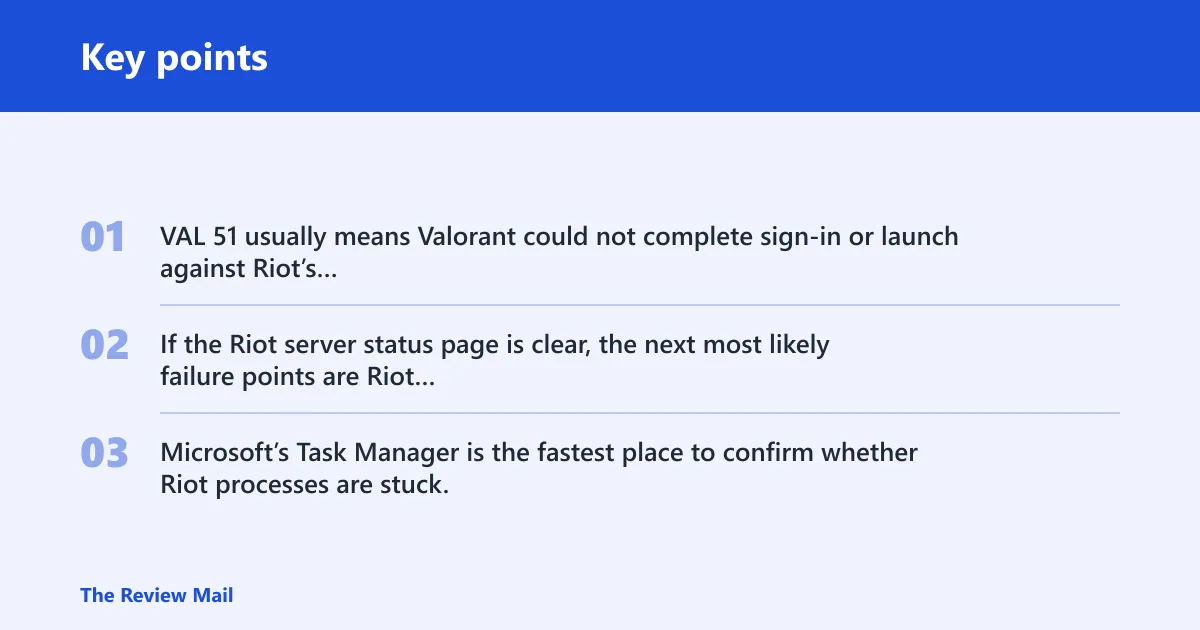
VAL 51 usually means Valorant could not complete sign-in or launch against Riot’s services. If the Riot server status page is clear, the next most likely failure points are Riot Client startup, Vanguard, or Windows networking. Microsoft’s Task Manager is the fastest place to confirm whether Riot processes are stuck.
VAL 51 fix matrix
| Symptom | Likely cause | Fastest test | Fix | Escalation path |
|---|---|---|---|---|
| VAL 51 appears right after sign-in | Riot service outage or maintenance | Open the Riot server status page | Wait for the outage to clear | Try again after services return |
| Riot Client opens, then the game fails to connect | Riot Client or Vanguard did not load cleanly | Check Task Manager for Riot and Vanguard processes | End the processes and relaunch | Restart the Vanguard service or reinstall Vanguard |
| VAL 51 returns after a router change, VPN, or proxy | Windows network stack, VPN, proxy, DNS, or firewall issue | Turn off any VPN or proxy and test Valorant again | Run network commands in elevated Command Prompt | Reset network settings or contact Riot Support |
| VAL 57 or VAL 59 appears with VAL 51 | Related launch or anti-cheat startup problem | Look for Vanguard status and client startup behavior | Repair Vanguard before broader network changes | Reinstall the Riot Client only after smaller fixes fail |
What usually causes VAL 51?
Common causes include a Riot-side service problem, a Riot Client or Vanguard startup issue, or a Windows networking problem such as a VPN, proxy, firewall rule, or stale DNS state. Less often, the issue comes from a corrupted install or a service that is present but not running.
If the same login fails on a second PC on the same network, that points away from a single Windows install and more toward Riot services or the shared connection. If one Windows account shows the error while another account signs in normally, the problem is more likely local, tied to the client, a service, or permissions.
Is VAL 51 caused by Riot servers or my PC?
Start by checking the Riot server status page. If Riot shows an outage or maintenance, the problem is likely Riot-side. If the page is clear and the error keeps returning on the same machine, move to client, Vanguard, and Windows network checks. Riot Support also documents Vanguard-driven startup failures in its VALORANT support articles.
- Open the official Riot status page and look for Valorant or Riot Client incidents.
- If the status page shows a problem, stop local troubleshooting and wait for service recovery.
- If the status page is clear, press Ctrl + Shift + Esc to open Task Manager.
- End Riot Client, Valorant, and Riot Vanguard-related processes.
- Relaunch the Riot Client, then test Valorant again.
What if the game opens but login still fails?
That pattern usually means the launcher is working far enough to start the game, but one of the later checks is failing. Vanguard is the next place to look, because a broken or stopped anti-cheat service can block the login path even when the client itself opens normally. Riot’s Vanguard guidance specifically treats service startup as a critical check.
Is Riot down?
Yes, this is the first thing to rule out because a Riot-side outage can produce the same error on many PCs at once. Check the Riot server status page first; if it shows an incident, local fixes will not help until Riot restores service.
- Open Riot’s official server status page.
- Check whether Valorant, Riot Client, or authentication services are listed as degraded or unavailable.
- If there is an incident, stop changing local settings and wait for the fix to finish.
- If there is no incident, close the browser and move on to a clean client restart.
If the status page is clear
Then the fault is more likely on the PC or home network. Go straight to a clean restart path: end Riot processes in Task Manager, reboot the PC, and then test Vanguard and network settings. Microsoft’s Services console is also useful here because Vanguard’s vgc service should be visible and running when things are healthy.
Does Riot Vanguard need a reset?
Often, yes. Vanguard can be missing, stopped, or partially broken, and any of those can interrupt login or launch. Microsoft documents how to use Task Manager and the Services console; those are the two fastest Windows checks before you reinstall anything.
- Press Ctrl + Shift + Esc to open Task Manager.
- End Riot Client, Valorant, and any Vanguard-related processes.
- Restart Windows.
- Open Services from the Start menu, find vgc, and check whether it is running.
- If vgc is stopped, right-click it, choose Start, then set Startup type to Automatic.
- If Vanguard is missing or keeps failing, uninstall Riot Vanguard, restart Windows, and let Valorant reinstall it when you launch the game again.
A common first-timer mistake is reinstalling the whole game before checking vgc. That is usually overkill when the anti-cheat service itself is the bottleneck. If Vanguard starts normally after a service restart, leave the rest of the install alone.
Do you need a Windows network reset?
Only after the earlier checks fail. Windows network resets help when the problem sits in DNS, Winsock, a VPN, a proxy, or a firewall rule. Microsoft’s documentation for Windows Firewall, ipconfig /flushdns, and netsh winsock reset covers the commands used in this step.
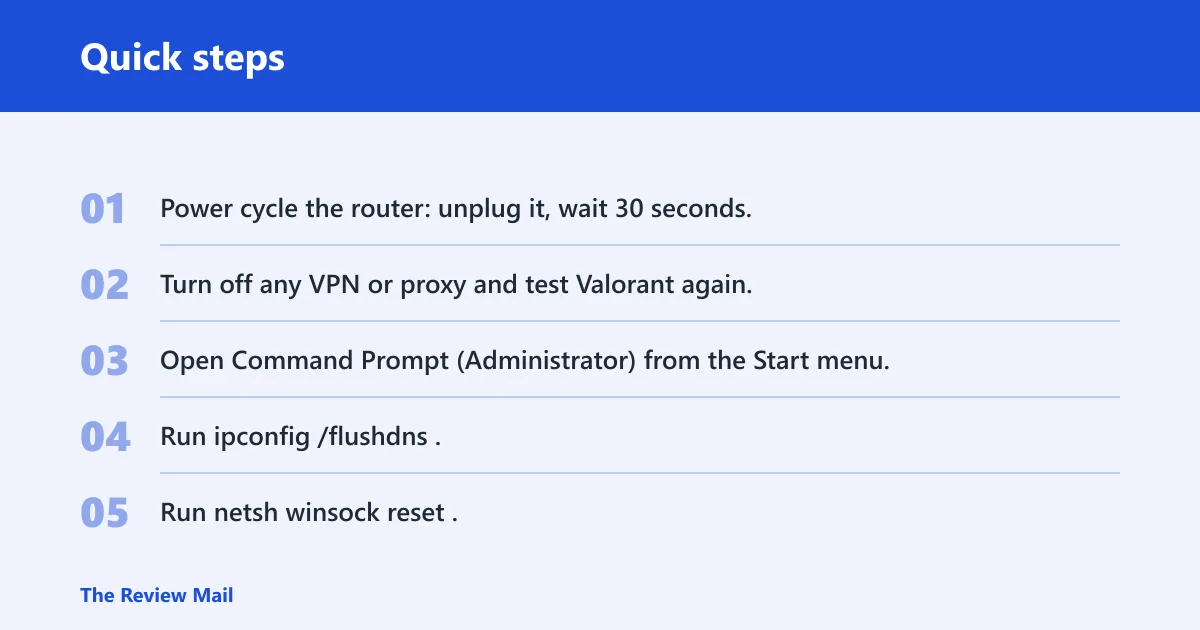
- Power cycle the router: unplug it, wait 30 seconds, then plug it back in and wait for the connection lights to settle.
- Turn off any VPN or proxy and test Valorant again.
- Open Command Prompt (Administrator) from the Start menu.
- Run
ipconfig /flushdns. - Run
netsh winsock reset. - Restart the PC.
- If the error remains, check Windows Security and any third-party antivirus for blocked app rules for Riot Client and Valorant.
Firewall and DNS changes: when they matter
Firewall and antivirus rules matter when the client starts but cannot keep a stable login path. DNS changes can help if name resolution is stale, but they are not a guaranteed fix. Change them only after you have ruled out status, Vanguard, and a plain router reboot. Microsoft’s Windows Firewall guidance is the best reference before editing allow rules.
Why does VAL 51 appear with other launch errors?
Adjacent codes often point to the same weak spot from different angles. VAL 57 and VAL 59 commonly show up when the startup chain is broken around client initialization, anti-cheat loading, or server authentication. Riot’s own troubleshooting flow for Vanguard issues points to the same sequence: status check, clean restart, service validation, then network repair.
If a player sees VAL 51 one launch and VAL 57 the next after closing the client too quickly, the pattern points to an unstable startup sequence, not three separate problems. In that case, a clean reboot and Vanguard service check are more useful than changing DNS right away.
Error code val 51 troubleshooting matrix
| Error code | Typical symptom | Likely layer | Fastest test | Escalation threshold |
|---|---|---|---|---|
| VAL 51 | Fails while reaching Riot services during sign-in or launch | Riot services, client startup, or network path | Check the Riot server status page | Escalate after client restart, Vanguard check, and network reset fail |
| VAL 57 | Launch stalls or Vanguard-related startup failure appears alongside login issues | Vanguard service or anti-cheat initialization | Verify vgc in Services | Escalate when vgc will not start or keeps stopping after reboot |
| VAL 59 | Login or startup chain breaks with a similar early-launch symptom | Authentication or client initialization path | Restart Riot Client after a full reboot | Escalate if the code repeats on another network or after Vanguard repair |
Still not working?
If the status page is clear, Task Manager showed no stuck Riot processes, Vanguard starts normally, and the network commands did not help, move to isolation and support. At that point, try another network, repair the Riot Client, and collect enough detail for Riot Support to act on the ticket. Riot Support is more effective when you include the exact code sequence and visible Vanguard state.
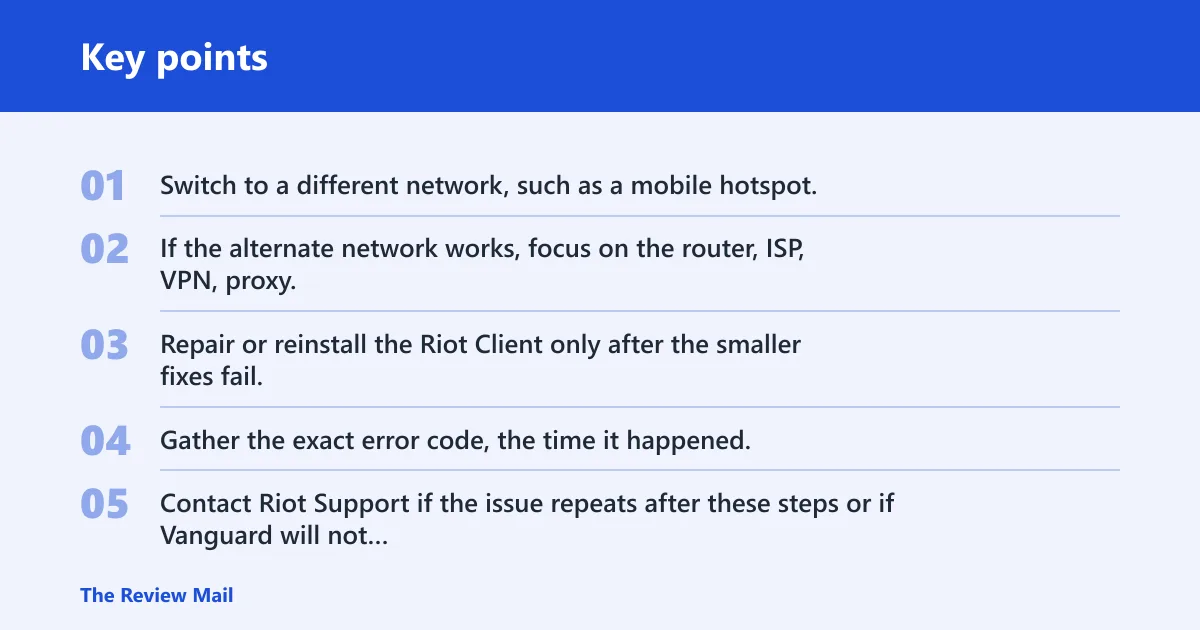
- Switch to a different network, such as a mobile hotspot, to separate home network problems from the PC.
- If the alternate network works, focus on the router, ISP, VPN, proxy, or firewall on the original network.
- Repair or reinstall the Riot Client only after the smaller fixes fail.
- Gather the exact error code, the time it happened, and whether VAL 57 or VAL 59 appeared too.
- Contact Riot Support if the issue repeats after these steps or if Vanguard will not start at all.
Prevention: keep Riot Client and Vanguard allowed through your security software, and do not leave a VPN or proxy enabled when you launch Valorant. That lowers the chance of a stale startup path returning after a normal reboot.
Frequently asked questions
Should I reinstall Riot Vanguard for VAL 51?
Not first. Start with Task Manager, a Windows restart, and a service check for vgc. Reinstall Vanguard when the service is missing, will not start, or keeps breaking after a reboot. That is a targeted fix; a full game reinstall usually comes later.
Do I need to change firewall or DNS settings for VAL 51?
Only if the easier checks fail. First, disable any VPN or proxy, then run ipconfig /flushdns and netsh winsock reset from Command Prompt (Administrator). If Windows Security or another antivirus is blocking Riot Client or Valorant, create an allow rule there instead of changing random network settings.
When should I contact Riot Support for VAL 51?
Contact support after the status check, clean client restart, Vanguard service check, router reboot, VPN and proxy removal, and elevated network commands have all failed. Include the exact code, whether VAL 57 or VAL 59 appeared too, and whether the issue happens on another network or another Windows account.