Logging Into Domain Account Windows 11
On a domain-joined Windows 11 PC, sign in with DOMAIN\username or [email protected]. If the PC is offline, cached credentials may still work, but a first-time logon often needs the network. Using the wrong account type can lock you out, create a local profile, or send you down the wrong fix path. This article shows how to tell domain, local, and Microsoft accounts apart, choose the right username format, and narrow failures to credentials, network, policy, or profile issues. (Microsoft Learn)
What counts as a domain account?
A Windows 11 domain account is an organizational login tied to a domain-joined PC and authenticated through the domain controller or stored cached credentials. It is different from a local account, which lives on the PC, and different again from a work or school account, which may be used for Microsoft 365 or identity services without being the Windows logon itself.
Domain account versus local account
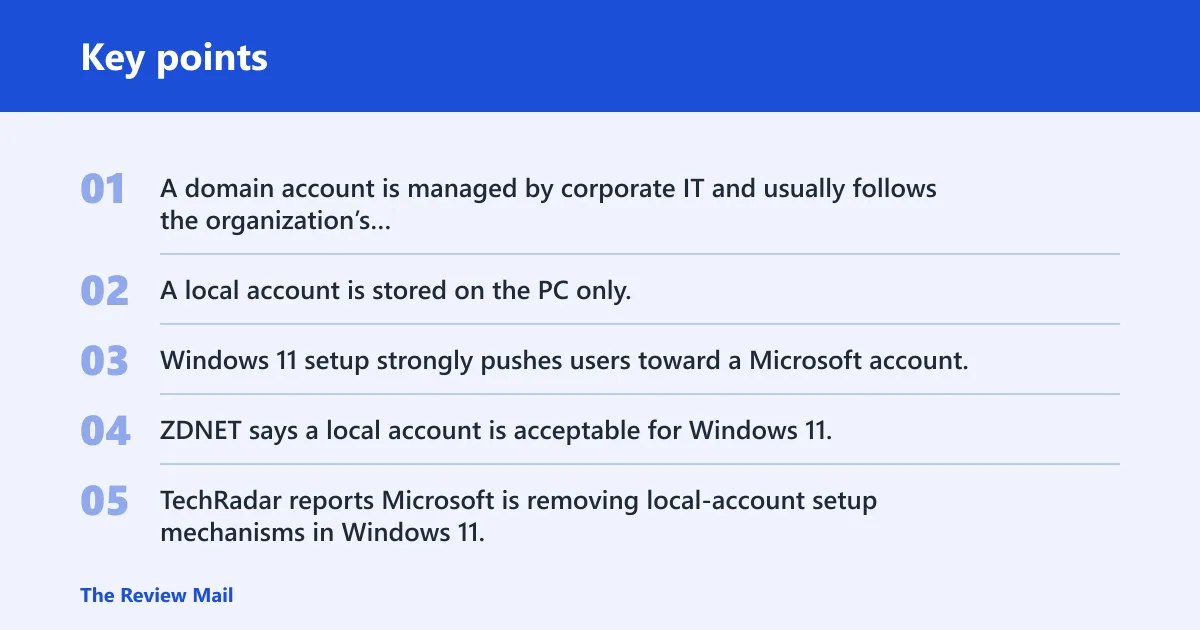
A domain account is managed by corporate IT and usually follows the organization’s username rules, password policy, and sign-in controls. A local account is stored on the PC only, and ZDNET notes that local-account credentials are stored on the PC, while Microsoft account credentials are managed on Microsoft’s servers. That difference matters when sign-in fails.
Windows 11 setup strongly pushes users toward a Microsoft account, which is why the wrong screen can appear during setup or recovery. ZDNET says a local account is acceptable for Windows 11, but ZDNET also notes that local-account workarounds depend on the edition you are running. TechRadar reports Microsoft is removing local-account setup mechanisms in Windows 11, and those mechanisms can skip critical setup screens.
Domain account versus work or school account
A work or school account is often tied to an organization’s identity system for Microsoft 365, device enrollment, or cloud sign-in. That is not always the same thing as a Windows domain account. A PC can be domain-joined and also have a work or school account attached, but the username and sign-in path may still be different.
If the PC keeps asking for a Microsoft account, that usually means Windows is steering you toward a consumer or cloud setup path rather than the domain logon screen. On a managed PC, the correct path is often the domain sign-in field or the “Other user” prompt, not the Microsoft account flow.
Which username format should you try?
Start with the format your organization uses most often. On many networks, that is DOMAIN\username; on others, it is username@domain, especially when email-style sign-in is enabled. The domain name must be right, not only the password, because the wrong domain or prefix can make a valid account look invalid.
Try DOMAIN\username first
If your organization still uses classic domain notation, enter the NetBIOS domain name, then a backslash, then the username. Example: ACME\jordan. This format is common for older on-premises setups and remains a practical first try when the sign-in screen does not already show the correct identity source.
Try username@domain when email-style sign-in is used
Some environments accept a user principal name in email form, such as [email protected]. That can be the right choice when the organization uses cloud-connected identity or when the account is mirrored into Microsoft services. It is not the same as a Microsoft personal account address.
Check the domain name, not just the password
If a password change happened recently, the problem may be the domain part or the cached sign-in data rather than the password itself. A user can enter a correct password against the wrong account format and still get a failure. That is why username format belongs in the first round of checks.
Which sign-in path should I try first?
Use the symptom to choose the next step. First sign-in, a password change, no network, a broken PIN, and an “account not found” message point to different causes. The table below separates those paths so you do not treat a policy block like a simple typo or a cached-logon problem.
| Symptom | Likely cause | Exact username format to try | Offline/cached login possibility | Next escalation step |
|---|---|---|---|---|
| First sign-in on a domain-joined PC | Domain controller must verify the account | DOMAIN\username, then username@domain | Usually no for the first logon | Check network access and confirm the account is provisioned |
| Password changed after a previous login | New password not synced to cached logon or typed wrong | DOMAIN\username or username@domain, using the new password | Yes, if cached credentials are allowed | Verify the change with corporate IT and test on a connected network |
| No network at sign-in | Domain controller not reachable | DOMAIN\username | Yes, if you have prior cached credentials | Reconnect to the corporate network or VPN, then sign in again |
| PIN stopped working | Windows Hello, TPM, or profile issue | DOMAIN\username or username@domain, then password | Sometimes, but PIN is separate from the password | Reset Hello sign-in or use password to reach the desktop |
| Account not found | Wrong domain, wrong user name, or account not provisioned | DOMAIN\username and username@domain | Possible only if the account was used before | Confirm the account exists and that the device is joined to the right domain |
First sign-in on a domain-joined PC
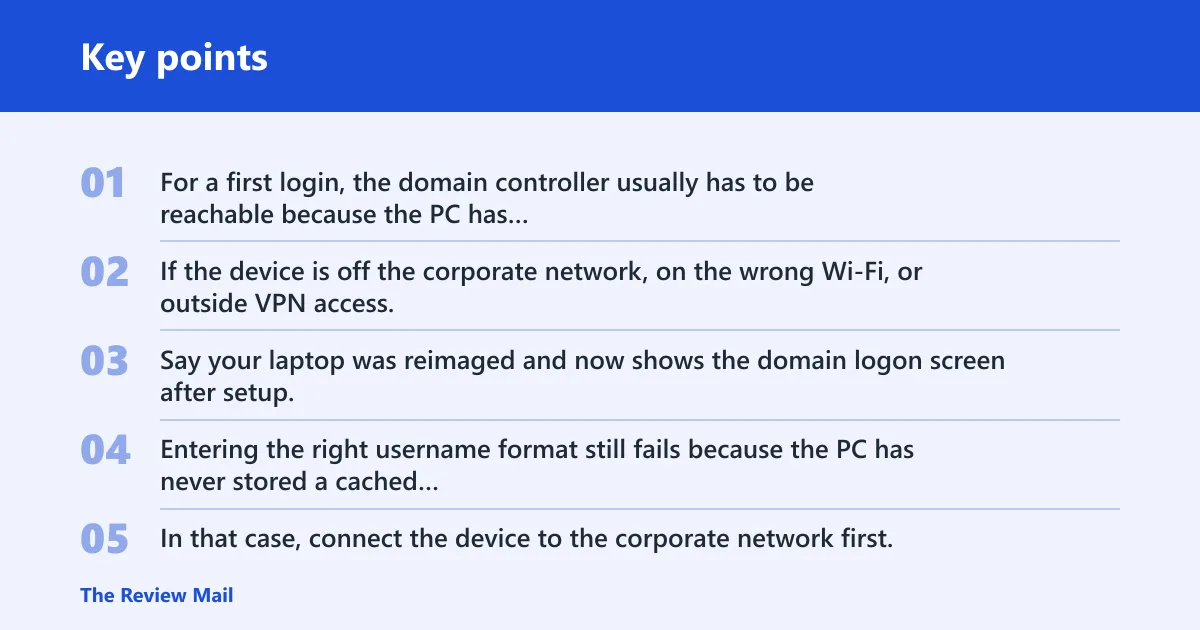
For a first login, the domain controller usually has to be reachable because the PC has not yet stored usable cached credentials for that account. If the device is off the corporate network, on the wrong Wi-Fi, or outside VPN access, the sign-in can fail even with the right password.
Say your laptop was reimaged and now shows the domain logon screen after setup. Entering the right username format still fails because the PC has never stored a cached copy of that account before. In that case, connect the device to the corporate network first.
Password changed after a previous login
If the password changed and the PC was not connected when that happened, the old cached credential may no longer match. Cached credentials depend on previous successful authentication and may be limited by policy. A connected sign-in lets the PC refresh the saved credential data.
No network at sign-in
Offline sign-in can work after a prior successful logon, but it is not guaranteed. Group Policy can limit cached logons, and some organizations set those rules tightly. If the PC has never signed in with that account before, offline access is usually not enough.
PIN or Windows Hello stopped working
Windows Hello and PIN are commonly follow-up sign-in methods, rather than the same thing as the domain password. They can fail after password changes, profile corruption, TPM issues, or a policy change. If the PIN is rejected, switch to the password path and see whether the problem is tied to Hello instead of the account itself.
Suppose the PIN works on the sign-in screen after a routine restart, then fails after the user’s password was reset by IT. That pattern points to Hello or credential sync trouble, not necessarily a bad domain account. The password path is the better test.
Account not found or account locked
An “account not found” message often means the device is pointing at the wrong domain, the username is misspelled, or the account has not been provisioned for that PC. A locked account is different: the username exists, but repeated failures or policy limits stop the sign-in.
Can you log in without the domain controller?
Sometimes, but only under narrow conditions. The domain controller authenticates domain credentials and stores directory identity and policy data. If it is not reachable, the PC may still allow offline access through cached credentials, but only after a prior successful logon and only if Group Policy permits cached sign-in.
Why the controller matters for first logon
For many environments, the first sign-in must contact the domain controller so the PC can verify the user and pull the right policy data. If that contact fails, Windows may not create the expected profile or may fall back to a local profile path that does not solve the real problem.
How cached credentials work
Cached credentials let Windows accept a known domain user offline after a prior successful logon. They are not a universal bypass. They depend on earlier authentication, and policy can reduce or block them. That is why a user can sign in at the office and then fail on a first boot at home.
When Group Policy can block offline sign-in
Group Policy can control password age, lockout thresholds, cached-logon limits, and the sign-in behavior shown to the user. If the organization disables or restricts cached credentials, the PC will need live domain access more often. That can look like a password problem when it is really a policy rule.
Why Windows Hello or PIN may fail
Windows Hello and PIN can work well after the initial domain sign-in, but they are not the domain password. They depend on local device state, profile health, and sometimes TPM status. After a password reset or a policy change, Hello may stop working even though the domain account itself is fine.
PIN is not the domain password
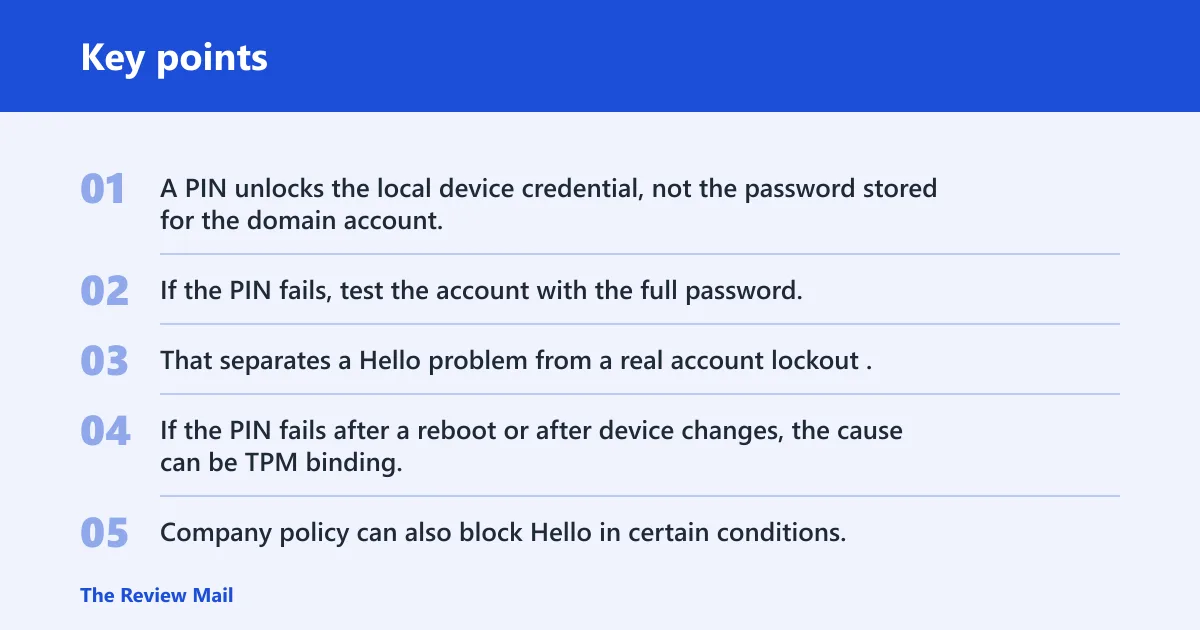
A PIN unlocks the local device credential, not the password stored for the domain account. If the PIN fails, test the account with the full password. That separates a Hello problem from a real account lockout.
TPM, policy, or profile issues
If the PIN fails after a reboot or after device changes, the cause can be TPM binding, a corrupted Hello container, or a profile issue. Company policy can also block Hello in certain conditions. These are device-side problems, not proof that the domain password is wrong.
What to do after a password reset
After a reset, use the password sign-in path first. If that works, re-enroll Hello only if the organization permits it. If the password does not work on a connected network, ask IT to check account status, lockout state, and whether the device still matches policy.
How do you recover access on a locked-out PC?
If the standard sign-in screen fails, use Safe Mode or recovery options to reach troubleshooting tools before the full desktop loads. If a local account exists on the device, it can be the fallback for repair work, but it is separate from the domain account and may not have access to company resources.
Use Safe Mode or recovery options
Recovery options can help you reach startup repair, reset sign-in components, or load a different account path. Safe Mode is useful when the normal sign-in screen loops, the profile is damaged, or Windows Hello blocks entry. It is a repair route, not a way around company rules.
Switch to a local account if one exists
A local account can let you reach the desktop for limited troubleshooting when domain access is down. That account lives only on the PC and is different from a Microsoft account. A local account can help with repair, but it does not restore the domain connection by itself.
When to contact corporate IT
Contact corporate IT when the username format is correct, the network is available, and the account still fails. IT can check domain join status, account lockout, password policy, cached-logon rules, and provisioning. If the device is managed, those are the controls that decide whether sign-in can succeed.
Frequently asked questions
How do I sign into a domain account on Windows 11?
On a domain-joined PC, enter DOMAIN\username or [email protected] at the sign-in screen, then use the organizational password. If the device is offline, cached credentials may work only after a previous successful logon. A first-time sign-in often needs the domain controller.
What username format should I use for a domain login on Windows 11?
Start with the format your organization documents. If no guidance is visible, try DOMAIN\username first, then username@domain. The correct domain name matters as much as the password. A valid password with the wrong domain prefix can still fail.
Can I log into a domain Windows 11 PC with my work username?
Sometimes, but only if the work username is also the domain account name or UPN used by your organization. A work or school account is not always the same as a Windows domain account. If the PC is domain-joined, sign in with the domain format the IT team expects.
What do I do if Windows 11 says I can’t sign into my domain account?
Check the username format first, then confirm the password, network access, and account status. If the PC has signed in before, cached credentials may help offline; if it is the first logon, the domain controller usually must be reachable. If PIN fails, switch to the password path.
How do I tell whether I should use a domain account or local account?
If the PC is joined to a company domain and the sign-in is managed by IT, use the domain account. If the account exists only on that PC and has no network dependency, it is local. A Microsoft account is different again and is tied to Microsoft’s servers.
How do I sign into a local account on Windows 11 instead of domain?
If a local account already exists on the PC, choose that account from the sign-in screen or switch users if the option appears. A local account is stored on the device only and can be useful for troubleshooting. It does not replace the domain account or its policy controls.