Windows 11 Trust This Device
“Windows 11 trust this device” can refer to different things, such as a Microsoft sign-in prompt, a workplace device-registration status, or a file/app trust warning; address the matching one only. Choose the wrong setting and you can lose sign-in persistence, break access to work apps, or approve unsafe files. This guide shows how to identify each prompt, check trust and compliance status, and change the right setting.
What “trust this device” means in Windows 11
The wording changes by screen. On a Microsoft account sign-in, “trust this device” usually means Windows should remember the session on that PC, often through account tokens or a browser cookie that reduces repeated prompts. On a managed work PC, it can mean the device is registered with Microsoft Entra and allowed by policy. On a file or app warning, it usually means publisher or reputation trust, which is a different problem entirely.
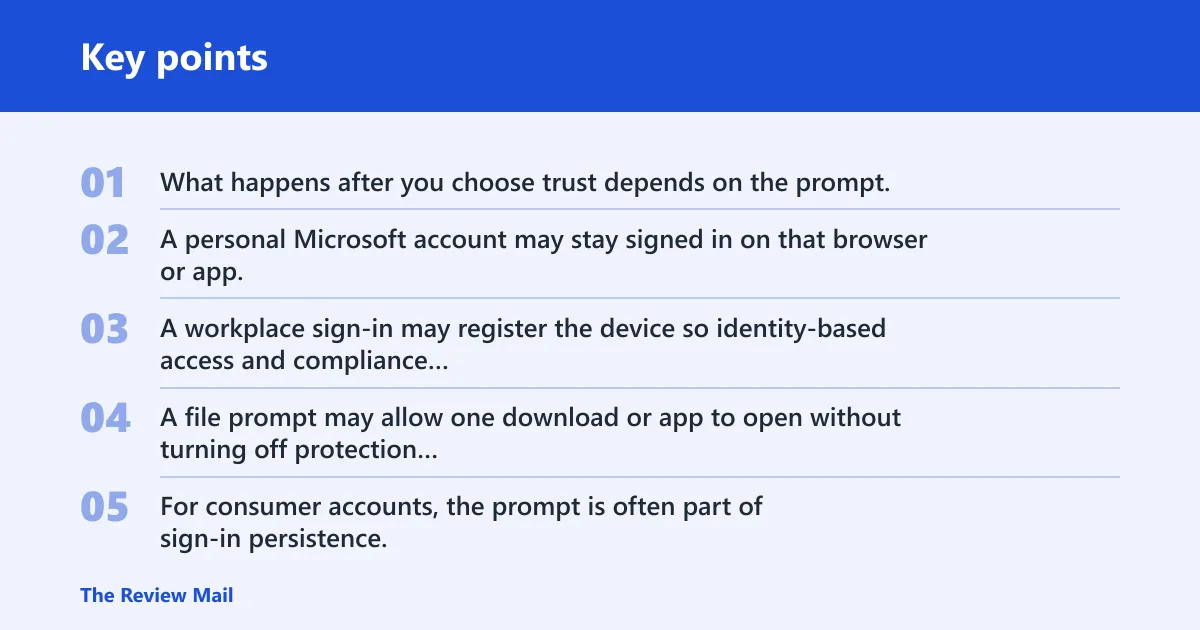
What happens after you choose trust depends on the prompt. A personal Microsoft account may stay signed in on that browser or app. A workplace sign-in may register the device so identity-based access and compliance checks can apply. A file prompt may allow one download or app to open without turning off protection everywhere.
Consumer sign-in trust versus work device trust
For consumer accounts, the prompt is often part of sign-in persistence. It appears after password entry or MFA and asks whether the browser or device should remain recognized. For work and school accounts, the same language can refer to device registration, managed device status, or conditional access rules tied to Microsoft Entra.
That difference matters. A personal trust prompt should not be treated as a device-management setting. A managed-device prompt should not be fixed by changing browser cookies alone.
What changes when you trust a device
In a consumer flow, trust can reduce repeated sign-ins on that browser or device. In a work flow, trust can create or refresh a device identity that Microsoft Entra and Microsoft Intune can evaluate for access. In either case, the trust decision can affect later prompts, but it does not replace account security or policy checks.
For managed devices, Microsoft Entra uses identity-based access and device compliance to decide whether the device can reach corporate resources. Microsoft Intune can then apply remote configuration, app delivery, and update settings. Windows Hello for Business can bind sign-in to the device and identity for passwordless use. (Microsoft)
Why the wording varies by screen
The same phrase appears in different places because Windows, the browser, and Microsoft services each use trust differently. A browser prompt asks whether to keep a session. A work account prompt asks whether to register or recognize the device. A warning in File Explorer or a browser download bar is about code trust, not account trust.
📊 Microsoft says Windows 11 hardware changes may need eligibility refresh. Source: Microsoft.
Trust device decision table
Use this table first. It separates the most common Windows 11 trust symptoms so you can check the right place before changing a setting.
| Symptom | Likely cause | Where to check | Safest fix | Escalation path |
|---|---|---|---|---|
| Microsoft sign-in asks whether to trust this device after password or MFA | Sign-in persistence is off, the browser cleared cookies, or the session was never saved | Browser sign-in page, Microsoft account security prompt, saved sign-in settings | Choose trust only on a personal device you control, then allow the browser or app to save the session | If the prompt repeats on every sign-in, check account security settings and sign out/in again |
| Work or school account shows a trust or registration problem | The device is not enrolled, not registered, or not compliant with policy | Settings > Accounts > Access work or school; Microsoft Entra device status; Intune status | Reconnect the work account from the correct menu, then let policy refresh and sync | Ask IT to confirm enrollment, compliance policy, and conditional access rules |
| A download or app is blocked as untrusted | SmartScreen, reputation checks, unsigned publisher, or zone marking | Browser download bar, Properties for the file, Windows Security warnings | Keep protection on; verify the publisher, source, and file path before opening | If the file is business-critical, ask IT to validate it or provide an approved source |
| Permission change says TrustedInstaller or admin rights are required | The target file or folder is owned by Windows protection, not normal user access | File Properties, Security tab, elevated command prompt | Do not take ownership unless the task truly requires it; use the supported app or admin tool | If the change is for system files, route it to IT or a local administrator |
How to check work or school device status
For a managed laptop, start in Settings > Accounts > Access work or school. That page shows whether the device is connected to a work account, enrolled, or synced. If the machine is meant to be managed, this is the first place to verify the connection before you change anything else.
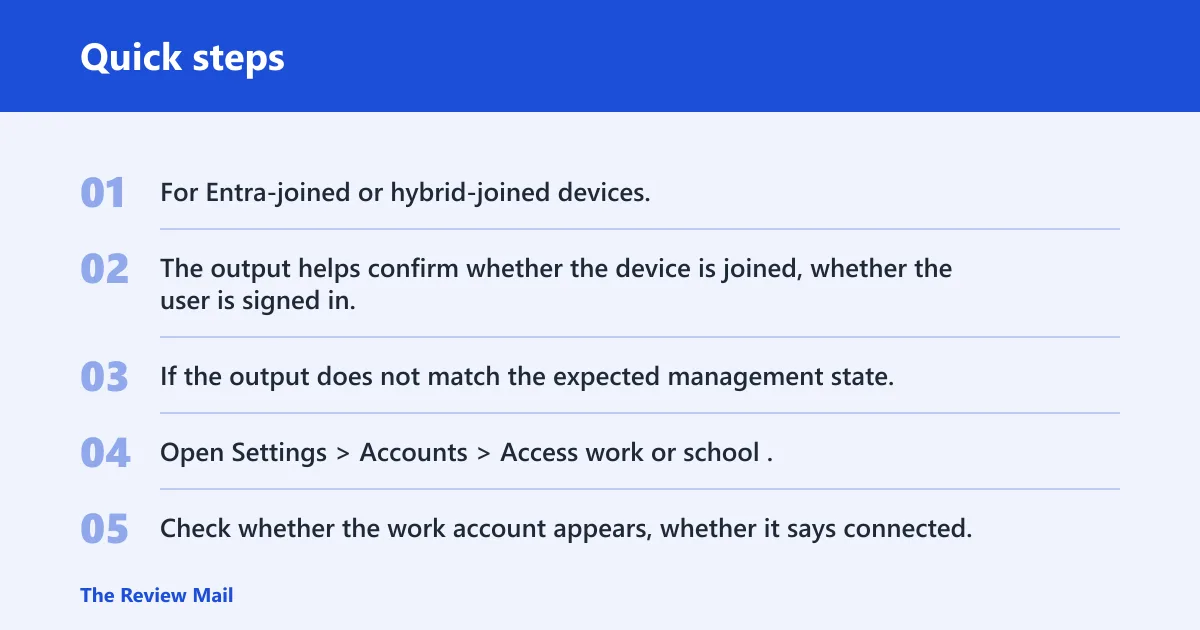
For Entra-joined or hybrid-joined devices, use dsregcmd /status from an elevated Command Prompt or Windows Terminal. The output helps confirm whether the device is joined, whether the user is signed in, and whether device state is present. If the output does not match the expected management state, the problem is usually enrollment or policy rather than a simple prompt setting.
Use the access work or school page first
Open Settings > Accounts > Access work or school. Check whether the work account appears, whether it says connected, and whether there is a sync or repair option. If the account is missing entirely, the device may not be enrolled.
If the account is present but access still fails, check account presence, update Windows, and verify device eligibility. Microsoft Intune manages devices across Windows, macOS, iOS, and Android, and it can apply device compliance policies that affect access.
Verify with dsregcmd /status
Run dsregcmd /status in an elevated command prompt. Look for the device registration state that matches your environment. If the device should be Entra-joined or hybrid-joined but is not, the trust problem sits below the sign-in screen and usually needs re-registration or IT review.
Some hardware and policy changes can require a refreshed eligibility or device state check. Microsoft says Windows 11 hardware changes may need eligibility refresh, and the Microsoft Compatibility Appraiser task can be run in Task Scheduler when a refresh is needed for eligibility checks.
Check Microsoft Entra or Intune status
In a managed environment, the device’s status in Microsoft Entra or Intune can explain why access fails after sign-in. Intune can simplify remote configuration and app delivery, but it can also block access if compliance rules are not met. That is normal in zero trust access models.
Picture a laptop that signs in normally but cannot open company email. The device may be registered, yet noncompliant because a required update or security setting is missing. In that case, changing the sign-in prompt will not fix access.
Why the trust prompt may not appear
If the prompt never shows up, the issue is often account type mismatch, policy, or timing. A personal Microsoft account prompt may not appear on a managed work sign-in page. A work trust prompt may disappear too quickly if the session is already cached or if the browser is redirecting between identity pages.
If the prompt loops after sign-in, the saved state may be failing. The browser may be clearing cookies, the token may expire, or the device may not meet the policy that would let the trust stick.
Account type mismatch
Make sure the account type matches the screen. A Microsoft account prompt is not the same as a work or school account prompt. If you use the wrong account on the wrong page, Windows may never show the trust option you expected.
Policy or compliance blocks
On managed machines, the trust prompt can be blocked by policy. Microsoft Entra device trust depends on identity-based access and device compliance, so a device that is not compliant may be denied even after a successful sign-in. In that case, IT must fix the policy or the device state.
Session and sign-in timing issues
A prompt that disappears too fast often points to a browser session or token issue. Sign out, close the browser, reopen it, and sign in again. If the prompt still loops, clear the sign-in state only for the affected account, not the whole device, unless IT tells you to do so.
How to trust downloads and apps safely
Do not treat a blocked download as the same thing as a trusted device prompt. A download warning usually comes from SmartScreen, publisher reputation, or file provenance. The safest fix is to verify the source, the publisher, and whether the file is expected for your task.
A common first-timer mistake is to disable protection because one installer is blocked. That can turn one suspicious file into a broader risk. If the source is unknown, stop there.
SmartScreen and blocked download prompts
If SmartScreen blocks a download, check the file source and whether the publisher is expected. If the file is from a company portal or an approved vendor, ask for an approved replacement or internal signature. If it came from a random site, do not bypass the warning.
Publisher trust versus file trust
Trusting a publisher can affect future warnings from the same signer. Trusting a single file may only apply to that one item. Those are different actions, and neither one changes your Microsoft account or work device registration.
When not to disable protection
Do not turn off Windows security features to open one file. If the file is blocked and you cannot verify it, the right move is to stop and ask for a safe source. On managed devices, IT may need to approve the file or sign it before release.
What Microsoft Entra, Intune, and windows Hello do
Microsoft Entra handles identity-based access, while related device-trust decisions may involve other Microsoft tools or settings. Microsoft Intune handles endpoint management, compliance, remote configuration, and app and update delivery. Windows Hello for Business handles passwordless sign-in and identity binding for enterprise use.
These systems work together. A device may be signed in, yet still blocked because compliance fails. A user may pass MFA, yet still need a compliant device. That is how zero trust access is supposed to behave.
Where TPM 2.0, Secure boot, and BitLocker fit
Windows 11 requires TPM 2.0 for certified systems. Microsoft calls TPM a hardware root of trust, and it helps protect encryption keys and credentials. The Trusted Platform Module can be integrated on the motherboard or CPU, and it acts as a hardware barrier for sensitive data. (Microsoft)
Secure Boot is a firmware check in the UEFI path. It helps block boot-level tampering, but you should verify the setting on the specific PC rather than assume it. BitLocker uses encryption key protection and often depends on the TPM for normal startup, with a recovery-key fallback if the device cannot unlock itself.
These features do not replace device trust, but they support it. A device with TPM 2.0, Secure Boot, and BitLocker in place is better positioned for managed access and credential protection.
Practical check sequence for a work PC
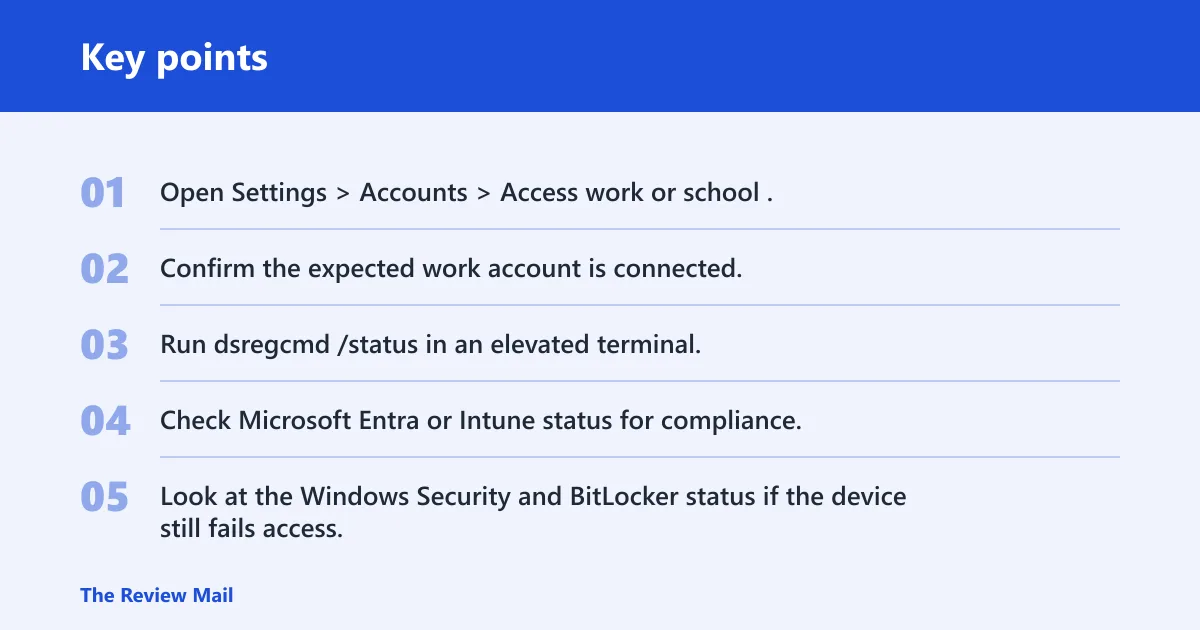
- Open Settings > Accounts > Access work or school.
- Confirm the expected work account is connected.
- Run dsregcmd /status in an elevated terminal.
- Check Microsoft Entra or Intune status for compliance.
- Look at the Windows Security and BitLocker status if the device still fails access.
- Ask IT to review policy, enrollment, or conditional access if the device is managed.
Suppose a company laptop asks to trust the device after a password reset, then later blocks Outlook. The first prompt may be about sign-in recognition, while the Outlook block may be a compliance issue. Fix the enrollment or policy problem first; changing the prompt alone will not restore access.
Frequently asked questions
What does “trust this device” mean in Windows 11?
It depends on where you see it. On a Microsoft sign-in, it usually means the device or browser can keep a session. On a work PC, it can mean device registration or compliance. In a file or app warning, it means publisher or file trust, which is separate from sign-in trust.
How do I enable trust this device on Windows 11?
If it is a Microsoft account sign-in prompt, choose the trust option when you want that device to stay recognized. If it is a work or school device, check Settings > Accounts > Access work or school and verify registration. On managed systems, IT may need to approve enrollment or compliance first.
Why is trust this device not showing up on my PC?
The prompt may be hidden by account type mismatch, cached sign-in state, or policy. Check whether you are on a personal Microsoft account screen or a work account screen. If the device is managed, confirm status in Access work or school and, if needed, dsregcmd /status.
Why is trust this device not working after I sign in?
That usually means the trust state did not stick. Cookies, tokens, or device registration may be failing, or a compliance policy may be blocking the session. Sign out, close the app or browser, and check whether the same problem appears on a different account or only on the managed device.
How do I trust files on Windows 11 without disabling security?
Verify the publisher, the source, and the file path before opening it. Use the file’s Properties and the Windows Security warning to see what is blocked. If the file is business-related, ask IT for an approved copy or a signed version rather than turning protection off.
How do I become TrustedInstaller on Windows 11?
You generally should not try to become TrustedInstaller for normal tasks. That account protects Windows system files. If a change needs that level of access, it is usually a system repair, an admin task, or an IT job. Use an elevated administrator account or route the change to support instead.