
Windows 11 Wifi Adapter Keeps Disabling
If your Windows 11 Wi‑Fi adapter keeps disabling, the fastest way to fix it is to match the symptom to the right cause: the adapter may be disabled in Device Manager, the router may have a minor glitch, your PC’s network settings might be incorrect, or the adapter may be dropping after sleep. Start with the branch that fits what you actually see, because the wrong fix can leave you offline longer. For one Microsoft-recommended fix path, see Microsoft Learn.
What it means when your Wi‑Fi adapter disables itself
Start by separating the main states: the adapter is disabled in Device Manager, the adapter is missing, or the adapter is present but drops connection after sleep. Those are different failures, and they point to different fixes.
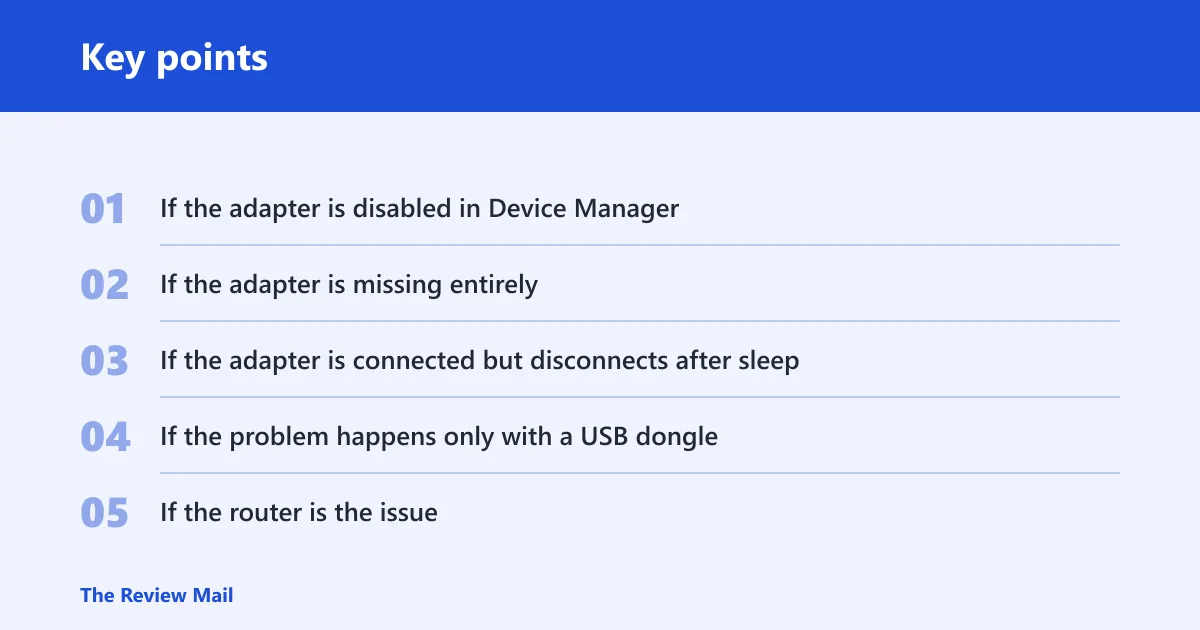
Decision tree: what to change based on the symptom
Use this branch first. Each path ends with the exact setting to change and the result you should expect after restart, sleep, or reconnect.
- If the adapter is disabled in Device Manager: open Device Manager > Network adapters > your Wi‑Fi adapter > right-click > Enable device, then open Properties > Power Management and clear “Allow the computer to turn off this device to save power.” Expected result: the adapter stays enabled after sign-in and does not disable itself during idle time.
- If the adapter is missing entirely: open Device Manager > View > Show hidden devices, then check Network adapters and Other devices for an unknown or hidden wireless adapter; if it is still absent, use Action > Scan for hardware changes and install the OEM Wi‑Fi driver. Expected result: the adapter reappears in Network adapters or installs as a known device.
- If the adapter is connected but disconnects after sleep: open Power Options > Change plan settings > Change advanced power settings > Wireless Adapter Settings > Power Saving Mode, then set it to Maximum Performance and clear the device power-off option in Device Manager. Expected result: Wi‑Fi reconnects immediately after wake and stays connected.
- If the problem happens only with a USB dongle: go to Control Panel > Hardware and Sound > Power Options > Change advanced power settings > USB settings > USB selective suspend setting, then set it to Disabled. Expected result: the dongle stays present through idle time, wake, and file transfers.
- If the router is the issue: restart the router to rule out a minor glitch, and unplug it instead if needed, waiting at least 10 seconds before plugging it back in. Expected result: the Wi‑Fi network comes back normally after the router restarts.
- If saved Wi‑Fi settings are the issue: delete your saved Wi‑Fi network from your PC and then reconnect to it. Go to Settings > Network & Internet > Wi‑Fi > Manage Known Networks, click “Forget,” then rejoin your network by clicking the Wi‑Fi icon in your system tray and choosing your network on the list. Expected result: Windows reconnects with fresh network settings.
- If your PC’s network settings are incorrect: review the Wi‑Fi connection settings, forget and re-add the network, and if needed use the Network troubleshooter or Network reset in Windows Settings. Expected result: the adapter reconnects with corrected settings.
How to tell whether the adapter is disabled or just disconnected
Open Device Manager, expand Network adapters, and look at the adapter’s status in its Properties window. If the adapter appears with an Enable device command, it is disabled. If it is enabled but Wi‑Fi is not connected, the issue is more likely to be a router problem, saved-network problem, power setting, or driver issue.
Say your laptop connects, sleeps, and wakes to a dead Wi‑Fi icon. That pattern usually points to sleep-related power handling. Say a USB dongle vanishes from the list during a large file transfer, then reappears later; that pattern points more toward USB power management than the internal laptop radio.
Likely causes, in order
Most often, Windows is turning off the adapter to save power. Next comes USB selective suspend on external dongles. A router issue can also interrupt the connection, and incorrect saved network settings can keep the PC from reconnecting properly. Less commonly, a driver change breaks Wi‑Fi after sleep.
Wi‑Fi adapter diagnostic matrix
| Symptom | Likely cause | Where to check | Exact setting to change | What success looks like |
|---|---|---|---|---|
| Internal laptop Wi‑Fi shows disabled in Device Manager | Wireless adapter power management | Device Manager > Network adapters > Properties > Power Management | Clear “Allow the computer to turn off this device to save power” | Adapter stays enabled after sign-in, standby, and screen-off periods |
| External USB Wi‑Fi dongle disconnects or disappears mid-session | USB selective suspend or USB hub power saving | Control Panel > Hardware and Sound > Power Options > Change advanced power settings > USB settings | Set USB selective suspend setting to Disabled | Dongle stays present through idle time and file transfers |
| Wi‑Fi breaks only after sleep or wake | Sleep-related power state | Power Options > Change advanced power settings > Wireless Adapter Settings and Device Manager > adapter Properties | Set Wireless Adapter Settings > Power Saving Mode to Maximum Performance; clear the device power-off option | Wi‑Fi reconnects immediately after wake and remains stable |
| Power Management tab is missing | Driver or vendor-specific control path | Device Manager > adapter Properties > Advanced tab | Change adapter power-save options there, or install the OEM driver | Tab appears after OEM driver install, or the advanced setting changes stick |
| Adapter is missing entirely from Network adapters | Driver not loaded, hidden device, or hardware enumeration issue | Device Manager > View > Show hidden devices and Action > Scan for hardware changes | Install the OEM Wi‑Fi driver and rescan hardware | The adapter reappears in Device Manager and can be enabled |
| Wi‑Fi fails only after an update | Bad or replaced driver | Device Manager > Network adapters > Wi‑Fi adapter > Properties > Driver tab | Select Roll Back Driver, or uninstall the device and reinstall the OEM package | Connection stability returns after restart or reinstall |
| Router restarts or Wi‑Fi reconnect attempts do not help | Incorrect network settings on the PC | Settings > Network & Internet > Wi‑Fi > Manage Known Networks | Click “Forget,” then reconnect to the network | The PC joins the network again with fresh saved settings |
Microsoft Wi‑Fi Direct Virtual Adapter: what it is and when to ignore it
The Microsoft Wi‑Fi Direct Virtual Adapter is a software-created adapter Windows uses for features such as Mobile hotspot, wireless display, and Miracast-related connections. Seeing it in Device Manager is normal on many Windows 11 systems. It is not the same thing as your physical Wi‑Fi card, so its presence alone does not mean your wireless hardware is failing.
This entry can confuse readers because Device Manager may show one or more virtual adapters alongside the real wireless adapter. If the real adapter is connected and working, the virtual adapter is often just part of Windows’ wireless feature set. Leave it alone when normal Wi‑Fi works and you are not trying to use hotspot or wireless display.
It becomes relevant when hotspot, casting, or device-to-device wireless features stop initializing cleanly, or when a virtual adapter appears to be stuck after sleep or a driver update. In that case, disabling and then re-enabling the virtual adapter, or toggling the hotspot feature off and on, can clear the stale state without touching the main Wi‑Fi radio.
Check Device Manager power settings
This is the first fix to try because it matches the most common disablement pattern. The exact option to clear is “Allow the computer to turn off this device to save power.” Windows can apply that setting even when the adapter looks healthy at startup, then cut it off during idle time or after sleep.
- Open Device Manager.
- Expand Network adapters.
- Right-click your Wi‑Fi adapter, then choose Properties.
- Open the Power Management tab.
- Clear “Allow the computer to turn off this device to save power.”
- Click OK, then restart the PC.
Check the adapter again after a normal sleep and wake cycle. If it still drops, move to the system power plan and then the driver path. On some systems, the Power Management tab is absent; that usually means the adapter vendor controls power behavior through a different driver panel.
What to do if there is no Power Management tab
Open the adapter’s Properties window and check the Advanced tab. Some vendors move power behavior into adapter-specific options such as Power Saving Mode or 802.11 Power Save Mode. If there is still no useful control, install the manufacturer driver from the OEM support page and check again after reboot. For a Microsoft Learn discussion of this exact issue, see Microsoft Learn.
Use wireless adapter settings Maximum Performance
For sleep-related disconnects, Windows power plans matter as much as Device Manager. The relevant path in Windows 11 is Control Panel > Hardware and Sound > Power Options > Change plan settings > Change advanced power settings > Wireless Adapter Settings > Power Saving Mode. Set both On battery and Plugged in to Maximum Performance when available.
This setting tells Windows to prefer a stable wireless link over aggressive power saving. It is especially useful when the adapter does not fully disable itself, but instead reconnects slowly or drops only after the machine sleeps. If the setting is missing, that usually means the OEM driver exposes power behavior through a different control path.
Fix USB Wi‑Fi dongle power cuts
USB selective suspend affects external USB Wi‑Fi adapters, not the internal laptop radio. If your problem happens only with a dongle, treat it as a USB power issue first. Windows can power down the device mid-session, especially after a short idle period or a sleep transition. Disable that path before chasing network resets. For a Microsoft Learn guide on turning off power to USB ports in sleep mode, see Microsoft Learn.
- Open Control Panel > Hardware and Sound > Power Options.
- Choose your active plan, then open Change plan settings.
- Select Change advanced power settings.
- Expand USB settings > USB selective suspend setting.
- Set it to Disabled for both battery and plugged in, if both entries appear.
- Click OK, then unplug and replug the dongle.
Next, open Device Manager, expand Universal Serial Bus controllers, and check the USB hub properties for power-saving options. If the dongle works on one port but not another, test a direct port on the laptop instead of a hub. That isolates whether the hub path is the problem.
Make sure WLAN AutoConfig is running
WLAN AutoConfig is the Windows service that manages Wi‑Fi connections. If it is stopped or disabled, the adapter may remain visible while Wi‑Fi fails to connect or reconnect after sleep. This is a service issue, not a hardware one.
- Press Win+R, type
services.msc, and press Enter. - Find WLAN AutoConfig.
- Open its Properties.
- Set Startup type to Automatic.
- If the service is not running, click Start.
- Click OK and reconnect to Wi‑Fi.
If Wi‑Fi keeps disconnecting, restarting this service is a useful repair step. It handles the connection manager, so a stuck state there can look like a random adapter failure. After restarting it, give the system one sleep cycle and one cold boot before calling the fix done.
Use the right Wi‑Fi driver
A Windows Update driver may replace the OEM driver with one that behaves differently under sleep or power saving. That is why updating alone is not enough. If the problem began right after an update, roll back the driver first. If the driver is old or generic, replace it with the manufacturer package from the laptop or motherboard support page.
- Open Device Manager > Network adapters > your Wi‑Fi adapter > Properties.
- Check the Driver tab for the provider and date.
- If the issue started after an update, choose Roll Back Driver.
- If rollback is unavailable, choose Uninstall device, then restart and scan for hardware changes.
- Install the OEM driver from the laptop or motherboard support page, as appropriate.
Keep the OEM package if the device is a laptop or motherboard onboard Wi‑Fi. Generic Windows Update drivers are convenient, but they are also the most likely to change power behavior without warning. If Device Manager shows the adapter as disabled after the update, the new driver is a strong suspect.
Command-based repair for the network stack
If you need to rebuild the network stack after the targeted fixes above, use these commands in an elevated Command Prompt or Windows Terminal:
ipconfig /release
ipconfig /flushdns
ipconfig /renew
netsh winsock reset
netsh int ip reset
Still not working?
If the adapter still drops out after the targeted fixes, move to Windows repair tools. Run the Network Adapter troubleshooter first. If that fails, use Network reset in Settings > Network & internet > Advanced network settings > Network reset, then rebuild the stack with netsh commands. Check advanced adapter settings for Power Saving Mode and 802.11 Power Save Mode. If the problem is isolated to one adapter type, use the symptom to decide whether to continue with the internal radio, the USB path, or the driver rollback route. Related pages: Device Manager, network reset and USB power, sleep issues, and driver rollback.
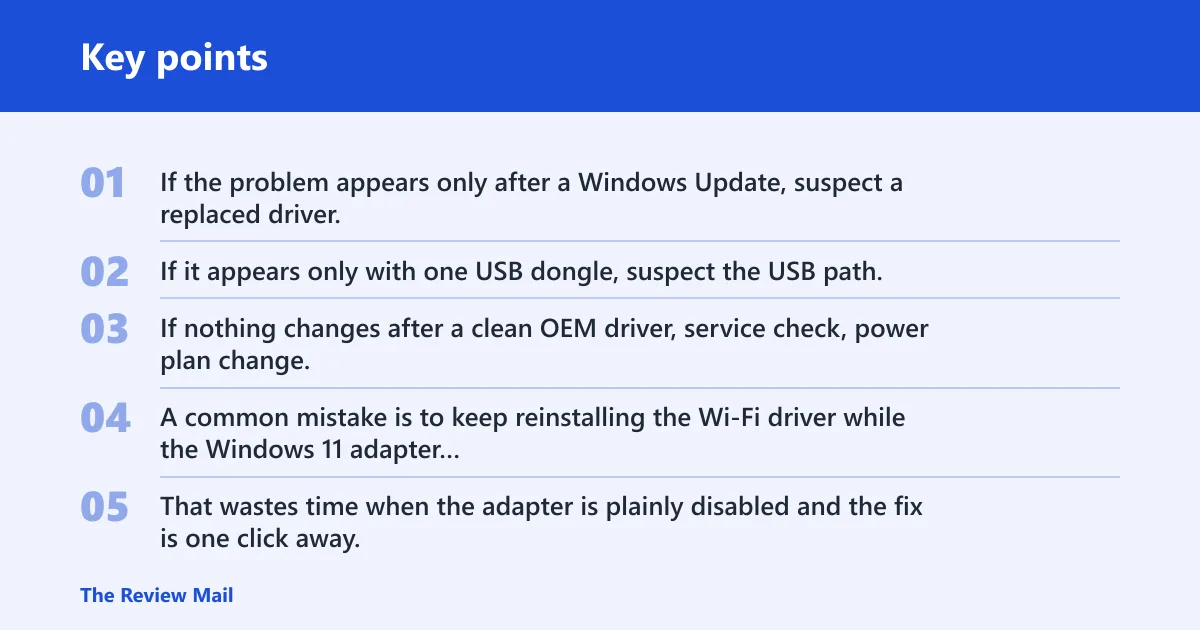
If the problem appears only after a Windows Update, suspect a replaced driver, not the network stack. If it appears only with one USB dongle, suspect the USB path. If nothing changes after a clean OEM driver, service check, power plan change, router restart, and network reset, the adapter may be failing at the hardware level.
A common mistake is to keep reinstalling the Wi‑Fi driver while the Windows 11 adapter is actually being turned off by a power-management setting. That wastes time when the adapter is plainly disabled and the fix is one click away. Check the status first, then move down the ladder.
Prevention: after the fix holds, leave the system through one sleep cycle and one cold restart. If the adapter stays enabled and reconnects normally both times, the repair is likely stable.
Frequently asked questions
Why does my Windows 11 wifi adapter keep disabling itself?
Most often, Windows power management turns the adapter off, especially on laptops after sleep or idle time. Check Device Manager first, then the wireless power plan, then the driver version. If the issue started after an update, roll back the adapter driver before trying a full reset.
How do I stop my wifi adapter from turning off on Windows 11?
Open Device Manager > Network adapters > your adapter > Properties > Power Management, and clear “Allow the computer to turn off this device to save power.” Then set Wireless Adapter Settings to Maximum Performance in Power Options. Test after one sleep and wake cycle.
Why does my network adapter keep turning itself off after sleep?
That pattern usually points to sleep-state power handling. Check the Power Management tab, then the wireless power plan, then the driver. If the adapter still drops, restart the router and forget the saved Wi‑Fi network before trying a reset.
What should I do if there is no Power Management tab in Device Manager?
Open the adapter’s Advanced tab and look for vendor power options such as Power Saving Mode or 802.11 Power Save Mode. If those settings are missing too, install the OEM driver from the laptop or motherboard support page and check again after restart.
Should I disable USB selective suspend for a wifi dongle?
Yes, if the problem is with an external USB adapter. Go to Power Options > Advanced settings > USB settings and set USB selective suspend to Disabled. Then test the dongle on a direct USB port, not a hub, to rule out hub power management.
Will resetting the network stack fix a wifi adapter that keeps turning off?
Sometimes, but it is a later step, not the first one. Use Network reset only after checking Device Manager, the driver, WLAN AutoConfig, the router, and the saved Wi‑Fi network. If you need a command-based repair, run netsh winsock reset and netsh int ip reset, then restart the PC.