Wi-Fi Adapter Keeps Disconnecting on Windows 11
If your wifi adapter keeps disconnecting windows 11, match the fix to the pattern: after sleep, change power settings; after updates, roll back or reinstall the driver; during roaming, adjust band, channel, or adapter roaming aggressiveness. Repeated drops break calls, interrupt downloads, and can make a stable network look faulty when the real problem is one setting. Start with the pattern, then use the smallest fix that fits it.
What repeated disconnects usually mean
When Wi‑Fi keeps dropping and a reboot brings it back, the issue usually points to the network stack or driver, not a DNS-only failure that merely looks like Wi‑Fi trouble (per Microsoft support). Microsoft support applies the same Wi‑Fi help to Windows 10 and Windows 11, so the same checks matter on both. A common first-timer mistake is changing router settings before checking whether the drops happen after sleep, after updates, or only when roaming between access points. (Microsoft Support)
What to note first
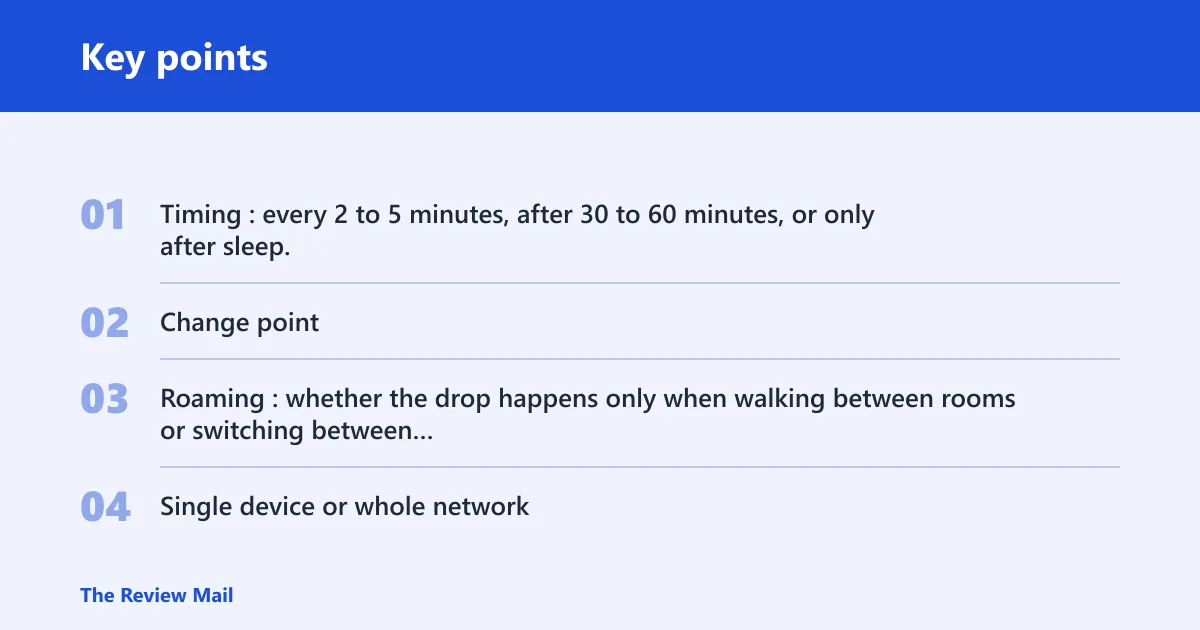
- Timing: every 2 to 5 minutes, after 30 to 60 minutes, or only after sleep.
- Change point: a Windows update, a new driver, a new mesh node, or a USB adapter move.
- Roaming: whether the drop happens only when walking between rooms or switching between mesh nodes.
- Single device or whole network: one PC, one adapter model, or every device on the Wi‑Fi.
If your laptop drops Wi‑Fi every few minutes while idle, then reconnects as soon as you wake it, that pattern points more strongly to adapter power management than to the router. If a desktop with a USB Wi‑Fi adapter drops only when you move the dongle to a front-panel port, the likely cause is port power or adapter stability, not Windows alone.
📊 Microsoft Support’s Wi‑Fi help applies to both Windows 10 and Windows 11. Source: Microsoft.
Wi-Fi adapter decision table
This table separates the symptom pattern from the most likely cause and the next exact step. Start with the row that matches the timing, then stop as soon as the pattern changes.
| Disconnect pattern | Likely cause | Next step | Windows path |
|---|---|---|---|
| Every 2 to 5 minutes | Power management | Turn off adapter power saving | Device Manager > Network adapters > your Wi‑Fi adapter > Properties > Power Management |
| After 30 to 60 minutes | DHCP renewal or network stack | Reset the network stack | Settings > Network & internet > Advanced network settings > Network reset, then run Command Prompt as administrator |
| Right after a Windows update | Driver regression | Roll back or reinstall the driver | Device Manager > Network adapters > your Wi‑Fi adapter > Properties > Driver |
| Only on mesh nodes or extenders | Roaming or access point behavior | Adjust roaming aggressiveness or test a single access point | Device Manager > Network adapters > your Wi‑Fi adapter > Properties > Advanced |
| Only on one adapter model | Hardware or driver compatibility | Use the manufacturer driver or replace the adapter | Device Manager > Network adapters, then the adapter maker’s support site |
Does power management turn off the adapter?
Yes. If drops happen after inactivity or on a laptop after sleep, adapter power saving is one of the first places to look. Microsoft support recommends turning off Wi‑Fi adapter power saving, and a Microsoft answer also points to the Power Management tab in Device Manager. On laptops, a power plan can also limit the wireless connection (reported by howtogeek.com).
- Open Device Manager.
- Expand Network adapters, then open your Wi‑Fi adapter’s Properties.
- Open the Power Management tab.
- Clear Allow the computer to turn off this device to save power.
- On the Advanced tab, check vendor-specific items such as Wireless Adapter Settings, Power saving mode, and roaming aggressiveness.
- If you see Power saving mode, set it to Maximum Performance.
That last setting is common on adapter families that expose wireless power options through the Advanced tab. Some vendors group it under Wireless Adapter Settings, while others split it into separate radio, throughput, or roaming controls. The exact label varies, but the goal is the same: stop the card from backing off too aggressively when traffic pauses.
Is the driver the problem after an update?
If the disconnects started right after a Windows update, driver regression is more likely than a router fault. In that case, do not lead with a fresh driver download. Compare the manufacturer driver with the Windows Update driver first, because Microsoft Q&A users have been advised to install the manufacturer’s driver instead of relying only on Windows Update. That advice fits especially well when the issue started after a change in build or driver version.
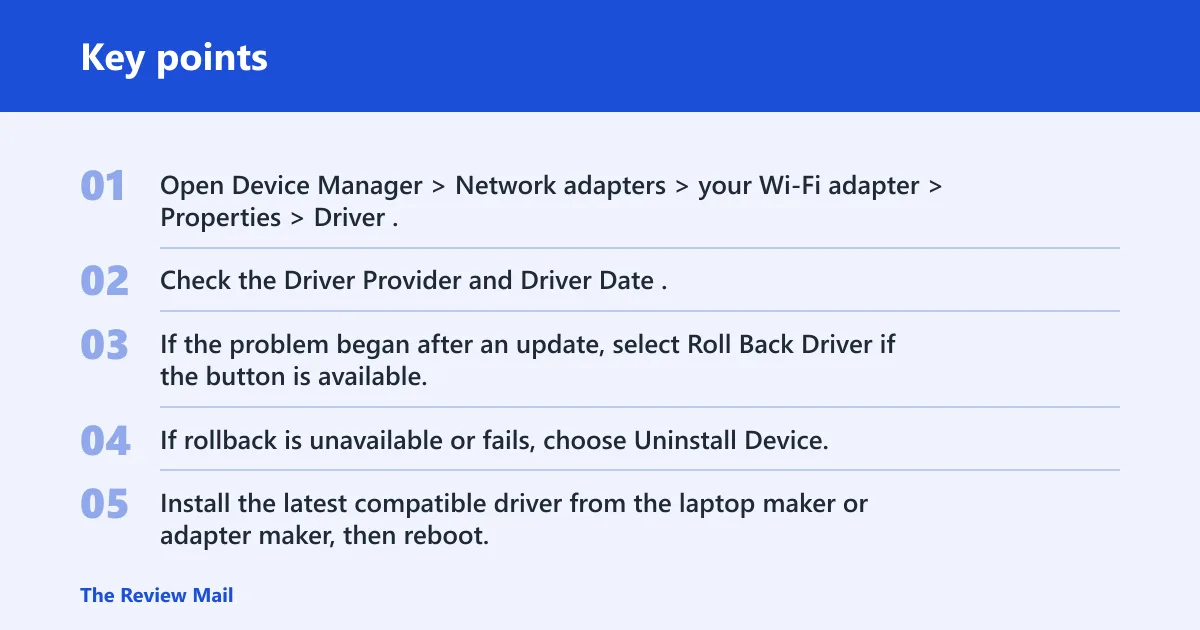
- Open Device Manager > Network adapters > your Wi‑Fi adapter > Properties > Driver.
- Check the Driver Provider and Driver Date.
- If the problem began after an update, select Roll Back Driver if the button is available.
- If rollback is unavailable or fails, choose Uninstall Device, check Delete the driver software for this device if offered, then restart.
- Install the latest compatible driver from the laptop maker or adapter maker, then reboot.
A version regression often looks like stable Wi‑Fi before the update and repeated drops immediately after it. That pattern is different from a router problem, which usually affects more than one device. Microsoft also notes that reinstalling the Wi‑Fi driver can help, and that the latest version should come from the manufacturer’s site rather than only from Windows Update.
Could the network profile or WLAN AutoConfig be broken?
Yes. If the adapter connects but keeps forgetting the session, a saved profile can be damaged. Forgetting and reconnecting often clears that kind of corruption (reported by howtogeek.com). If the network is trusted, changing the profile to Private can also help when sharing or discovery rules are getting in the way. WLAN AutoConfig should be running and set to Automatic; if it stops, wireless connections can fail in the background.
- Go to Settings > Network & internet > Wi‑Fi, then open the saved network and choose Forget.
- Reconnect and re-enter the password.
- For a trusted home or office network, open Settings > Network & internet > Wi‑Fi and set the profile to Private.
- Press Win + R, type
services.msc, and open WLAN AutoConfig. - Set Startup type to Automatic, then select Start if the service is stopped.
If the profile and service are both fine, move to the network stack. Microsoft answer threads recommend netsh winsock reset, netsh int ip reset, ipconfig /release, ipconfig /renew, and ipconfig /flushdns, followed by a restart. Use that sequence before a full reset.
Is the router, mesh system, or USB adapter to blame?
Sometimes yes. If the drops happen only on mesh nodes or extenders, the issue is often roaming or access point behavior rather than Windows itself (reported by howtogeek.com). If only one USB Wi‑Fi adapter fails while other devices stay online, suspect adapter instability, port power, or compatibility. That is different from a whole-home outage, which would affect multiple devices at once.
- Test the same PC on the main router SSID only, with mesh steering or extenders temporarily out of the path.
- If the adapter is USB, move it to a different port and avoid low-power hubs.
- Open Device Manager > Network adapters > your adapter > Properties > Advanced.
- Lower roaming aggressiveness if the adapter keeps jumping between nodes.
- Check router or mesh firmware and node placement if the drops follow a room change.
Another common clue is model-specific failure: one brand or chipset drops while another stays steady on the same network. That points away from Windows and toward a hardware or driver compatibility fault. At that stage, a manufacturer driver or a replacement adapter is often the cleanest fix.
Still not working?
Use the built-in troubleshooter next, then decide whether the problem is inside Windows or outside it. If the adapter, profile, and power settings all look correct, the next step is the Windows Network Adapter troubleshooter; if that does not help, check router or mesh firmware and consider the adapter itself (reported by howtogeek.com).
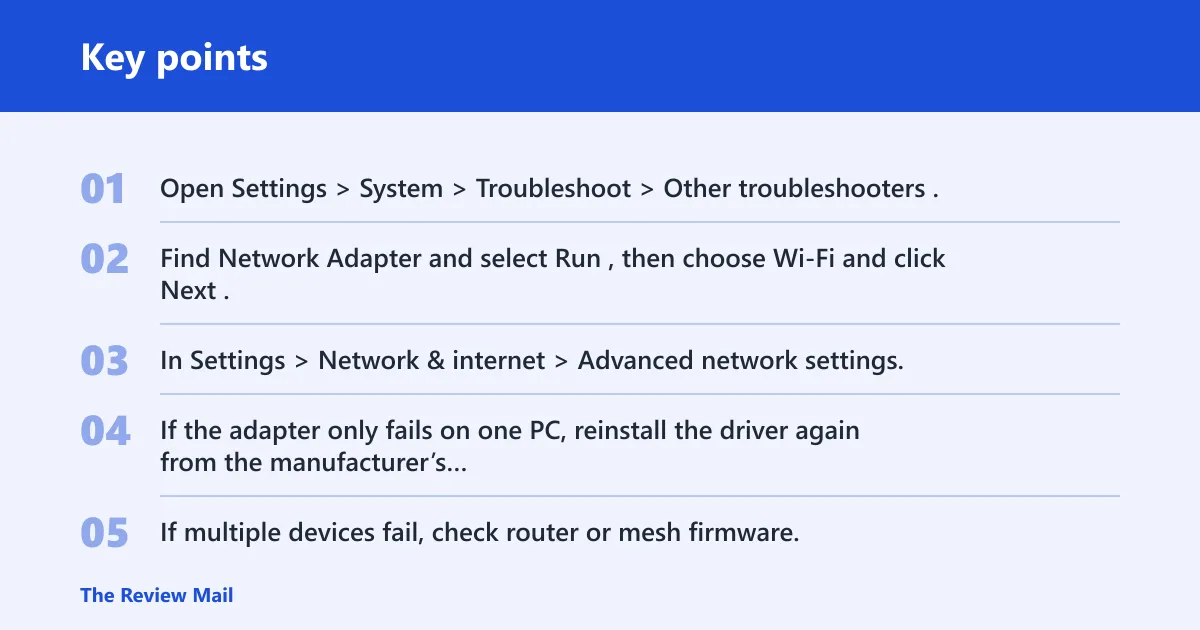
- Open Settings > System > Troubleshoot > Other troubleshooters.
- Find Network Adapter and select Run, then choose Wi‑Fi and click Next.
- In Settings > Network & internet > Advanced network settings, use Network reset if the stack still looks corrupted.
- If the adapter only fails on one PC, reinstall the driver again from the manufacturer’s site.
- If multiple devices fail, check router or mesh firmware, then contact the router or adapter vendor.
Once the connection is stable, leave power saving off for that adapter and keep the manufacturer driver version noted so you can spot a bad update quickly.
Frequently asked questions
What should I check first when Wi‑Fi keeps dropping on Windows 11?
Check timing first. If the drops happen after sleep or inactivity, start with Device Manager > Network adapters > your Wi‑Fi adapter > Power Management. If they started right after an update, compare the current driver with the previous one and use Roll Back Driver if it is available.
How do I stop Windows 11 from turning off my Wi‑Fi adapter?
Open Device Manager, go to Network adapters, open the Wi‑Fi adapter’s Properties, then clear Allow the computer to turn off this device to save power on the Power Management tab. If the adapter still drops after idle time, set Power saving mode to Maximum Performance on the Advanced tab. (Microsoft Learn)
Should I update or roll back my Wi‑Fi driver if disconnects started after an update?
Roll back first if the problem began immediately after the update and the Roll Back Driver button is available. If rollback is unavailable, uninstall the adapter in Device Manager, restart, and install the latest compatible driver from the laptop maker or adapter maker. That sequence helps separate a regression from a missing driver fix.
How do I tell if the problem is my router, adapter, or Windows?
If only one PC drops and other devices stay online, suspect the adapter, driver, or Windows settings. If every device drops at once, look at the router or mesh system. If the problem appears only on mesh nodes or extenders, roaming behavior is a stronger suspect than a Windows fault.
Does forgetting the Wi‑Fi network help fix repeated disconnects?
Yes, especially when the network profile may be corrupted. Go to Settings > Network & internet > Wi‑Fi, choose the saved network, and select Forget. Then reconnect and, on a trusted network, set the profile to Private so the connection rules match the environment.
When should I use Network Adapter troubleshooter or WLAN AutoConfig?
Use the Network Adapter troubleshooter after power settings, driver changes, and profile fixes fail. Use WLAN AutoConfig when the wireless service is stopped or not set to Automatic in services.msc. If that service will not stay running, a network reset or deeper Windows repair may be the next step.