How to Fix Unidentified Network on PC
To fix an unidentified network on a PC, first identify whether Ethernet, Wi‑Fi, or a VPN/virtual adapter is causing it, then reset only that path before changing router or DNS settings. Skipping that order wastes time and can leave you with no internet, broken local network access, or a VPN that keeps overriding Windows. This guide gives you a fast decision flow and the exact fixes for each failure pattern.
What you’ll need
- Administrator access on Windows
- A known-good Ethernet cable, if you are on wired internet
- The correct Wi‑Fi password, if you are on wireless internet
- Router access, if you can reach the router or modem
- Optional: another device that can confirm whether the internet is up
Network troubleshooting matrix
| Symptom | Likely cause | Confirming check | Fix | Expected result |
|---|---|---|---|---|
| Ethernet shows unidentified network | Cable, port, adapter, or DHCP lease problem | Try another cable or router port; check Device Manager | Refresh adapter, then reset TCP/IP and DNS | Internet returns and the adapter gets a valid gateway |
| Wi‑Fi shows connected but no internet | Bad SSID handoff, stale lease, DNS, proxy, or VPN conflict | Reconnect to the SSID and test another device on the same network | Forget the network, renew IP, then check VPN and proxy | Windows gets a normal network status and browsing works |
| Issue appears after VPN or virtual networking software | Software-created adapter is taking over routing | Open Network Connections and look for bridge, tunnel, or VPN adapters | Disable the conflicting virtual adapter | Windows uses the physical Ethernet or Wi‑Fi adapter again |
| Problem survives driver, DNS, and reset steps | Windows network settings are stuck | Confirm the router works for another device first | Use Windows network reset | Windows rebuilds the networking profile after restart |
Start by deciding where the fault lives. If another device also cannot reach the internet, the router, modem, or ISP is the better lead. If only this PC fails, work down the Windows stack in order: adapter, TCP/IP, DNS, then firewall or virtual networking.
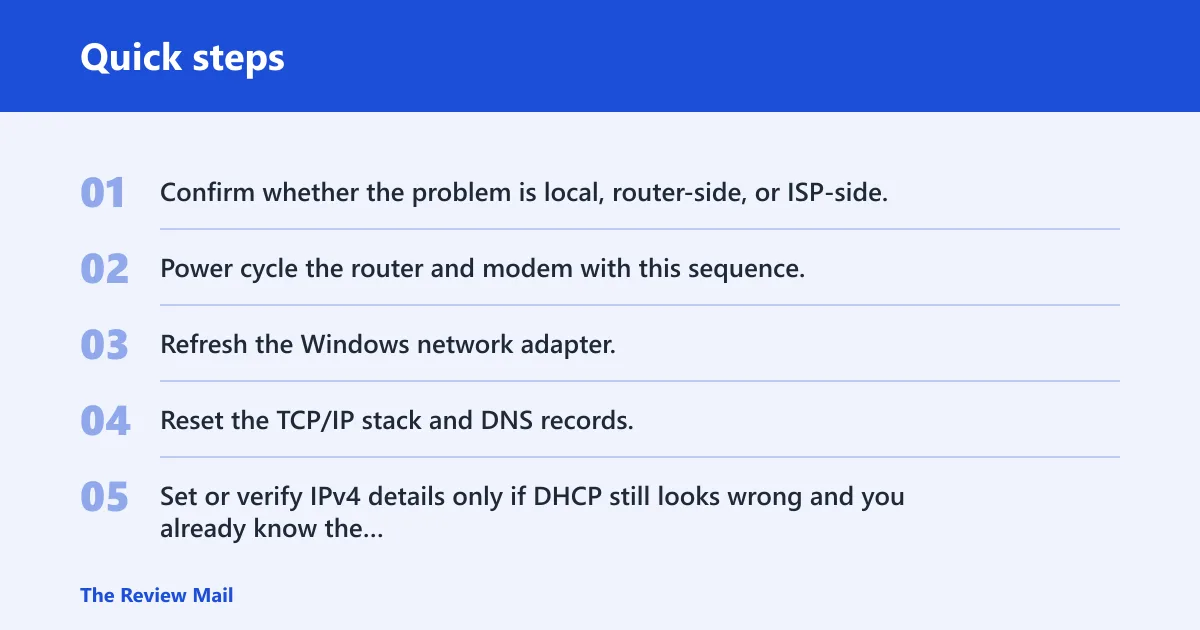
- Confirm whether the problem is local, router-side, or ISP-side. Test another phone or laptop on the same network, and if possible open a known-good site such as Google on that other device. Help Desk Geek, in its unidentified-network troubleshooting article, recommends testing Google first to confirm internet access.
- Power cycle the router and modem with this sequence. Unplug both devices for 30 seconds, plug in the modem first, wait for its online light to stabilize, then plug in the router and wait for the Wi‑Fi light and SSID broadcast before changing Windows settings.
- Refresh the Windows network adapter. Open Device Manager > Network adapters, right-click the active Ethernet or Wi‑Fi adapter, choose Disable device, wait a few seconds, then Enable device. Make Tech Easier, in its roundup of fixes for unidentified network errors, lists adapter refresh as one of the quickest.
- Reset the TCP/IP stack and DNS records. Open Windows Terminal (Admin), run the command sequence below after you have confirmed the active adapter, then restart Windows so the new stack loads. Help Desk Geek includes
netsh int ip resetin its network-reset steps, and the same reset path is used for both IPv4 and IPv6 cleanup.
ipconfig /release
ipconfig /flushdns
ipconfig /registerdns
ipconfig /renew
netsh winsock reset
netsh int ip reset
- Set or verify IPv4 details only if DHCP still looks wrong and you already know the correct local addressing scheme. Open Network Connections with Windows key + R, type NCPA.CPL, press Enter, then open the adapter properties.
- Check Firewall and virtual adapters. In Control Panel > System and Security > Windows Defender Firewall > Turn Windows Defender Firewall on or off, confirm the firewall setting for the profile your connection is actually using and make sure no third-party security tool is overriding it. Then look in Network Connections for VPN, bridge, tunnel, Hyper-V, or other software-created adapters and disable the one that conflicts.
- Use Windows network reset if the issue remains. Go to Settings > Network & internet > Advanced network settings > Network reset > Reset now, then restart. This is intended to clear and rebuild network components on both Windows 10 and Windows 11.
Suppose Ethernet works on a second laptop but this PC still shows unidentified network after a DNS flush. That points to the adapter, lease, or firewall on the PC itself, not the modem. In that case, changing to a static IP too early can hide the real fault.
If you are on Windows 10, the path names above still apply, but the Settings layout may be more compact. On Windows 10 builds where Advanced network settings is available, use that page for Network reset; on older Windows 10 builds, use Settings > Network & internet > Status > Network reset. On Windows 11, the Advanced network settings page is the current place to reach Network reset and adapter controls.
What if Ethernet still shows unidentified network?
If wired internet still fails, focus on the cable path and the adapter itself. Help Desk Geek’s wired-connection guidance notes that the Ethernet cable should be part of the check, and that both Ethernet and Wi‑Fi adapters may be active at the same time, which can confuse routing.

- Swap the Ethernet cable and try a different router port.
- Open Device Manager > Network adapters and confirm the Ethernet adapter is present and enabled.
- Right-click the adapter, choose Update driver, then Search automatically for drivers. If that fails, use the vendor package from the PC or motherboard maker.
- Open Command Prompt and run
ipconfig. Check whether the adapter has a default gateway. Tech News Today, in its manual IPv4 troubleshooting guide, uses the Default Gateway fromipconfigfor manual IPv4 setup.
Say your desktop works on Wi‑Fi but Ethernet keeps landing on unidentified network after a router move. That usually points to a bad cable, a dead port, or a stale lease on the wired adapter, not a full Windows reinstall.
Why does Wi-Fi show unidentified network?
Wi‑Fi failures often come from the network handoff itself: the SSID is saved, but the lease, DNS, or adapter state does not complete cleanly. A forum case reported by bleepingcomputer.com described no internet over Wi‑Fi after “messing around” with hosted network settings, while Ethernet still worked. That pattern is common when a virtual or wireless setting gets in the way.
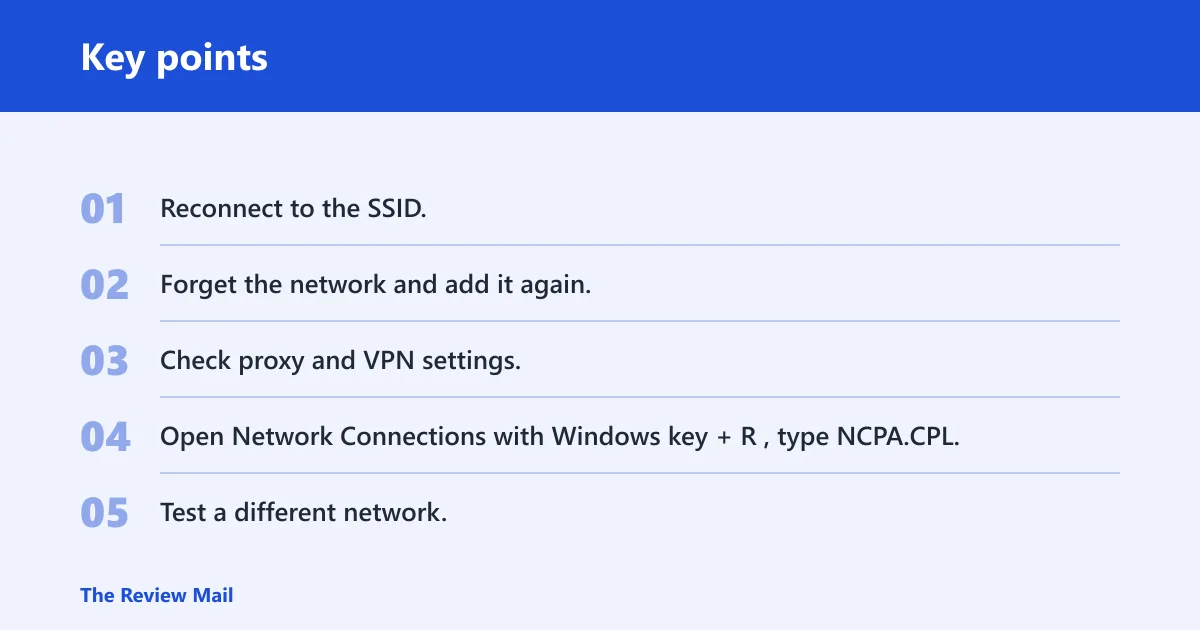
- Reconnect to the SSID. Use Settings > Network & internet > Wi‑Fi, disconnect, then reconnect with the password.
- Forget the network and add it again. This clears an old profile that may be holding bad DNS or security details.
- Check proxy and VPN settings. If a VPN profile or proxy is still active, turn it off before testing Wi‑Fi again.
- Open Network Connections with Windows key + R, type NCPA.CPL, and disable any bridge or tunnel that was added. That step is reported by bleepingcomputer.com in its discussion of this kind of Wi‑Fi breakage.
- Test a different network. If the PC joins another hotspot normally, the original SSID or router configuration is the likely problem.
Picture a laptop that connects to home Wi‑Fi, shows a network icon, and still cannot load a page. If a phone on the same SSID works, the next check is the PC’s saved Wi‑Fi profile or a VPN adapter, not the modem.
Common mistakes
- Changing DNS, static IP, firewall, and adapter settings at once. That makes it hard to see which step fixed the problem.
- Setting a manual IP before checking the default gateway from
ipconfig. Without the right gateway, the PC may stay online only on the local network. - Leaving a VPN, bridge, tunnel, or Hyper-V adapter enabled while testing. Help Desk Geek notes that software-created Ethernet devices can conflict with the live adapter.
- Skipping the restart after
netsh winsock resetornetsh int ip reset. The stack does not fully reload until Windows restarts. - Assuming the issue is Windows when another device on the same network also fails. That usually shifts the work back to the router, modem, or ISP.
Prevention: after a network reset or driver update, restart Windows before you retest the connection. That keeps the adapter, DNS client, and TCP/IP stack on the same state.
Frequently asked questions
How to fix unidentified network windows 11
On Windows 11, start with Settings > Network & internet > Advanced network settings. Refresh the adapter in Device Manager, then run ipconfig /flushdns and netsh int ip reset from Windows Terminal (Admin). If that fails, use Network reset > Reset now and restart.