
Wifi Disconnecting Frequently Windows 11
If Windows 11 Wi‑Fi drops only on one PC, only on battery, or only near mesh nodes, isolate power, driver, router, and roaming before you change settings; one pattern usually points to the cause. Skip that order, and you can burn time on the wrong fix while calls, downloads, and sign-ins keep failing. This guide shows the fastest checks to prove whether the fault is power management, a bad driver, the router, or mesh roaming.
What kind of disconnect are you seeing?
The fastest way to fix random Wi‑Fi drops is to match the symptom to the layer that fails first. Do not change everything at once. A battery-only drop points somewhere else than a router-wide outage, and “connected but no internet” is different from a full wireless disconnect.
| Symptom | Likely layer | Quickest verification test | Safest next fix |
|---|---|---|---|
| Drops only on battery | Power management | Unplug the charger and watch whether the drop starts after the power state changes | Disable adapter power saving in Device Manager |
| Drops after Bluetooth use | Driver or radio coexistence | Turn off Bluetooth headphones or other Bluetooth devices and see whether Wi‑Fi steadies | Update, roll back, or reinstall the wireless driver |
| Only this PC disconnects | Adapter or driver | Compare with a phone or another laptop on the same network | Inspect the wireless adapter in Device Manager |
| All devices disconnect | Router or modem | Check whether phones, tablets, and consoles drop at the same time | Restart the router or modem and check firmware status |
| Disconnects at the same time daily | Router schedule, interference, or service issue | See whether the timing matches reboots, backups, or a nearby device schedule | Check router logs, placement, and channel congestion |
| Drops on mesh but not single AP | Mesh roaming | Connect to one node or a single access point and compare stability | Reduce roaming variables and retest handoff behavior |
| Connected but no internet | DNS or network stack | Open a local device page or ping the router; if the link stays up, the wireless link is not the main failure | Flush DNS or reset network settings |
| Adapter disappears from Device Manager | Driver, power, or hardware | Open Device Manager and check Network Adapters after the drop | Reinstall the driver; if it still vanishes, check hardware and power behavior |
Suppose a laptop drops only when it runs on battery and reconnects as soon as you plug in the charger. That pattern points to adapter power management first, not the router. Picture a desktop that keeps its signal but cannot reach any websites while every phone on the same home network stays online; that points away from Wi‑Fi signal and toward DNS or the Windows network stack.
Is Windows 11 cutting Wi‑Fi power?
Yes, it can. Random Wi‑Fi disconnects on Windows 11 laptops often trace back to power management, especially when the drop happens on battery but not when plugged in. The key setting is Allow the computer to turn off this device to save power, which can push the wireless adapter into a low-power state that looks like a bad connection. (Microsoft Learn)
Check the adapter’s power setting
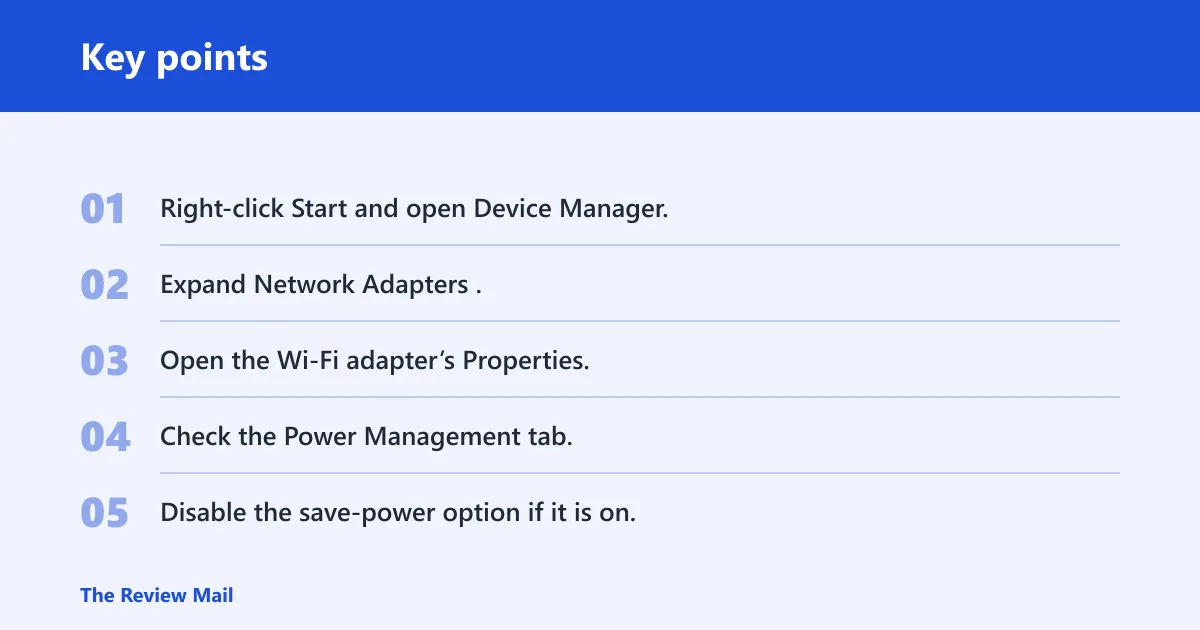
Open Device Manager, expand Network Adapters, and open the wireless adapter’s properties. On the Power Management tab, clear Allow the computer to turn off this device to save power if it is enabled. That change matters most when the problem appears only after you unplug the charger.
- Right-click Start and open Device Manager.
- Expand Network Adapters.
- Open the Wi‑Fi adapter’s Properties.
- Check the Power Management tab.
- Disable the save-power option if it is on.
- Test the system on battery and plugged in.
After you change the power setting, give the connection a real test window. A common recommendation is to watch it for 30 minutes after the change so you can tell whether the drop pattern actually changed instead of guessing after one reconnect.
Use battery-only behavior as the clue
A battery-only drop is one of the clearest signs that the wireless adapter is entering a low-power state. If the same laptop stays stable on AC power, do not chase mesh settings first. Start with the adapter, then move to the driver if the power setting does not change the pattern.
Should you update or reinstall the Wi‑Fi driver?
Often, yes. If the issue follows the adapter across networks, Device Manager is the next place to look. Open Network Adapters, then try update, roll back, or reinstall. A version mismatch between the OEM driver and the one pushed by Windows Update can leave a machine unstable even when the signal is strong.
Try the least disruptive driver step first
Start with Update Driver, then choose Search automatically for drivers. If the newest package made the problem worse, roll back to the previous version. If neither helps, uninstall the adapter and reinstall it after a restart so Windows rebuilds the device entry.
Prefer the right source for the driver
Windows Update does not always install the same wireless package that the laptop maker or adapter maker provides. That mismatch matters when a newer generic driver conflicts with OEM tuning, band steering, or Bluetooth coexistence support. If the issue began after an update, check whether the OEM package is newer, older, or simply different from the Windows Update version.
A common first-timer mistake is to install a driver from a different laptop family because the model name looks close enough. That can make a good connection worse. Stick to the exact adapter or PC family whenever possible.
Can Bluetooth trigger the disconnects?
Yes. Bluetooth can trigger Wi‑Fi drops, especially on systems where the wireless adapter handles both radios or where the adapter family has coexistence quirks. Reports tied to Intel or Killer adapters often mention the drop starting right after Bluetooth headphones connect, audio starts, or another Bluetooth device begins transmitting.
Turn Bluetooth off as a clean test
Do not change three settings at once. Turn Bluetooth off, disconnect the headphones, and watch whether the Wi‑Fi stops dropping. If the problem appears only when Bluetooth is active, the issue is more likely driver behavior or radio coexistence than the router.
Look for the timing, not the brand name
The useful clue is the sequence. If Wi‑Fi stays stable until Bluetooth starts, then drops within seconds or minutes, that is more useful than the adapter logo alone. If Bluetooth has no effect, leave it out of the next round of fixes and focus on power, driver, or router behavior.
Could the router, band, or mesh be the cause?
Yes, and this is where many fixes go off track. If every device drops at once, the router or modem is the main suspect. If only one PC struggles, the problem may still be on the Wi‑Fi side, but the router, band choice, or mesh handoff can still be the trigger.
Restart the router or modem first
How-To Geek recommends restarting the router first to rule out a minor glitch. Wait at least 10 seconds before plugging the router back in. That simple power cycle can clear temporary faults without changing any Windows settings.
Check firmware, heat, and placement
Look for outdated firmware, a hot enclosure, or poor placement near metal, a cabinet, or other electronics. Overheating can make a router unstable long before it fails completely. If the disconnects happen to every device, firmware and placement deserve attention before the PC is blamed.
Compare 2.4 GHz and 5 GHz
2.4 GHz reaches farther but is more exposed to congestion from neighboring networks and home devices. 5 GHz is usually faster and less crowded, but it can be more sensitive to distance and walls. If the laptop drops only on one band, that band’s channel choice or congestion is part of the answer.
Test mesh roaming, not just signal strength
Mesh Wi‑Fi can cause Windows 11 drops when a device hands off from one node to another. That is not the same as a dead router. Test by connecting to a single access point or a single mesh node and comparing that result with the full mesh setup. If the problem disappears on one node, roaming is the likely trigger.
Why does Wi‑Fi disconnect but show no internet?
That symptom usually points to the network stack or DNS, not a full wireless drop. If Windows still says it is connected, the radio link may be fine while name resolution or the local network profile is failing. Check the profile first, then reset the stack only if the link stays up but websites still fail.
Set the profile correctly for a trusted home network
How-To Geek directs users to Settings > Network & Internet > Wi‑Fi > Manage Known Networks and says to set the profile type to Private on trusted networks. That changes sharing and discoverability behavior, which can matter when a home PC behaves differently from a phone or console on the same router.
Reset DNS and network settings in the right order
If the Wi‑Fi link stays up but the internet fails, flush DNS first. Use a full network reset only after you have confirmed that the issue is not just a failed lookup cache or a bad profile. If the adapter truly disconnects from Wi‑Fi, a DNS reset will not fix it.
Why does this split matter? Because “connected but no internet” can tempt people into reinstalling the driver or replacing the router when the wireless link never actually fell. Keep the symptom separate from the fix.
Restart WLAN AutoConfig if wireless becomes unstable
How-To Geek points to WLAN AutoConfig as the service behind wireless connections. Restarting it can restore stability when Wi‑Fi becomes erratic after sleep, wake, or repeated reconnects. If the adapter and router look fine but Windows keeps renegotiating the connection, that service is worth restarting.
Frequently asked questions
Why does my wifi keep disconnecting on windows 11?
Start by matching the symptom to the layer. Battery-only drops point to adapter power management, drops after Bluetooth point to driver or radio coexistence, all-device drops point to the router, and mesh-only drops point to roaming. If it is “connected but no internet,” check DNS and the network stack instead.
Does power management cause wifi to drop on windows 11?
Yes, especially on laptops. The setting Allow the computer to turn off this device to save power can put the wireless adapter into a low-power state that breaks the connection on battery. If the problem happens only when unplugged, power management should be one of the first things you check.
Should I update or reinstall my wifi driver for random disconnects?
Yes, if the issue follows the PC rather than the router. Open Device Manager, expand Network Adapters, and try update, roll back, or reinstall. If Windows Update and the OEM package do not match, the mismatch itself can be part of the problem, especially after a recent driver change.
Why does wifi disconnect when I use bluetooth headphones?
Bluetooth can interfere with Wi‑Fi on some adapter families, especially when the disconnect starts right after the headphones connect or audio begins. Turn Bluetooth off as a clean test. If Wi‑Fi stabilizes, the next step is usually driver work, not router changes.
Can a mesh network cause windows 11 wifi drops?
Yes. Mesh roaming can make a Windows 11 device drop when it moves between nodes or gets steered between bands. Test the PC on a single node or single access point. If the drop disappears there, the handoff behavior is the part to fix, not the laptop’s power setting.
Why does my wifi keep disconnecting only on this pc?
That pattern usually points to the adapter, driver, or power settings on that machine. Compare it with another phone or laptop on the same network. If everything else stays online, the router is less likely to be the root cause and the PC-side wireless stack deserves the first pass.