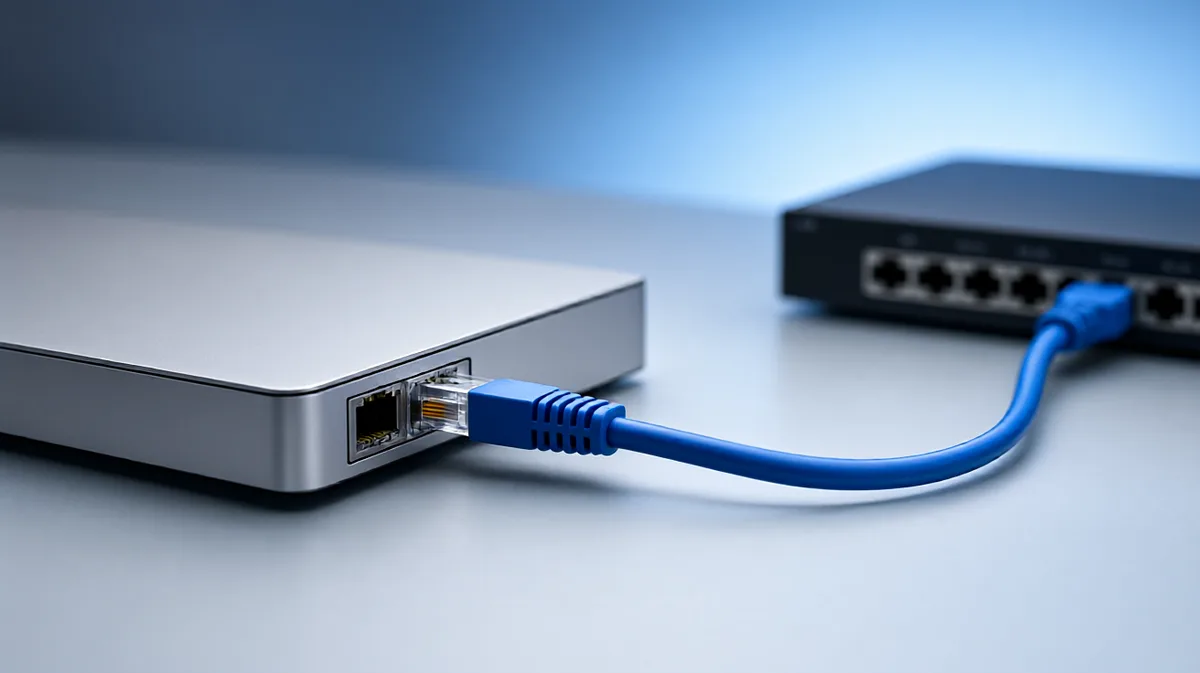
Windows 11 Not Recognizing Ethernet Cable
When Windows 11 does not recognize an Ethernet cable, start with the physical link: inspect the cable, read the port lights, and check adapter status before you touch IP settings or policy. If you skip the wrong layer, you can waste time and stay offline even though the network is fine. This guide splits the fault into physical link, adapter, IP assignment, and policy so you can isolate the cause fast.
Why Windows 11 says cable unplugged
If Windows says the cable is unplugged, the system usually does not see a live electrical link on the Ethernet port. That points first to the cable, the port, or the adapter hardware. If the link exists but the PC still has no internet, the problem has moved higher, into driver, IP, DNS, or proxy settings.
Ethernet diagnostics table
| Symptom | Most likely layer | Fastest test | Next action |
|---|---|---|---|
| No link light on PC or router port | Physical link | Reseat both ends, then swap in a known-good cable | Try another router or switch port; if still dark, test the PC port or wall jack |
| Cable detected but no internet | IP assignment, DNS, or proxy | Check whether other devices on the same router port work | Run the troubleshooter, then use the command-line repair sequence if needed |
| Adapter missing in Device Manager | Driver or device enumeration | Open Device Manager and look for the Ethernet adapter under network adapters | Update, uninstall, or reinstall the driver; restart to let Windows reload it |
| Works through router but not direct from wall jack | Upstream wiring or switch path | Patch the same cable into a known-good router or switch port | Check the wall jack, patch panel, and upstream switch before blaming the PC |
| Ethernet disabled after sleep or update | Power management or driver | Check whether the adapter is disabled in Device Manager or power settings | Re-enable the adapter, disable power saving for it, then reinstall the driver if needed |
Check the cable and ports first
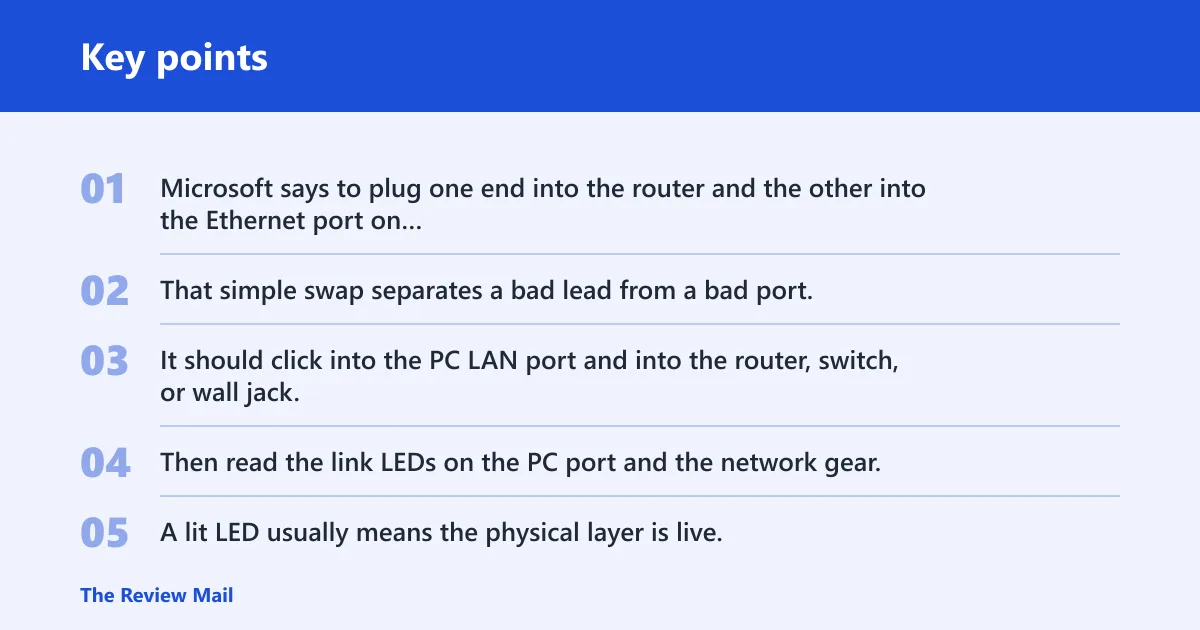
Start with the cable, not the registry. Microsoft says to plug one end into the router and the other into the Ethernet port on your PC, and it recommends trying another Ethernet cable if one does not work. That simple swap separates a bad lead from a bad port.
Check the Ethernet cable at both ends. It should click into the PC LAN port and into the router, switch, or wall jack. Then read the link LEDs on the PC port and the network gear. A lit LED usually means the physical layer is live; a dark port usually means the link is not coming up.
Test different ports one at a time. Move the cable to another router or switch port, then to another wall jack if one is available. If the link comes up on one port and not another, the fault follows the port path, not Windows.
Say your desktop shows “network cable unplugged” and the router port LED stays dark. If swapping to a known-good cable makes the LED light, the original cable is the problem. If the new cable still shows no link on two router ports, the PC port or upstream path is more likely.
📊 Microsoft’s Windows 11 troubleshooting starts with the Get Help app’s Network and Internet troubleshooter. Source: Microsoft.
Is the network adapter missing?
If the Ethernet adapter is missing in Device Manager, Windows is not seeing the device normally. That can happen after a driver problem, a Windows update, or a device disable event. It is not the same as a cable problem, because the port may not even be loaded in the system.
Open Device Manager and check adapter status
Open Device Manager and expand Network adapters. Look for the Ethernet adapter name, a warning icon, or a disabled state. If the adapter is present but disabled, enable it. If it is missing entirely, Windows may need the driver reloaded or the device re-enumerated. (Microsoft Learn)
- Open Device Manager.
- Expand Network adapters.
- Look for your Ethernet adapter, a warning symbol, or a disabled entry.
- If disabled, enable it.
- If missing or broken, reinstall the driver.
- Restart and check again.
Update, uninstall, or reinstall the driver
Network adapter driver problems can appear after Windows updates. If the adapter is listed but not working, update the driver first. If that fails, uninstall the Ethernet network adapter driver and restart. Microsoft advises uninstalling the Ethernet network adapter driver if earlier steps fail, and Windows may reinstall it after reboot.
That reboot matters. The device can come back with a fresh driver load, which is often enough when the problem is a bad driver state rather than broken hardware.
Why does Ethernet work through a router but not a wall jack?
If Ethernet works through a router port but not through a wall jack, the wall path is the first suspect. The issue may sit in the patch panel, the upstream switch, or the jack itself. That does not point to a bad PC by default.
Check upstream wiring, patch panels, and switch ports
Wall-jack scenarios often depend on the wiring upstream of the room. A jack can be dead because its patch-panel pair is unplugged, the switch port is disabled, or the cable run is damaged. The PC may be fine while the building path is not.
Use a known-good cable and connect the PC directly to a router or switch port. If that works, the wall jack path is the problem. If the same cable fails at the router and at the wall, the PC port or cable is still in play.
Picture a home office with a wall jack near the desk and a router in another room. The PC links instantly to the router with a short patch cord, but the wall jack stays dark. That pattern points to the wall run, not to Windows 11.
Should you run Windows troubleshooting or reset?
Run the built-in Windows path before command-line repairs. Microsoft’s Windows 11 troubleshooting starts with the Get Help app’s Network and Internet troubleshooter. Use it when the cable and port are already known good, but the PC still shows no connection or no internet.
Use Network troubleshooter or Get Help first
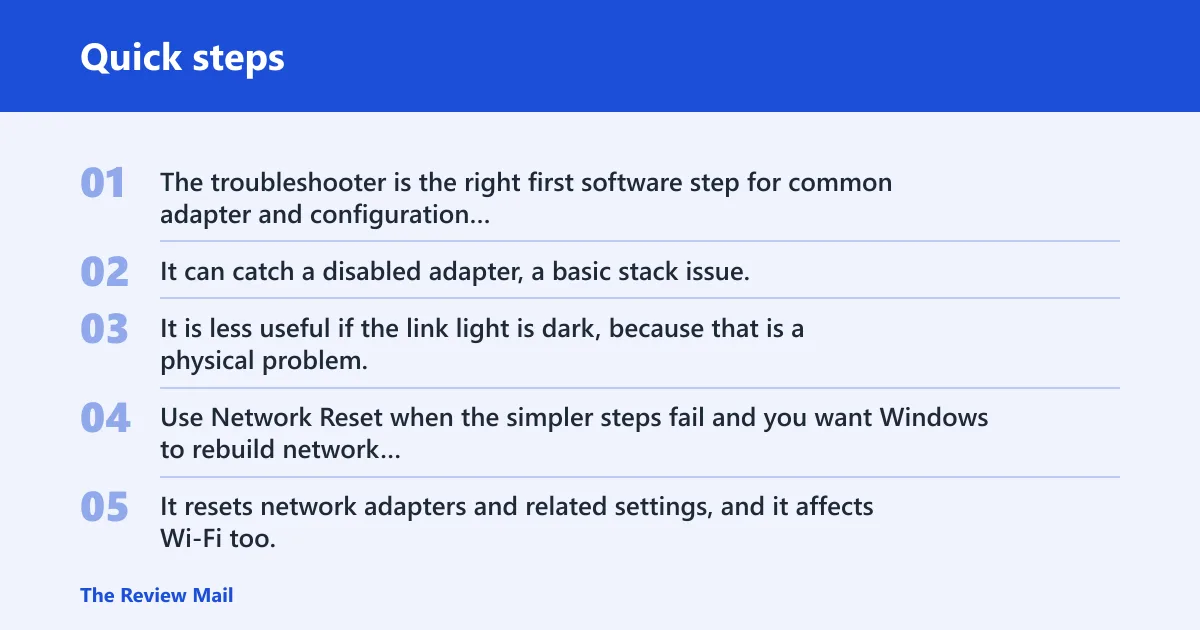
The troubleshooter is the right first software step for common adapter and configuration faults. It can catch a disabled adapter, a basic stack issue, or a simple configuration error without forcing you into manual commands. It is less useful if the link light is dark, because that is a physical problem.
When to use network Reset
Use Network Reset when the simpler steps fail and you want Windows to rebuild network settings. It resets network adapters and related settings, and it affects Wi-Fi too. After the reboot, you need to reconnect to Ethernet or Wi-Fi and re-enter any network-specific settings that were lost.
Do not start with Network Reset if the cable is clearly bad or the adapter is missing. That would be a broad fix for a narrow problem.
What to expect after the reboot
After Network Reset, Windows may forget saved network details, the adapter may come back with default settings, and Wi-Fi profiles may need to be joined again. Check the Ethernet link light first, then confirm that the adapter is enabled and that the PC gets an IP address.
Command-line repairs for IP and DNS
Use command-line repairs when the physical link is good, the adapter is present, and Windows still cannot get a valid IP address or resolve names. Microsoft includes netsh winsock reset before other repair commands, then netsh int ip reset, and later ipconfig /release, ipconfig /renew, and ipconfig /flushdns in the repair sequence. These steps fit layer-3 and name-resolution problems, not a dead cable.
Reset Winsock
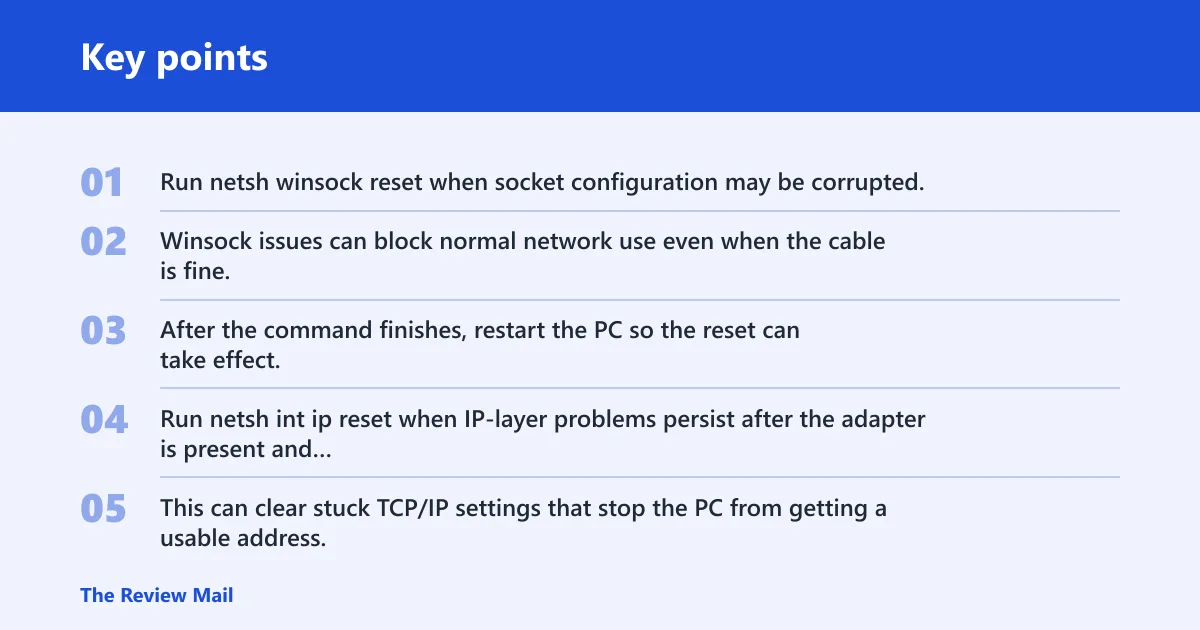
Run netsh winsock reset when socket configuration may be corrupted. Winsock issues can block normal network use even when the cable is fine. After the command finishes, restart the PC so the reset can take effect.
Reset the TCP/IP stack
Run netsh int ip reset when IP-layer problems persist after the adapter is present and the link light is on. This can clear stuck TCP/IP settings that stop the PC from getting a usable address. It is more relevant when the adapter links up but the machine still cannot reach the network.
Flush DNS
Run ipconfig /flushdns when websites or hostnames fail while the Ethernet connection itself looks alive. This clears the DNS client resolver cache. It helps when the PC can reach an IP address but not a name.
Common first-timer mistake: running all three commands before checking the link light. If the port is dark, DNS and IP commands will not fix a disconnected cable.
What should I check first when Ethernet is not recognized?
Check the cable, the link lights, and the adapter status first. That sequence separates a physical problem from a driver or configuration problem in a few minutes. If the cable is secure at both ends and the port lights stay dark, focus on the cable, port, or hardware next.
Power management and proxy settings
Power management can turn off an adapter to save power. Open the adapter’s properties and look for the setting that lets Windows turn off the device to save power. Disable that setting if the adapter drops after sleep or after a long idle period.
Proxy settings can also block normal traffic if a LAN proxy was enabled unexpectedly. Check Windows proxy settings and disable a proxy that should not be there. A proxy problem can cause no internet access, but it does not usually make the Ethernet port disappear.
When to stop troubleshooting the PC
Stop focusing on Windows when the same cable fails on multiple ports, the link LEDs never light, and the adapter is missing or repeatedly vanishes after reinstall. At that point, the fault may be the cable, the port, or the motherboard Ethernet controller. A USB to Ethernet adapter is a practical fallback if the built-in port is absent or damaged.
Frequently asked questions
Why isn’t my ethernet cable working on my PC?
The usual causes are a bad cable, a dead port, a disabled or missing adapter, or a higher-level IP issue. Start with the physical link: reseat both ends, read the LEDs, and try a known-good cable. If the adapter is present but the cable still shows unplugged, move to driver and power settings.
Why is Windows 11 not detecting my LAN cable?
Windows 11 may not detect the LAN cable when the port is not negotiating a link, when the adapter driver is broken, or when the adapter is disabled. Check Device Manager first, then the cable and port lights. If the adapter is missing, reinstall the driver and restart.
Why does Windows say network cable unplugged when it is plugged in?
That message usually means the physical link is not being established, even if the plug feels secure. The cable may be faulty, the router or switch port may be bad, or the PC port may have failed. Swap the cable and test another port before changing IP settings.
What should I do if the Ethernet adapter is missing in Device Manager?
If the adapter is missing in Device Manager, Windows is not loading it normally. Restart first, then check again. If it still does not appear, install or reinstall the Ethernet driver, and let Windows reload the device on reboot. If it disappears repeatedly, suspect hardware.
Will network reset fix Ethernet not working on Windows 11?
Network Reset can fix stubborn configuration problems, but it is not the first move for a dead link light or a missing adapter. Use it after cable, port, adapter, and driver checks fail. Expect Wi-Fi and Ethernet settings to need reconnecting after the reboot.
When should I replace the cable, adapter, or motherboard port?
Replace the cable when a known-good replacement works and the original does not. Replace or bypass the adapter with a USB to Ethernet adapter when Device Manager cannot keep it loaded. Suspect the motherboard port when multiple known-good cables and ports fail on the same PC.