How to Fix Device Manager Error
Start by matching the symptom to the failure type: missing device, yellow warning icon, disabled device, hidden or non-present device, or code error, then fix that specific cause before touching drivers. Chasing the wrong cause burns time and can leave hardware unavailable, unstable, or stuck in a repeat error state. This guide shows how to read Device Manager symptoms first, then pick the right fix for each common failure path.
What you need before you start
Most Device Manager fixes rely on built-in Windows tools, not third-party utilities. Have administrator access, a network connection for driver lookup, and access to Safe Mode, Disk Management, and Windows Update troubleshooting if the first pass does not resolve the error. Microsoft documents Device Manager, Plug and Play, Safe Mode, driver rollback, driver updates, and recovery tools as the core repair path for these issues.
- Administrator access on the Windows account.
- An internet connection for driver lookup.
- Windows installation media only if Windows will not boot normally.
- Disk Management for storage devices that do not appear in Explorer.
- Safe Mode if background software blocks driver loading.
What Device Manager errors mean
Device Manager is the Windows hardware management console that opens with devmgmt.msc. It lets you update, roll back, disable, enable, or uninstall drivers, and it flags trouble with yellow warning icons and code numbers. Microsoft’s Device Manager and error-code references are the best source for interpreting those codes because the next step depends on whether the device is missing, disabled, hidden, or present with a specific error.
Decision table
| Symptom | Likely cause | Safe first action | Escalation action | When to stop and inspect hardware |
|---|---|---|---|---|
| Device Manager will not open | Broken console launch, shell issue, or policy problem | Run devmgmt.msc from Start search | Open Windows in Safe Mode and try again | If the console fails in Safe Mode, inspect Windows repair or policy damage |
| Device is missing from the list | Not detected by Plug and Play or unplugged hardware | View > Show hidden devices | Reconnect the device or move it to another port | If it still does not appear anywhere, inspect the device, cable, or port |
| Device is disabled | Manually disabled or disabled by policy | Right-click the device and choose Enable device | Restart Windows if it does not re-enable cleanly | If the device re-disables after reboot, inspect policy, software conflict, or hardware |
| Hidden or non-present device shows as faded | Ghost entry from previous connection or hardware change | Show hidden devices and confirm the device is still attached | Uninstall the ghost entry, then scan for hardware changes | If the same device returns as absent again, inspect the hardware path |
| Unknown device | Windows can detect hardware but not identify it | Open Properties > Details > Hardware Ids | Use the hardware IDs to match the correct vendor driver | If Hardware Ids are missing or unstable across ports, inspect hardware |
| Yellow warning icon | Driver load failure, bad device state, or code error | Open Properties > General and note the code | Update the driver, roll it back, or uninstall and rescan the device | If code 43 or code 45 repeats after a clean reinstall, inspect hardware |
| Code 10 | Device cannot start | Restart, then check Driver tab | Update or roll back the driver | If the code returns across ports or after a known-good driver, inspect hardware |
| Code 19 | Incomplete or damaged registry configuration information | Back up first, then check registry-related entries only if the device class is known | Remove the bad class entry and trigger Plug and Play reinstall | If the same code affects several devices, inspect wider registry or Windows damage |
| Code 28 | No driver installed | Use Update driver > Search automatically for drivers | Install the manufacturer driver package | If the vendor package does not bind, inspect the device identity and hardware type |
| Code 31 | Windows cannot load the required drivers for the device | Rollback recent driver changes | Reinstall from the vendor package | If a stable driver still fails, inspect the device and any conflicting software |
| Code 32 | Driver start is blocked, often by service or filter conflict | Check Driver tab and recent software installs | Remove the conflicting driver package or filter | If the block survives a clean boot, inspect hardware or deeper software conflict |
| Code 39 | Driver file damaged or unavailable | Uninstall the device and restart | Install the OEM driver package again | If the same file error returns after reinstall, inspect hardware |
| Code 43 | Windows stopped the device after reporting a failure | Restart and check for a recent driver or firmware change | Reinstall the device driver | If the code persists on another system or port, inspect hardware |
| Code 45 | Device is no longer connected | Reconnect it and rescan for hardware changes | Try another cable, slot, or port | If it is still absent, inspect the device itself |
| Storage device appears in Device Manager but not in Explorer | Drive letter missing, partition issue, or disk not initialized | Open Disk Management and check for a volume or letter | Assign a letter or identify the partition state before recovery steps | If the disk does not appear in Disk Management, inspect cable, enclosure, port, or drive |
| Device present but not working | Driver, service, or configuration problem | Open Properties and check the Driver tab | Update or roll back the driver, then restart | If Windows still sees the device but it cannot function, inspect for hardware failure |
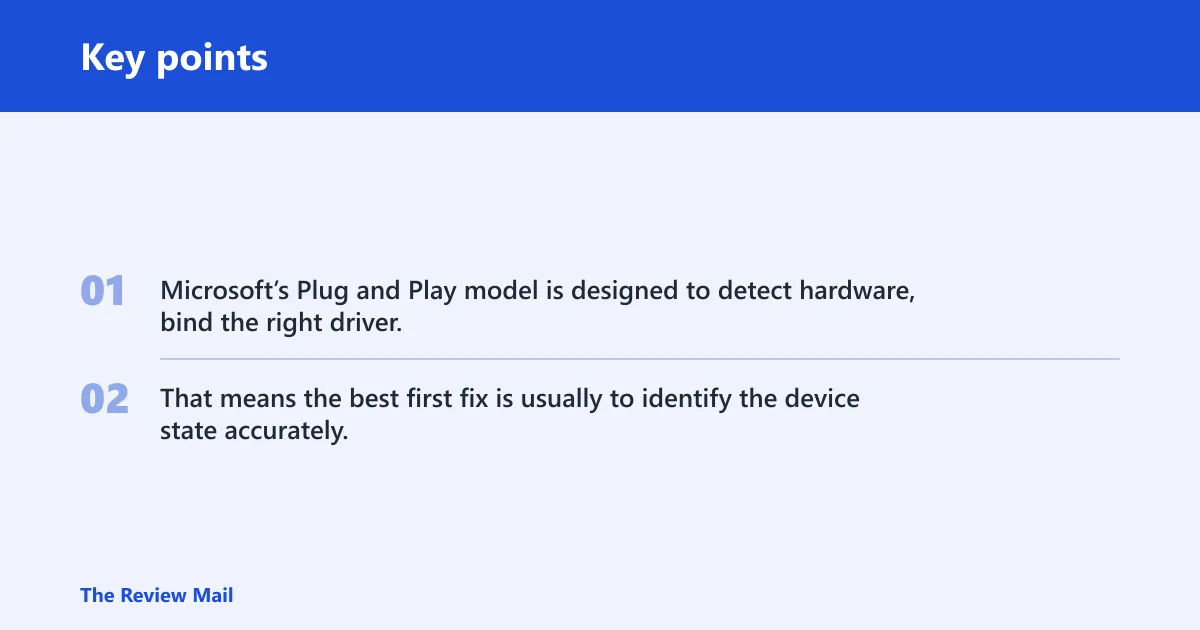
Microsoft’s Plug and Play model is designed to detect hardware, bind the right driver, and expose problems through Device Manager. That means the best first fix is usually to identify the device state accurately, then use the built-in action that matches it: enable, update, roll back, uninstall, rescan, or open Disk Management for storage devices.
How do you fix Device Manager not opening?
If Device Manager will not open, use the direct console path first, then move to Safe Mode if the shell or policy is blocking it. That problem is separate from a bad device driver, so do not start with driver reinstall loops until the console itself works. Microsoft’s Safe Mode documentation is the right reference when normal boot interferes with device tools.
Try the console directly
- Press Win+R, type
devmgmt.msc, then press Enter. - Open Start, type Device Manager, and run it as administrator if the normal launch fails.
- Restart Windows, then open
devmgmt.mscagain from the Run box. - If it still fails, boot into Safe Mode and retry.
If that didn’t work, try this next
Suppose Device Manager opens in Safe Mode but not in normal mode. That points to background software, startup services, or policy interference rather than broken hardware. Remove or disable recent device tools, security software, or vendor utilities one at a time, then test the console again. If the issue is only present in normal mode, the problem is often software that loads before Device Manager can initialize fully.
How do you fix a yellow warning icon?
A yellow warning icon means the device has a problem state, and the fix depends on the code shown in Properties. Check the device entry first, then decide whether you need an automatic update, a vendor driver, a rollback, or an uninstall and reinstall cycle. Microsoft’s Device Manager error-code guidance supports reading the status text before choosing the next action.
Use the driver tab
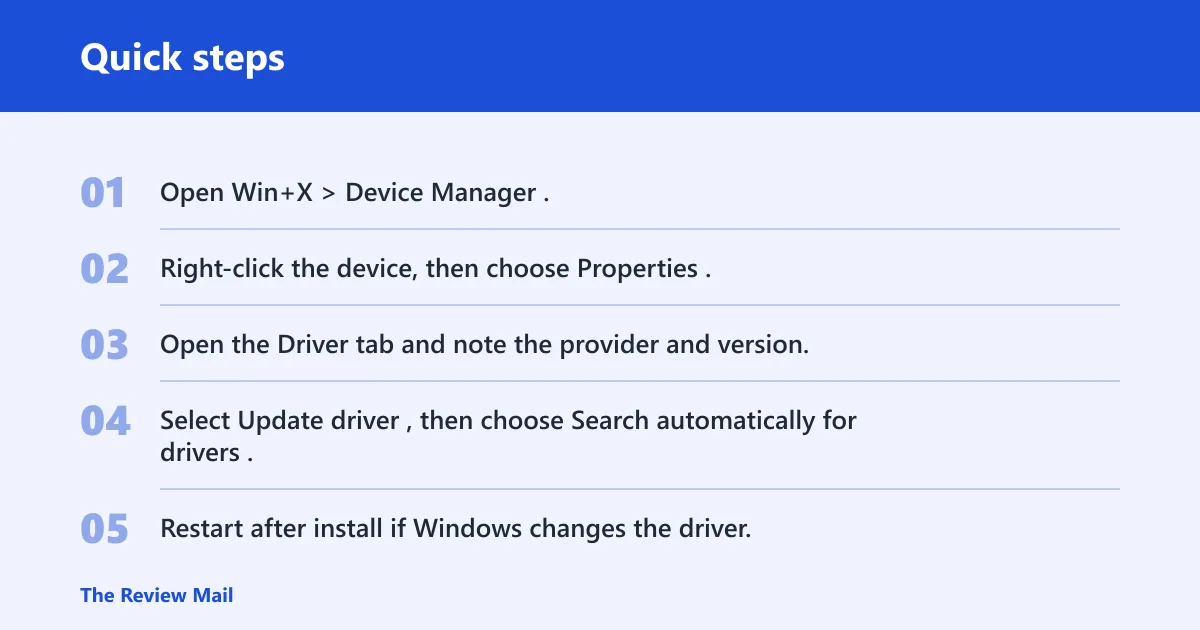
- Open Win+X > Device Manager.
- Right-click the device, then choose Properties.
- Open the Driver tab and note the provider and version.
- Select Update driver, then choose Search automatically for drivers.
- Restart after install if Windows changes the driver.
If that didn’t work: return to the Driver tab
- Return to the Driver tab.
- Select Roll Back Driver if the problem began after a recent update.
- If rollback is unavailable or fails, choose Uninstall device, then reinstall the manufacturer driver package from the OEM site.
- Restart again before retesting.
Microsoft documents driver rollback and driver update as built-in recovery actions, and they are the safest first choices when the problem began after a recent change. If the device started failing after Windows Update or a vendor package install, rollback is usually the cleanest way to test whether the new driver caused the error.
How do you tell driver, registry, or hardware failure apart?
Read the code, then match it to the failure class. Driver-loading problems usually show up as Code 10, 28, 31, 32, or 39. Registry damage points more strongly to Code 19. Hardware trouble is more likely when Code 43 or Code 45 repeats across ports, restarts, and a clean reinstall. Use the code first, because the code is the best clue Windows gives.
Use the code and status text
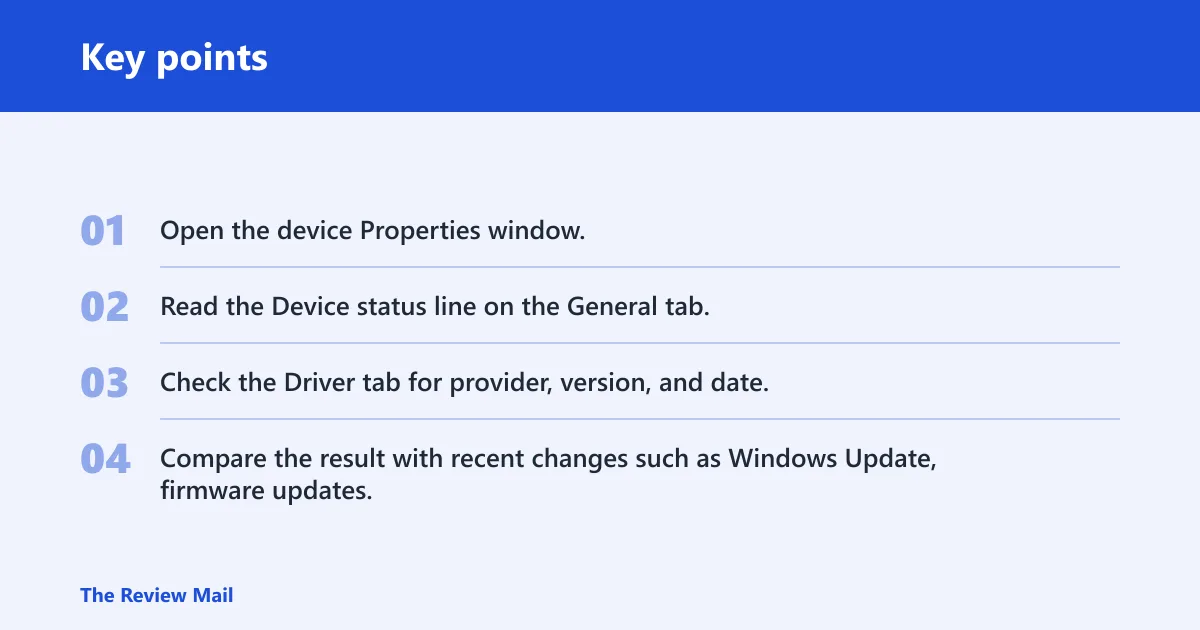
- Open the device Properties window.
- Read the Device status line on the General tab.
- Check the Driver tab for provider, version, and date.
- Compare the result with recent changes such as Windows Update, firmware updates, or vendor utilities.
Look for registry and Plug and Play clues
When Device Manager reports Code 19, the issue is specifically about incomplete or damaged registry configuration information for that device class. In that case, the relevant path is limited and should stay focused on the affected device class, not on broad registry cleanup. Microsoft’s Plug and Play model uses device instance information to rebuild hardware entries, so the safest approach is to verify the code, confirm the device class, and avoid broad edits when the symptom does not point there.
That means registry work is narrow by design: use it only when the code and device class support it, and stop if the same error is affecting multiple unrelated devices. If several classes fail at once, the better suspect is broader Windows damage rather than a single bad device key.
Stop when hardware looks wrong
Say your USB adapter shows Code 43 after a driver reinstall and still fails on another port. That is the point to stop repeating software steps. A repeat failure across ports or after a known-good package is a hardware signal, not a driver puzzle. If Windows can still see the device but cannot make it work after rollback, reinstall, and a different port, the hardware threshold has been reached.
Device Manager
Use this table when the symptom is unclear. It maps the visible failure to the most likely fault class and the next safe step, so you can avoid random driver changes. The key is to start with the first location in Windows where the problem is actually visible: Device Manager, the Driver tab, or Disk Management for storage devices.
How to read it
Start with the symptom you can see. Then move one step at a time. If the escalation step does not change the state, stop and inspect the device, cable, slot, or port before you go deeper into Windows repair. For storage devices, the first check location is Disk Management, not File Explorer.
What if Device Manager opens but the device still does not work?
If the console opens and the device is present, the next step is still inside Properties. Check the driver provider, version, and the error code before you reinstall anything. If the device is present but inactive, treat it as a driver or configuration failure first, then test the hardware only after the Windows-side fixes fail. Microsoft’s rollback and update actions are built for this stage.
Safe triage path
- Right-click the device, then open Properties.
- Check the General and Driver tabs.
- Select Update driver or Roll Back Driver based on the most recent change.
- Restart after install.
- Disable conflicting background software if the device still fails.
What to do with disabled, hidden, and ghost devices
A disabled device should be re-enabled first. A hidden or non-present device should be shown with hidden devices enabled, then either rescaned or removed if it is a ghost entry. If Windows keeps a faded entry for hardware that is no longer attached, uninstalling that ghost and using Scan for hardware changes can force Plug and Play to rebuild the device state cleanly.
How do you fix Device Manager on Windows 10 and Windows 11?
The triage path is the same on Windows 10 and Windows 11: open devmgmt.msc, read the code, check the Driver tab, and use rollback or vendor drivers when Windows cannot find a working package. The built-in repair path is consistent across these versions, and Microsoft’s support pages for Device Manager, Safe Mode, and Windows Update troubleshooting apply to both.
Windows repair path for boot failure
Only if Windows will not boot normally should you move from Device Manager errors to startup repair or recovery tools. In that case, use Windows recovery options first, then startup repair. Do not jump straight to command-line boot repair for a single device error that still allows Windows to start.
- Boot from Windows installation media.
- Choose Startup Repair first.
- If Windows still will not boot, open Command Prompt.
- Run boot repair commands only if recovery tools do not resolve the boot failure.
Use this path only when Windows itself will not boot normally. It is not a first-line fix for a single device code. If Windows starts and Device Manager opens, stay in Device Manager, Driver tab, Safe Mode, or Windows Update troubleshooting instead.
What if the device appears in Device Manager but not in Windows Explorer?
If a USB drive or external disk appears in Device Manager but not in Explorer, check Disk Management first. That tells you whether Windows can see the disk at the storage layer before you assume the file system is bad or start formatting. Microsoft’s Disk Management and storage guidance is the right place to confirm whether the drive needs a letter, partition repair, or deeper hardware inspection.
Check storage visibility
- Open Win+X > Disk Management.
- Confirm whether the disk appears with a partition, a drive letter, or unallocated space.
- If it has no letter, assign one.
- If it shows as unallocated, stop before formatting until you confirm you do not need the data.
Picture a 2 TB external drive that appears in Device Manager but not in Explorer. If Disk Management lists the disk, Windows can detect the device. If it does not list the disk at all, the issue is lower level and you should inspect the cable, enclosure, port, or drive before recovery steps. A storage device that is visible in Device Manager but absent from Disk Management is usually beyond a simple drive-letter fix.
Common mistakes
The biggest mistake is treating every Device Manager error as a driver problem. Another is editing the registry without a code that points there. Storage devices also get missed when users skip Disk Management and go straight to formatting, which can destroy recoverable data. Microsoft’s support flow favors narrow, symptom-based fixes because that reduces the chance of making a bad state worse.
Avoid these missteps
- Do not update the wrong device just because it has a warning icon.
- Do not skip Properties; the code and driver tab tell you which branch to take.
- Do not use registry edits unless the code and device class point there.
- Do not ignore Disk Management for drives that vanish from Explorer.
- Do not keep retrying the same driver after a repeat hardware signal.
Frequently asked questions
How fix all device manager error
There is no single fix for every code. Start with the symptom, match it to the table, then use the narrowest step that fits: update, rollback, reinstall, Disk Management, registry repair, or hardware inspection. The code tells you which branch to follow, and Microsoft’s error-code documentation is the most reliable guide for that branch.
What should I do first when Device Manager shows a yellow warning?
Open Properties and read the error code on the General tab. Then check the Driver tab before making changes. If the code began after a recent update, use Roll Back Driver; if not, try Update driver first. If the device is disabled, enable it before anything else.
How do I tell whether the problem is a driver, hardware, or registry issue?
Use the code and the failure pattern. Code 19 points toward registry configuration damage. Codes 10, 28, 31, 32, and 39 usually point toward driver loading or file problems. Repeated Code 43 or 45 after reinstall and port changes is a hardware signal. Unknown devices should be checked for hardware IDs before guessing the driver.
When is it safe to use a registry fix for a Device Manager code?
Use a registry fix only when the code points there, especially Code 19. Back up first, then work only on the specific class entry tied to the device. If several unrelated devices fail at once, stop and inspect broader Windows damage instead of editing keys at random. That keeps the fix aligned with the actual failure mode.
What should I do if Device Manager shows an unknown device?
Open the device Properties, go to Details, and select Hardware Ids. Those IDs help match the correct driver package and confirm the device class. If the IDs change when you move ports or reconnect hardware, the issue may be the device path or the hardware itself rather than the driver.
How do I handle a hidden or ghost device entry?
Turn on Show hidden devices, compare the faded entry with the hardware that is actually connected, and uninstall the ghost only if it is no longer present. After that, use Scan for hardware changes so Plug and Play can rebuild the list. If the entry returns with the same problem, inspect the hardware path.
When should I use Safe Mode or Windows Update troubleshooting?
Use Safe Mode when a background app, filter driver, or startup service blocks the device or Device Manager itself. Use Windows Update troubleshooting when a driver update or update failure appears to have triggered the error. These are supportable Windows paths, and they are better than random reinstall loops when the symptom is tied to system software.