Cannot Turn on Network Discovery Windows 11
If you cannot turn on Network Discovery in Windows 11, start with the symptom: a blocked toggle usually means a service or policy issue, a toggle that resets after restart points to startup or firewall control, and an empty Network view often means discovery is on but blocked by device sharing settings. Get the order wrong, and you waste time while trusted PCs stay hidden in File Explorer. This guide shows which fix to try first for each symptom and how to confirm it worked.
Network discovery decision table
Use the symptom, not guesswork, to choose the next step. Network Discovery shows devices in File Explorer > Network on trusted local networks, and it depends on sharing settings, services, and firewall rules. It is separate from file sharing permissions, so one can be correct while the other still fails.
| Exact symptom | Most likely cause | First verification step |
|---|---|---|
| Toggle greyed out | Managed device policy, disabled service control, or a non-Private profile | Check whether the network is set to Private in Settings > Network & internet |
| Toggle turns off again | Required services are stopped, set to manual, or blocked by firewall or policy | Open Services and confirm Function Discovery Resource Publication is running |
| Devices absent in Network | Discovery is off on the other device, or multicast traffic is blocked by the router | Check the other PC’s Network Discovery and the router’s multicast behavior |
| Devices visible but inaccessible | Discovery works, but file sharing permissions, SMB compatibility, or credentials are wrong | Try opening a shared folder by name and confirm sharing permissions on the other PC |
| Works on one PC but not another | Profile, firewall, or policy differs between the two machines | Compare the network profile and required services on both PCs |
Should the network be private?
Yes. For normal discovery on Windows 11, the network profile should be Private. Public profile settings usually disable discovery for security, so a trusted home or office network set to Public can make Network Discovery stay off or show no devices even when the rest of Windows looks correct.
Check the current profile in Settings
- Open Settings.
- Go to Network & internet.
- Select the active connection, such as Wi-Fi or Ethernet.
- Confirm that the network profile is Private.
If the connection is a trusted home or office network, switch it to Private first. That is the normal starting point for discovery on Windows 11, and it matches the guidance that Network Discovery works on a Private network profile.
Picture a laptop on a small office Wi-Fi that was left on Public after a router change. The toggle may appear to work, but other PCs still do not show up because the profile tells Windows to keep discovery restricted.
Which services must stay running?
Network Discovery depends on several services being available. The entries to check in Services are Function Discovery Resource Publication, Function Discovery Provider Host, SSDP Discovery, UPnP Device Host, and DNS Client. On Windows 11, some of these may be set to Manual or Trigger Start, so compare the service name and current state instead of changing defaults blindly.
Function discovery Resource Publication
Check the service named Function Discovery Resource Publication in Services. If the toggle will not stay on, this service is one of the first places to check, especially if it is stopped when you need discovery.
Function discovery Provider Host
Check the service named Function Discovery Provider Host. It helps Windows publish and find network resources on the local network, so discovery can fail even when the setting is enabled if this service is stopped.
SSDP discovery and UPnP device Host
Check the services named SSDP Discovery and UPnP Device Host. If one machine can see devices and another cannot, compare these service states on both PCs.
DNS Client
Check the service named DNS Client. If it is disabled, discovery may fail to resolve device names correctly, which can leave the Network view empty or make devices appear and then disappear from the list.
Suppose a desktop shows the Network view after sign-in but loses it after reboot. That pattern points to a service that is not staying available when discovery is needed, not to a one-time toggle problem.
Is Windows Firewall blocking network discovery?
Yes, it can. Windows Defender Firewall generally needs to allow Network Discovery on the Private profile, and File and Printer Sharing often also needs to be allowed. If the firewall rules are wrong, discovery may fail even when the profile is Private and the required services are available.
Allow the feature on the Private profile
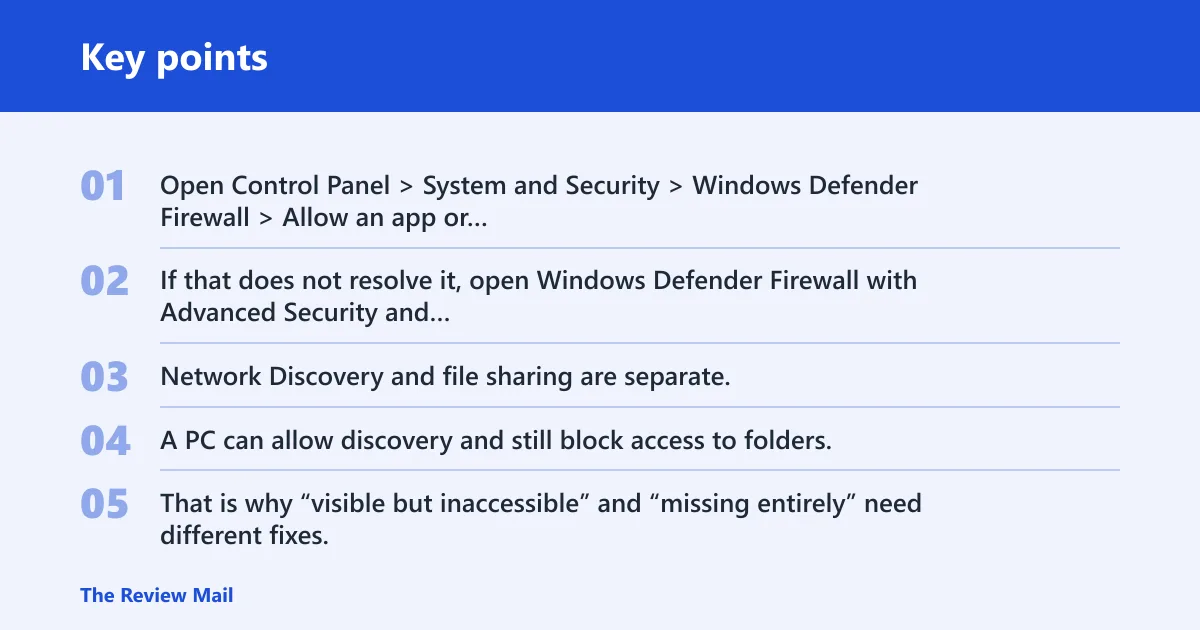
Open Control Panel > System and Security > Windows Defender Firewall > Allow an app or feature through Windows Defender Firewall, then make sure Network Discovery is allowed on Private. If that does not resolve it, open Windows Defender Firewall with Advanced Security and check the Network Discovery rule group under Inbound Rules for the Private profile.
Do not confuse discovery with file sharing
Network Discovery and file sharing are separate. A PC can allow discovery and still block access to folders, or allow folder access but remain invisible in File Explorer > Network. That is why “visible but inaccessible” and “missing entirely” need different fixes.
Control Panel versus netsh
You can allow these rules through Control Panel or through advanced firewall rules with netsh when the GUI is not enough. That matters on locked-down devices where the interface hides some options or the setting keeps reverting.
On managed computers, endpoint protection or a corporate firewall policy can override the local change. If the checkbox looks correct but discovery still fails, policy control may be forcing a different rule set. A quick way to verify that is to check whether the same setting changes back after a restart or after a policy refresh.
Why do other computers not appear in File Explorer Network?
When Windows settings are correct but the Network view is still empty, the cause is often outside the local PC. Router multicast filtering, a discovery service issue on the other device, or a managed-device policy can block the traffic that lets PCs find each other on the local network.
Router or multicast filtering
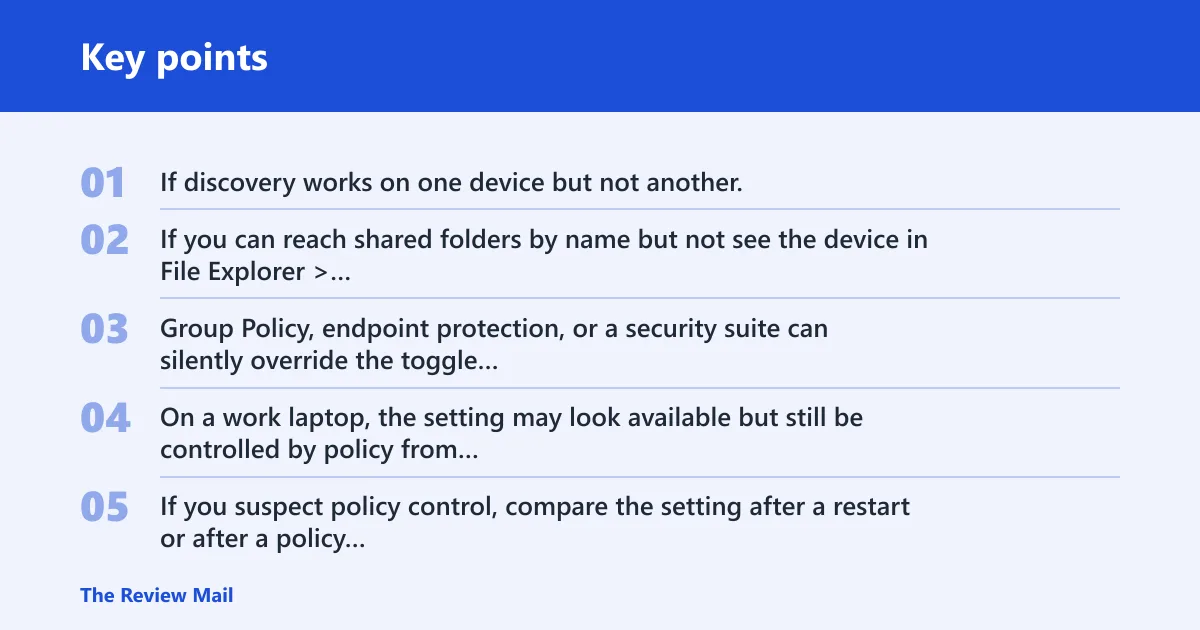
If discovery works on one device but not another, check the router for multicast filtering or wireless client isolation. If you can reach shared folders by name but not see the device in File Explorer > Network, that also points to multicast traffic or router handling rather than a local toggle problem.
Managed device policy limits
Group Policy, endpoint protection, or a security suite can silently override the toggle or stop a service after startup. On a work laptop, the setting may look available but still be controlled by policy from outside the local machine. If you suspect policy control, compare the setting after a restart or after a policy refresh to see whether it reverts.
Older devices and SMB compatibility
SMB can affect discovery results for older devices or NAS units. Pureinfotech includes SMB 1.0/CIFS File Sharing Support for older devices, but SMBv1 is a legacy compatibility option with a security cost. Use it only when you need access to older hardware that cannot speak newer SMB versions.
A common first-timer mistake is to turn on discovery on a Windows 11 PC, then expect a ten-year-old NAS to appear immediately. If that NAS still depends on older SMB behavior, the PC may be configured correctly and still fail to list it.
How do you turn on network discovery in Windows 11?
Turn it on from Advanced sharing settings after the network profile is Private. If the toggle refuses to stay on, return to services and firewall rules instead of repeating the same click.
- Set the network to Private.
- Open Advanced sharing settings.
- Turn on Network Discovery for Private networks.
- Save the changes.
- Verify the service names in Services and confirm whether they are running when discovery is needed.
- Recheck File Explorer > Network from another device if possible.
Do not stop at the toggle. If the PC still does not appear from another device, the problem may be outside the local setting, especially on networks that filter multicast traffic.
Network reset last resort
Use network reset only after the profile, services, firewall rules, router, and policy checks have all failed. It clears network configurations and may remove IP and DNS settings.
What it clears
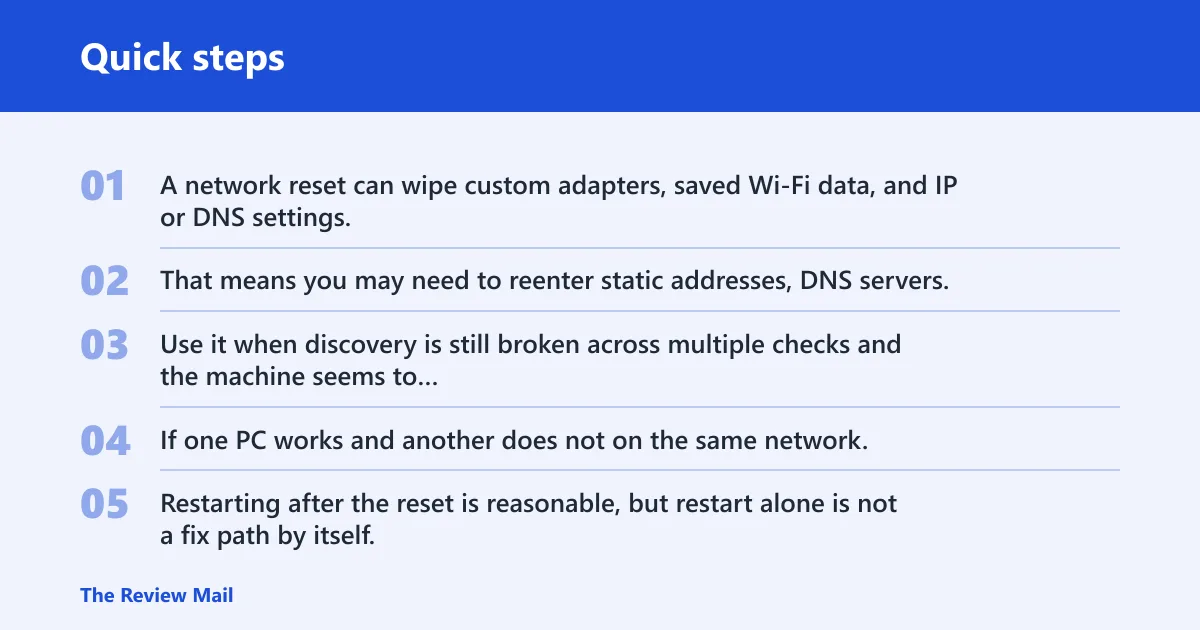
A network reset can wipe custom adapters, saved Wi-Fi data, and IP or DNS settings. That means you may need to reenter static addresses, DNS servers, or VPN details afterward.
When to use it
Use it when discovery is still broken across multiple checks and the machine seems to have inconsistent network behavior. If one PC works and another does not on the same network, reset only the failing machine after you compare its profile, services, and firewall rules.
Restarting after the reset is reasonable, but restart alone is not a fix path by itself. It only helps when the underlying setting has already been corrected.
Frequently asked questions
Why can’t I turn on network discovery in Windows 11?
The most common reasons are a Public network profile, a stopped discovery-related service, a firewall rule that blocks discovery, or a managed-device policy that overrides the toggle. If the switch is greyed out, start by checking the profile and then confirm the service names in Services.
What services must be running for network discovery
Check Function Discovery Resource Publication, Function Discovery Provider Host, SSDP Discovery, UPnP Device Host, and DNS Client. Compare the service names in Services and look at whether each one is running when you try discovery. If discovery fails after reboot, one of these services may not be available when needed.
Is Windows Firewall blocking network discovery: it can?
It can. Windows Defender Firewall must allow Network Discovery on the Private profile, and File and Printer Sharing often needs to be allowed as well. If local settings look correct but devices still do not appear, review firewall rules and any endpoint protection or corporate policy that may override them.
Should network discovery be on a private or public network?
Use Private for a trusted home or office network. Public usually disables discovery for security, which is why a correct toggle can still fail if the profile is wrong. Switch the network to Private first, then check services and firewall rules.
Does SMB affect network discovery on Windows 11?
Yes, for older devices or NAS units. SMBv1 may be needed for legacy hardware, but it adds security tradeoffs, so use it only when older compatibility is the issue. For modern PCs, discovery problems are more often caused by profile, services, firewall rules, or router multicast filtering.
Will resetting network settings fix network discovery?
Sometimes, but only as a last resort. Network reset can clear network configurations, including IP and DNS settings, so you may need to reenter them afterward. Try profile, services, firewall, router, and policy checks first, since those are more targeted fixes.
Can’t turn on network discovery
If the toggle will not stay on, the problem usually sits in service availability, firewall control, or policy management. Compare the service names, confirm the network is Private, and check whether the device is managed by Group Policy or security software before moving to a reset.