Device Manager Restricted Windows 11
On Windows 11, Device Manager is often blocked by policy if it opens from one path but not another; if every path fails, check admin rights first, then system files. Ignore that order and you can waste time on the wrong fix or miss a management rule. This guide gives a symptom-based decision tree for policy blocks, permission issues, and file corruption.
Device manager symptom table
Start with the symptom, not the fix. The fastest safe path is to match what you see on screen to the most likely cause, then move to the next step in order. That keeps you from changing policy or registry settings when the real issue is a missing shortcut.
| Symptom pattern | Most likely cause | Next best step |
|---|---|---|
| Blocked-by-administrator dialog | Policy restriction or organization management | Check Group Policy first, then confirm whether the PC is managed by IT |
| Start search missing | Shortcut or shell entry issue | Open Device Manager with devmgmt.msc from Run or Command Prompt |
| Win + X missing | Power User menu disabled or shell restriction | Use Start search, System Properties, or the direct devmgmt.msc launch |
| Opens only from elevated CMD | Standard-user permission limit | Sign in with an administrator account and recheck the non-elevated paths |
| gpedit restriction present | Group Policy block | Review the Control Panel and PC settings policy in Group Policy Editor |
| Registry policy present | Explorer policy key or HKCU restriction | Inspect the related policy keys in Registry Editor before changing anything |
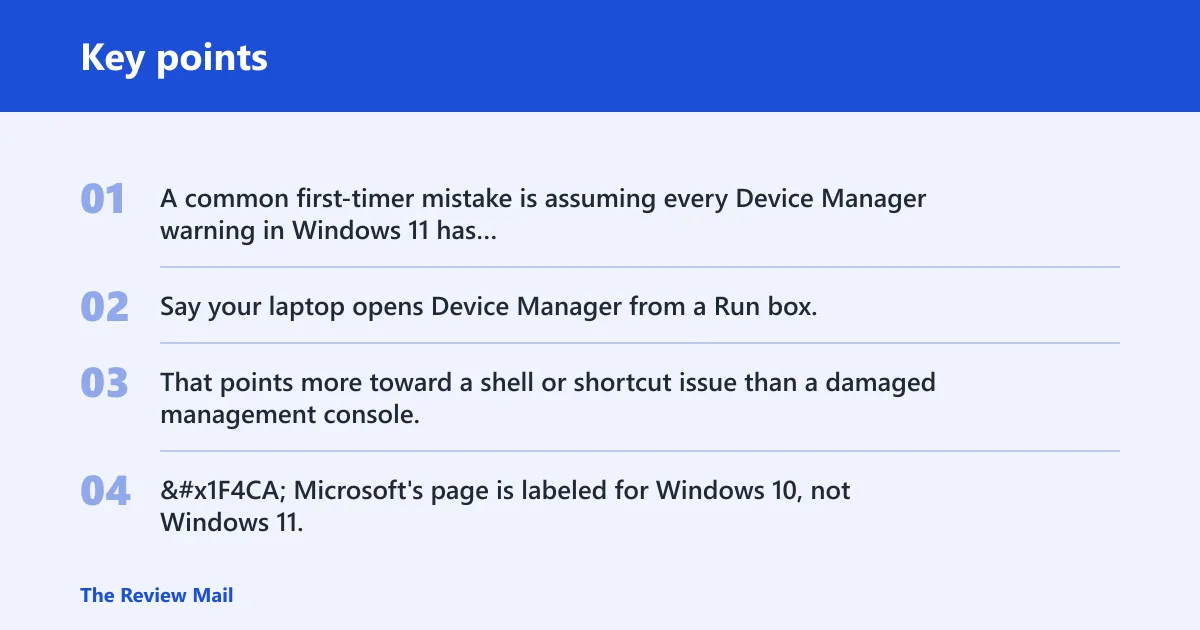
A common first-timer mistake is assuming every Device Manager warning in Windows 11 has the same cause, when some are due to policy restrictions and others to missing drivers. Say your laptop opens Device Manager from a Run box, but Start search shows nothing at all. That points more toward a shell or shortcut issue than a damaged management console.
📊 Microsoft’s page is labeled for Windows 10, not Windows 11. Source: Open Device Manager.
Why Device Manager is restricted
Device Manager is the Windows hardware management console used to view and control installed hardware, and it is also used to uninstall and update device drivers. On Windows 11, a block can come from policy, from a missing or broken shortcut path, from admin-rights limits, or from file corruption.
Missing shortcut versus blocked console
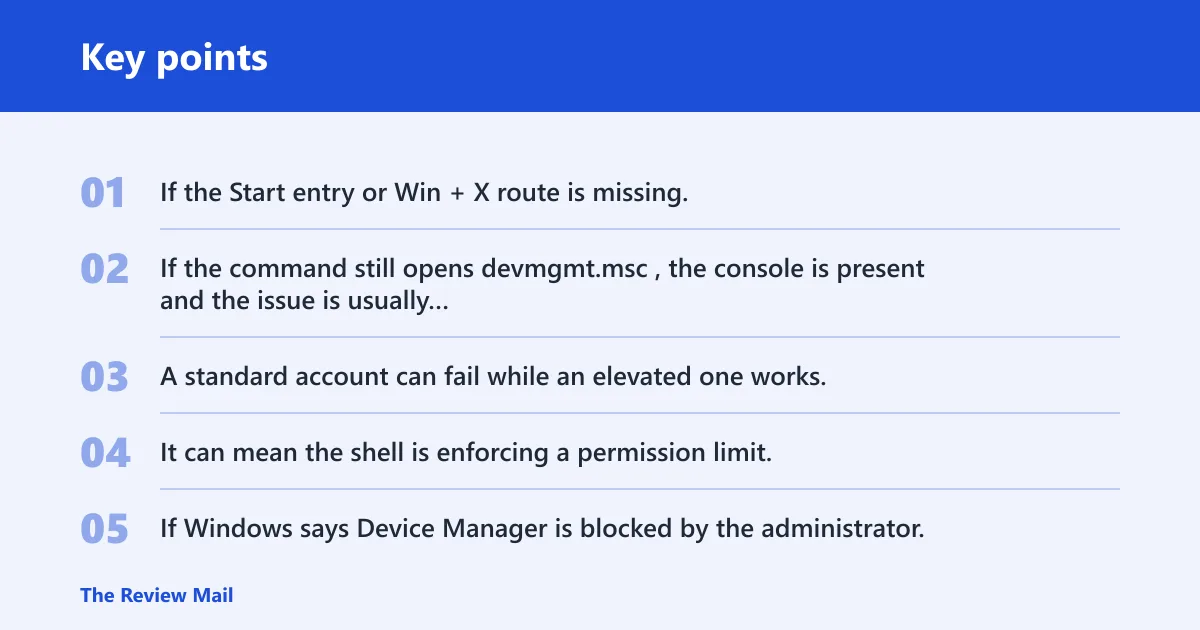
If the Start entry or Win + X route is missing, the problem may be the shortcut path rather than Device Manager itself. If the command still opens devmgmt.msc, the console is present and the issue is usually access to a specific launch method.
Admin-rights limits
A standard account can fail while an elevated one works. That does not automatically mean corruption. It can mean the shell is enforcing a permission limit, while the underlying Microsoft Management Console snap-in still launches when Windows grants elevation.
Policy-based restriction
If Windows says Device Manager is blocked by the administrator, the message often points to policy rather than a damaged app. This is more common on organization-managed PCs, where network policy or IT settings can restrict system tools.
Windows file or association corruption
If every launch path fails, or Device Manager opens and then closes, the problem can move into system files or MMC file associations. In that case, repair tools come before a reset.
How do you open Device Manager another way?
Use a direct path before you change policy or registry settings. Start search, Win + X, System Properties, and Run all reach the same tool through different routes. If one route fails and another works, that difference is the clue you need.
Use Start search
Microsoft’s open instructions use Start search for Device Manager, and Microsoft’s support page says to enter device manager in search. Microsoft’s page is labeled for Windows 10, not Windows 11, but the search entry remains a valid first check on Windows 11.
Use Win + X
The Win + X Power User menu is a common workaround. If that menu still appears, look for Device Manager there. If it is missing too, the shell restriction is wider than a single shortcut.
Use system Properties
Wintips includes a System Properties route to Device Manager. That path is useful when the Start menu is unreliable but the classic system dialogs still open. It is also a good check for whether only the newer shell entry is affected.
Use Run or command Prompt
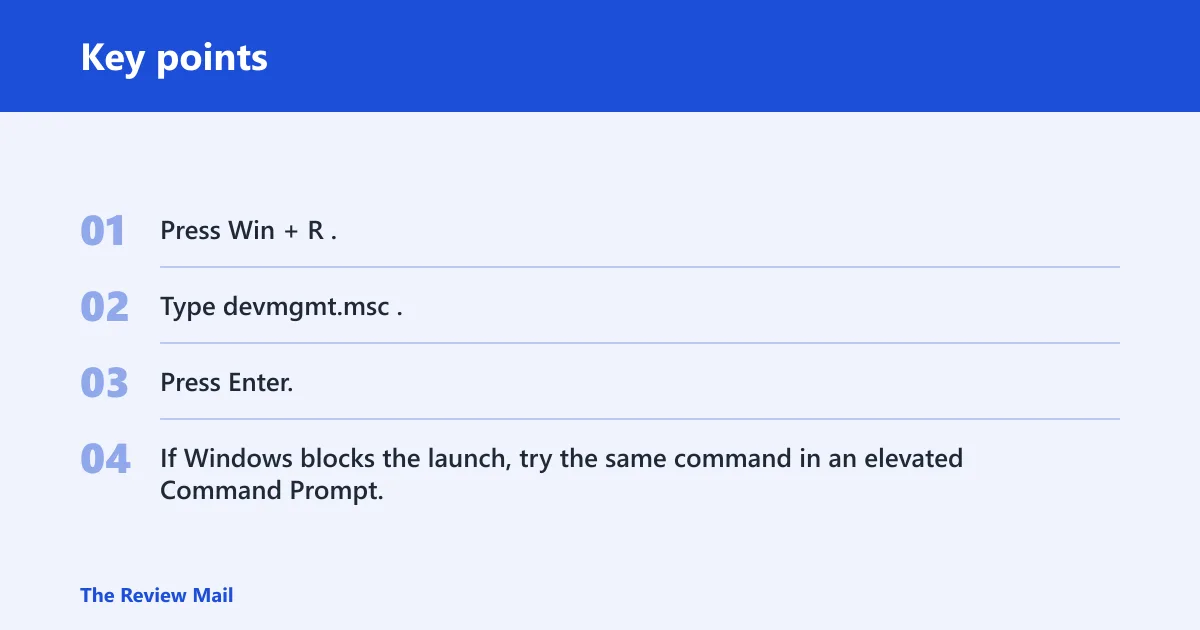
Type devmgmt.msc in the Run box or at a Command Prompt. Wintips includes the command to open Device Manager directly. If the direct command works from an elevated Command Prompt but not from a normal session, permission handling is part of the problem.
- Press Win + R.
- Type
devmgmt.msc. - Press Enter.
- If Windows blocks the launch, try the same command in an elevated Command Prompt.
Can an administrator account fix the block?
Yes, if the problem is a rights limit rather than a policy block. Sign in with an administrator account and try the same launch paths again. If that works, the original account likely lacks the rights needed for that route. If it does not, check policy or file damage.
Enable the hidden Administrator account
Wintips includes a hidden admin activation command: net user administrator /active:yes. Use it only when you need a temporary local admin account and you are allowed to make that change. On a managed PC, IT may disable or override that account.
Check whether elevation changes the result
If Device Manager opens only when Command Prompt is elevated, that can point to permissions or policy. It shows the tool can load, but not under the lower-rights context. That pattern points away from corruption and toward permissions or policy.
Suppose a home PC shows no Device Manager entry in Start search, but devmgmt.msc opens from an elevated Command Prompt. That does not mean Windows is broken. It means the direct console launch works, while the shell route is restricted or missing.
How do you check policy restrictions?
Use policy checks when the message says the administrator blocked the app, or when Device Manager works only on some paths. Group Policy Editor is available only on Pro and Enterprise editions, so Home users may need to confirm restrictions another way or move straight to the registry checks. (Microsoft Learn)
Open Group Policy Editor with gpedit.msc
Open gpedit.msc and inspect the policy path that controls access to system tools. Wintips says the error can indicate access restrictions on the computer, and organization-owned PCs may be policy-managed. If the PC is joined to a work domain or enrolled in management, that is a strong clue.
Check the Control Panel and PC settings policy
Look for Prevent access to the Control Panel and PC settings. This policy should be Not Configured or Disabled for normal access. If it is enabled, Windows can block related system entry points and make Device Manager look unavailable through the shell.
Confirm whether the PC is organization-managed
If the device belongs to a company, school, or other organization, do not assume local changes will stick. The same source notes organization-owned PCs may be policy-managed. In that case, contact the network administrator before editing anything locally.
- Open
gpedit.msc. - Check the policy that controls Control Panel and PC settings access.
- Note whether the device is managed by an organization.
- Stop if the setting is enforced by IT policy.
How do you check registry restrictions?
Use Registry Editor when policy symptoms do not line up cleanly with Group Policy, or when you are on Windows 11 Home and need to inspect local restrictions. Check first, then change. A wrong edit can create a new access problem that is harder to trace than the original block.
Open registry editor
Launch regedit and review the policy-related keys before changing values. The goal is not to delete anything by default. It is to see whether a restriction is already present and whether that restriction matches the symptom you saw.
Inspect Explorer policy keys
Look for Explorer-related policy keys that can affect shell access. One item to check is DisallowRun under HKCU. If it exists, note the exact value names before editing. That helps you avoid removing the wrong entry.
Verify the change safely before editing
Take a screenshot or write down the current value, then change only one setting at a time. Recheck Device Manager after each edit. If the block remains, stop and move to the next branch of the decision tree instead of stacking changes.
When should you repair Windows files?
Use repair tools when the launch path is inconsistent, the console opens and then closes, or all shortcuts fail after you rule out policy and rights limits. Windows file repair is not the first step for a simple shortcut loss, but it becomes the right step when the shell or console looks damaged.
Run SFC /SCANNOW
Start with SFC /SCANNOW. It checks protected system files and replaces damaged copies when it can. If Device Manager was failing because a system file was broken, this may restore a normal launch path.
Run DISM /Online /Cleanup-Image /Restorehealth
The same source recommends DISM /Online /Cleanup-Image /Restorehealth for Windows system files. Run it if SFC reports problems it cannot fix, or if you suspect the component store is damaged. Then run SFC again after DISM completes, as Wintips recommends.
Look for a repaired console launch path
After repairs, test the same paths again: Start search, Win + X, System Properties, and devmgmt.msc. If one route recovers, the problem was likely corruption rather than policy. If none recover, return to the policy and account checks.
Use repair install or reset last
A repair install or reset belongs at the end, after policy, account, and system file checks. That is the last resort, not the starting point. Use it only if Device Manager still will not load and the PC is not simply blocked by an administrator rule.
Frequently asked questions
How do I enable device manager in Windows 11?
Start with the path that matches the symptom. If Start search is missing, use devmgmt.msc from Run or Command Prompt. If Windows says it is blocked by the administrator, check Group Policy, then the registry, then admin rights. Do not jump straight to reset.
Why does Device Manager say it’s blocked by the administrator?
That message usually points to a policy restriction, not a broken Device Manager. It can also appear on organization-managed PCs where IT controls system tools. Check Group Policy first on Pro or Enterprise, then confirm whether the device is managed. Only after that should you look at local registry settings.
Can’t open Device Manager due to restrictions what should I check first?
Check whether one path works and another does not. If devmgmt.msc opens but Start search or Win + X fails, the problem is likely shortcut or shell related. If every route fails, check admin rights first, then repair system files with DISM and SFC.
How do I open Device Manager from Run or Command Prompt?
Press Win + R, type devmgmt.msc, and press Enter. You can also type the same command in Command Prompt. If the normal session fails but an elevated Command Prompt works, that difference points to a rights issue rather than a damaged Device Manager.
Is Device Manager blocked by a policy or antivirus in Windows 11?
Policy is the more likely answer when Windows says the administrator blocked it, especially on managed devices. Antivirus is not the first explanation unless the block appears only after a security product is installed or updated. Check Group Policy, the registry, and account rights before blaming security software.
What should I do if Device Manager will not load on Windows 11?
Use the decision tree in order: try the direct devmgmt.msc launch, test an administrator account, inspect policy restrictions, then run DISM and SFC. If the PC belongs to an organization, contact IT before changing local settings. Keep reset or repair install as the final option.