Error Codes in Device Manager in Windows: Quick Fixes
Device Manager error codes in Windows usually point to a driver, resource, or hardware issue. Start with the code, then choose the safest fix for that category. Ignoring it can leave a device disabled or unstable. This guide shows how to read the main codes and decide whether to update a driver or suspect hardware.
This guide is part of our Windows driver errors: full list and fixes series.
What a Device Manager error code means
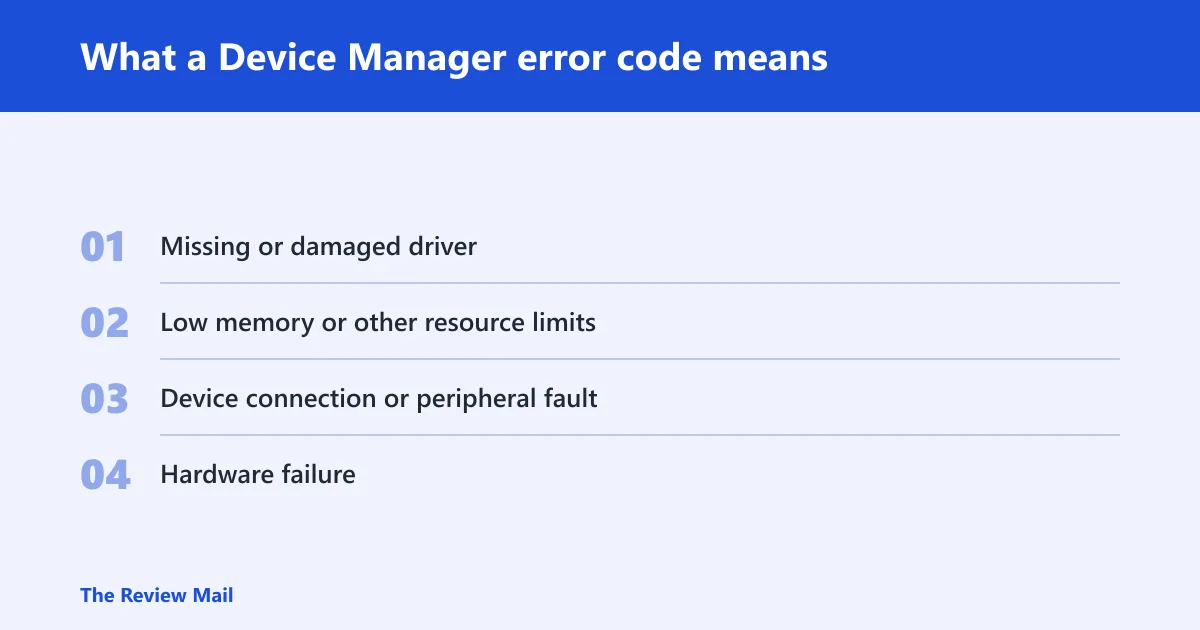
Device Manager uses error codes to flag a device that Windows cannot load normally because of a driver problem, a resource shortage, or a possible hardware fault. On Windows 10 and Windows 11, the code usually appears in the device’s Properties dialog box, in the Device status area, where you can use it to choose the next step.
The code matters more than the warning icon. A yellow mark tells you something is wrong; the code narrows the cause. If you see a code that you do not recognize, the safest first step is still to check the device’s Properties and update the driver if Windows offers one.
Likely causes, from most to least common
- Missing or damaged driver. The device may have no driver installed, or the driver package may be configured incorrectly.
- Low memory or other resource limits. The problem can be temporary, especially if several apps are open.
- Device connection or peripheral fault. Some devices can fail because of a loose connection or a bad cable.
- Hardware failure. Some faults point past Windows and into the device itself.
📊 The Microsoft support page applies to Windows 11 and Windows 10. Source: Microsoft.
How do I find the error code in Device Manager?
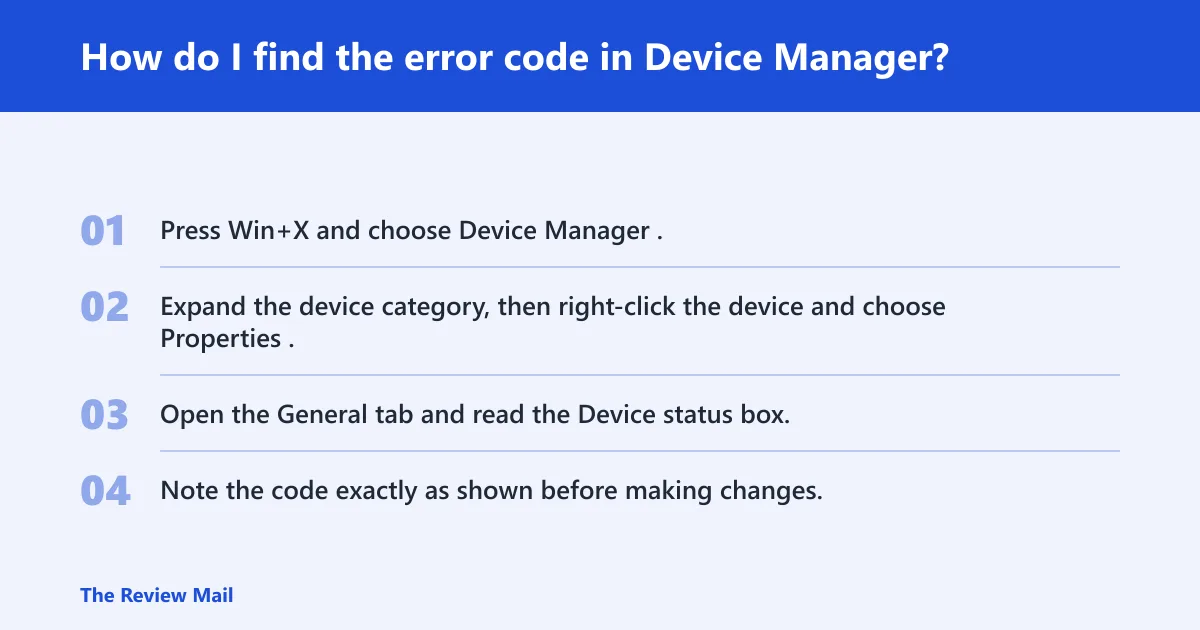
Open the device’s Properties window, then check the Device status area to view the code. On Windows 10 and Windows 11, the path is nearly the same, but the exact UI labels can vary a little.
- Press Win+X and choose Device Manager.
- Expand the device category, then right-click the device and choose Properties.
- Open the General tab and read the Device status box.
- Note the code exactly as shown before making changes.
On Windows 11, the Settings app may use slightly different wording for related troubleshooting pages, but Device Manager still remains the main place to check the code. If the device is hidden, turn on View > Show hidden devices first.
How do I fix an error code in Device Manager?
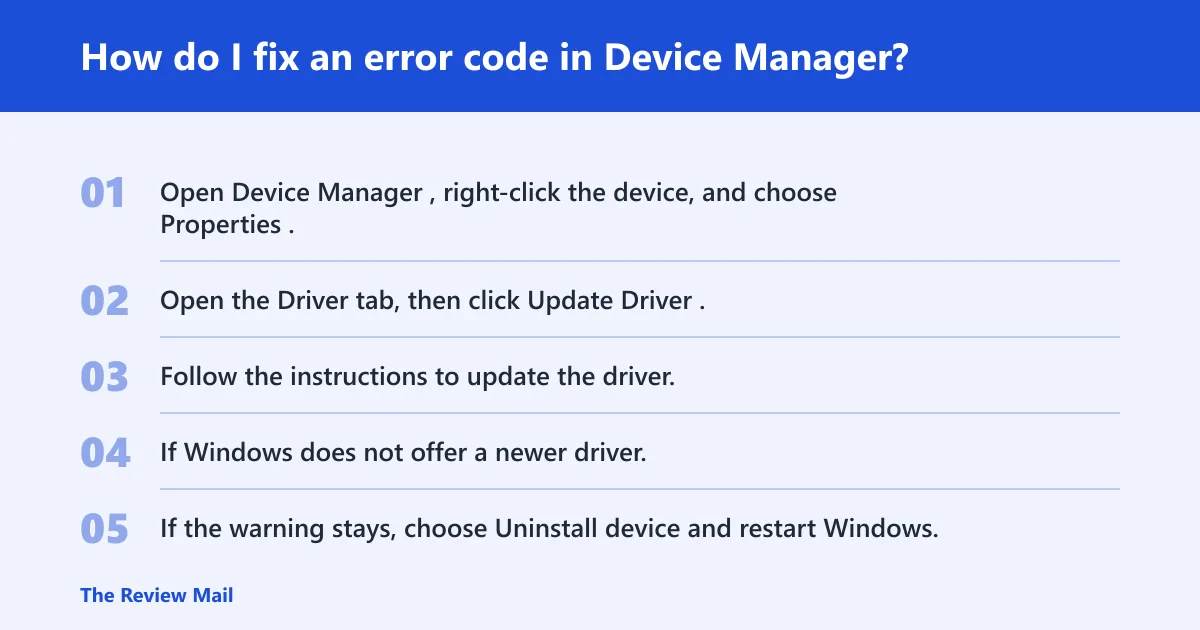
Start with the driver update, because that is the standard first step for a device that is not configured correctly. If the update does not help, then reinstall the device. Keep changes minimal and test after each step.
- Open Device Manager, right-click the device, and choose Properties.
- Open the Driver tab, then click Update Driver.
- Follow the instructions to update the driver.
- If Windows does not offer a newer driver, use the driver package for that device from its manufacturer.
- If the warning stays, choose Uninstall device and restart Windows.
Suppose a laptop touchpad stops working after a Windows update. If the same code appears on the touchpad but not on a USB mouse, that suggests the issue is limited to that device or its driver.
What does Code 1 mean in Device Manager?
Code 1 means: “This device is not configured correctly. (Code 1)” The device has no drivers installed on your computer, or the drivers are configured incorrectly. The first fix is to update the driver from the device’s Properties dialog box, because that is the standard way to correct the setup. (Microsoft Support)
- Open Device Manager and right-click the device.
- Choose Properties, then open the Driver tab.
- Select Update Driver and follow the prompts.
- If Windows cannot find a better package, install the driver from the device manufacturer.
- If the device still shows Code 1 after updating, remove the device and restart Windows.
The standard path is Win+X > Device Manager > device > right-click > Properties > Driver tab. If the driver is corrupted, removing the device and letting Windows load it again after a restart can help.
Win+X > Device Manager > (device) > right-click > Properties > Driver tab
Actions: Update driver
If needed: Uninstall device
Then: restart Windows
What does Code 3 mean in Device Manager?
Code 3 can indicate a driver problem or a resource problem. Try closing open applications and restarting Windows. If the code remains, update the driver from the device’s Properties dialog box, and if needed remove the device and let Windows load it again after restart.
- Close some open applications and restart the computer.
- Open Device Manager, right-click the device, and choose Properties.
- Open the Driver tab and select Update Driver.
- If the code stays, choose Uninstall device and restart Windows.
If several devices fail at once after memory pressure, the issue may be system-wide rather than tied to one device. If only one device fails while the rest of the machine behaves normally, the driver or device itself is the better suspect.
Decision table: common Device Manager codes and next steps
Use the code to sort the problem before you start changing drivers. The goal is to separate a single-device driver fault from a resource issue or a hardware signal, then stop when the safest fix works.
| Code | Symptom pattern | Safest first fix | Update or reinstall? | When to escalate |
|---|---|---|---|---|
| Code 1 | Device starts with a setup or configuration warning | Update the driver from the Driver tab | Update first; reinstall only if update fails | If the problem continues, use the device manufacturer’s driver package |
| Code 3 | Driver error plus low memory or busy system signs | Close apps, restart, then test again | Reinstall if the code stays | If it returns after a restart and update, the device may need further hardware checks |
| Multiple devices fail | Several hardware categories show problems after reboot | Check resources, then test again | Reinstall only the affected device | If the same pattern keeps appearing, the device or system may need service |
What should I try if the code still appears?
If the warning remains after the first fix, move to the next safe repair: reinstall the device, restart Windows, and check the device again. If the problem does not clear, use the device manufacturer’s driver package.
- Open Device Manager and choose Action > Scan for hardware changes.
- Check whether the device status changes after the rescan.
- Restart Windows and check the device again.
- Install the exact driver package from the device manufacturer if the issue remains.
Prevention is limited, but one step helps: keep the device drivers current after a clean Windows 10 or Windows 11 install, especially on systems that use preinstalled vendor packages.
What should I do if Device Manager shows an error code not listed by Microsoft?
If Microsoft does not list the code, it may be uncommon or specific to the device. Start with the code shown in Device status, update the driver from the device’s Properties dialog box, and if that does not help, use the device manufacturer’s driver package.
- Write down the exact code from the Device status area.
- Open the device’s Properties dialog box and check the Driver tab.
- Select Update Driver and follow the prompts.
- If Windows has no newer package, install the manufacturer’s driver for that device model.
Does Device Manager error code mean the hardware is broken?
No. An error code can come from a missing driver, a configured-incorrectly driver, or a resource issue. Treat hardware failure as a later possibility if the code remains after a driver update and reinstall.
One useful rule: if only one device fails and the same model works elsewhere, software is more likely. If the device still shows the code after a driver update and reinstall, hardware becomes harder to rule out.