
Reset Network Settings Windows 11 Cmd
Use the CMD command that matches the failure: ipconfig /release and /renew for DHCP, ipconfig /flushdns for DNS, netsh winsock reset for socket errors, netsh int ip reset for TCP/IP corruption, and netsh winhttp reset proxy for proxy problems. Pick the wrong fix and you waste time or make the outage harder to trace. This guide maps each Windows 11 network failure mode to the exact Command Prompt command, plus when a full reset is still the better call. (Microsoft Learn) (Microsoft Learn)
This guide is part of our Windows network and Wi-Fi problems: full list and fixes series.
Which command fixes which problem?
Start with the smallest repair that fits the symptom. If web pages fail by name but IP addresses still work, flush DNS first. If apps cannot open sockets or the stack feels broken after VPN software, move to Winsock or TCP/IP. If a proxy was added by a VPN, filter, or security tool, clear that setting before anything more disruptive.
Use the symptom, not the guess
A DNS problem usually looks like this: websites fail to load by domain name, but a direct IP address still responds. A proxy problem often shows up after VPN software, company security tools, or browser changes. Winsock and TCP/IP resets fit broader failures, such as apps that cannot connect at all or repeated socket errors after a stack change.
Say your browser shows “can’t reach this page,” but a ping to the router works and other devices on the same Wi-Fi are fine. That points more toward DNS or proxy settings than a dead adapter, so begin with ipconfig /flushdns or netsh winhttp reset proxy before you reset the whole stack.
Use this order first
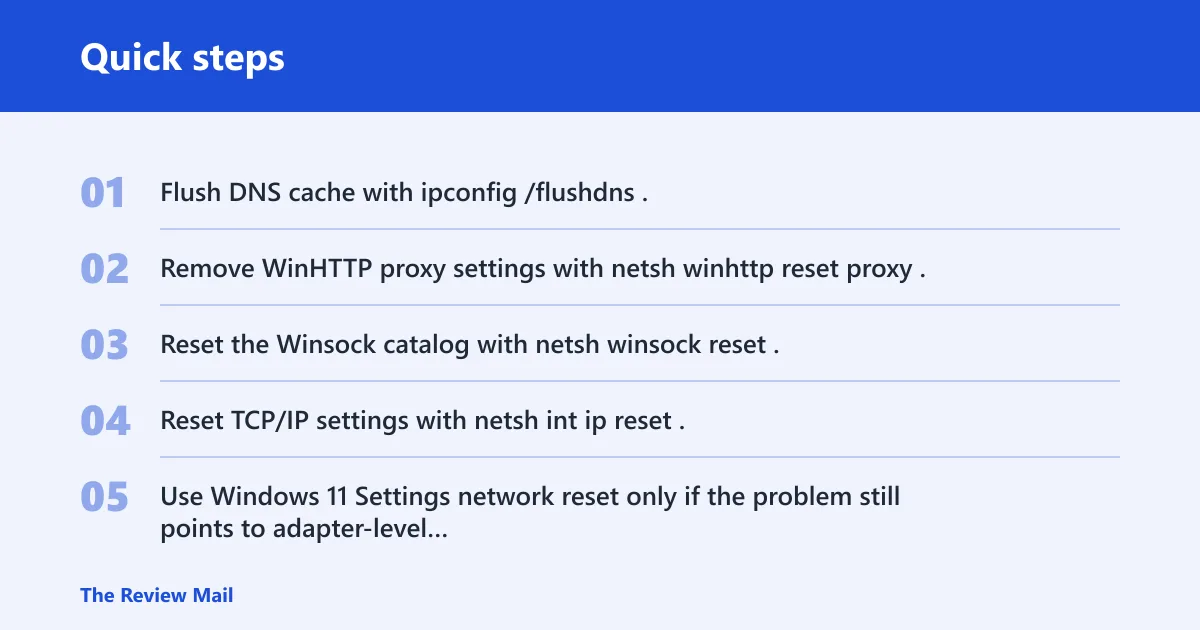
- Flush DNS cache with
ipconfig /flushdns. - Remove WinHTTP proxy settings with
netsh winhttp reset proxy. - Reset the Winsock catalog with
netsh winsock reset. - Reset TCP/IP settings with
netsh int ip reset. - Use Windows 11 Settings network reset only if the problem still points to adapter-level corruption.
📊 Microsoft says Reset your PC works on both Windows 11 and Windows 10. Source: Microsoft.
Open Command Prompt as administrator
Open Command Prompt with administrator rights before you run any network repair command. These commands write to protected networking components, and a standard prompt usually blocks them with an access error instead of applying a partial fix.
What to expect if you skip elevation
If you launch a normal Command Prompt, the repair command may stop immediately or return a permissions failure. Do not assume the change went through. For network repair, elevated access is the requirement, not a nice-to-have.
Quick path in Windows 11
- Open Start.
- Type Command Prompt.
- Choose Run as administrator.
- Approve the prompt.
Use the elevated window for each command, one at a time. That makes it easier to see which repair step changes the behavior.
Run the repair commands one by one
Run one command, then test the connection before moving to the next. That keeps the fix as small as possible and helps you identify whether the issue was DNS, proxy, Winsock, or the TCP/IP stack. The sequence below matches the most common failure modes.
Dns cache
ipconfig /flushdns clears the local DNS cache. Use it when name lookups fail, when a site recently changed addresses, or when one device keeps trying a stale record.
Proxy settings
netsh winhttp reset proxy removes WinHTTP proxy settings. That matters when a VPN, corporate tool, or security package left proxy values behind and now blocks internet access for apps that rely on WinHTTP.
Winsock catalog
netsh winsock reset resets the Winsock catalog. Use it for socket-related problems, especially when apps can open the network adapter but still cannot create usable connections.
Tcp/ip stack
netsh int ip reset resets TCP/IP configuration components. This is the right command when the IP stack itself looks corrupted, including IPv4 behavior that no longer matches normal network settings.
Network reset command table
This table gives the shortest path from symptom to command. It also shows what the command changes, whether a reboot is required, and what usually stays in place. Use it as a decision sheet, not as a list to run blindly.
| Symptom | Best CMD command | What it resets | Reboot required? | What stays or changes |
|---|---|---|---|---|
| Websites fail by name, but IP addresses still work | ipconfig /flushdns | Local DNS cache | No, but retry the site after running it | Preserves adapter settings, Wi-Fi profiles, and proxy configuration; clears cached name lookups |
| Sites or apps fail after VPN or security software changes | netsh winhttp reset proxy | WinHTTP proxy settings | No, but restart the app or browser you are testing | Preserves DNS cache, Winsock, and TCP/IP settings; removes WinHTTP proxy entries |
| Apps cannot open connections or socket errors appear | netsh winsock reset | Winsock catalog | Yes, often required after running it | Preserves files and most network profiles; can affect app socket behavior until restart |
| Broad networking corruption or IPv4 problems continue across apps | netsh int ip reset | TCP/IP stack settings | Yes, usually needed to reload the stack | Preserves user files; can revert parts of IPv4 and related TCP/IP configuration |
| Nothing else works and adapter-level settings look broken | Windows 11 Network reset in Settings | Network adapters and default network settings | Yes; Windows 11 schedules a shutdown and restart in five minutes after confirmation | Reinstalls adapters and returns defaults; saved Wi-Fi, VPN, and custom adapter settings may be removed |
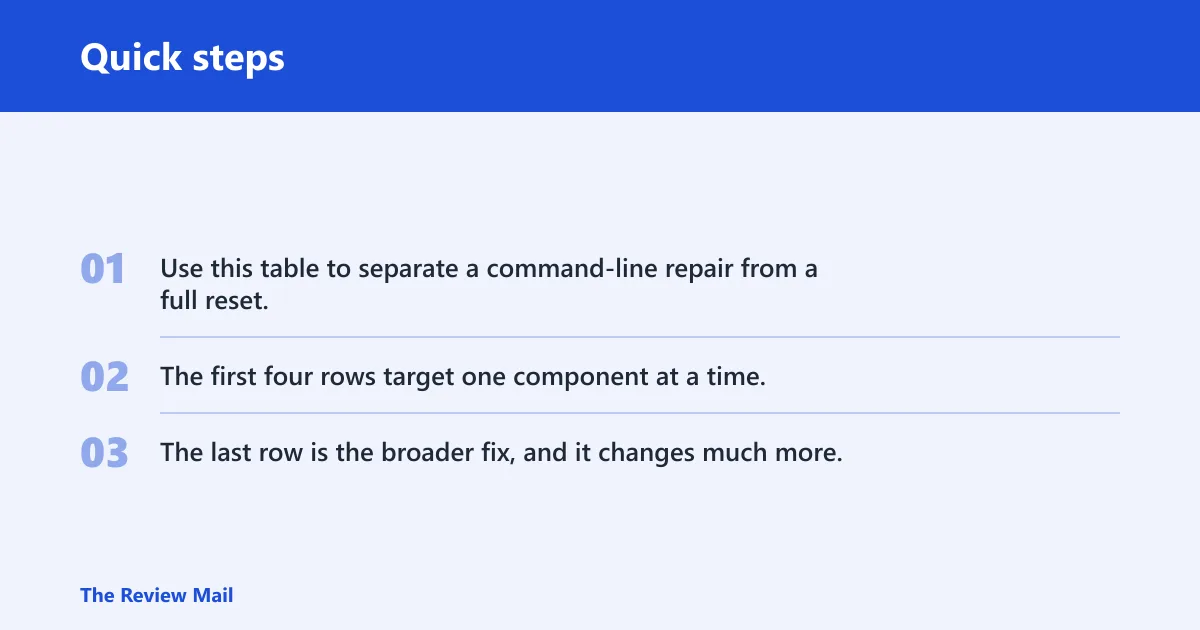
Use this table to separate a command-line repair from a full reset. The first four rows target one component at a time. The last row is the broader fix, and it changes much more.
What changes after each command?
Each repair touches a different layer. That is why one command can fix a browser problem while another does nothing. The Winsock catalog, the TCP/IP stack, proxy settings, and DNS cache do not behave the same way, and they fail in different patterns.
Winsock catalog: the Winsock catalog
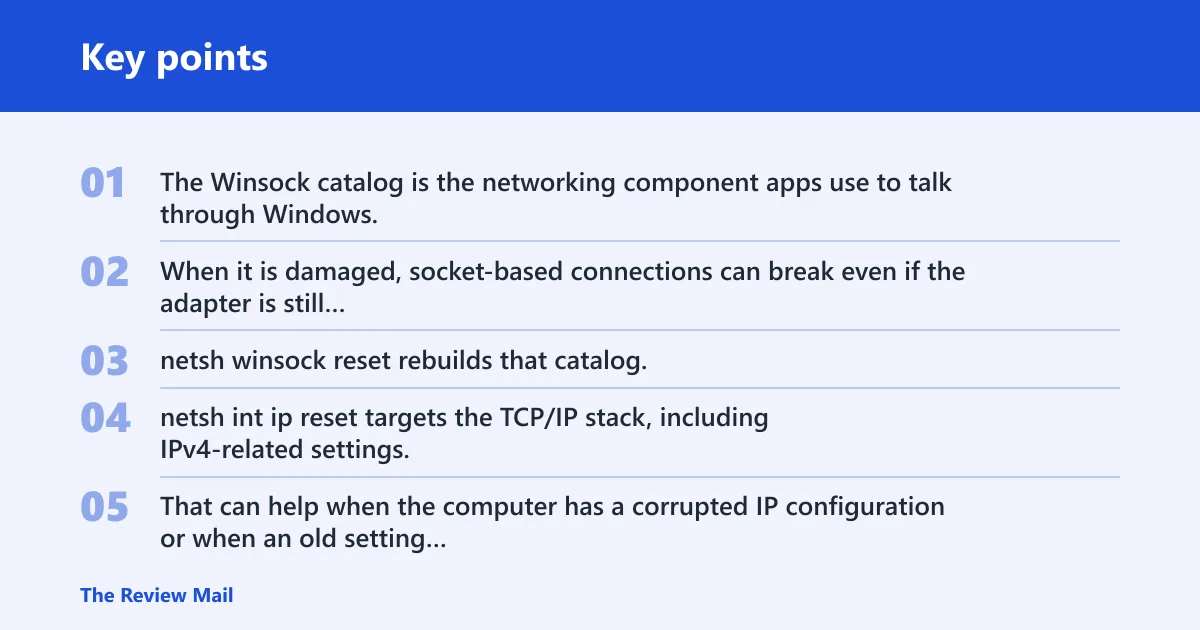
The Winsock catalog is the networking component apps use to talk through Windows. When it is damaged, socket-based connections can break even if the adapter is still connected. netsh winsock reset rebuilds that catalog, which is why a reboot is commonly needed afterward.
Tcp/ip stack: netsh int ip reset targets
netsh int ip reset targets the TCP/IP stack, including IPv4-related settings. That can help when the computer has a corrupted IP configuration or when an old setting keeps overriding normal connectivity. It does not reinstall every adapter the way a full network reset does.
Proxy and dns
netsh winhttp reset proxy clears WinHTTP proxy settings only. ipconfig /flushdns clears the DNS cache only. Those are narrow repairs. They do not wipe Wi-Fi profiles, remove adapters, or erase most user network preferences.
A common first-timer mistake is running a full reset because one site will not open. If the failure is only a stale DNS entry, that is too much damage for the job. Start with the smallest command that matches the symptom.
Should you use Settings instead?
Use Settings when the command-line repair does not fix the issue or when Windows itself appears to have a deeper adapter problem. Windows 11 keeps Network reset in Settings > Network & internet > Advanced network settings, with a Reset now button. After confirmation, Windows 11 schedules a shutdown and restart in five minutes.
Windows 10 location
Windows 10 places the equivalent reset in Settings > Network & Internet > Status. The Windows 10 page uses a Reset now button there as well. That version is similar in purpose, but the menu path is different.
When the full reset is more appropriate
Use the Settings-based reset when adapter reinstall is the point, not the side effect. That is the better choice after repeated CMD repairs fail, after a virtual adapter or VPN package leaves the network stack messy, or when the system needs a broader return to defaults.
What to do if the reboot does not fix it
If the reboot does not fix the issue, repeat the decision path in the same order: DNS, proxy, Winsock, TCP/IP, then Settings-based reset. If the problem still remains after that, look outside Windows networking. A damaged router, a bad cable, a disabled adapter, a broken driver, or an ISP outage will not be fixed by a local command.
Check the next layer
- Confirm the adapter is enabled.
- Restart the router or modem if other devices also fail.
- Disable and re-enable the network adapter only as a quick adapter check, not as a replacement for the commands above.
- Look for VPN software or security tools that reapply a proxy or filter.
- Test on another network to separate PC-side problems from ISP problems.
If the reboot is delayed, wait for Windows to complete it rather than forcing more changes into the same session. If the restart fails repeatedly, the issue may be wider than networking and should be checked at the system level before you keep changing the stack.
Frequently asked questions
How to reset network settings windows 11 from command prompt
Use Command Prompt for component-level repairs, not for the full Settings-based reset. In Windows 11, CMD can clear DNS, reset Winsock, reset TCP/IP, and remove WinHTTP proxy settings. If those steps fail and adapter reinstall is needed, move to Settings > Network & internet > Advanced network settings > Network reset.
What does network reset do windows 10?
Windows 10 Network reset removes and reinstalls network adapters, then returns network settings to default. Microsoft places it under Settings > Network & Internet > Status, with a Reset now button. It is broader than a CMD repair because it can remove saved Wi-Fi and VPN-related settings.
Will resetting network settings delete anything windows 10?
It can. For a lighter fix, try DNS, Winsock, proxy, or TCP/IP commands first. Use the full reset only when those do not solve the problem.