Svchost Exe Svchost High Cpu
svchost.exe high CPU usually means one Windows service inside that host is busy, stuck, or, less often, counterfeit. Check the service first, and treat any svchost.exe outside C:\Windows\System32 as suspect. Leaving it alone can slow the PC, drain battery, and hide a deeper Windows fault or malware. This guide shows the quickest way to identify the service, judge whether the load is normal, and separate a stuck component from a fake executable.
What svchost.exe does
svchost.exe is Windows’ shared-service host. It loads services from DLL files instead of running each service as a separate full executable, so Windows can group related work into one process or split it into several when that helps with reliability and resource control.
That design is why you may see many svchost.exe entries in Task Manager. On Windows 10 Creators Update version 1703 and later, systems with more than 3.5 GB of RAM can run services in their own SvcHost process automatically. On systems with 3.5 GB or less RAM, the older grouping behavior remains. (Microsoft Learn)
A short CPU spike is not always a fault. Windows Update, network services, and scheduled compatibility checks can push one svchost.exe instance high for a moment, then settle. The key question is whether the spike ends, repeats after a reboot, or stays pinned.
Why Windows uses one host process for many services
Microsoft’s changes to service hosting point to one aim, better reliability and tighter resource control.
How do I find which service inside svchost.exe is using CPU?
Start with Task Manager, then map the process ID to the hosted service. Right-click svchost.exe and choose Go to service(s). If you prefer the command line, use tasklist /SVC /FI “IMAGENAME eq svchost.exe” to match each svchost.exe PID with the services inside it.
Use Task Manager first
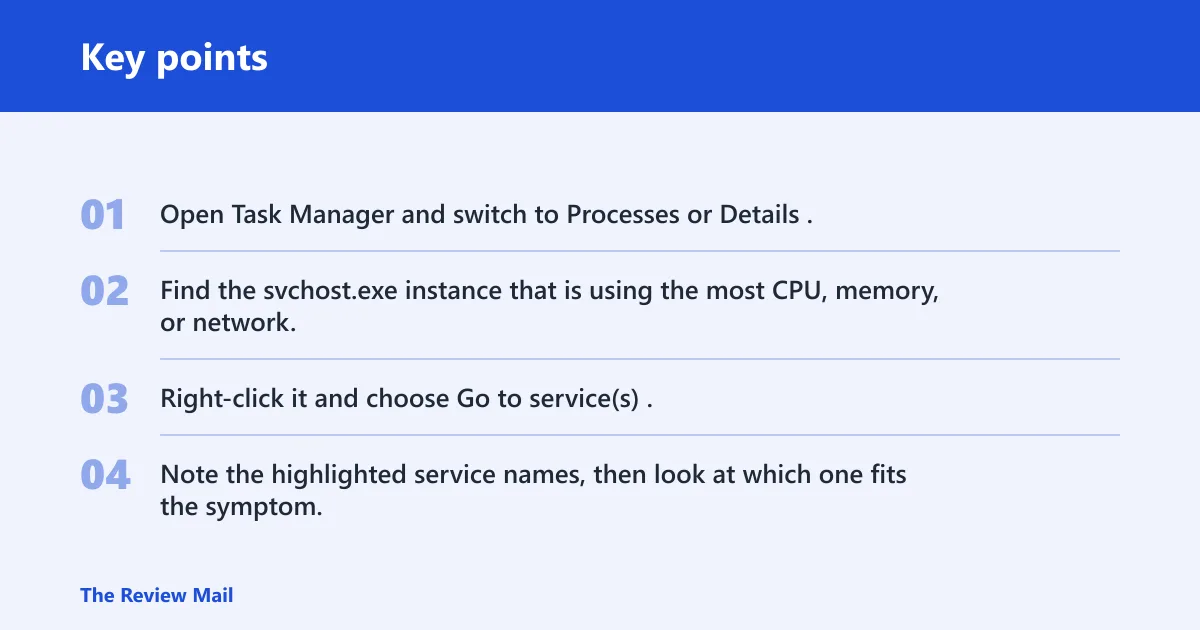
- Open Task Manager and switch to Processes or Details.
- Find the svchost.exe instance that is using the most CPU, memory, or network.
- Right-click it and choose Go to service(s).
- Note the highlighted service names, then look at which one fits the symptom.
If Task Manager shows several grouped processes, expand them. The hosted service names are the fastest clue. This is especially useful when one svchost.exe is active but the others are quiet.
Use tasklist when Task Manager is not enough
The command tasklist /SVC /FI “IMAGENAME eq svchost.exe” is useful when you want a text list of every svchost.exe process and the services it contains. Match the PID in the output to the CPU-heavy entry in Task Manager, then work from the service name instead of guessing from the process name alone.
Read the symptom column before you act
CPU, memory, and network point to different problems. High CPU often means a service is looping or working through a backlog. High memory with moderate CPU suggests a leak or cache growth. High network activity can point to update traffic, telemetry, or a service retrying on a bad connection. The fix changes with the symptom.
Svchost CPU triage table
| Symptom | Likely hosted service class | How to confirm in Task Manager or tasklist /SVC | Safest first fix | When to escalate |
|---|---|---|---|---|
| CPU spikes after boot or after Patch Tuesday; network may also stay active | Windows Update services, such as update orchestration and scan activity | Task Manager may show Windows Update-related service names after Go to service(s); tasklist /SVC /FI “IMAGENAME eq svchost.exe” will map the busy PID to the update service group | Wait a little after startup, then reboot once and check for pending updates | Escalate if the same svchost.exe stays hot for hours, repeats every boot, or updates never finish |
| CPU and network rise together, often with browser lag or slow connection setup | Networking services, such as name resolution, connection setup, or related network components | Use Go to service(s) to see the exact network service group; confirm the same PID in tasklist /SVC | Restart the PC and router if needed, then retest on a stable connection | Escalate if the load returns on multiple networks or if other network features fail |
| CPU stays high even when the PC seems idle; network is low; memory may climb over time | Application Experience tasks or compatibility checks | Check Task Scheduler for Microsoft Compatibility Appraiser, ProgramDataUpdater, and StartupAppTask when the busy svchost group lines up with compatibility activity | Disable only the specific scheduled task that matches the symptom, then retest | Escalate if the task is not present, the CPU load returns, or other services start failing |
| Any high CPU plus odd path, strange name, or unsigned file | Suspicious or impersonated executable | Check file location and signature first; a real copy is usually in C:\Windows\System32\ and may also appear in C:\Windows\SysWOW64\ on 64-bit systems | Isolate the file, do not delete blindly, and run a malware scan | Escalate immediately if the file is outside Windows folders, unsigned, or has a look-alike name |
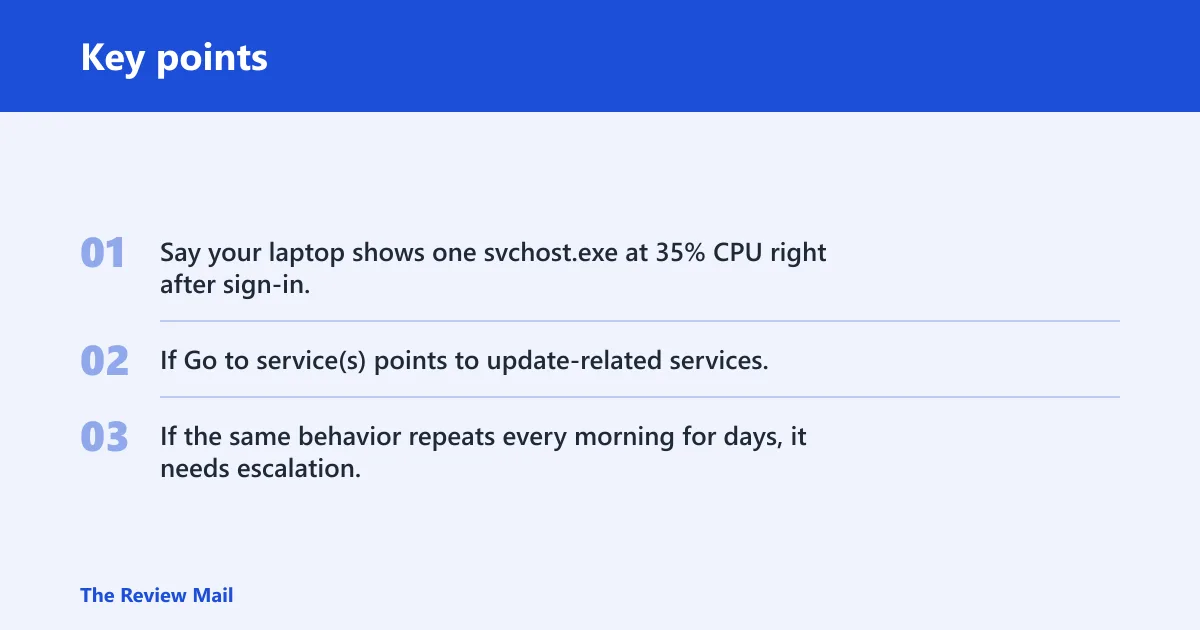
Say your laptop shows one svchost.exe at 35% CPU right after sign-in, while network activity also jumps. If Go to service(s) points to update-related services, that fits Windows checking or applying updates better than malware. If the same behavior repeats every morning for days, it needs escalation.
Is svchost.exe a virus or a real Windows process?
svchost.exe is normally a real Windows process, not a virus. The risk is impersonation: malware can copy the name or use look-alike names such as scvhost.exe and svhost.exe. Check the file path first, then confirm the digital signature. A legitimate copy should usually live in C:\Windows\System32\, and on 64-bit systems it may also appear in C:\Windows\SysWOW64\.
Check the file location before anything else
An unexpected path is a red flag. If svchost.exe is running from Downloads, AppData, Temp, or another user-writable folder, it should be treated as suspect until proven otherwise. The file name alone is not enough.
Use the Digital signatures tab
Open the file’s Properties and check the Digital Signatures tab. A Microsoft signature is what you want to see on a genuine copy. Missing, invalid, or broken signatures point toward tampering or a fake file, especially if the location is also wrong.
Suppose Task Manager shows svhost.exe in a folder under a user profile, and it is using 18% CPU with no clear service group. That combination is a strong malware warning. The safest move is to isolate the file, scan the system, and avoid deleting the only copy before you know what it replaced.
Why are there so many svchost.exe processes in Task Manager?
Many svchost.exe processes are normal. Windows 10 version 1703 changed service-host grouping on systems with more than 3.5 GB of RAM, so services can run in their own host process automatically. That separation improves reliability and resource control, and it makes Task Manager look busier even when nothing is wrong.
When the count is normal
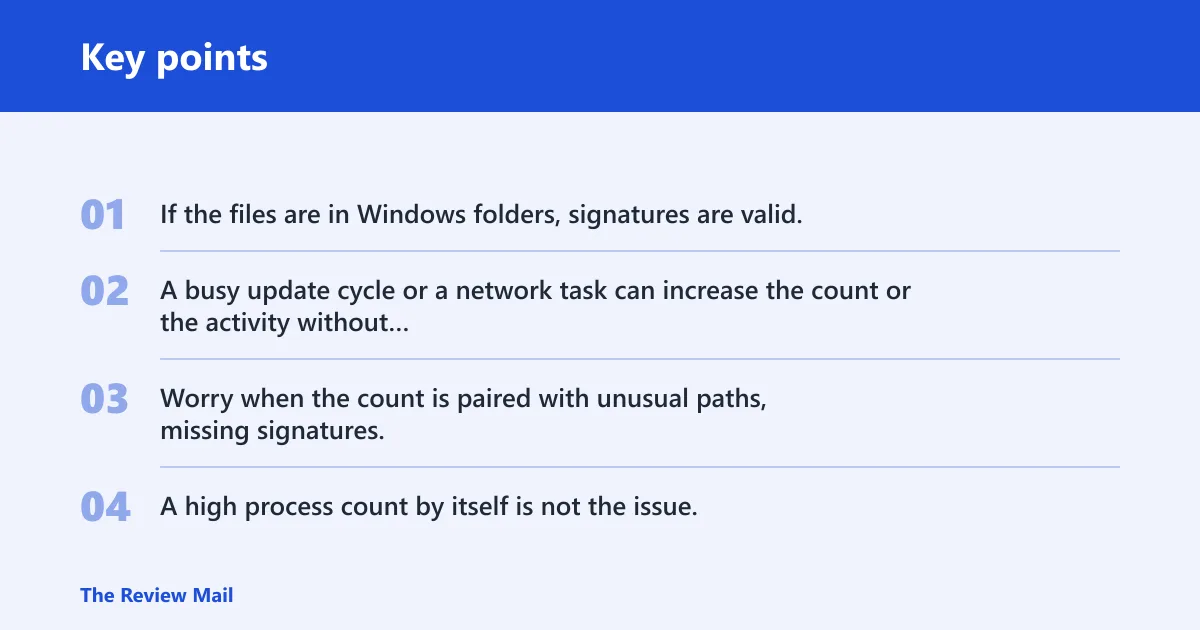
If the files are in Windows folders, signatures are valid, and the service names match Microsoft components, a larger number of svchost.exe entries is usually fine. A busy update cycle or a network task can increase the count or the activity without indicating damage.
When the count is a problem
Worry when the count is paired with unusual paths, missing signatures, repeated CPU spikes, or services that fail to start. A high process count by itself is not the issue. The service inside the host is the issue.
What should I do if svchost.exe causes high CPU or memory use?
Use a short decision path: restart, identify the service, compare the symptom, then decide whether to wait, disable one scheduled task, or escalate. Do not start by disabling random services. Some are tied to Windows components, and disabling the wrong one can break updates, networking, or login behavior.
Safest first fixes
- Restart the PC once.
- Check Windows Update and let pending updates finish.
- Use Task Manager or tasklist /SVC to identify the service.
- Match the symptom to the service class before changing anything.
- Use a clean boot if the culprit still is not clear.
Use clean boot to isolate the service
A clean boot helps separate Windows services from third-party startup items. If svchost.exe calms down in a clean boot, re-enable items in small groups until the culprit returns. That is safer than disabling broad service sets and hoping the issue disappears.
When a scheduled task is the right target
For Application Experience issues, Task Scheduler is a common place to look. Microsoft’s support guidance has pointed to Microsoft Compatibility Appraiser, ProgramDataUpdater, and StartupAppTask as tasks that may be disabled if they are the active cause. Only change the task that matches the service pattern you identified.
When to use deeper tools
If CPU or memory stays high after the basic checks, move to deeper tools such as Process Explorer, the Windows Performance Toolkit, or VMMap. Those tools are useful when a service leak or a long-running loop needs more than Task Manager can show. They are also helpful when the same svchost.exe PID keeps returning as the top offender.
Should I disable services running under svchost.exe?
Only with care, and only after you know which service is responsible. Disabling services can stop the symptom, but it can also break Windows features or hide the real fault. If the service is part of update, networking, or core system plumbing, changing it without a clear reason is a bad trade.
Use this rule: disable a specific scheduled task or nonessential service only when you have tied the high usage to that component and you can reverse the change. If you cannot name the culprit, keep investigating instead of shutting down service groups wholesale.
Frequently asked questions
Why is svchost.exe running so high?
High CPU often means one hosted service is busy, stuck, or retrying work. Common causes include Windows Update activity, networking issues, compatibility tasks, or a damaged service. Identify the service first, then decide whether the spike is temporary or persistent.
Can I delete svchost.exe?
No. Deleting a real svchost.exe can damage Windows, and if the file is fake, deleting it without first isolating it can hide evidence that may still be needed. Check the file location, confirm the signature, and scan the system before taking removal steps.