Bugcode Ndis Driver Windows 11
Treat BUGCODE_NDIS_DRIVER on Windows 11 as an NDIS network-stack fault: identify the adapter class, confirm the loaded NDIS version, then remove or roll back the bad driver before reinstalling anything. Skip that order, and you can keep triggering blue screens, lose network access, and waste time on the wrong device package. This guide shows how to trace the failing adapter, verify NDIS version and driver state, and choose the safest recovery path.
What BUGCODE_NDIS_DRIVER means
BUGCODE_NDIS_DRIVER is a Windows blue screen tied to a failure in the network driver stack. It usually points to an NDIS-based component, not just the physical Wi‑Fi or Ethernet card, so the bad actor may be a miniport, protocol, filter, or intermediate driver loaded above or below the adapter.
Why the stop code points to the network stack
NDIS abstracts network hardware from network drivers and defines a standard interface between layered network drivers. That means a crash can come from hardware support, a VPN filter, packet inspection software, Bluetooth PAN, or a virtual adapter, even when the symptom looks like a plain Wi‑Fi failure.
When the crash tends to appear
Look at the timing. If the blue screen appears during boot, after waking from sleep, when a VPN connects, or right after a driver install, that timing often narrows the suspect layer. A startup crash often points to an adapter miniport or boot-start filter. A crash during VPN use often points to a filter driver.
How to identify the failing driver
Start with the bugcheck record, then match it to the adapter class and driver package. Event Viewer, dump analysis, and Device Manager usually give enough evidence to separate the failing network component from the physical device. Do not guess from the stop code alone.
Check Event Viewer for the bugcheck and driver name
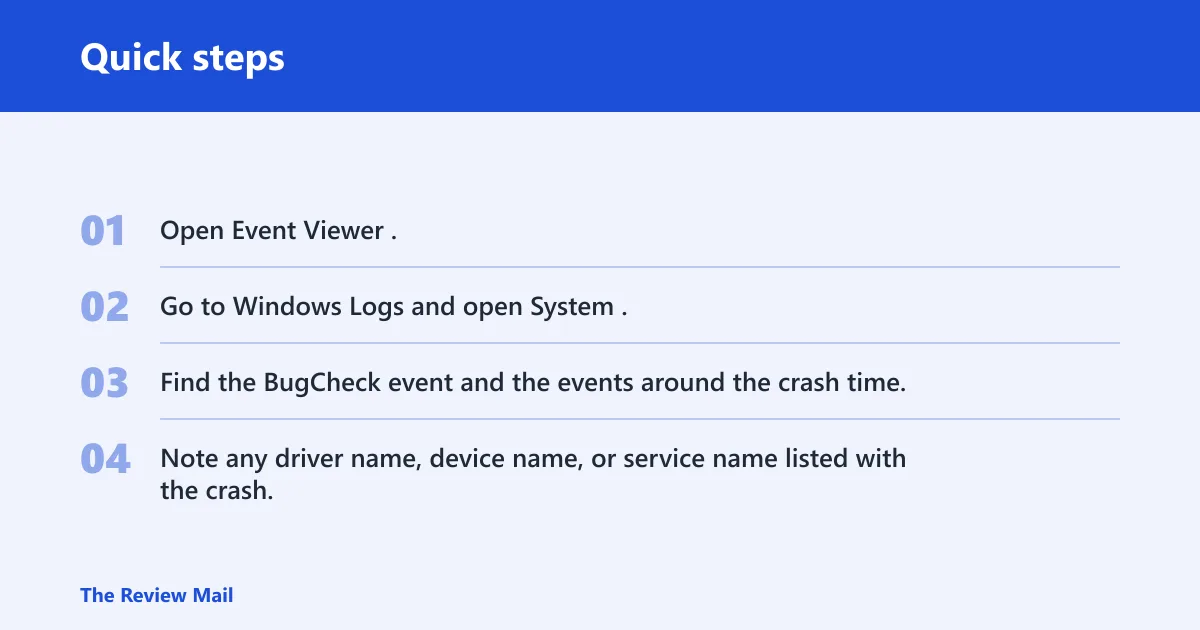
- Open Event Viewer.
- Go to Windows Logs and open System.
- Find the BugCheck event and the events around the crash time.
- Note any driver name, device name, or service name listed with the crash.
If Event Viewer names a driver such as a Wi‑Fi miniport, a VPN filter, or a virtual adapter service, that is usually more useful than the stop code text itself. A crash with no named driver still helps, because the surrounding events often show a recent install, failed load, or device reset.
Use dump analysis to find the adapter class
Mini dump analysis can reveal the exact module at fault, which is the strongest clue for this stop code. Look for the network adapter family, the filter layer above it, or a third-party packet path. A dump that points to a VPN or security stack usually calls for software removal before any driver reinstall.
Use Device Manager to match hardware to the suspect driver
Open Device Manager, expand Network adapters, and match the device name to the package name reported in the crash. Check the hardware ID as well, since the exact chipset matters more than the label Windows shows. If the suspect package is Intel, Realtek, Qualcomm, Broadcom, TAP, WireGuard, VMware, Hyper-V, or a similar virtual device, the class is usually clear enough to choose the right recovery path.
How do you check the adapter driver details?
Open the adapter in Device Manager, read the Driver tab, and compare the installed version with the vendor package for that exact model. That tells you whether Windows loaded a recent package, an older fallback, or a version that no longer matches the current Windows 11 build.
Find the network adapter in Device Manager
- Press Win+X and open Device Manager.
- Expand Network adapters.
- Select the Wi‑Fi, Ethernet, VPN, Bluetooth PAN, or virtual adapter entry.
- Open Properties.
Open Properties and note the Driver tab fields
On the Driver tab, write down Driver Provider, Driver Date, Driver Version, and Digital Signer. Those four fields tell you whether the package came from Microsoft, the adapter vendor, or a third party, and whether the package is signed in a way Windows accepts.
Compare the installed version with the vendor package
Use the exact hardware model, not the marketing name on the laptop box. A generic “Wireless LAN” device may hide a specific chipset underneath. If the installed version is older than the vendor package, or if a recent package arrived just before the crash, that mismatch is useful evidence for rollback or reinstall.
Which NDIS driver type is failing?
The four primary NDIS driver types are miniport, protocol, filter, and intermediate drivers. Each one sits in a different part of the network path, so the right fix depends on which layer failed. A Wi‑Fi card, a VPN client, and a virtual switch do not fail the same way.
Miniport drivers
Miniport drivers generally control the hardware-facing side of the adapter. If the crash happens on boot, after resume, or when the wireless radio turns on, the miniport is a common suspect. Device Manager usually shows these as the actual Wi‑Fi or Ethernet chipset entry.
Protocol drivers
Protocol drivers sit above the miniport and handle traffic through the NDIS interface. They are less visible to casual users, but they can still trigger BUGCODE_NDIS_DRIVER when packet processing, binding, or teardown fails.
Filter drivers
Filter drivers can inspect or modify traffic. VPN clients, endpoint security tools, and packet capture tools often install this layer. If the crash starts after new security software or a new VPN profile, the filter is one of the first places to look.
Intermediate drivers
Intermediate drivers bridge or combine paths between network components. They are less common on a normal Windows 11 PC, but they matter in virtualization, teaming, sharing, and some legacy networking setups. A virtual adapter crash can involve this layer or a related filter path.
What NDIS version does Windows 11 use?
Windows 11 uses different NDIS versions by release, so the build matters when you judge driver compatibility. Windows 11 version 24H2 supports NDIS 6.89. Windows 11 version 22H2 supports NDIS 6.87. Windows 11 version 21H2 supports NDIS 6.86. (Microsoft)
Windows 11 24H2 and NDIS 6.89
Windows 11 version 24H2 supports NDIS 6.89. If a driver package was built for an older Windows release, it may still install, but that does not mean it is the best match for the loaded network stack.
Windows 11 22H2 and NDIS 6.87
Windows 11 version 22H2 supports NDIS 6.87. If a crash began after a feature update, compare the package date against the current build. A driver that was stable on an older release may fail after the update because the stack and the vendor package no longer line up cleanly.
Windows 11 21H2 and NDIS 6.86
Windows 11 version 21H2 supports NDIS 6.86. Older hardware packages may still run, but older code paths are more likely to show problems with Secure Boot, signing, or framework changes after system updates.
Can NDIS drivers use WDF?
Yes. WDF can be used in an NDIS driver, but the driver mode matters. Miniport mode restricts some WDF APIs, while protocols and LWFs can use more of WDF. For recovery work, that matters because a vendor package may fail from framework mismatch, not just from the hardware itself.
Miniport mode limits some WDF APIs
Miniport mode is the restricted path. Lower-level networking drivers need to follow NDIS rules closely, so not every WDF helper is available. That matters when a vendor package leans on work items, timers, memory allocation, events, or string handling in a way the miniport path cannot support.
NDIS-WDM mode and framework options
NDIS-WDM mode gives a miniport driver room to use non-NDIS frameworks, historically tied to WDM. That older model still appears in some compatibility layers and vendor packages. If a driver behaves differently after a Windows upgrade, the framework path may be part of the problem.
Where WDF helps in practice
Protocols and LWFs can use the full breadth of WDF functionality, which is why many vendors prefer it for work items, timers, memory handling, events, and strings. That does not fix a bad package by itself, but it explains why one component may survive an update while another crashes hard.
NDIS crash decision table
This table maps the symptom pattern to the most likely layer, the safest first action, and the evidence to collect before you reinstall anything. It is the fastest way to separate a bad Wi‑Fi miniport from a VPN filter or a virtual adapter problem.
| Symptom trigger | Likely layer | Immediate action | Evidence to collect |
|---|---|---|---|
| Crash at boot, sign-in, or Wi‑Fi radio start | Wi‑Fi miniport | Boot Safe Mode, then roll back or uninstall the wireless driver | BugCheck event, dump module name, Device Manager Driver tab |
| Crash after cable plug-in or dock attach | Ethernet miniport | Disable the adapter, then remove the recent Ethernet package | System event timing, adapter model, signed driver version |
| Crash when connecting a VPN or opening a secure tunnel | VPN filter | Uninstall the VPN client or security suite first | VPN service name, filter driver name, recent install date |
| Crash when using Hyper-V, a bridge, or a virtual switch | Virtual adapter | Remove or disable the virtual network component | Virtual adapter entry, dump filename, Event Viewer service name |
Say your laptop bluescreens only after a corporate VPN connects and the dump names a third-party filter. The safest first move is not a Wi‑Fi reinstall; it is removing the VPN package in Safe Mode, then checking whether the crash disappears before touching the physical adapter.
Picture a desktop with a wired connection that crashes only after a USB Ethernet dongle is attached. That pattern points to the dongle’s miniport or its driver package, not the motherboard NIC. The evidence should include the adapter’s exact hardware ID and the driver version from Device Manager.
What is the safest fix order?
Use the least destructive step first. Start in Safe Mode, remove recent VPN or security software, then roll back or uninstall the adapter driver in Device Manager, then reinstall the vendor package or let Windows reload the adapter. Finish by disabling and re-enabling the adapter after the change.
Boot Safe Mode and remove recent VPN or security software
Safe Mode reduces third-party network layers, which makes it easier to stop a repeat crash. If the problem started after a VPN client, firewall, packet filter, or endpoint tool was installed, remove that software before you reinstall the base adapter driver.
Roll back or uninstall the adapter driver in Device Manager
- Open Device Manager.
- Right-click the suspect network adapter.
- Choose Properties and open the Driver tab.
- Select Roll Back Driver if available.
- If rollback is unavailable, choose Uninstall device and remove the driver package if Windows offers that option.
Rollback is the better choice when a new package clearly started the problem. Uninstall is the better choice when the package is corrupted, mismatched, or missing a clean rollback point.
Install the vendor package or let Windows reload the adapter
After uninstall, install the official vendor package for the exact adapter model, or let Windows redetect the device and load its own signed driver. Check the driver version again afterward. If the device still crashes, you have evidence that the fault may be in another network layer, not the chip itself.
Disable and re-enable the adapter after the change
Disabling and re-enabling the adapter can clear a stuck state without forcing a full system reset. Use it after a driver change, not instead of one. If the adapter fails to come back cleanly, that detail belongs in Event Viewer and the dump notes.
Watch for signature and Secure Boot problems
A signed package can still fail if it is too old, blocked by Secure Boot rules, or incompatible with the current Windows 11 build. If Device Manager shows warning symbols, or if the driver loads and then vanishes after reboot, verify that the package is signed and intended for the exact release you are running.
Where NetAdapterCx fits
NetAdapterCx is a newer networking path associated with NDIS 6.70 and later development work. It matters because modern adapters may rely on newer framework assumptions, even when the visible device name looks ordinary. If a vendor package was built for older code paths, compatibility problems can appear after an upgrade.
Frequently asked questions
What does BUGCODE_NDIS_DRIVER mean in Windows 11?
It means Windows hit a blue screen in the network driver stack. The failure usually involves an NDIS-based component such as a miniport, protocol, filter, or intermediate driver. The adapter itself may be fine; the faulty layer can be a VPN client, security filter, or virtual networking package.
Which network drivers can trigger a BUGCODE_NDIS_DRIVER stop error?
Any NDIS-based network component can trigger it, including Wi‑Fi and Ethernet miniports, VPN filters, Bluetooth PAN components, virtual adapters, and some intermediate drivers. The most useful clue is not the stop code alone, but the failing module name from Event Viewer or dump analysis.
How do I tell if my Wi‑Fi or Ethernet driver is an NDIS driver?
Open Device Manager, expand Network adapters, and open the adapter’s Properties. If the Driver tab shows a vendor network package and the device is listed under network hardware, it is using the NDIS path. The exact name, version, and signer identify which package is loaded.
Can NDIS drivers use WDF on Windows 11?
Yes. WDF can be used in an NDIS driver, but miniport mode limits some WDF APIs. Protocols and LWFs can use more WDF functionality. For troubleshooting, that means the package may fail because of framework limits, not just because the adapter hardware changed.
How do I fix a blue screen caused by an NDIS driver?
Start in Safe Mode, remove recent VPN or security software, then roll back or uninstall the suspect adapter driver in Device Manager. After that, install the vendor package for the exact model and re-enable the adapter. If the crash repeats, collect the dump and Event Viewer entries before trying another reinstall.
Should I update or roll back my network adapter driver first?
Use the crash timing to decide. If the blue screen started right after a driver update, roll back first. If the package is clearly old or missing support for your Windows 11 build, install the vendor update. Do not update blindly when the fault may be in a VPN filter or virtual adapter.
Are miniport drivers different from protocol or filter drivers?
Yes. Miniport drivers talk to the hardware side, protocol drivers handle traffic above the miniport, and filter drivers inspect or modify traffic in the path. Intermediate drivers sit between layers or bridge them. That distinction matters because each type has a different failure pattern and a different first fix.