Windows 11 High CPU Usage Reddit Fixes That Work
On Windows 11, sustained CPU use well above normal at idle often points to a runaway process, driver issue, Windows Update, Defender scan, or malware; brief CPU spikes during installs or indexing are often normal. Start by opening Task Manager, then sort the Processes list by CPU so you can separate a real culprit from routine background work.
Likely causes
Most often, the cause is a background process, a startup app, or Windows Update work that is still running after login. Less often, SysMain, WMI Provider Host, Defender, overheating, or a single app loop keeps CPU pinned. The fastest path is to spot the pattern before changing services or power settings.
Background processes and startup apps
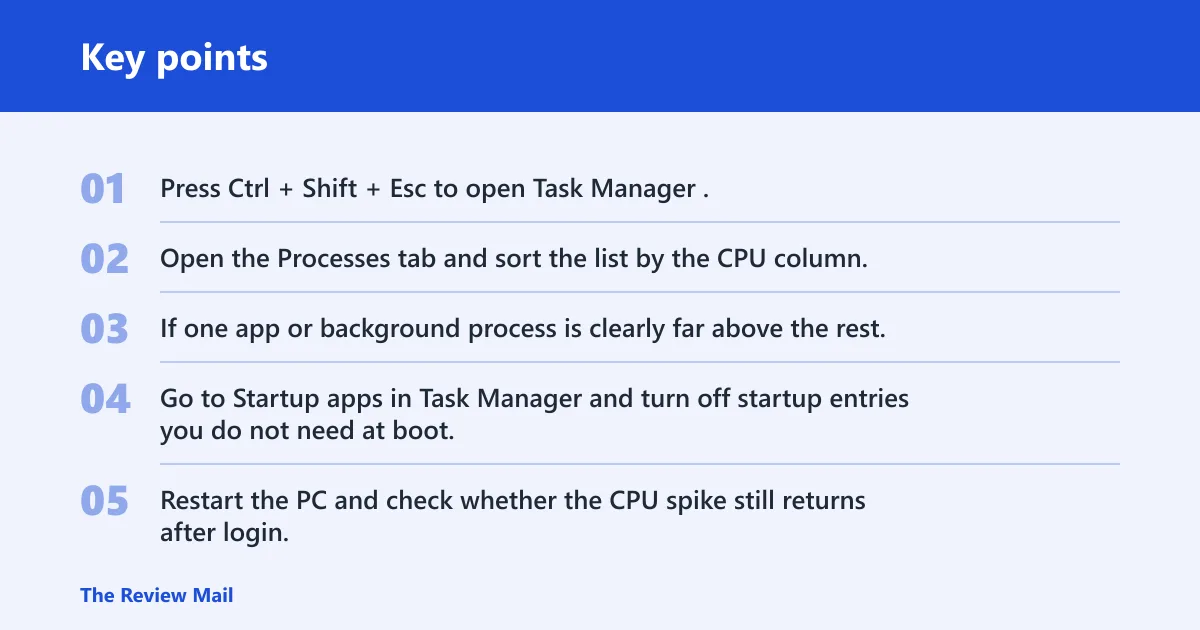
High CPU usage can come from too many background processes, especially right after boot. If the spike starts after login, startup apps are a strong suspect, and you should check them before touching services or reinstalling anything.
- Press Ctrl + Shift + Esc to open Task Manager.
- Open the Processes tab and sort the list by the CPU column.
- If one app or background process is clearly far above the rest, select it and choose End task.
- Go to Startup apps in Task Manager and turn off startup entries you do not need at boot.
- Restart the PC and check whether the CPU spike still returns after login.
Windows Update and post-login maintenance
Windows Update can temporarily drive CPU usage to 100%, especially during install, cleanup, or first sign-in maintenance. If the load falls after a while, that can be normal. If it stays high, you may need to troubleshoot the update service instead of waiting it out.
- Open Settings > Windows Update and check whether updates are downloading, installing, or waiting for a restart.
- Leave the PC connected to power and give it time if the spike started during an update.
- If CPU stays high after the update finishes, open
services.msc. - Find Windows Update, open its properties, and stop it only as a troubleshooting step if you need to confirm the cause.
- Restart the PC and recheck CPU use after the service is stopped. Remember that stopping it also stops updates.
SysMain, WMI provider Host, and defender scans
SysMain, also called Superfetch, can be noisy on some systems. WMI Provider Host can also climb when another component is looping. Defender scans can raise CPU during a security check, and that is not unusual if the machine is actively scanning.
- Open
services.msc. - Find SysMain, open its properties, and choose Stop if it is the active source of sustained CPU use.
- Set Startup type to Disabled if the spike keeps coming back after reboot.
- If WMI Provider Host is the process at the top of Task Manager, restart the Windows Management Instrumentation service from
services.msc. - Open Windows Security > Virus & threat protection > Scan options and run a full scan if the CPU stays high while idle.
Overheating, power limits, or a single runaway app
Hot hardware can make CPU symptoms worse, and a restrictive power plan can leave the machine feeling slow even when the chip is not defective. A single app can also spin in a loop and hold one or more cores at high use.
- Check for blocked vents, dust buildup, or fans that are not ramping up under load.
- Open Settings > System > Power & battery and switch to a more performance-oriented Power mode if the system is being held back.
- Open Control Panel > Power Options and select a plan that does not cap performance too aggressively.
- Update chipset, graphics, storage, and network drivers from the device maker.
- If one app keeps returning to the top of Task Manager, update it, repair it, or reinstall it.
High-CPU pattern decision table
| Symptom pattern | Most likely cause | First safe fix | When to escalate |
|---|---|---|---|
| Idle-at-100% | Background process, malware, or Windows maintenance that never finishes | Sort by CPU in Task Manager, then run a Windows Security scan | If CPU stays near 100% after a scan and reboot, check drivers and services |
| Post-login spike | Startup apps or first-boot indexing | Turn off nonessential startup apps in Task Manager | If the spike lasts more than a short startup window, inspect services and background tasks |
| Update-related spike | Windows Update install, cleanup, or service trouble | Let the update finish, then check Windows Update status | If it keeps returning, troubleshoot or stop the update service temporarily |
| One-app spike | Runaway app, browser tab, or helper process | End task for the app in Task Manager | If it repeats, update, repair, or reinstall that app |
| High CPU plus high disk usage | Service loop, update task, or storage-heavy background work | Check services first, especially SysMain and Windows Update | If both stay high after a restart, move to driver and hardware checks |
Why is my CPU high right after login?
Right after login, the most common causes are startup apps, background processes, and first-boot indexing. If CPU use drops after a few minutes, the system may simply be finishing normal maintenance. If it stays high, turn off startup items and look for the one process that keeps climbing.
Say your laptop jumps to 95% CPU as soon as you sign in, then settles to 20% after five minutes. That pattern often points to startup apps or post-login maintenance, not a broken processor. The fix is to trim startup items first, then watch whether the load still repeats on the next boot.
- Open Task Manager and go to Startup apps.
- Turn off nonessential entries that do not need to load at sign-in.
- Return to Processes and sort by CPU to see what stays active.
- Use End task only when a process is clearly the culprit.
- Restart and recheck whether the spike is shorter or gone.
Can Windows Update cause high CPU usage on Windows 11?
Yes. Windows Update can temporarily drive CPU usage very high during downloads, installs, and cleanup. If the load clears after the update finishes, that is usually expected. If it does not, check the update service and related tasks before assuming a hardware fault.
- Open Settings > Windows Update and confirm whether an update is active.
- If the machine is mid-update, leave it plugged in and let the process finish.
- If CPU stays high after the update ends, open
services.msc. - Find Windows Update and restart the service if it looks stuck.
- If the spike returns after every update cycle, stop the service temporarily to test whether it is the source.
How do I stop SysMain from using too much CPU on Windows 11?
Open Services, stop SysMain, and set it to Disabled if it keeps causing sustained CPU use. This is a valid troubleshooting step when the process lines up with the spike, especially if high CPU and high disk usage appear together.
- Press Win + R, type
services.msc, and press Enter. - Find SysMain in the list.
- Open its properties, click Stop, and set Startup type to Disabled.
- Click Apply, then restart the PC.
- If the spike disappears, leave it disabled; if not, re-enable it and keep looking for another cause.
How can I tell if high CPU usage is malware or a normal spike?
A normal spike has a clear reason: an install, a scan, a backup, or a heavy app that later settles down. Malware is more likely when CPU stays high at idle, the process name looks unfamiliar, or Task Manager keeps changing the top offender. A Windows Security scan is the safe check.
- Open Task Manager and sort by CPU.
- If the process name is unfamiliar, open Windows Security > Virus & threat protection.
- Select Scan options and run a full scan.
- After the scan, open Protection history to review any detections.
- If the same unknown process returns after reboot, escalate to a deeper driver and startup review.
Why does Task Manager show 100% CPU but the PC feels slow?
Task Manager can show 100% CPU while the PC feels slow because all cores are busy, a background task is taking most resources, or another bottleneck is dragging the system down. System Idle Process can make the picture confusing, so check which active process is actually using CPU before acting.
If Task Manager shows 100% but the top process is a Windows update or a Defender scan, the slowdown may be temporary. If no single app stands out, check services, startup items, and thermals next.
- Open Task Manager and sort by CPU.
- Look for the active process that is consuming the most CPU, not the idle entry.
- Check whether a scan, update, or indexing job matches the timing.
- If nothing obvious appears, move to Services and check SysMain, Windows Update, and WMI Provider Host.
Can overheating cause 100% CPU usage on Windows 11?
Yes. Overheating can contribute to high CPU symptoms, and it can also make the system slow down under load. Dust, weak airflow, and fans that are not responding well should be part of the fix path, along with driver and power-plan checks.
- Check vents, fans, and dust buildup around the chassis.
- Make sure the PC has room to move air and is not sitting against a wall or fabric surface.
- Open Settings > System > Power & battery and review the current power mode.
- If the slowdown tracks with device activity, update chipset, graphics, and storage drivers.
- If heat remains a problem, stop heavy work and let the system cool before retesting.
What if Windows 11 has both high CPU and high disk usage?
When CPU and disk stay high together, the cause is often a service loop, update activity, or heavy background maintenance. That pattern is a strong reason to check Windows Update and SysMain first, because services are a common source of the combined load.
- Open Task Manager and sort by both CPU and Disk if needed.
- Check whether Windows Update is active in Settings > Windows Update.
- Open
services.mscand stop SysMain as a test. - If WMI Provider Host is active, restart the Windows Management Instrumentation service.
- If the load persists after a reboot, move to driver checks and storage health.
Still not working?
If the spike survives Task Manager cleanup, startup trimming, Windows Update checks, SysMain changes, and a malware scan, move to driver and hardware troubleshooting. The next step is usually a clean driver update, followed by a check for thermal throttling, failing storage, or a device loop that keeps reappearing after reboot.
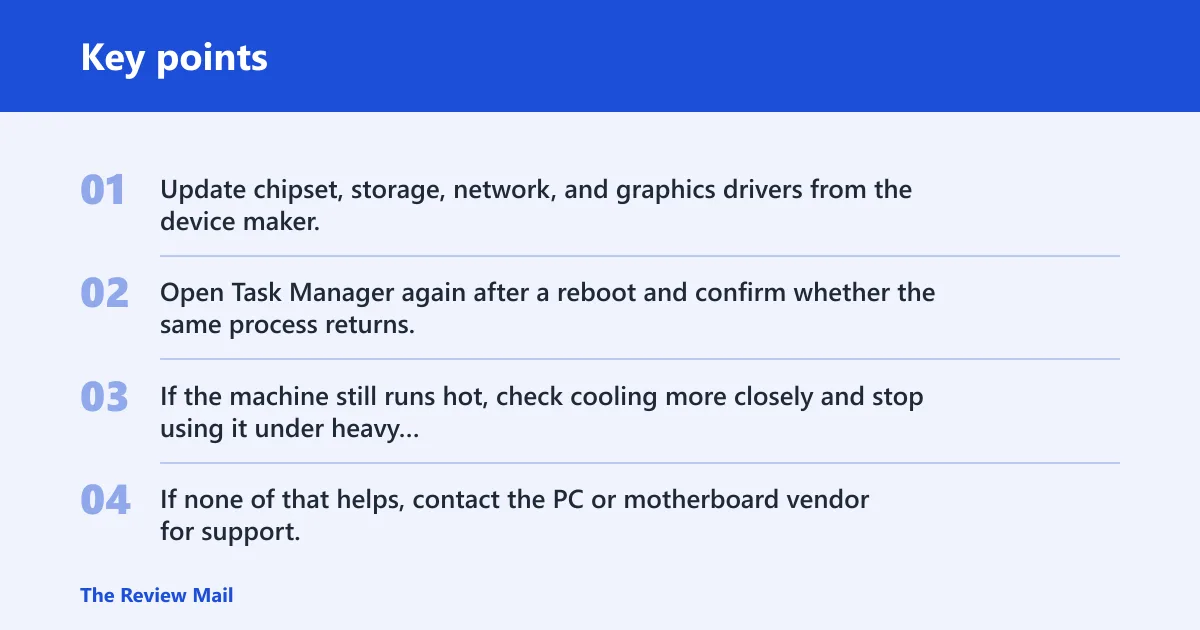
- Update chipset, storage, network, and graphics drivers from the device maker.
- Open Task Manager again after a reboot and confirm whether the same process returns.
- If the machine still runs hot, check cooling more closely and stop using it under heavy load until airflow is fixed.
- If none of that helps, contact the PC or motherboard vendor for support, especially if the spike started after a driver or firmware change.
Frequently asked questions
Why is my Windows 11 CPU usage so high when nothing is open?
That usually means background processes, Windows maintenance, or a hidden startup item is still running. Open Task Manager > Processes, sort by CPU, and look for the process that keeps climbing. If the machine is idle and still pinned, run a Windows Security scan.
How do I fix high CPU usage on Windows 11 Reddit users mention?
Start with the pattern people describe, not a random fix. If the issue appears after login, turn off startup apps. If it happens during updates, let Windows Update finish. If one app dominates, use End task in Task Manager, then update or reinstall that app.
What process causes high CPU usage on Windows 11 after startup?
Startup apps and background processes are the first places to check. Open Task Manager > Startup apps to turn off anything nonessential, then sort the Processes tab by CPU. If the load falls after a few minutes, first-boot maintenance may be the reason.