Windows 10 File Explorer Problem Slow
For a Windows 10 file explorer problem slow, start by isolating the cause: if delay appears only in one folder or on right-click, suspect a bad shell extension; if every folder stalls, check system files, RAM pressure, and Explorer cache first. Skipping that pattern check sends you to the wrong fix. This guide shows how to narrow the fault, test each likely cause, and choose the smallest fix that matches the symptom.
Diagnosing causes through specific symptom patterns
Sort the symptom pattern first
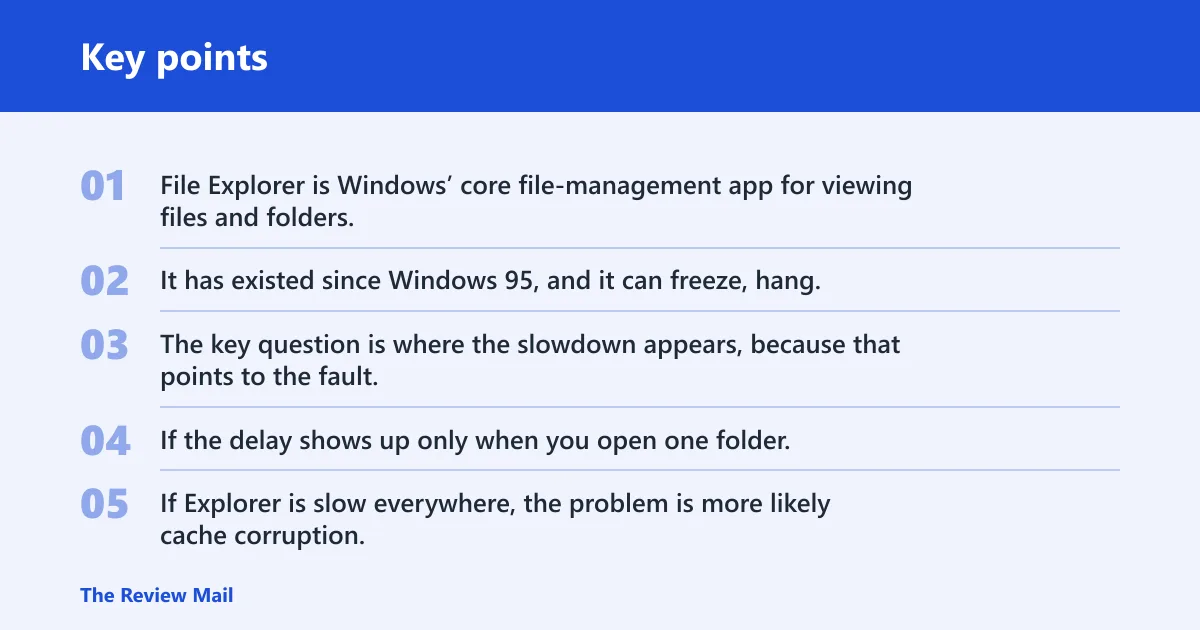
File Explorer is Windows’ core file-management app for viewing files and folders. It has existed since Windows 95, and it can freeze, hang, or stop working after a Windows update. The key question is where the slowdown appears, because that points to the fault.
If the delay shows up only when you open one folder, the cause is often local to that folder path: a network location, OneDrive sync, a disk issue, or a shell extension tied to that folder type. If Explorer is slow everywhere, the problem is more likely cache corruption, a damaged system file, memory pressure, or a driver issue.
Watch for the fastest clue
A right-click delay points to shell extensions more often than file corruption. A long pause when opening This PC or Quick access points to cache or stored location data. A complete freeze across multiple folders, especially after sign-in or after a recent update, pushes system files, RAM, or graphics drivers higher on the list.
Say your Downloads folder opens normally, but right-clicking a ZIP file can make Explorer hang briefly. That pattern is different from a machine where every folder open stalls for several seconds, even in local folders on the internal drive. The first points toward context-menu extensions; the second points toward a broader Explorer fault.
Separate local from remote delays
Large Recent items lists, network shares, external drives, and OneDrive shells can all slow navigation. EaseUS also notes that file transfer delays can happen between internal disks, external drives, or over a network, and that file system errors, disk fragmentation, outdated drivers, and antivirus settings can add more delay.
If the problem happens only in folders that reference a disconnected drive or a cloud-synced path, stop blaming the whole system. Fix the path, sync state, or device first.
Explorer slowdown decision table
This table maps the most common slowdown patterns to the quickest check, the safest first fix, and the point where you should stop and move to a broader check. Start with the row that matches the symptom most closely.
| symptom | likely cause | verification step | fix | when to stop | next step if failed |
|---|---|---|---|---|---|
| Explorer is slow everywhere, including This PC and Quick access | Corrupted cache, system files, or memory pressure | Check whether it is slow in Safe Mode too; if the delay remains there, the issue is broader than one app or extension | Clear Quick access cache first, then run sfc /scannow if the slowdown remains | Stop if the delay disappears after cache cleanup; escalate to system file repair if it does not | Run sfc /scannow from an elevated Command Prompt, then check RAM and drivers if the issue persists |
| Only one folder opens slowly | Network location, external drive, OneDrive sync, or a damaged folder view | Check whether the same folder opens faster after disconnecting the network path or drive | Remove the slow path from the view, then reopen the folder | Stop when the folder opens normally outside the network or sync path | Test the folder path again after reconnecting only the needed location, or move to a folder-specific check |
| Only right-click is slow or freezes | Bad shell extension or context-menu handler | Right-click a simple file type in another folder, and compare the delay in Safe Mode or a Clean Boot | Disable or remove the newest extension, then test again | Stop if context menus become fast after removing the extension | Use a Clean Boot to isolate the handler set, then re-enable items one by one |
| Explorer hangs until it is restarted | Explorer process glitch, cache fault, or transient shell lockup | End explorer.exe in Task Manager and relaunch it | Use Create new task to start explorer.exe again | Stop if the restart clears the hang and the issue is rare; keep diagnosing if it returns | Check for cache corruption, shell extensions, and recent Windows changes if it returns soon after restart |
| Slowdowns started after a Windows update | Update regression, driver mismatch, or changed shell behavior | Check whether the slowdown began right after the update and whether Safe Mode changes the symptom | Repair system files and review the display driver next | Stop only if the update-related behavior disappears after the repair | Review the Windows update regression path and compare the timing with the installed update history |
| Explorer slows when previewing graphics or switching folders | Display driver issue or GPU-related shell rendering problem | Open Device Manager and inspect Display adapters | Uninstall the display adapter driver and restart, or install a clean driver version | Stop if Explorer responsiveness returns after the driver reset | Recheck Display adapters in Device Manager and compare behavior after a fresh restart |
| Explorer is slow only in Quick access | Stale recent items or frequent items entries | Open another folder directly and compare it with the Quick access home view | Clear the Quick access cache and reopen Explorer | Stop if the home view becomes responsive again | Inspect pinned and recent locations for disconnected or unavailable paths |
| Explorer is slow only in Downloads | Large file set, thumbnail load, or folder-specific view issue | Open another local folder to confirm whether the delay is limited to Downloads | Reduce the folder’s view load and reopen it | Stop if only that folder is affected and the rest of Explorer is normal | Use the folder path as the focus, not the whole shell |
How do you restart explorer.exe?
End explorer.exe in Task Manager, then relaunch it with Create new task. This is a fast recovery step for a stuck shell, and it often clears a one-time lockup without touching your files. If the problem returns quickly, the restart only masked a deeper cause. Microsoft documents restarting Windows Explorer through Task Manager as the standard way to refresh the shell.
Use Task Manager to restart the shell
- Press Ctrl + Shift + Esc to open Task Manager.
- Find Windows Explorer or explorer.exe in the process list.
- Select it and choose End task.
- In Task Manager, choose File > Run new task.
- Type explorer.exe and confirm with Create new task.
That restart helps when the desktop, taskbar, or folder window is frozen, because Explorer controls the shell around those elements. If the process relaunches cleanly and navigation returns to normal, you can stop there for a one-off glitch.
When a restart is enough
If Explorer froze once after a file copy, thumbnail load, or a temporary drive disconnect, a restart may be all you need. If it keeps freezing during ordinary folder navigation, move on. Repeated restarts point to a cause that survives process restarts, such as bad cache data or system file damage.
Can Quick access slow File Explorer?
Yes. Quick access stores recent and frequent items, and that cache can become full or corrupted. Clearing it from the Folder Options Privacy section is a standard first fix because stale entries can stall folder loading or make Explorer pause while it checks dead paths.
Clear the Quick access cache
- Open File Explorer.
- Select View, then open Options.
- In Folder Options, go to the General tab.
- In the Privacy section, clear the recent and frequent items settings.
- Apply the change and reopen File Explorer.
Try that early because it is safe and reversible. If Quick access contains broken links to disconnected drives, old network paths, or OneDrive locations that no longer resolve, Explorer can pause while it waits for them.
Suppose Quick access shows ten old network folders from a laptop dock that is no longer attached. Opening File Explorer may stall while Windows checks those entries. Clearing the cache removes those stale links and can make the home view respond normally again.
When to stop after clearing cache
If Explorer becomes fast right after the cache reset, do not keep stacking fixes. Stop there unless the slowdown returns. If the delay remains unchanged, treat the cache as ruled out and move to system file repair or RAM checks.
Could Windows files be corrupted?
Yes. Corrupted system files can make File Explorer slow, hang, or stop responding. The right test is sfc /scannow, run from an elevated Command Prompt. It scans protected Windows files and replaces damaged copies when it can, but it will not fix every Explorer delay. Microsoft’s System File Checker guidance is the standard reference for this repair.
Run system file checker
- Open Command Prompt as an administrator.
- Type
sfc /scannowand press Enter. - Let the scan finish without interruption.
- Restart the PC if Windows asks for it, or restart manually after the scan.
Run this after the cache check if Explorer still misbehaves across multiple folders. It matters most when the slowdown began after a Windows update or after other system instability. A restart matters because repaired files are not always fully in use until Windows reloads the shell. For timing, the Windows 10 version 1809 update history is the relevant place to compare build changes with when the slowdown started.
What SFC can and cannot do
SFC can repair some damaged Windows files. It cannot fix every problem that looks like Explorer corruption. It will not repair a bad user profile, a failing drive, or a shell extension conflict. If the scan reports no integrity problems and Explorer still crawls, move to RAM and driver checks.
What else can slow Explorer?
Memory problems and display driver issues can both affect Explorer responsiveness. Windows Memory Diagnostic checks RAM for errors, and Display adapters in Device Manager are the place to look when graphics-related shell behavior seems off. Network locations, OneDrive, and a very large Recent items list can also be the real bottleneck. Microsoft’s Windows Memory Diagnostic instructions cover the built-in RAM test.
Check RAM with windows memory Diagnostic
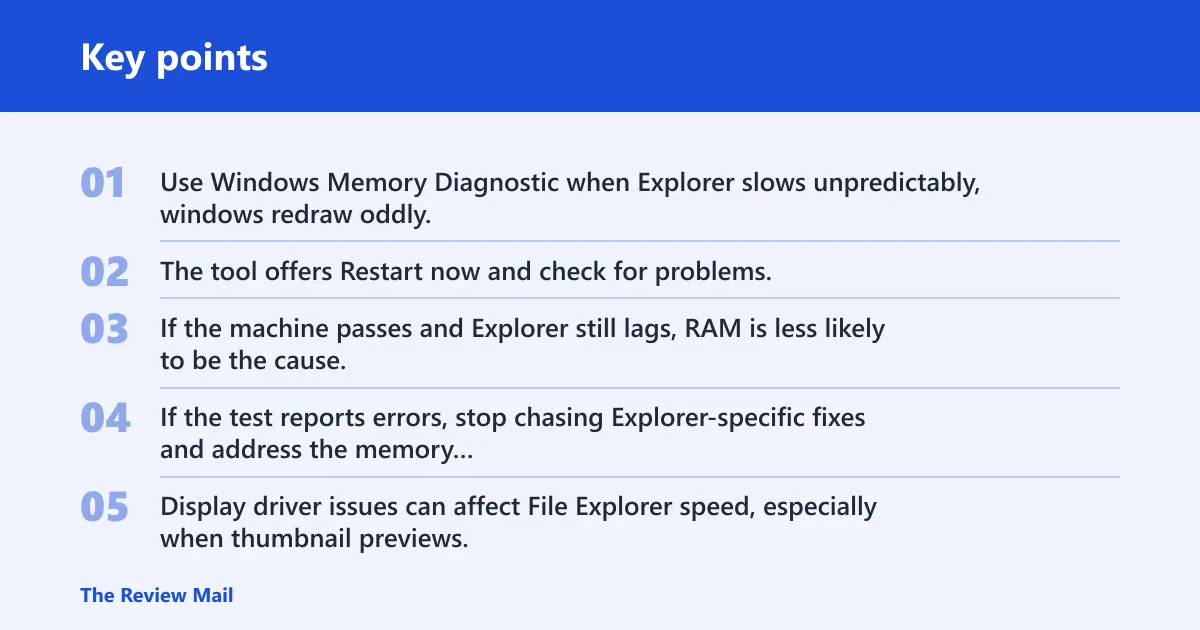
Use Windows Memory Diagnostic when Explorer slows unpredictably, windows redraw oddly, or other apps also feel unstable. The tool offers Restart now and check for problems, which reboots the computer and runs a memory test before Windows loads fully.
If the machine passes and Explorer still lags, RAM is less likely to be the cause. If the test reports errors, stop chasing Explorer-specific fixes and address the memory fault first.
Look at display adapters and graphics drivers
Display driver issues can affect File Explorer speed, especially when thumbnail previews, folder rendering, or window repaints hesitate. Open Device Manager, expand Display adapters, and check the driver state. As a troubleshooting step, Windows allows you to uninstall the adapter driver and restart. Microsoft’s Device Manager guidance is also the right place to confirm the adapter category before you change drivers.
That reset can clear a bad graphics stack without changing your files. If the slowdown started after a graphics update, this check moves higher on the list. If the issue is tied to only one folder path, though, a driver is less likely than a location-specific bottleneck.
Keep network, OneDrive, and Recent items in view
A folder that points to a disconnected share can look like a local Explorer problem when it is really waiting on a network timeout. OneDrive sync delays can do the same. A very large Recent items list can also slow navigation because Explorer checks a long history of locations and file states.
Shell extensions, Safe mode, and Clean Boot
Right-click hangs deserve their own check because they are often caused by shell extensions attached to file types, archives, sync tools, or cloud clients. Safe Mode and a Clean Boot help separate Windows itself from the add-ons layered onto Explorer. If right-click is fast in Safe Mode but slow in normal mode, the extension stack is a stronger suspect than SFC, RAM, or the display driver.
Start with the simplest confirmation: compare the same file in a normal desktop session and in Safe Mode. If the menu lag disappears in Safe Mode, move to a Clean Boot and test the shell again after disabling non-Microsoft startup items. That isolates third-party handlers without changing your files or folder structure.
Feature notes: dark mode and tabs
Windows 10 version 1809 brought Dark Mode to File Explorer, and you turn it on through Settings > Personalization > Colors. That is a display setting, not a performance fix. The tabbed File Explorer experience was shown in Sets, a Windows 10 test feature, in Redstone 5 builds. It was not a normal Explorer fix path, and it should only be mentioned here as part of update-era shell changes, not as a broad troubleshooting step.
Those features matter here only because they show that Explorer changes over time. A slowdown after an update may be a regression, a driver mismatch, or a shell change rather than a damaged folder. That is why update timing belongs in the diagnosis, not as a standalone cure.
Frequently asked questions
Why is Windows file explorer so slow?
Start by matching the symptom to the scope. If every folder is slow, check Quick access cache, system files, RAM, and drivers. If only one folder lags, focus on network locations, OneDrive, external drives, or a folder-specific extension before touching broader Windows repair steps.
Why is microsoft File explorer so slow?
Microsoft File Explorer can slow down when it waits on cached locations, damaged Windows files, bad shell extensions, or graphics issues. The quickest safe test is to restart explorer.exe, then clear Quick access cache if the slowdown continues. Move to SFC only when the problem is broader than one folder.
How do I clear File Explorer Quick access cache?
Open File Explorer, go to Options, then clear the recent and frequent items settings in the Privacy section. This removes stale folder references that can delay opening the home view or make Explorer pause while it checks unavailable paths.
How do I restart explorer.exe when File Explorer is stuck?
Open Task Manager, end explorer.exe, then use Run new task to start explorer.exe again. That refreshes the shell without rebooting the PC. If the freeze returns soon after, the issue is deeper than a temporary process lockup.
Can corrupted system files make File Explorer slow?
Yes. Corrupted system files can slow Explorer, break folder loading, or trigger hangs after updates. Run sfc /scannow from an elevated Command Prompt, then restart if needed. If the scan finds nothing, look elsewhere rather than repeating the same repair.
Does a display driver problem affect File Explorer speed?
Yes. A graphics driver issue can slow window repainting, thumbnail generation, and general Explorer responsiveness. Check Display adapters in Device Manager, and if needed uninstall the driver and restart. If only one folder is slow, though, the driver is less likely than a path-specific delay.