File Explorer Slow After Windows 11 Update
If File Explorer slows after a Windows 11 update, start with the symptom pattern instead of guessing. Microsoft Support documents File Explorer startup locations and Windows Explorer restart behavior, and Windows Search uses an index that can be rebuilt when search is lagging. Matching the symptom first avoids unnecessary fixes.
What the slowdown looks like
File Explorer is Windows’ file manager. Open it with Windows logo key + E. If the delay starts at launch, folder changes, right-click, search, or image previews, each pattern points to a different cause. Microsoft Support’s File Explorer guidance helps separate startup behavior from folder-specific lag.
A fast launch with a slow folder view is different from a slow launch with a normal folder view. If the window opens quickly but one folder stays blank or pauses, the problem is usually tied to that folder’s contents, path, or shell add-ons. If search stalls, focus on indexing. If right-click is slow, focus on context-menu extensions.
Quick checks before you change settings
- Open File Explorer with Windows logo key + E.
- Open one local folder, one image-heavy folder, and one network location if you use one.
- Right-click a file and watch for delay before the menu appears.
- Try a simple search in a local folder.
- Note whether lag appears only in Home, only in This PC, or everywhere.
File Explorer in Windows 11 can start in Home or This PC. Home is the newer landing page and can surface recent content and pinned folders. This PC is more direct and shows drives and folders first. That difference matters because startup lag in one place often points to a narrower cause than lag everywhere. (Microsoft Support)
Explorer slowdown triage table
| Symptom pattern | Likely cause | Best first fix | Estimated fix time | Whether the step is safe, reversible, or requires a restart |
|---|---|---|---|---|
| Slow only after opening Home | Home, Quick access, or recent-content overhead | Change File Explorer to open to This PC | 2-5 minutes | Safe and reversible |
| Slow only in image-heavy folders | Thumbnail cache or preview loading | Rebuild the thumbnail cache | 5-15 minutes | Safe; may require a restart |
| Slow search in folders or from the taskbar | Search index lag | Rebuild the search index | 10-30 minutes or longer | Safe and reversible |
| Slow after right-clicking files | Shell extensions or context-menu bloat | Disable third-party shell extensions | 10-20 minutes | Safe if you re-enable them later |
| Slow only in network shares | Network path latency or unavailable resources | Test the share separately from local folders | 5-10 minutes | Safe and reversible |
| Slow everywhere, especially after an update | Windows regression or a broader Explorer issue | Restart Windows Explorer | 3-5 minutes | Safe and requires a restart |
Does it happen in Home or This PC?
If the slowdown appears only in Home, the issue often sits in startup content, pinned folders, or the recent-items list. If This PC is slow too, look wider: shell extensions, thumbnails, search, or a network path that Explorer checks at open. That split gives you a clean branch point.
How do I change File Explorer to open to This PC?
Open File Explorer, select the three-dot menu, choose Options, then on the General tab use the Open File Explorer to: setting and switch it from Home to This PC. That removes Home and Quick access from the startup path so you can compare launch speed more cleanly.
What should I watch after the change?
Watch the first two actions after launch. If the window appears faster and folders open sooner, Home was likely adding overhead. If the same delay remains, test a local folder and a network folder separately. That shows whether the lag follows Explorer itself or one location type.
If Home opens quickly after the switch but Downloads still pauses, the problem is probably tied to that folder’s contents, preview generation, or an extension used with those file types.
Why is explorer.exe still running?
explorer.exe is the Windows shell process behind File Explorer. It can keep running after you close the window, and it can also keep a bad state alive. Restarting it is one of the fastest checks because it clears the current shell session without changing settings or deleting anything.
How do I restart Windows Explorer from Task Manager?
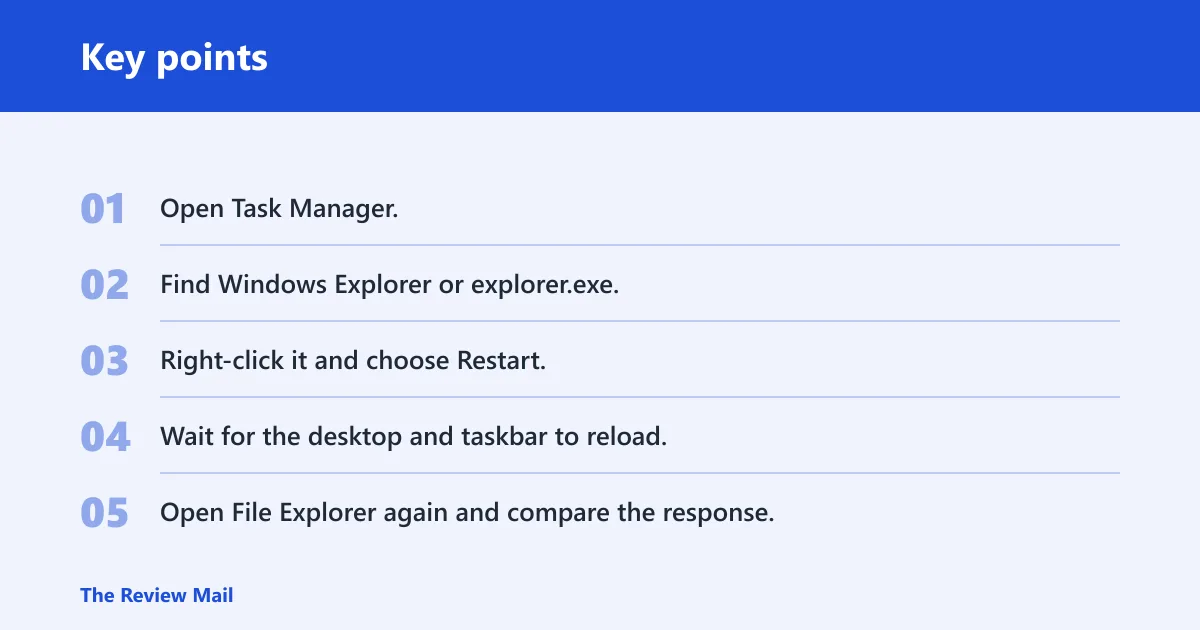
- Open Task Manager.
- Find Windows Explorer or explorer.exe.
- Right-click it and choose Restart.
- Wait for the desktop and taskbar to reload.
- Open File Explorer again and compare the response.
Microsoft Support documents restarting Windows Explorer as a way to refresh the shell when File Explorer or the taskbar behaves badly. Use it when the window hangs on close, the desktop feels stuck, or right-click delays spread across more than one folder.
What does a bad shell state look like?
If File Explorer closes but explorer.exe remains active and the next open still feels slow, the shell process may have kept the same bad state. That does not prove a Windows update bug by itself, but it does separate a live shell problem from a one-folder issue. If the restart changes nothing, move on.
If right-click is slow only after the update, restart explorer.exe and test the same file again. A faster menu after the restart suggests the shell session was part of the delay. If the pause remains, the cause is likely outside the current shell state.
Should you rebuild caches now?
Yes, but only when the symptom pattern fits. Thumbnail cache problems usually show up in folders full of images, camera files, or mixed media. Search index problems show up when File Explorer search is slow or incomplete. Both are targeted fixes, not broad cleanup steps.
How do I rebuild the thumbnail cache?
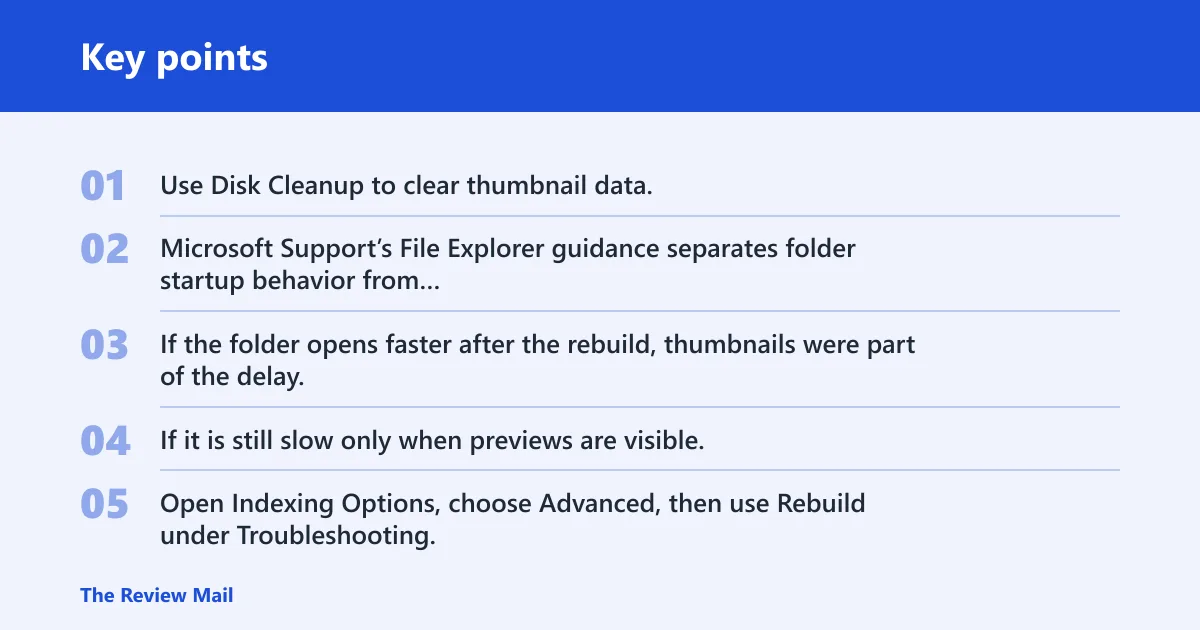
Use Disk Cleanup to clear thumbnail data, then open the same image-heavy folder again and let previews regenerate. Microsoft Support’s File Explorer guidance separates folder startup behavior from preview loading, which makes thumbnail issues easier to spot in folders with many images.
If the folder opens faster after the rebuild, thumbnails were part of the delay. If it is still slow only when previews are visible, the view settings or file mix is still the better clue than a general system slowdown.
How do I rebuild the search index?
Open Indexing Options, choose Advanced, then use Rebuild under Troubleshooting. Windows Search relies on the index, so a stale or overloaded index can make File Explorer search lag or return late. Microsoft’s search settings apply here because the same index supports those search results.
Do not expect instant results. The rebuild can take time on large drives. Verify it by running the same File Explorer search before and after. If search becomes responsive, you have separated search lag from folder-opening lag.
How do I verify each rebuild?
After rebuilding the thumbnail cache, reopen the same image-heavy folder and compare how long the first previews take to appear. After rebuilding the search index, run a search that was slow before and compare the response. If nothing changes, the issue is probably elsewhere.
A common mistake is rebuilding both caches without checking which symptom was present first. That wastes time and makes it harder to tell which fix helped. Match the rebuild to the symptom, then verify with the same folder or search you used before.
Could shell extensions be the problem?
Yes. Third-party shell extensions can slow File Explorer down, especially after a Windows update changes how the shell loads add-ons. The clearest clue is right-click lag: the folder may open normally, but the context menu appears late or freezes briefly before showing commands.
Why does right-click lag matter?
If a folder opens at a fair speed but right-click pauses, the context menu is a stronger suspect than the storage device or the update itself. Windows 11 shows a streamlined context menu first, and additional menu handlers from add-ons can slow that response.
What does context-menu bloat look like in Windows 11?
Too many context-menu items can make the first right-click sluggish. That is especially common when a file type has multiple third-party handlers. Remove or disable the ones you do not need, then test the same file again. If the menu appears faster, the extension list was part of the delay.
How do I test with third-party add-ons disabled?
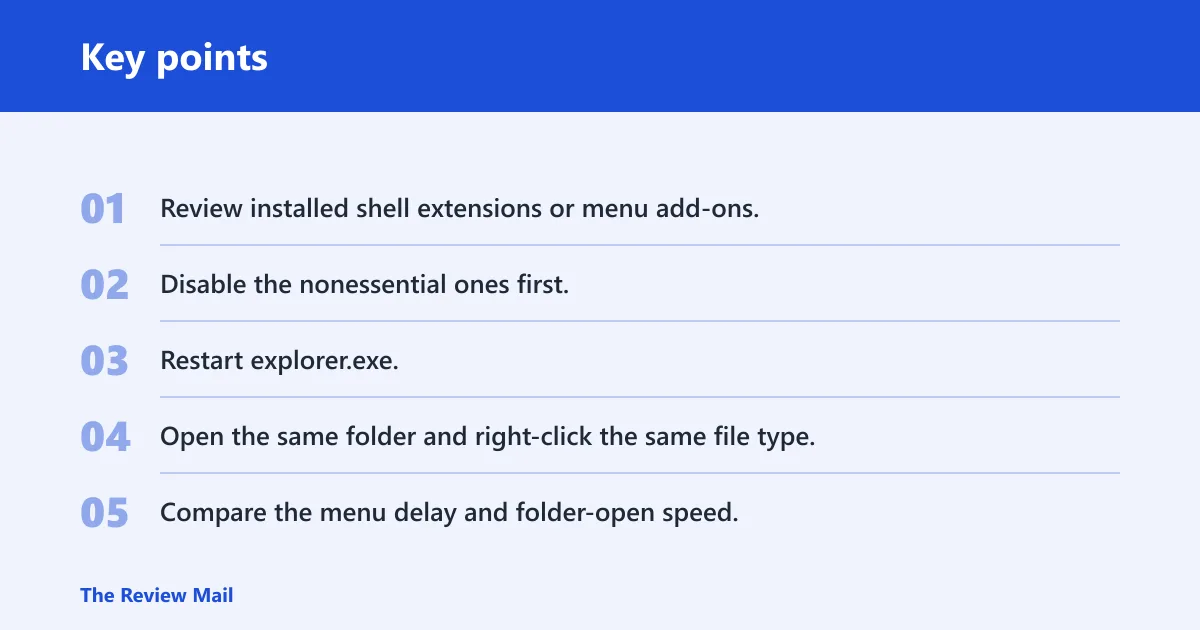
- Review installed shell extensions or menu add-ons.
- Disable the nonessential ones first.
- Restart explorer.exe.
- Open the same folder and right-click the same file type.
- Compare the menu delay and folder-open speed.
Disable only the extras you do not need. If a storage app, archive tool, cloud client, or graphics utility adds commands to the context menu, it can lengthen the pause before Explorer responds. Re-enable items one at a time if the slowdown does not change.
How do I fix File Explorer loading slowly in Windows 11?
Start with the fastest safe checks: restart explorer.exe, compare Home with This PC, and test one local folder, one image-heavy folder, and one network location. Then match the symptom to the fix. That order saves time and keeps you from rebuilding caches that were never the cause.
When should I try Folder Options?
Use the Reset Folders button in Folder Options if a bad view setting or inherited folder view seems to be causing odd delays or display glitches after the update. It is most useful when the problem follows a view change, not when one folder type is clearly at fault.
When should I think about a Windows regression?
If Explorer is slow in more than one place, right after an update, and the local fixes do nothing, a Windows regression becomes more likely. That does not mean you should jump straight to full repair tools. First restart explorer.exe, compare Home with This PC, and rule out cache or extension causes.
Frequently asked questions
Why is File Explorer so slow after the Windows 11 update?
The update may have exposed a local issue rather than caused it outright. Common causes are search index lag, thumbnail cache problems, network-path delays, or third-party shell extensions. Compare Home, This PC, image folders, and right-click behavior first so you can match the symptom to the right fix.
How do I restart Windows Explorer to make File Explorer faster?
Open Task Manager, find Windows Explorer or explorer.exe, and choose Restart. That reloads the shell without changing settings. It is the quickest first step when File Explorer hangs, the desktop feels stuck, or the context menu pauses before opening.
Should I rebuild the thumbnail cache if File Explorer is slow?
Yes, if the slowdown shows up mainly in folders full of photos, screenshots, or other previewable files. Rebuilding the thumbnail cache is a targeted fix, not a general cleanup step. Afterward, reopen the same folder and check whether previews and folder loading are faster.
Can search indexing make File Explorer slow in Windows 11?
Yes. File Explorer search depends on the Windows search index, so a stale or overloaded index can make searches lag or return late. Rebuilding the index is worth trying when search is the main complaint, especially if folder opening itself is otherwise normal.
Should I set File Explorer to open to This PC instead of Home?
Try it if the slowdown is strongest on launch or in Home. This PC avoids some Home and Quick access overhead, so it is a useful test. If File Explorer opens faster there, the problem is likely tied to the Home landing page rather than every folder.
Could third-party shell extensions slow down File Explorer?
Yes. Shell extensions can add context-menu items and folder handlers that load every time you open or right-click files. If right-click is slow, disable nonessential add-ons and test again. That is one of the clearest ways to separate Explorer UI lag from storage or search problems.